
292 lines
11 KiB
Markdown
292 lines
11 KiB
Markdown
---
|
|
sidebar_label: TRAE
|
|
slug: /trae
|
|
---
|
|
|
|
# Integrate OceanBase MCP Server with TRAE
|
|
|
|
[Model Context Protocol (MCP)](https://modelcontextprotocol.io/introduction) is an open-source protocol introduced by Anthropic in November 2024. It allows large language models to interact with external tools or data sources. With MCP, you do not need to manually copy and execute the output of large language models. Instead, the large language model can directly command tools to perform specific actions.
|
|
|
|
[MCP Server](https://github.com/oceanbase/mcp-oceanbase/tree/main/src/oceanbase_mcp_server) enables large language models to interact with OceanBase Database through the MCP protocol and execute SQL statements. It allows you to quickly build a project prototype with the help of an appropriate client and has been open-sourced on GitHub.
|
|
|
|
[TRAE](https://www.trae.ai/) is an IDE that can integrate with MCP Server, can be downloaded from its official website.
|
|
|
|
This topic will guide you through the process of integrating TRAE IDE with OceanBase MCP Server to quickly build a backend application.
|
|
|
|
## Prerequisites
|
|
|
|
* You have deployed seekdb.
|
|
|
|
* You have installed [Python 3.11 or later](https://www.python.org/downloads/) and the corresponding [pip](https://pip.pypa.io/en/stable/installation/). If your system has a low Python version, you can use Miniconda to create a new Python 3.11 or later environment. For more information, see [Install Miniconda](https://docs.anaconda.com/miniconda/install/).
|
|
|
|
* You have installed [Git](https://git-scm.com//downloads) based on your operating system.
|
|
|
|
* You have installed uv, a Python package manager. After the installation, run the `uv --version` command to check whether the installation was successful:
|
|
|
|
```shell
|
|
pip install uv
|
|
uv --version
|
|
```
|
|
|
|
* You have downloaded [TRAE IDE](https://www.trae.ai/download) and installed the version suitable for your operating system.
|
|
|
|
## Step 1: Obtain the database connection information
|
|
|
|
Contact your seekdb deployment engineer or administrator to obtain the database connection string. For example:
|
|
|
|
```sql
|
|
obclient -h$host -P$port -u$user_name -p$password -D$database_name
|
|
```
|
|
|
|
**Parameters:**
|
|
|
|
* `$host`: The IP address for connecting to seekdb.
|
|
* `$port`: The port number for connecting to seekdb. Default is `2881`.
|
|
* `$database_name`: The name of the database to access.
|
|
|
|
:::tip
|
|
The connected user must have <code>CREATE</code>, <code>INSERT</code>, <code>DROP</code>, and <code>SELECT</code> privileges on the database.
|
|
:::
|
|
|
|
* `$user_name`: The username for connecting to the database.
|
|
* `$password`: The password for the account.
|
|
|
|
## Step 2: Configure the OceanBase MCP Server
|
|
|
|
### Clone the OceanBase MCP Server repository
|
|
|
|
Run the following command to download the source code to your local device:
|
|
|
|
```shell
|
|
git clone https://github.com/oceanbase/mcp-oceanbase.git
|
|
```
|
|
|
|
Go to the source code directory:
|
|
|
|
```shell
|
|
cd mcp-oceanbase
|
|
```
|
|
|
|
### Install the dependencies
|
|
|
|
Run the following commands in the `mcp-oceanbase` directory to create a virtual environment and install the dependencies:
|
|
|
|
```shell
|
|
uv venv
|
|
source .venv/bin/activate
|
|
uv pip install .
|
|
```
|
|
|
|
### Create a working directory for the TRAE client
|
|
|
|
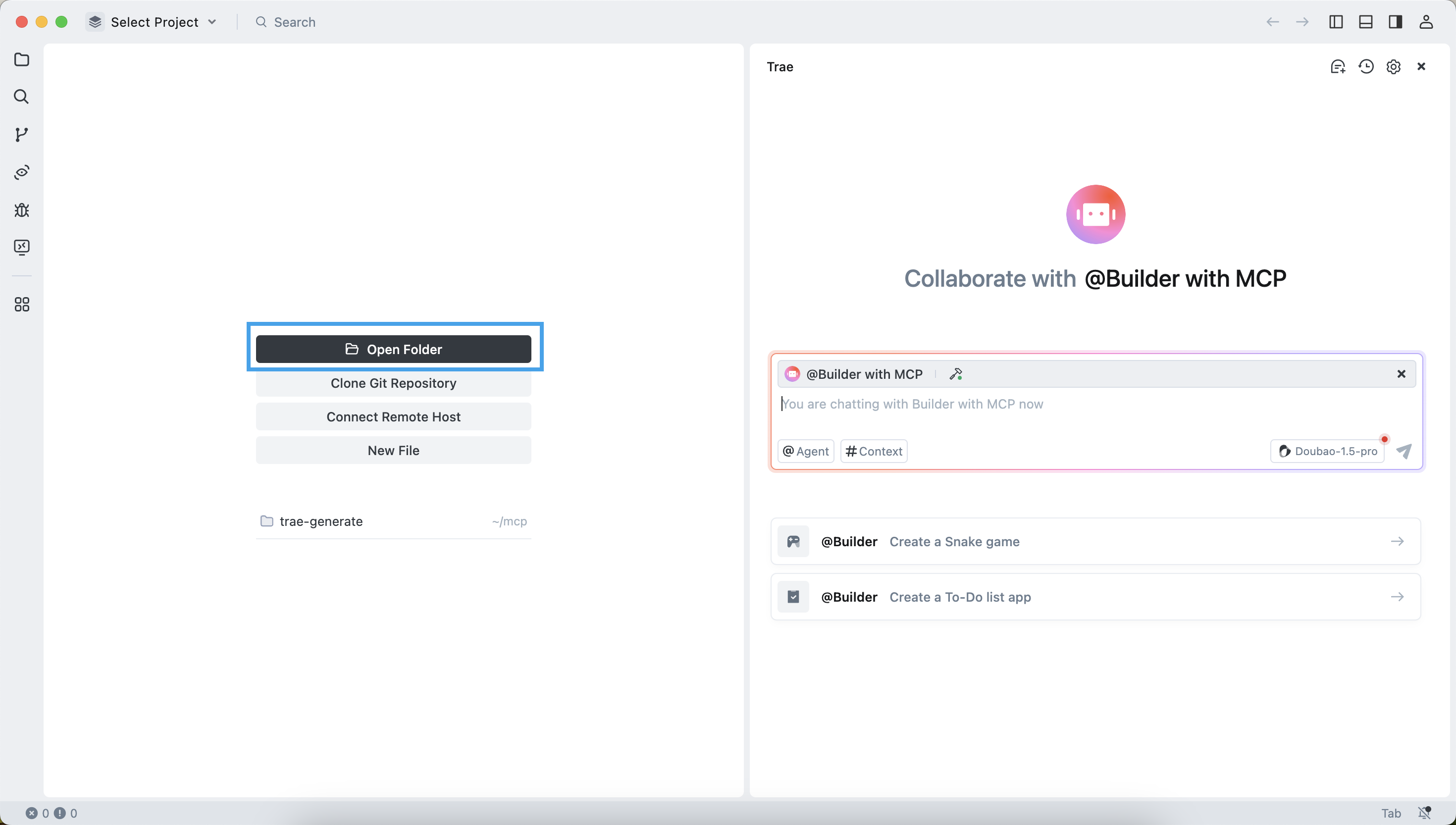
Manually create a working directory for TRAE and open it. TRAE will generate files in this directory. The example directory name is `trae-generate`.
|
|
|
|
|
|
|
|
### Configure the OceanBase MCP Server in TRAE
|
|
|
|
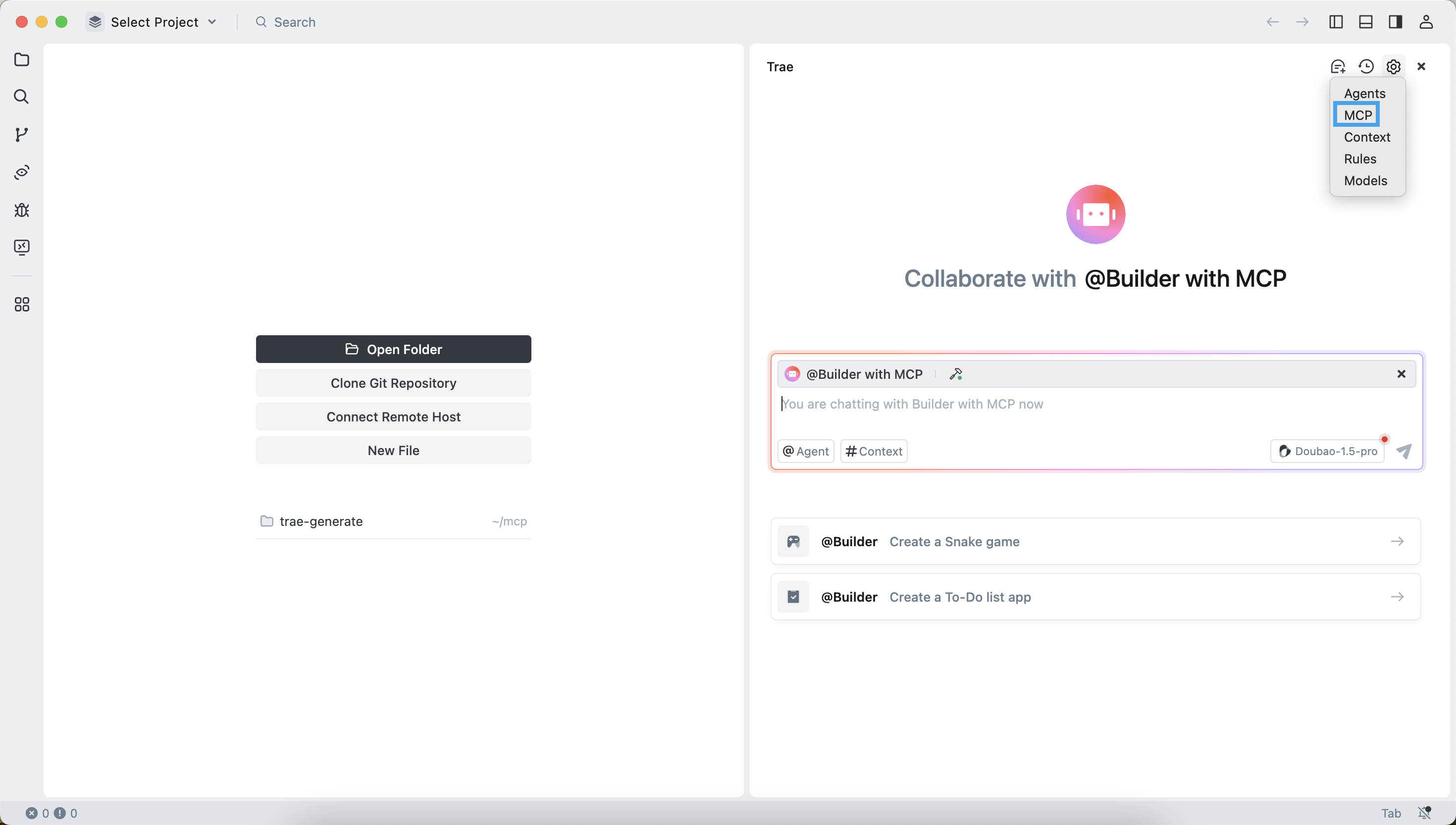
Press `Ctrl + U` (Windows) or `Command + U` (MacOS) to open the chat box. Click the gear icon in the upper-right corner and select **MCP**.
|
|
|
|
|
|
|
|
### Add and configure MCP servers
|
|
|
|
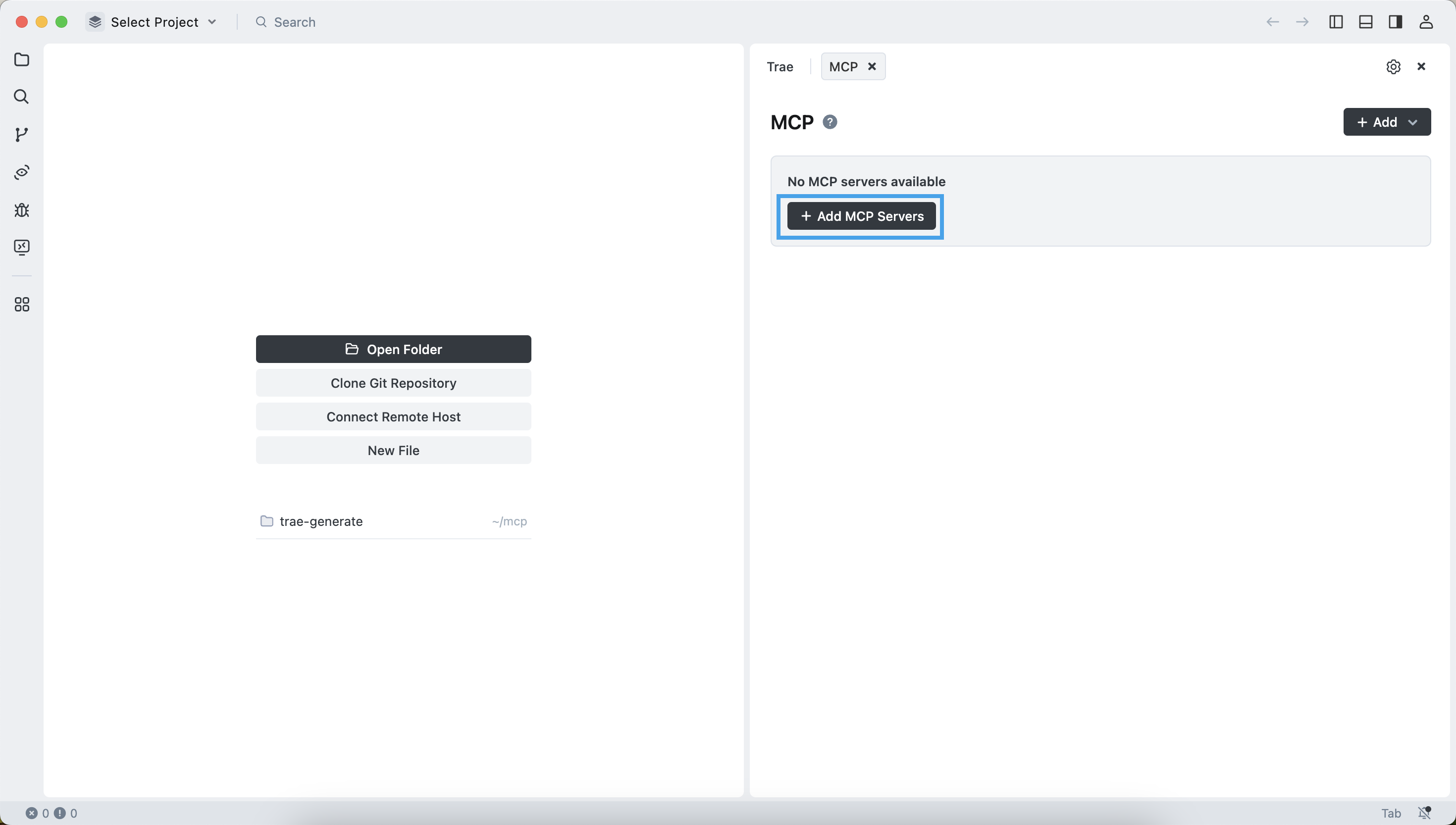
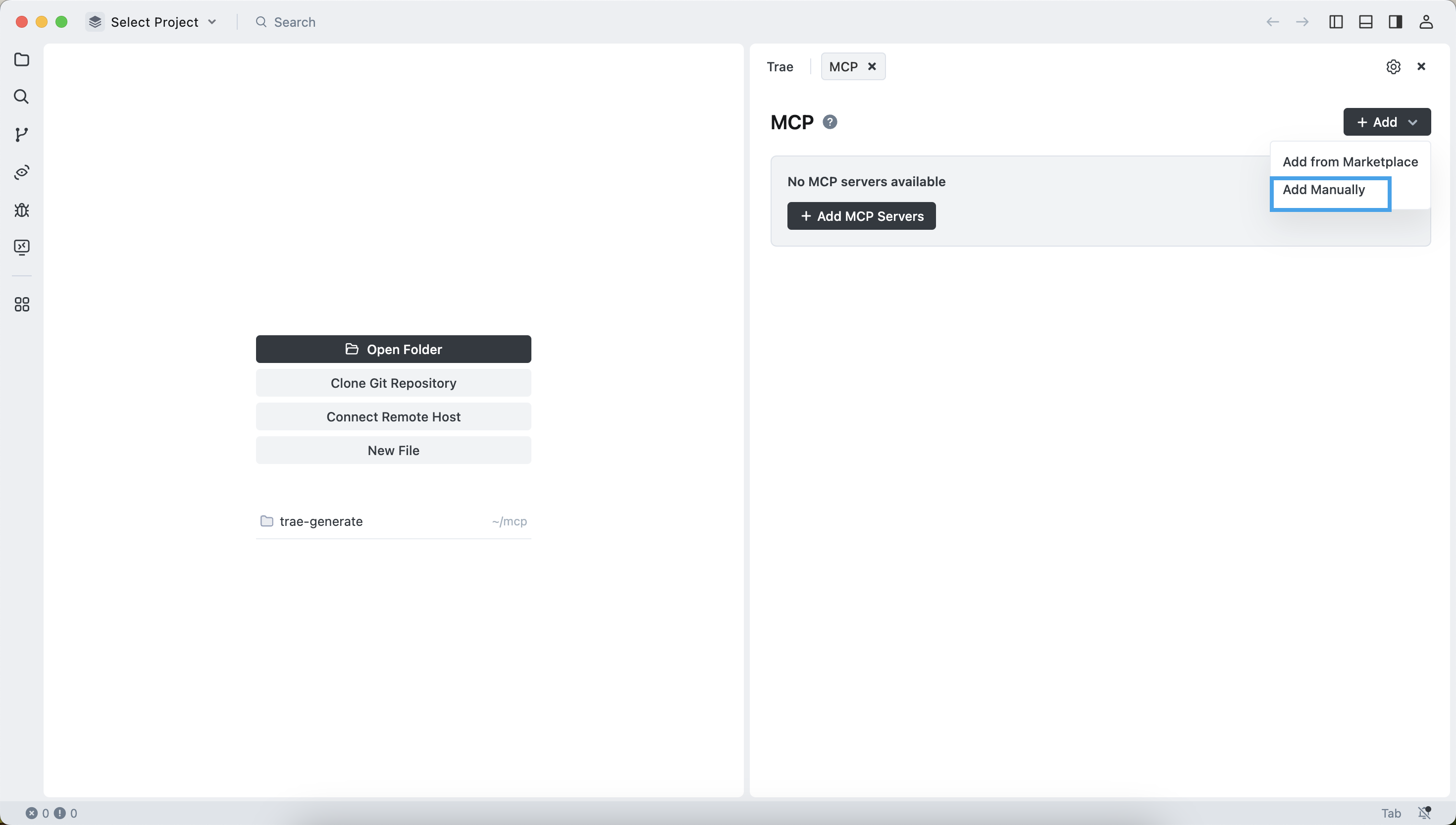
1. Click **Add MCP Servers** and select **Add Manually**.
|
|
|
|
|
|
|
|
|
|
|
|
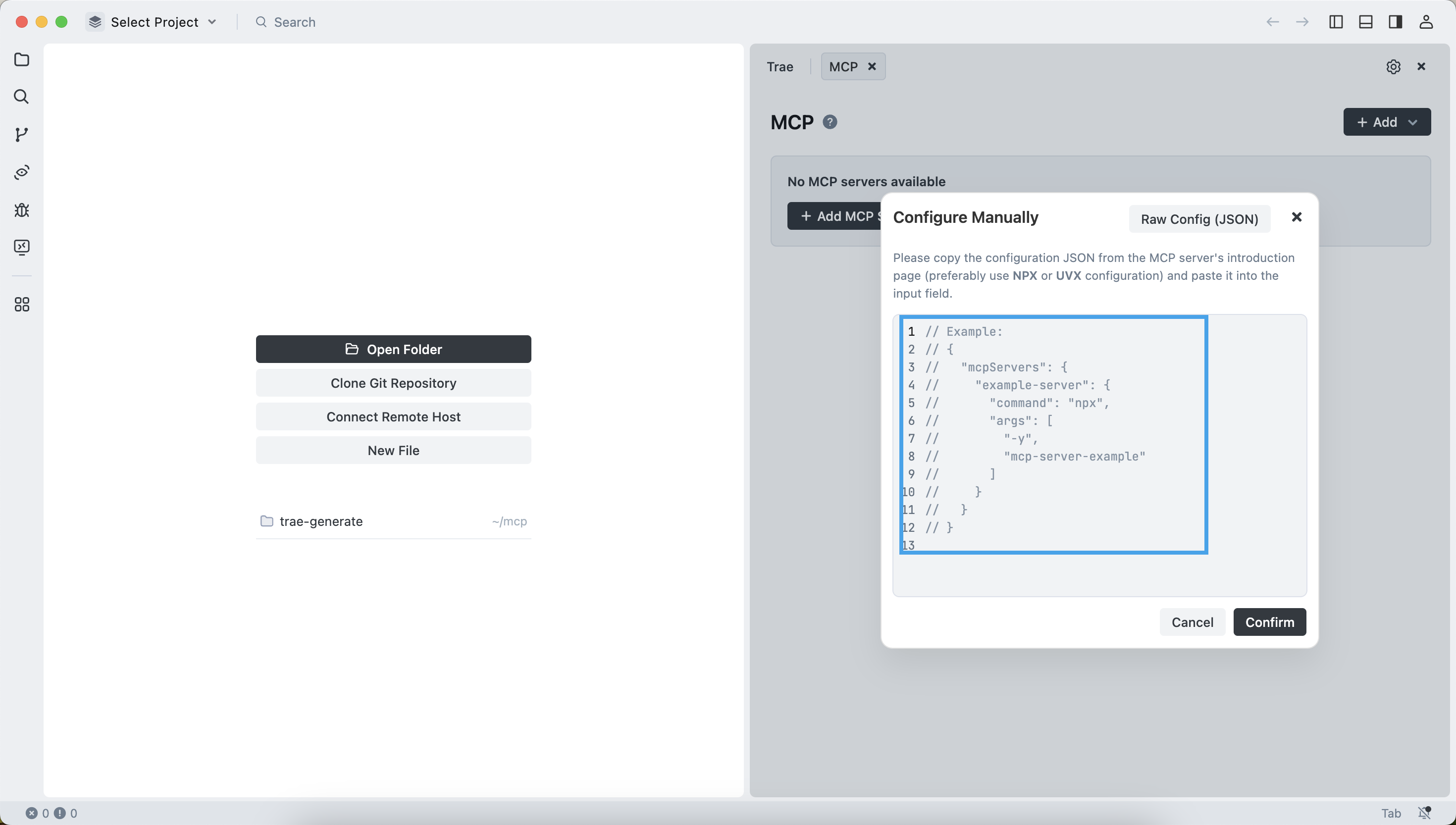
2. Delete the sample content in the edit box.
|
|
|
|
|
|
|
|
Then enter the following contents:
|
|
|
|
```json
|
|
{
|
|
"mcpServers": {
|
|
"oceanbase": {
|
|
"command": "uv",
|
|
"args": [
|
|
"--directory",
|
|
// Replace with the absolute path of the oceanbase_mcp_server folder.
|
|
"/path/to/your/mcp-oceanbase/src/oceanbase_mcp_server",
|
|
"run",
|
|
"oceanbase_mcp_server"
|
|
],
|
|
"env": {
|
|
// Replace with your OceanBase Database connection information.
|
|
"OB_HOST": "***",
|
|
"OB_PORT": "***",
|
|
"OB_USER": "***",
|
|
"OB_PASSWORD": "***",
|
|
"OB_DATABASE": "***"
|
|
}
|
|
}
|
|
}
|
|
}
|
|
```
|
|
|
|
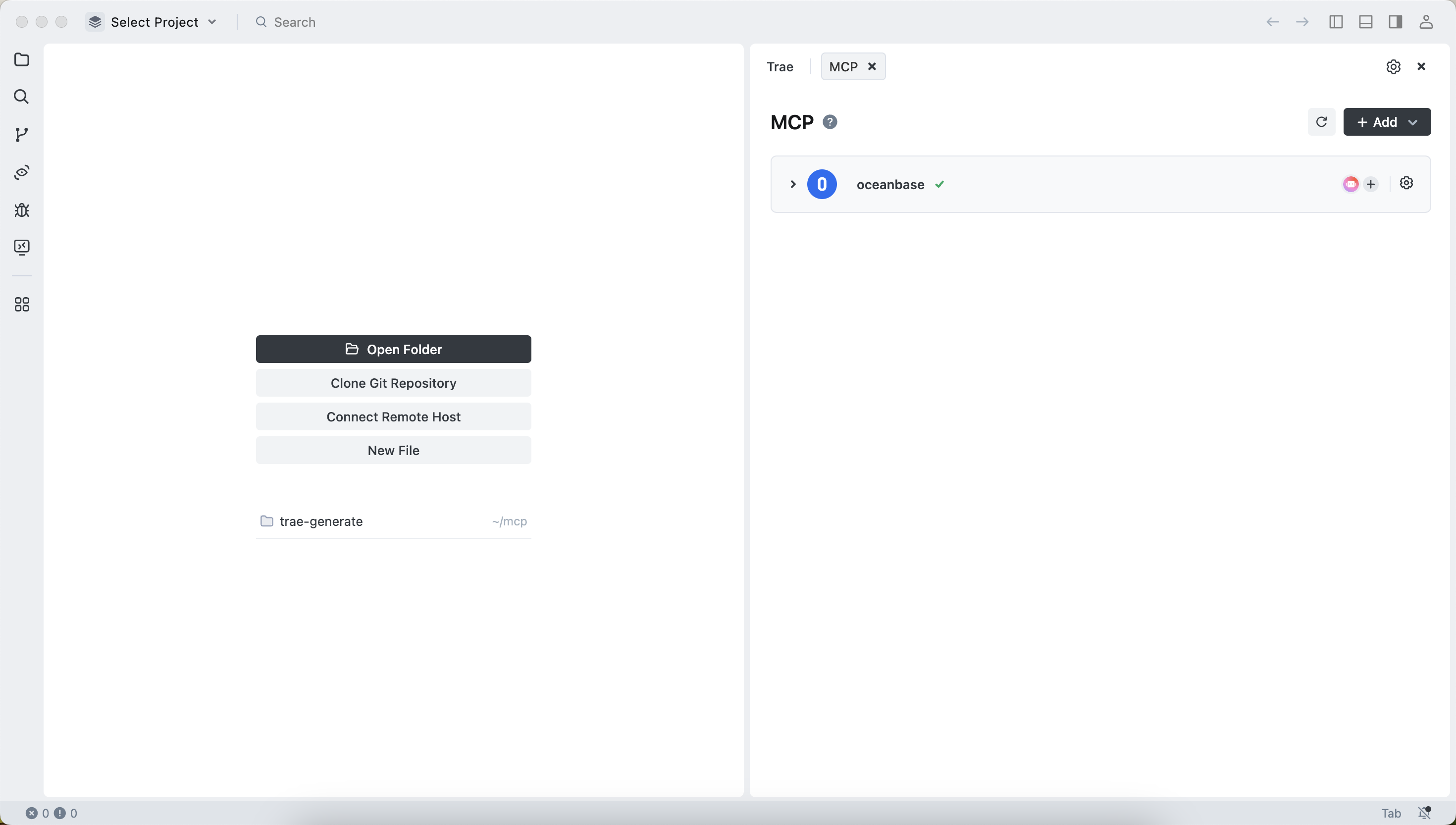
3. The configuration is successful.
|
|
|
|
|
|
|
|
### Test the MCP server
|
|
|
|
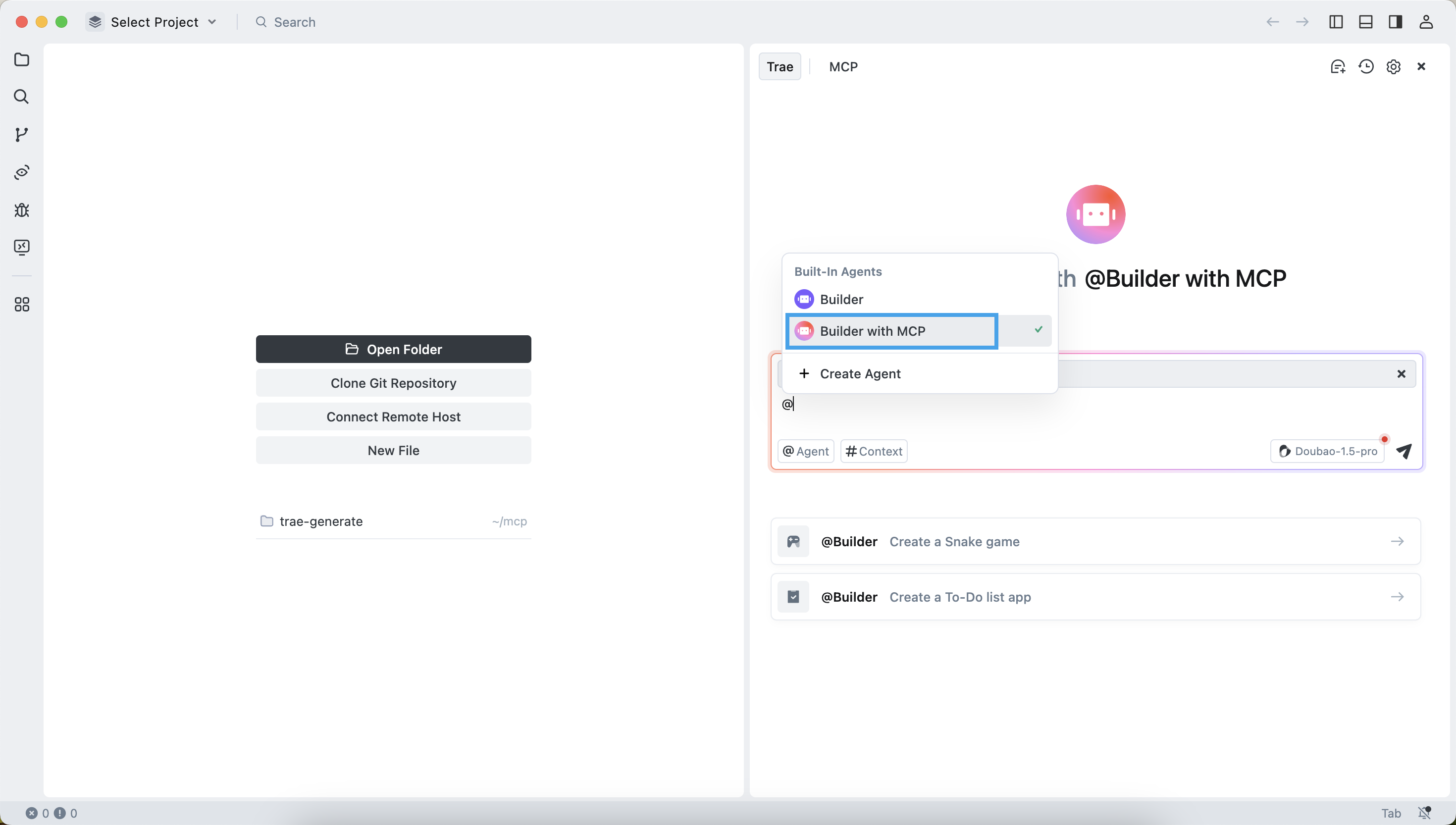
1. Select the **Builder with MCP** agent.
|
|
|
|
|
|
|
|
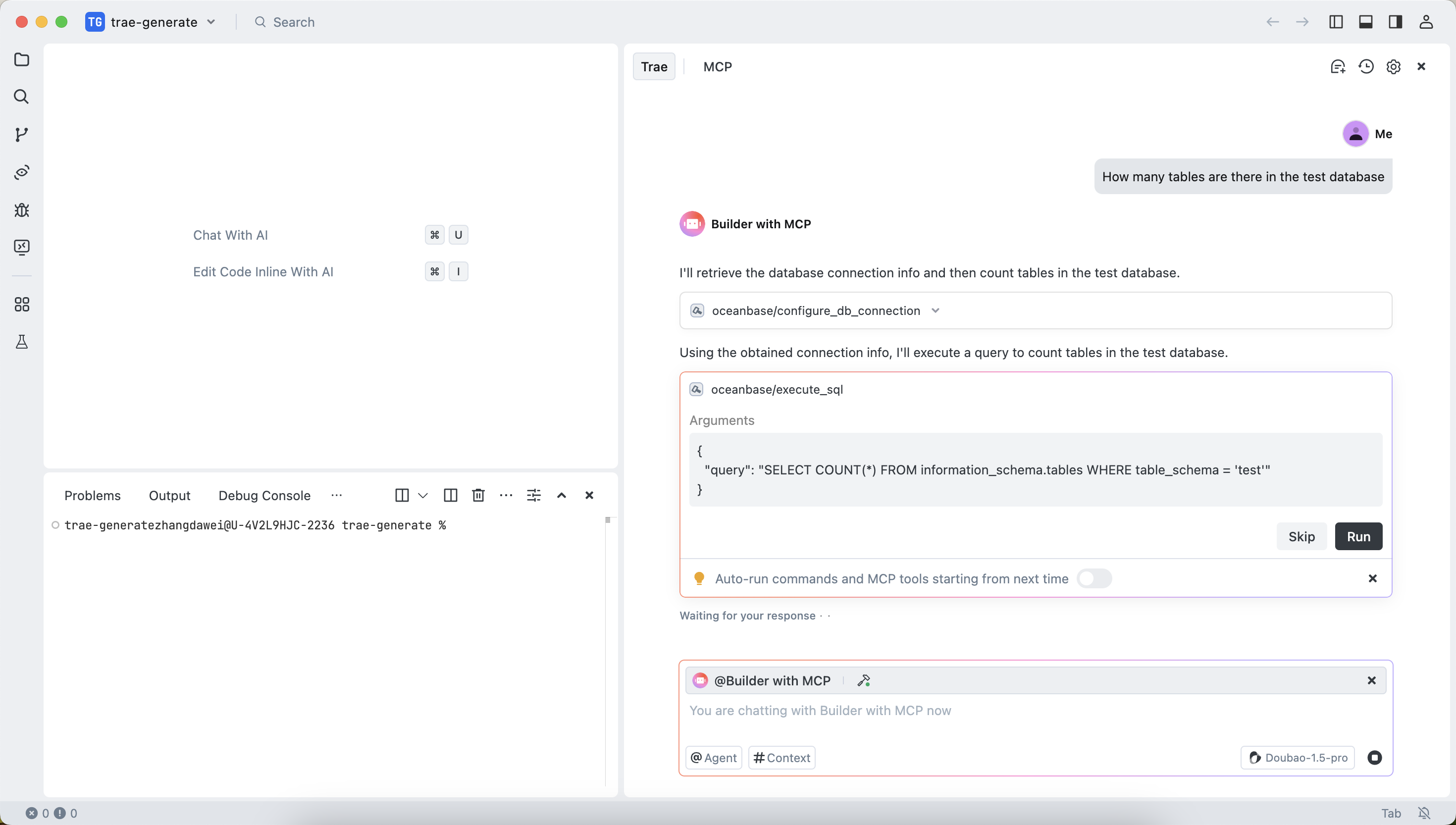
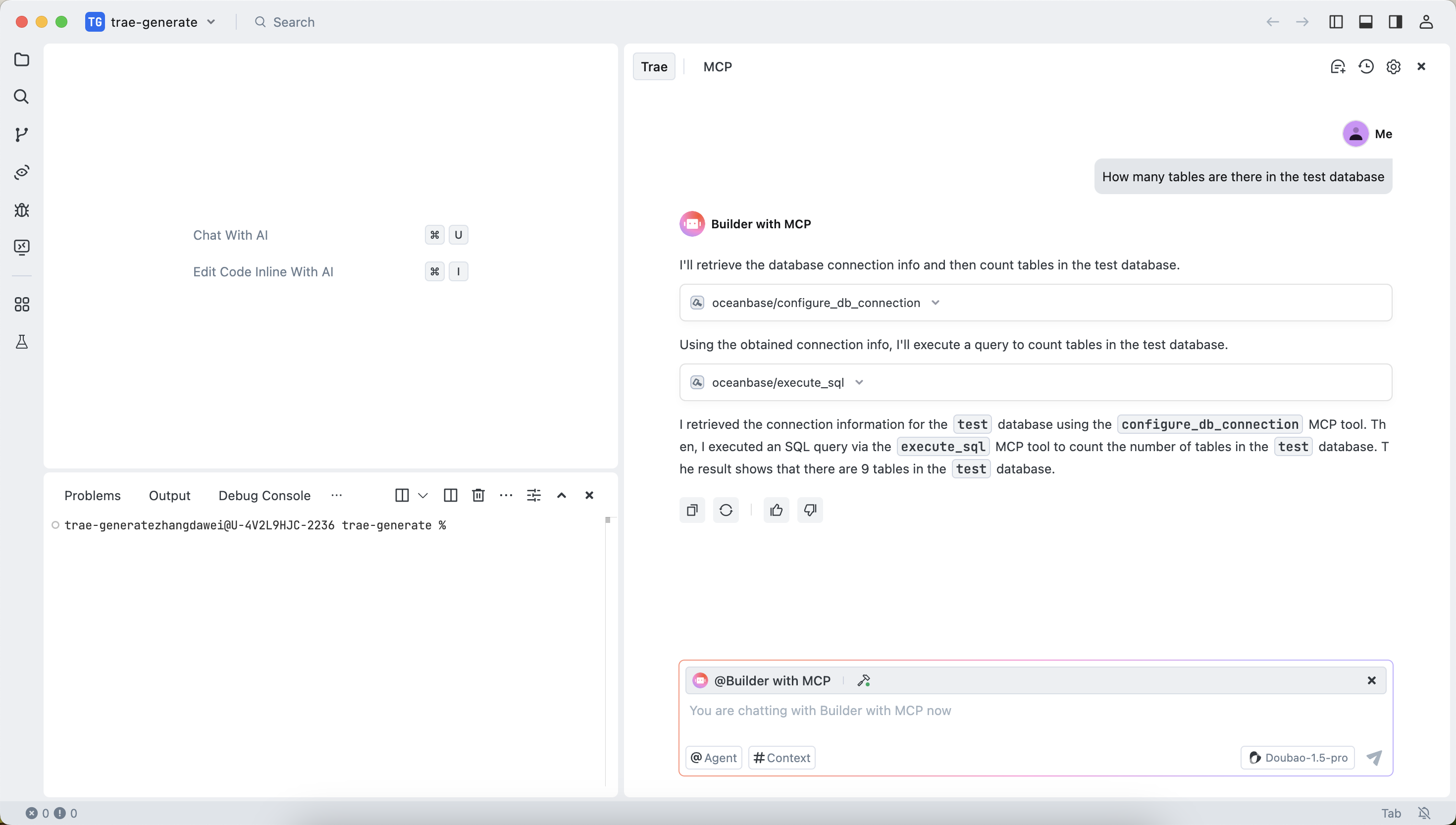
2. In the dialog box, enter `How many tables are there in the test database`. The TRAE client will display the SQL statement to be executed. Confirm the SQL statement and click the `Run` button.
|
|
|
|
|
|
|
|
3. The TRAE client will display the number of tables in the `test` database. This indicates that you have successfully connected to seekdb.
|
|
|
|
|
|
|
|
### Create a RESTful API project using FastAPI
|
|
|
|
You can use FastAPI to quickly create a RESTful API project. FastAPI is a Python web framework that enables you to build RESTful APIs efficiently.
|
|
|
|
1. Create the customer table.
|
|
|
|
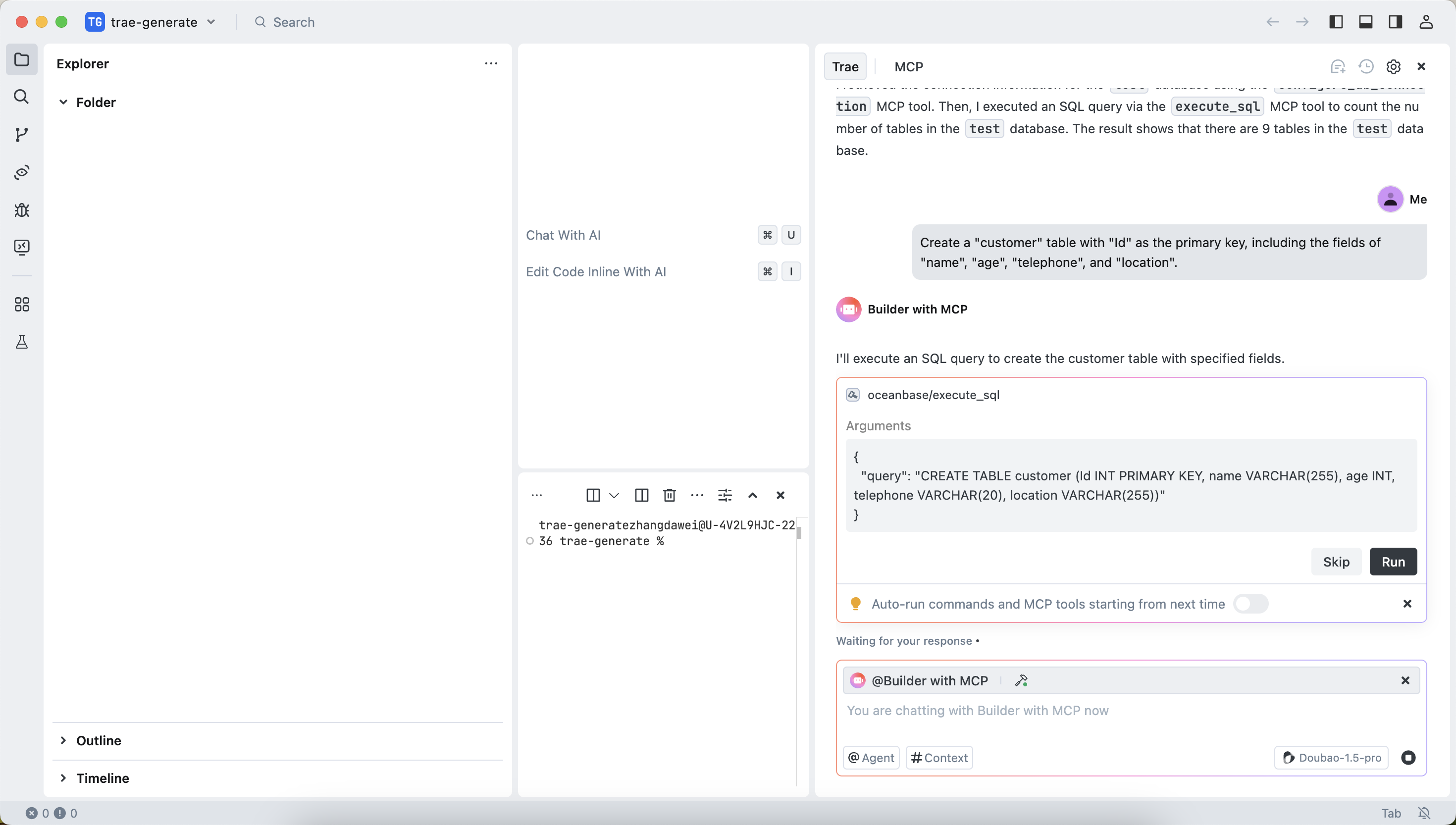
In the dialog box, enter `Create a "customer" table with "Id" as the primary key, including the fields of "name", "age", "telephone", and "location"`. Confirm the SQL statement and click the `Run` button.
|
|
|
|
|
|
|
|
2. Insert test data.
|
|
|
|
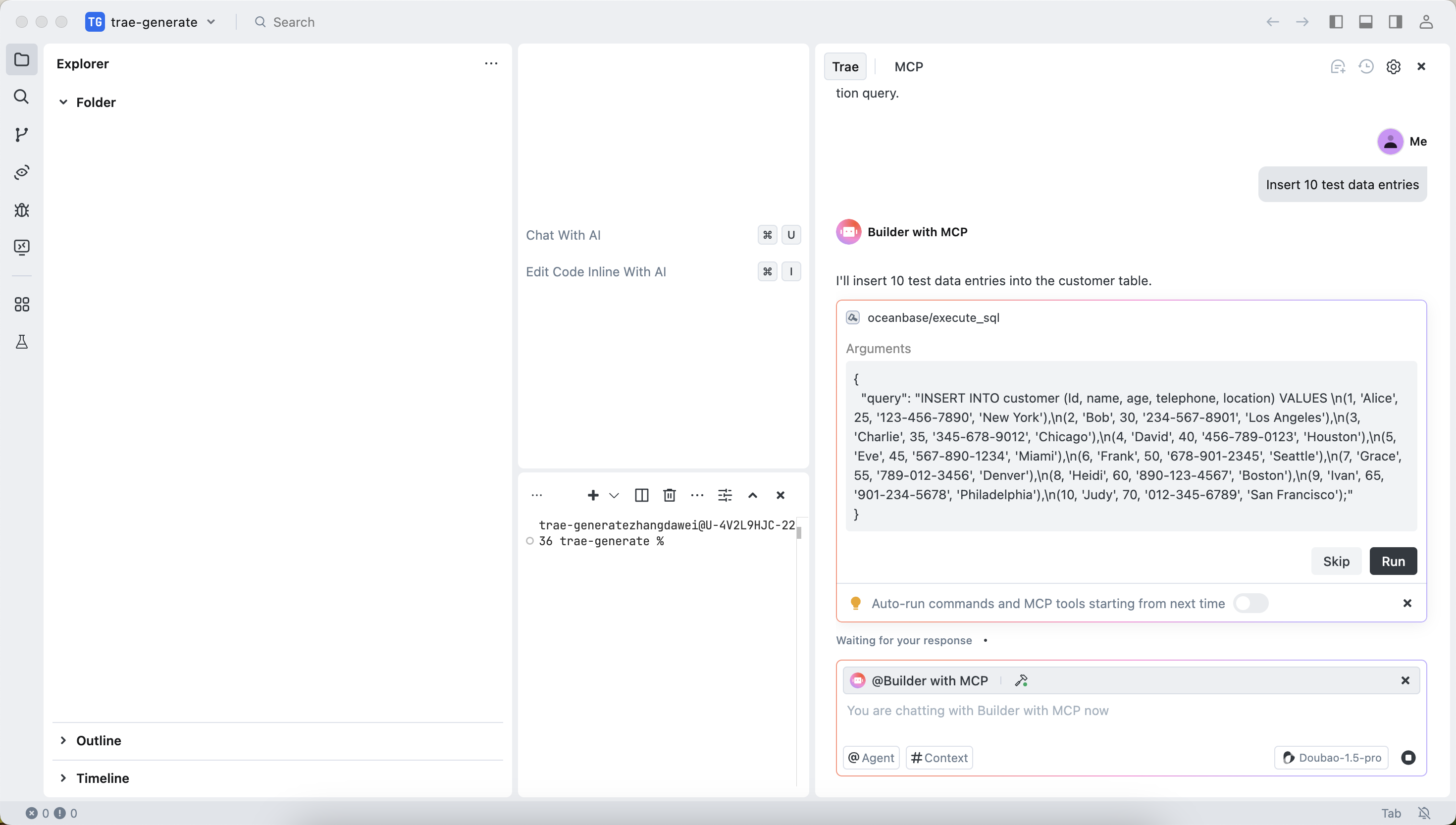
In the dialog box, enter `Insert 10 test data entries`. Confirm the SQL statement and click the `Run` button.
|
|
|
|
|
|
|
|
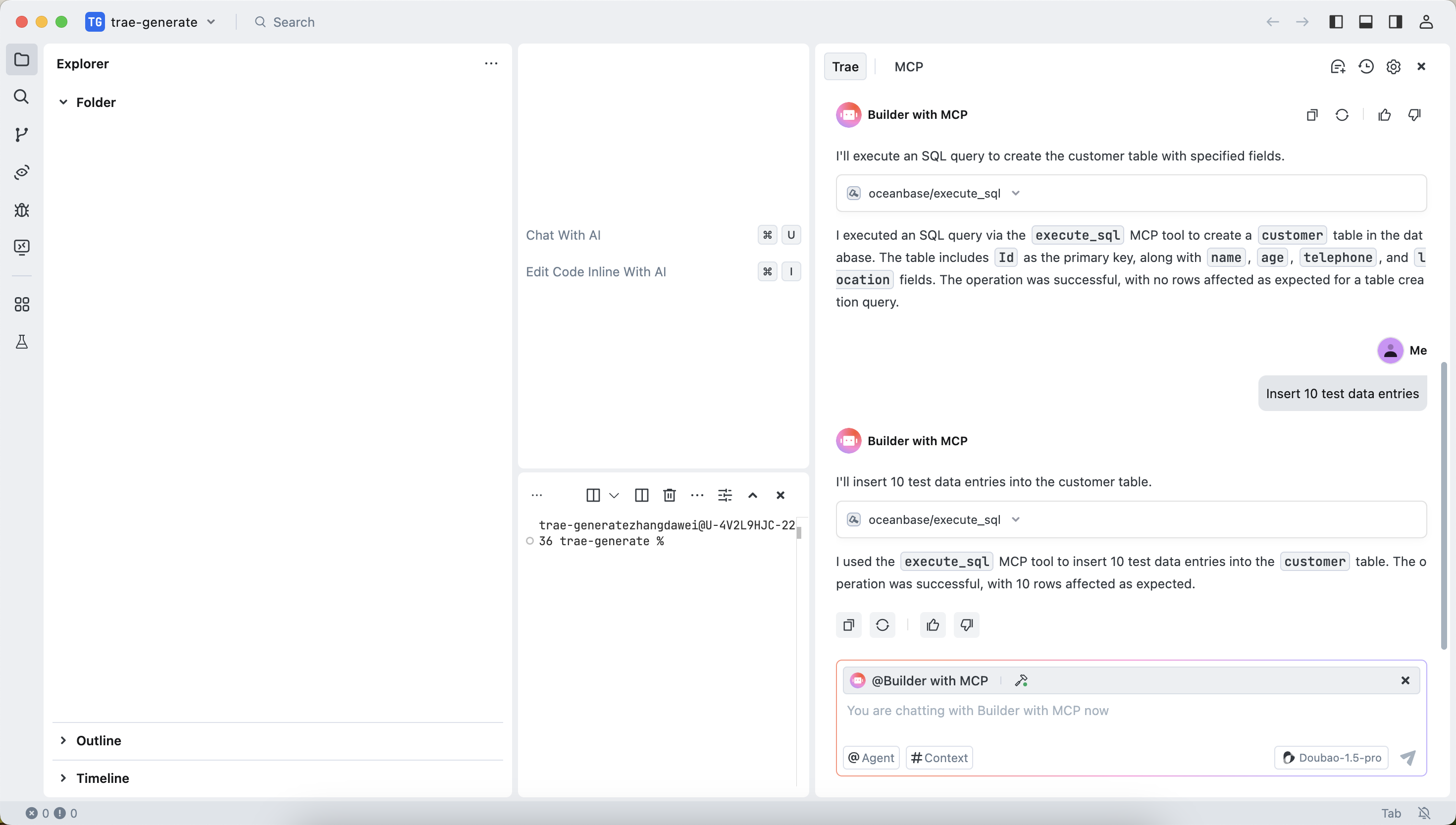
The execution result is displayed after the insertion is successful:
|
|
|
|
|
|
|
|
3. Create a FastAPI project.
|
|
|
|
In the dialog box, enter `Create a FastAPI project and generate a RESTful API based on the "customer" table`. Confirm the SQL statement and click the `Run` button.
|
|
|
|
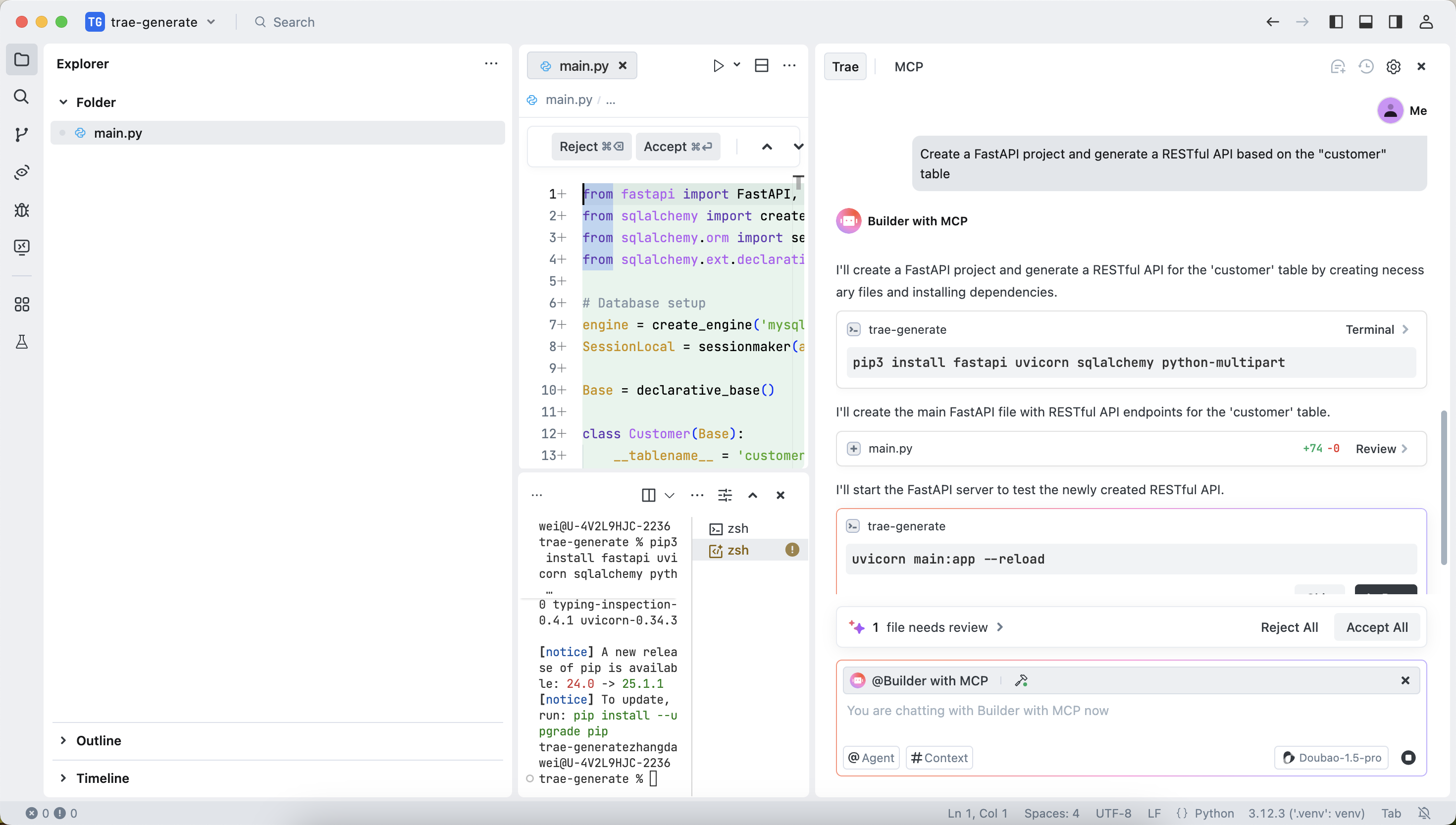
|
|
|
|
This step will generate three files. We recommend that you select "Accept All" for the first use, because the files generated by AI may contain uncertain contents. You can adjust them based on your actual needs later.
|
|
|
|
4. Create a virtual environment and install dependencies
|
|
|
|
Execute the following command to use the uv package manager to create a virtual environment and install the required packages in the current directory:
|
|
|
|
```shell
|
|
uv venv
|
|
source .venv/bin/activate
|
|
uv pip install -r requirements.txt
|
|
```
|
|
|
|
5. Start the FastAPI project.
|
|
|
|
Run the following command to start the FastAPI project:
|
|
|
|
```shell
|
|
uvicorn main:app --reload
|
|
```
|
|
|
|
6. View the data in the table.
|
|
|
|
Run the following command in the command line or use other request tools to view the data in the table:
|
|
|
|
```shell
|
|
curl http://127.0.0.1:8000/customers
|
|
```
|
|
|
|
The return result is as follows:
|
|
|
|
```json
|
|
[{"Id":1,"name":"Alice","age":25,"telephone":"123-***-7890","location":"New York"},{"Id":2,"name":"Bob","age":30,"telephone":"234-***-8901","location":"Los Angeles"},{"Id":3,"name":"Charlie","age":35,"telephone":"345-***-9012","location":"Chicago"},{"Id":4,"name":"David","age":40,"telephone":"456-***-0123","location":"Houston"},{"Id":5,"name":"Eve","age":45,"telephone":"567-***-1234","location":"Miami"},{"Id":6,"name":"Frank","age":50,"telephone":"678-***-2345","location":"Seattle"},{"Id":7,"name":"Grace","age":55,"telephone":"789-***-3456","location":"Denver"},{"Id":8,"name":"Heidi","age":60,"telephone":"890-***-4567","location":"Boston"},{"Id":9,"name":"Ivan","age":65,"telephone":"901-***-5678","location":"Philadelphia"},{"Id":10,"name":"Judy","age":70,"telephone":"012-***-6789","location":"San Francisco"}]
|
|
```
|
|
|
|
You can see that the RESTful APIs for CRUD operations has been successfully generated:
|
|
|
|
```shell
|
|
from fastapi import FastAPI
|
|
from pydantic import BaseModel
|
|
import mysql.connector
|
|
|
|
app = FastAPI()
|
|
|
|
# Database connection configuration
|
|
config = {
|
|
'user': '*******',
|
|
'password': '******',
|
|
'host': 'xx.xxx.xxx.xx',
|
|
'database': 'test',
|
|
'port':xxxx,
|
|
'raise_on_warnings': True
|
|
}
|
|
|
|
class Customer(BaseModel):
|
|
id: int
|
|
name: str
|
|
age: int
|
|
telephone: str
|
|
location: str
|
|
|
|
@app.get('/customers')
|
|
async def get_customers():
|
|
cnx = mysql.connector.connect(**config)
|
|
cursor = cnx.cursor(dictionary=True)
|
|
query = 'SELECT * FROM customer'
|
|
cursor.execute(query)
|
|
results = cursor.fetchall()
|
|
cursor.close()
|
|
cnx.close()
|
|
return results
|
|
|
|
@app.get('/customers/{customer_id}')
|
|
async def get_customer(customer_id: int):
|
|
cnx = mysql.connector.connect(**config)
|
|
cursor = cnx.cursor(dictionary=True)
|
|
query = 'SELECT * FROM customer WHERE ID = %s'
|
|
cursor.execute(query, (customer_id,))
|
|
result = cursor.fetchone()
|
|
cursor.close()
|
|
cnx.close()
|
|
return result
|
|
|
|
@app.post('/customers')
|
|
async def create_customer(customer: Customer):
|
|
cnx = mysql.connector.connect(**config)
|
|
cursor = cnx.cursor()
|
|
query = 'INSERT INTO customer (ID, name, age, telephone, location) VALUES (%s, %s, %s, %s, %s)'
|
|
data = (customer.id, customer.name, customer.age, customer.telephone, customer.location)
|
|
cursor.execute(query, data)
|
|
cnx.commit()
|
|
cursor.close()
|
|
cnx.close()
|
|
return {'message': 'Customer created successfully'}
|
|
|
|
@app.put('/customers/{customer_id}')
|
|
async def update_customer(customer_id: int, customer: Customer):
|
|
cnx = mysql.connector.connect(**config)
|
|
cursor = cnx.cursor()
|
|
query = 'UPDATE customer SET name = %s, age = %s, telephone = %s, location = %s WHERE ID = %s'
|
|
data = (customer.name, customer.age, customer.telephone, customer.location, customer_id)
|
|
cursor.execute(query, data)
|
|
cnx.commit()
|
|
cursor.close()
|
|
cnx.close()
|
|
return {'message': 'Customer updated successfully'}
|
|
|
|
@app.delete('/customers/{customer_id}')
|
|
async def delete_customer(customer_id: int):
|
|
cnx = mysql.connector.connect(**config)
|
|
cursor = cnx.cursor()
|
|
query = 'DELETE FROM customer WHERE ID = %s'
|
|
cursor.execute(query, (customer_id,))
|
|
cnx.commit()
|
|
cursor.close()
|
|
cnx.close()
|
|
return {'message': 'Customer deleted successfully'}
|
|
```
|