
939 KiB
create api-key
Source: https://docs.vast.ai/api-reference/accounts/create-api-key
api-reference/openapi.json post /api/v0/auth/apikeys/ Creates a new API key with specified permissions for the authenticated user.
CLI Usage: vastai create api-key --name <name> --permission_file <permissions_file> [--key_params <params>]
create env-var
Source: https://docs.vast.ai/api-reference/accounts/create-env-var
api-reference/openapi.json post /api/v0/secrets/ Creates a new encrypted environment variable for the authenticated user. Keys are automatically converted to uppercase. Values are encrypted before storage. There is a limit on the total number of environment variables per user.
CLI Usage: vastai create env-var <key> <value>
create ssh-key
Source: https://docs.vast.ai/api-reference/accounts/create-ssh-key
api-reference/openapi.json post /api/v0/ssh/ Creates a new SSH key and associates it with your account. The key will be automatically added to all your current instances.
CLI Usage: vastai create ssh-key <ssh_key>
create subaccount
Source: https://docs.vast.ai/api-reference/accounts/create-subaccount
api-reference/openapi.json post /api/v0/users/ Creates either a standalone user account or a subaccount under a parent account. Subaccounts can be restricted to host-only functionality.
CLI Usage: vastai create subaccount --email <email> --username <username> --password <password> [--type host]
delete api key
Source: https://docs.vast.ai/api-reference/accounts/delete-api-key
api-reference/openapi.json delete /api/v0/auth/apikeys/{id}/ Deletes an existing API key belonging to the authenticated user. The API key is soft-deleted by setting a deleted_at timestamp.
CLI Usage: vastai delete api-key <id>
delete env var
Source: https://docs.vast.ai/api-reference/accounts/delete-env-var
api-reference/openapi.json delete /api/v0/secrets/ Deletes an environment variable associated with the authenticated user. The variable must exist and belong to the requesting user.
CLI Usage: vastai delete env-var <name>
delete ssh key
Source: https://docs.vast.ai/api-reference/accounts/delete-ssh-key
api-reference/openapi.json delete /api/v0/ssh/{id}/ Removes an SSH key from the authenticated user's account
CLI Usage: vastai delete ssh-key <id>
set user
Source: https://docs.vast.ai/api-reference/accounts/set-user
api-reference/openapi.json put /api/v0/users/ Updates the user data for the authenticated user.
CLI Usage: vastai set user --file <file_path>
show api keys
Source: https://docs.vast.ai/api-reference/accounts/show-api-keys
api-reference/openapi.json get /api/v0/auth/apikeys/ Retrieves all API keys associated with the authenticated user.
CLI Usage: vastai show api-keys
show connections
Source: https://docs.vast.ai/api-reference/accounts/show-connections
api-reference/openapi.json get /api/v0/users/cloud_integrations/ Retrieves the list of cloud connections associated with the authenticated user.
CLI Usage: vastai show connections
show env vars
Source: https://docs.vast.ai/api-reference/accounts/show-env-vars
api-reference/openapi.json get /api/v0/secrets/ Retrieve a list of environment variables (secrets) for the authenticated user.
CLI Usage: vastai show env-vars [-s]
show ipaddrs
Source: https://docs.vast.ai/api-reference/accounts/show-ipaddrs
api-reference/openapi.json get /api/v0/users/{user_id}/ipaddrs/ This endpoint retrieves the history of IP address accesses for the authenticated user.
CLI Usage: vastai show ipaddrs
show ssh keys
Source: https://docs.vast.ai/api-reference/accounts/show-ssh-keys
api-reference/openapi.json get /api/v0/ssh/ Retrieve a list of SSH keys associated with the authenticated user's account.
CLI Usage: vastai show ssh-keys
show subaccounts
Source: https://docs.vast.ai/api-reference/accounts/show-subaccounts
api-reference/openapi.json get /api/v0/subaccounts/ Retrieve a list of subaccounts associated with the authenticated user's account.
CLI Usage: vastai show subaccounts
show team role
Source: https://docs.vast.ai/api-reference/accounts/show-team-role
api-reference/openapi.json get /api/v0/team/roles/{id}/ Retrieve details of a specific team role by its name.
CLI Usage: vastai show team-role <name>
show user
Source: https://docs.vast.ai/api-reference/accounts/show-user
api-reference/openapi.json get /api/v0/users/current/ Retrieve information about the current authenticated user, excluding the API key.
CLI Usage: vastai show user
transfer credit
Source: https://docs.vast.ai/api-reference/accounts/transfer-credit
api-reference/openapi.json put /api/v0/commands/transfer_credit/ Transfers specified amount of credits from the authenticated user's account to another user's account.
The recipient can be specified by either email address or user ID.
CLI Usage: vastai transfer credit <recipient_email> <amount>
update env var
Source: https://docs.vast.ai/api-reference/accounts/update-env-var
api-reference/openapi.json put /api/v0/secrets/ Updates the value of an existing environment variable for the authenticated user.
CLI Usage: vastai update env-var <key> <value>
update ssh key
Source: https://docs.vast.ai/api-reference/accounts/update-ssh-key
api-reference/openapi.json put /api/v0/ssh/{id}/ Updates the specified SSH key with the provided value.
CLI Usage: vastai update ssh-key <id> <ssh_key>
search invoices
Source: https://docs.vast.ai/api-reference/billing/search-invoices
api-reference/openapi.json get /api/v0/invoices This endpoint allows users to search and retrieve invoices based on specified filters.
CLI Usage: vastai search invoices
show deposit
Source: https://docs.vast.ai/api-reference/billing/show-deposit
api-reference/openapi.json get /api/v0/instances/balance/{id}/ Retrieves the deposit details for a specified instance.
CLI Usage: vastai show deposit <id>
show earnings
Source: https://docs.vast.ai/api-reference/billing/show-earnings
api-reference/openapi.json get /api/v0/users/{user_id}/machine-earnings/ Retrieves the earnings history for a specified time range and optionally per machine.
CLI Usage: vastai show earnings [options]
show invoices
Source: https://docs.vast.ai/api-reference/billing/show-invoices
api-reference/openapi.json get /api/v0/users/{user_id}/invoices/ This endpoint retrieves billing history reports for the authenticated user, including charges and credits.
CLI Usage: vastai show invoices
attach ssh-key
Source: https://docs.vast.ai/api-reference/instances/attach-ssh-key
api-reference/openapi.json post /api/v0/instances/{id}/ssh/ Attaches an SSH key to the specified instance, allowing SSH access using the provided key.
CLI Usage: vastai attach ssh <instance_id> <ssh_key>
cancel copy
Source: https://docs.vast.ai/api-reference/instances/cancel-copy
api-reference/openapi.json delete /api/v0/commands/copy_direct/ Cancel a remote copy operation specified by the destination ID (dst_id).
CLI Usage: vastai cancel copy --dst_id <destination_id>
cancel sync
Source: https://docs.vast.ai/api-reference/instances/cancel-sync
api-reference/openapi.json delete /api/v0/commands/rclone/ Cancels an in-progress remote sync operation identified by the destination instance ID. This operation cannot be resumed once canceled and must be restarted if needed.
CLI Usage: vastai cancel sync --dst_id <destination_id>
change bid
Source: https://docs.vast.ai/api-reference/instances/change-bid
api-reference/openapi.json put /api/v0/instances/bid_price/{id}/ Change the current bid price of an instance to a specified price.
CLI Usage: vastai change bid <id> --price <price>
cloud copy
Source: https://docs.vast.ai/api-reference/instances/cloud-copy
api-reference/openapi.json post /api/v0/commands/rclone/ Starts a cloud copy operation by sending a command to the remote server. The operation can transfer data between an instance and a cloud service.
CLI Usage: vastai cloud copy <instance_id> <src> <dst> [options]
copy
Source: https://docs.vast.ai/api-reference/instances/copy
api-reference/openapi.json put /api/v0/commands/copy_direct/ Initiate a remote copy operation to transfer data from one instance to another or between an instance and the local machine.
CLI Usage: vastai copy <src_id> <dst_id> <src_path> <dst_path>
create instance
Source: https://docs.vast.ai/api-reference/instances/create-instance
api-reference/openapi.json put /api/v0/asks/{id}/ Creates a new instance by accepting an "ask" contract from a provider. This is the main endpoint for launching new instances on Vast.ai.
CLI Usage: vastai create instance <offer_id> [options]
destroy instance
Source: https://docs.vast.ai/api-reference/instances/destroy-instance
api-reference/openapi.json delete /api/v0/instances/{id}/ Destroys/deletes an instance permanently. This is irreversible and will delete all data.
CLI Usage: vastai destroy instance <id>
detach ssh-key
Source: https://docs.vast.ai/api-reference/instances/detach-ssh-key
api-reference/openapi.json delete /api/v0/instances/{id}/ssh/{key}/ Detaches an SSH key from a specified instance, removing SSH access for that key.
CLI Usage: vastai detach <instance_id> <ssh_key_id>
execute
Source: https://docs.vast.ai/api-reference/instances/execute
api-reference/openapi.json put /api/v0/instances/command/{id}/ Executes a constrained remote command on a specified instance. The command output can be retrieved from the returned result URL.
CLI Usage: vastai execute <instance_id> <command>
manage instance
Source: https://docs.vast.ai/api-reference/instances/manage-instance
api-reference/openapi.json put /api/v0/instances/{id}/ Manage instance state and labels. The operation is determined by the request body parameters.
CLI Usage:
- To stop:
vastai stop instance <id> - To start:
vastai start instance <id> - To label:
vastai label instance <id> <label>
prepay instance
Source: https://docs.vast.ai/api-reference/instances/prepay-instance
api-reference/openapi.json put /api/v0/instances/prepay/{id}/ Deposit credits into a reserved instance to receive usage discounts. The discount rate is calculated based on how many months of usage the prepaid amount covers. Maximum discount is typically 40%.
CLI Usage: vastai prepay instance <id> <amount>
reboot instance
Source: https://docs.vast.ai/api-reference/instances/reboot-instance
api-reference/openapi.json put /api/v0/instances/reboot/{id}/ Stops and starts a container without losing GPU priority. Updates container status to 'rebooting' and executes docker stop/start commands on the host machine.
CLI Usage: vastai reboot instance <id>
recycle instance
Source: https://docs.vast.ai/api-reference/instances/recycle-instance
api-reference/openapi.json put /api/v0/instances/recycle/{id}/ Destroys and recreates container in place (from newly pulled image) without losing GPU priority. Updates container status to 'recycling' and executes docker stop/remove commands on the host machine.
CLI Usage: vastai recycle instance <id>
show instance
Source: https://docs.vast.ai/api-reference/instances/show-instance
api-reference/openapi.json get /api/v0/instances/{id}/ Retrieves the details of a specific instance for the authenticated user. This endpoint returns detailed information including SSH connection parameters, instance state, resource utilization, template data, and pricing details.
CLI Usage: vastai show instance [--api-key <api_key>] [--raw]
show instances
Source: https://docs.vast.ai/api-reference/instances/show-instances
api-reference/openapi.json get /api/v0/instances/ Retrieve a list of instances for the authenticated user.
CLI Usage: vastai show instances [options] [--api-key <api_key>] [--raw]
show logs
Source: https://docs.vast.ai/api-reference/instances/show-logs
api-reference/openapi.json put /api/v0/instances/request_logs/{id} Request logs from a specific instance. The logs will be uploaded to S3 and can be retrieved from a generated URL. Supports both container logs and daemon system logs.
CLI Usage: vastai show logs <instance_id> [--tail <lines>] [--filter <grep>] [--daemon-logs]
show ssh-keys
Source: https://docs.vast.ai/api-reference/instances/show-ssh-keys
api-reference/openapi.json get /api/v0/instances/{instance_id}/ssh/ Retrieves the SSH keys associated with a specific instance.
CLI Usage: vastai show ssh-keys <instance_id>
API Introduction
Source: https://docs.vast.ai/api-reference/introduction
Welcome to Vast.ai 's API documentation. Our API allows you to programmatically manage GPU instances, handle machine operations, and automate your AI/ML workflow. Whether you're running individual GPU instances or managing a fleet of machines, our API provides comprehensive control over all Vast.ai platform features.
View the Postman collectioncancel maint
Source: https://docs.vast.ai/api-reference/machines/cancel-maint
api-reference/openapi.json put /api/v0/machines/{machine_id}/cancel_maint/ Cancel a scheduled maintenance window for a specified machine.
CLI Usage: vastai cancel maint <machine_id>
cleanup machine
Source: https://docs.vast.ai/api-reference/machines/cleanup-machine
api-reference/openapi.json put /api/v0/machines/{machine_id}/cleanup/ This endpoint removes expired contracts on a specified machine, freeing up space.
CLI Usage: vastai cleanup machine <machine_id>
list machine
Source: https://docs.vast.ai/api-reference/machines/list-machine
api-reference/openapi.json put /api/v0/machines/create_asks/ Creates or updates ask contracts for a machine to list it for rent on the vast.ai platform. Allows setting pricing, minimum GPU requirements, end date and discount rates.
CLI Usage: vastai list machine <machine_id> [options]
remove defjob
Source: https://docs.vast.ai/api-reference/machines/remove-defjob
api-reference/openapi.json delete /api/v0/machines/{machine_id}/defjob/ Deletes the default job (background instances) for a specified machine.
CLI Usage: vastai remove defjob <machine_id>
schedule maint
Source: https://docs.vast.ai/api-reference/machines/schedule-maint
api-reference/openapi.json put /api/v0/machines/{machine_id}/dnotify Schedules a maintenance window for a specified machine and notifies clients.
CLI Usage: vastai schedule maint <machine_id> --sdate <sdate> --duration <duration>
set defjob
Source: https://docs.vast.ai/api-reference/machines/set-defjob
api-reference/openapi.json put /api/v0/machines/create_bids/ Creates default jobs (background instances) for a specified machine with the given parameters.
CLI Usage: vastai set defjob <machine_id> --price_gpu <price> --price_inetu <price> --price_inetd <price> --image <image> [--args <args>]
set min-bid
Source: https://docs.vast.ai/api-reference/machines/set-min-bid
api-reference/openapi.json put /api/v0/machines/{machine_id}/minbid/ Sets the minimum bid price for a specified machine.
CLI Usage: vastai set min-bid <machine_id> --price <price>
show machines
Source: https://docs.vast.ai/api-reference/machines/show-machines
api-reference/openapi.json get /api/v0/machines/ Fetches data for multiple machines associated with the authenticated user.
CLI Usage: vastai show machines [--user_id <user_id>]
show reports
Source: https://docs.vast.ai/api-reference/machines/show-reports
api-reference/openapi.json get /api/v0/machines/{machine_id}/reports/ Retrieves a list of the most recent reports for a given machine. Each report includes details such as the problem identified, a message describing the issue, and the timestamp when the report was created.
CLI Usage: vastai reports <machine_id>
unlist machine
Source: https://docs.vast.ai/api-reference/machines/unlist-machine
api-reference/openapi.json delete /api/v0/machines/{machine_id}/asks/ Removes all 'ask' type offer contracts for a specified machine, effectively unlisting it from being available for rent.
CLI Usage: vastai unlist machine <id>
add network-disk
Source: https://docs.vast.ai/api-reference/network-volumes/add-network-disk
api-reference/openapi.json post /api/v0/network_disk/ Adds a network disk to be used to create network volume offers, or adds machines to an existing network disk.
CLI Usage: vastai add network_disk <machine_id>... <mount_point> [options]
create network-volume
Source: https://docs.vast.ai/api-reference/network-volumes/create-network-volume
api-reference/openapi.json put /api/v0/network_volume/ Creates a network volume from an offer.
CLI Usage: vastai create network-volume <offer_id> <size> [--name <name>]
list network-volume
Source: https://docs.vast.ai/api-reference/network-volumes/list-network-volume
api-reference/openapi.json post /api/v0/network_volume/ Lists a network disk for rent as network volumes, or updates an existing listing with a new price/size/end date/discount.
CLI Usage: vastai list network-volume <disk_id> [options]
search network volumes
Source: https://docs.vast.ai/api-reference/network-volumes/search-network-volumes
api-reference/openapi.json post /api/v0/network_volumes/search/ Search for available network volume offers with advanced filtering and sorting.
CLI Usage: vastai search network-volumes <query> [--order <field>]
unlist network-volume
Source: https://docs.vast.ai/api-reference/network-volumes/unlist-network-volume
api-reference/openapi.json post /api/v0/network_volumes/unlist/ Unlists a network volume for rent.
CLI Usage: vastai unlist volume <offer_id>
search benchmarks
Source: https://docs.vast.ai/api-reference/search/search-benchmarks
api-reference/openapi.json get /api/v0/benchmarks/ Retrieve benchmark data based on search parameters.
CLI Usage: vastai search benchmarks
search offers
Source: https://docs.vast.ai/api-reference/search/search-offers
api-reference/openapi.json post /api/v0/bundles/ Search for available GPU machine offers with advanced filtering and sorting.
Each filter parameter (such as verified, gpu_name, num_gpus, etc.) should be an object specifying the operator and value you want to match.
Filter operators:
| Operator | Meaning | Example |
|---|---|---|
eq |
Equal to | { "eq": true } |
neq |
Not equal to | { "neq": false } |
gt |
Greater than | { "gt": 0.99 } |
lt |
Less than | { "lt": 10000 } |
gte |
Greater than or equal | { "gte": 4 } |
lte |
Less than or equal | { "lte": 8 } |
in |
Value is in a list | { "in": ["RTX_3090", "RTX_4090"] } |
nin |
Value is not in a list | { "nin": ["TW", "SE"] } |
Default filters: verified=true, rentable=true, rented=false (unless --no-default is used)
CLI Usage: vastai search offers 'reliability > 0.99 num_gpus>=4' --order=dph_total
search templates
Source: https://docs.vast.ai/api-reference/search/search-templates
api-reference/openapi.json get /api/v0/template/ Searches for templates based on query parameters and retrieves matching templates.
CLI Usage: vastai search templates
create endpoint
Source: https://docs.vast.ai/api-reference/serverless/create-endpoint
api-reference/openapi.json post /api/v0/endptjobs/ This endpoint creates a new job processing endpoint with specified parameters.
CLI Usage: vastai create endpoint [options]
create workergroup
Source: https://docs.vast.ai/api-reference/serverless/create-workergroup
api-reference/openapi.json post /api/v0/workergroups/ Creates a new workergroup configuration that manages worker instances for a serverless endpoint.
CLI Usage: vastai create workergroup --template_hash <hash> --endpoint_name <name> [options]
delete endpoint
Source: https://docs.vast.ai/api-reference/serverless/delete-endpoint
api-reference/openapi.json delete /api/v0/endptjobs/{id}/ Deletes an endpoint group by ID. Associated workergroups will also be deleted.
CLI Usage: vastai delete endpoint <id>
delete workergroup
Source: https://docs.vast.ai/api-reference/serverless/delete-workergroup
api-reference/openapi.json delete /api/v0/workergroups/{id}/ Deletes an existing workergroup.
CLI Usage: vastai delete workergroup <id>
get endpoint logs
Source: https://docs.vast.ai/api-reference/serverless/get-endpoint-logs
api-reference/openapi.json post /get_endpoint_logs/ Retrieves logs for a specific endpoint by name.
CLI Usage: vastai get endpoint logs <endpoint_name> [--tail <num_lines>]
get endpoint workers
Source: https://docs.vast.ai/api-reference/serverless/get-endpoint-workers
api-reference/openapi.json post /get_endpoint_workers/ Retrieves the current list and status of workers for a specific endpoint. Useful for monitoring, debugging connectivity issues, and understanding resource usage.
CLI Usage: vastai get endpoint workers <id>
get workergroup logs
Source: https://docs.vast.ai/api-reference/serverless/get-workergroup-logs
api-reference/openapi.json post /get_workergroup_logs/ Retrieves logs for a specific workergroup by ID.
CLI Usage: vastai get workergroup logs <id> [--tail <num_lines>]
get workergroup workers
Source: https://docs.vast.ai/api-reference/serverless/get-workergroup-workers
api-reference/openapi.json post /get_workergroup_workers/ Retrieves the current list and status of workers for a specific workergroup. Useful for monitoring, debugging connectivity issues, and understanding resource usage within a workergroup.
CLI Usage: vastai get workergroup workers <id>
route
Source: https://docs.vast.ai/api-reference/serverless/route
api-reference/openapi.json post /route/ Calls on the serverless engine to retrieve a GPU instance address within your endpoint for processing a request. The engine will return either a ready worker URL or status information if no workers are available.
CLI Usage: vastai route <endpoint> <cost>
show endpoints
Source: https://docs.vast.ai/api-reference/serverless/show-endpoints
api-reference/openapi.json get /api/v0/endptjobs/ Retrieve a list of endpoint jobs for the authenticated user.
CLI Usage: vastai show endpoints
show workergroup
Source: https://docs.vast.ai/api-reference/serverless/show-workergroup
api-reference/openapi.json get /api/v0/workergroups/ Retrieves the list of workergroups associated with the authenticated user.
CLI Usage: vastai show workergroups
update workergroup
Source: https://docs.vast.ai/api-reference/serverless/update-workergroup
api-reference/openapi.json put /api/v0/workergroups/{id}/ Updates the properties of an existing workergroup based on the provided parameters.
CLI Usage: vastai update workergroup <id> [options]
create team
Source: https://docs.vast.ai/api-reference/team/create-team
api-reference/openapi.json post /api/v0/team/ Creates a new team with given name and following default roles:
-
Owner: Full access to all team resources, settings, and member management. The team owner is the user who creates the team.
-
Manager: All permissions of owner except team deletion.
-
Member: Can view, create, and interact with instances, but cannot access billing, team management, autoscaler, or machines.
-
The API key used to create the team becomes the team key and is used for all team operations (e.g., creating roles, deleting the team).
-
You can optionally transfer credits from your personal account to the new team account using the
transfer_creditfield.
CLI Usage: vastai create team --team_name <team_name> [--transfer_credit <amount>]
create team role
Source: https://docs.vast.ai/api-reference/team/create-team-role
api-reference/openapi.json post /api/v0/team/roles/ Creates a new role within a team. Only team owners or managers with the appropriate permissions can perform this operation.
CLI Usage: vastai create team role --name <role_name> --permissions <permissions_json>
destroy team
Source: https://docs.vast.ai/api-reference/team/destroy-team
api-reference/openapi.json delete /api/v0/team/ Deletes a team and all associated data including API keys, rights, invitations, memberships and metadata. The team owner's master API key is converted to a normal client key.
CLI Usage: vastai destroy team
invite team member
Source: https://docs.vast.ai/api-reference/team/invite-team-member
api-reference/openapi.json post /api/v0/team/invite/ Sends an invitation email to the specified user to join the team with the given role.
CLI Usage: vastai invite team-member --email <email> --role <role>
remove team member
Source: https://docs.vast.ai/api-reference/team/remove-team-member
api-reference/openapi.json delete /api/v0/team/members/{id} Removes a member from the team by revoking their team-related API keys and updating membership status. Cannot remove the team owner.
CLI Usage: vastai remove team-member <id>
remove team role
Source: https://docs.vast.ai/api-reference/team/remove-team-role
api-reference/openapi.json delete /api/v0/team/roles/{id} Removes a role from the team. Cannot remove the team owner role.
CLI Usage: vastai remove team-role <name>
show team members
Source: https://docs.vast.ai/api-reference/team/show-team-members
api-reference/openapi.json get /api/v0/team/members/ Retrieve a list of team members associated with the authenticated user's team.
CLI Usage: vastai show team-members
show team roles
Source: https://docs.vast.ai/api-reference/team/show-team-roles
api-reference/openapi.json get /api/v0/team/roles-full/ Retrieve a list of all roles for a team, excluding the owner' role.
CLI Usage: vastai show team-roles
update team role
Source: https://docs.vast.ai/api-reference/team/update-team-role
api-reference/openapi.json put /api/v0/team/roles/{id}/ Update an existing team role with new name and permissions.
CLI Usage: vastai update team-role <id> --name <new_name> --permissions <new_permissions_json>
create template
Source: https://docs.vast.ai/api-reference/templates/create-template
api-reference/openapi.json post /api/v0/template/ Creates a new template for launching instances. If an identical template already exists, returns the existing template instead of creating a duplicate.
CLI Usage: vastai create template [options]
delete volume
Source: https://docs.vast.ai/api-reference/volumes/delete-volume
api-reference/openapi.json delete /api/v0/volumes/ Delete a volume by its ID.
CLI Usage: vastai delete volume <volume_id>
list volumes
Source: https://docs.vast.ai/api-reference/volumes/list-volumes
api-reference/openapi.json get /api/v0/volumes/ Retrieve information about all volumes rented by you.
CLI Usage: vastai show volumes
rent volume
Source: https://docs.vast.ai/api-reference/volumes/rent-volume
api-reference/openapi.json put /api/v0/volumes/ Rent/create a new volume with specified parameters.
CLI Usage: vastai create volume <id> --size <size_gb>
search volumes
Source: https://docs.vast.ai/api-reference/volumes/search-volumes
api-reference/openapi.json post /api/v0/volumes/search/ Search for available volumes based on specified criteria.
CLI Usage: vastai search volumes <query> [options]
unlist volume
Source: https://docs.vast.ai/api-reference/volumes/unlist-volume
api-reference/openapi.json post /api/v0/volumes/unlist/ Remove a volume listing from the marketplace.
CLI Usage: vastai unlist volume <volume_id>
Blender Batch Rendering
Source: https://docs.vast.ai/blender-batch-rendering
Blender is a free, open source 3D creation suite. It can be used to create animated films, visual effects, art, 3D-printed models, motion graphics, interactive 3D applications, virtual reality, and video games. It supports the entirety of the 3D pipeline—modeling, rigging, animation, simulation, rendering, compositing and motion tracking, even video editing and game creation. You can find more information about Blender at blender.org.
Animators, game developers, 3D modelers, visual effects artists, architects, and product designers are some people who use Blender.
GPUs can speed up rendering in Blender.
You can save time by automating away the rendering of animations for batch of blend files.
Step 1 - Open Vast's Blender Batch Renderer Template
Click on this link Blender Batch Renderer Template to select the vast/blender-batch-renderer template.
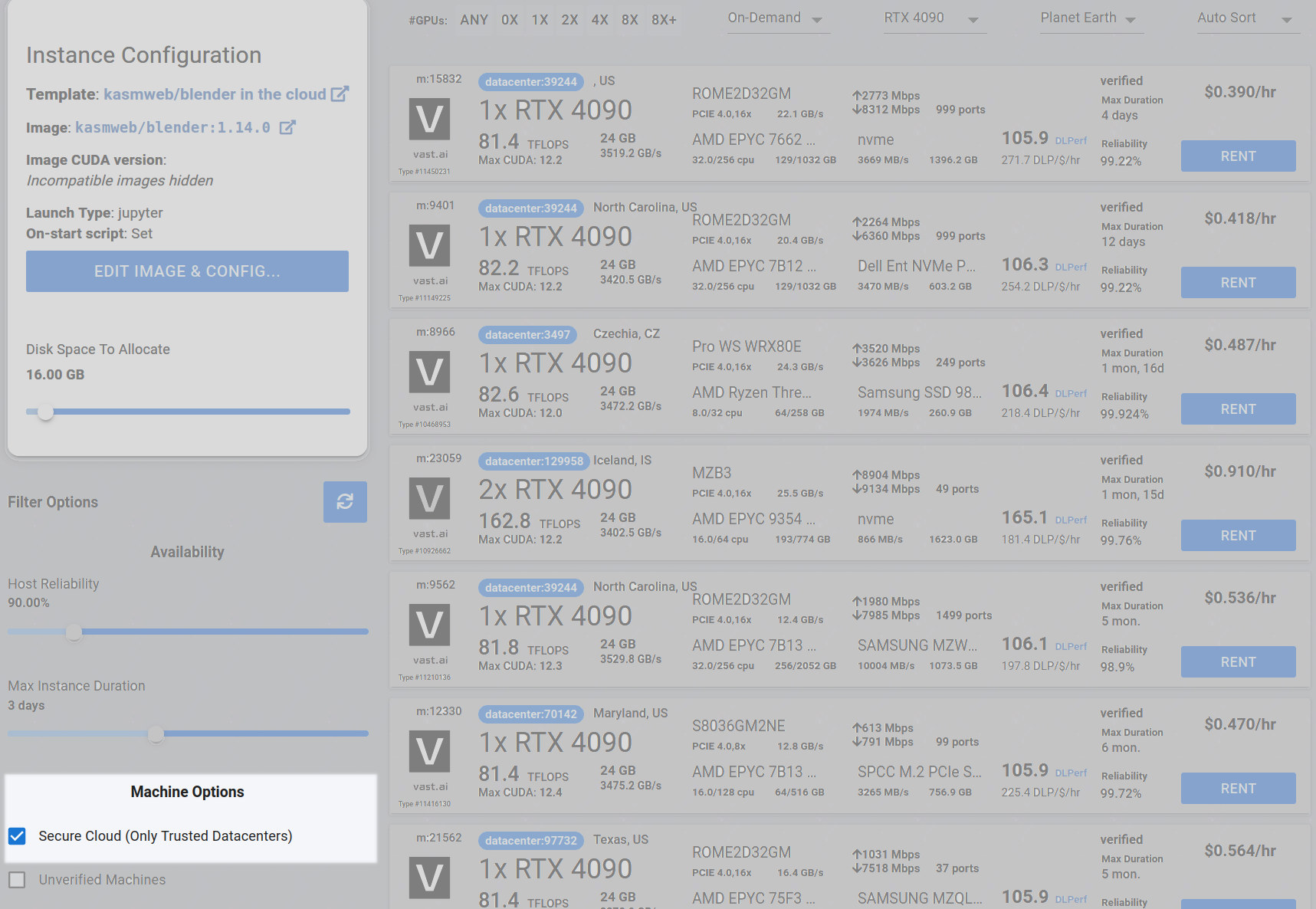
Step 2 - Check the Secure Cloud box if you want a secure machine from trusted datacenters (Optional)
You can narrow your search results to only data center machines if you want insured security standards from our trusted datacenters.
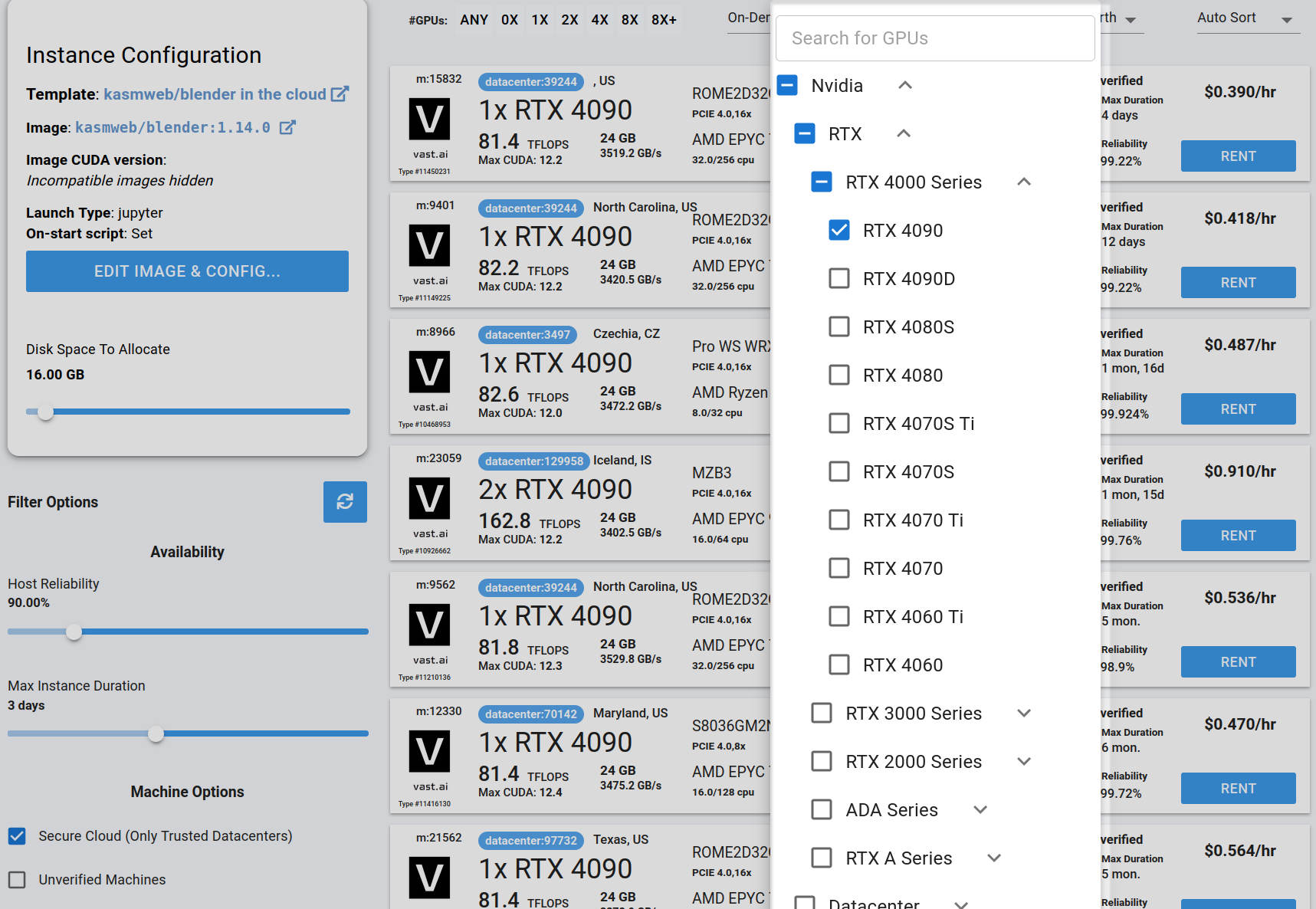
Step 3 - Filter for a GPU that you feel best suits your needs
If you have questions about which GPU to choose, there is some data around NVIDIA Geforce RTX 4090 giving the best render speed with Blender. You can find other GPUs that work well with Blender here Blender GPU Benchmarks. You can also find other options by searching on Google or asking ChatGPT.
The version of Blender running within Vast while using the template linked above at the time of this writing is 3.6.2.
Go to the GPUs filter and check the box for RTX 4090 or another GPU instance.
For example,
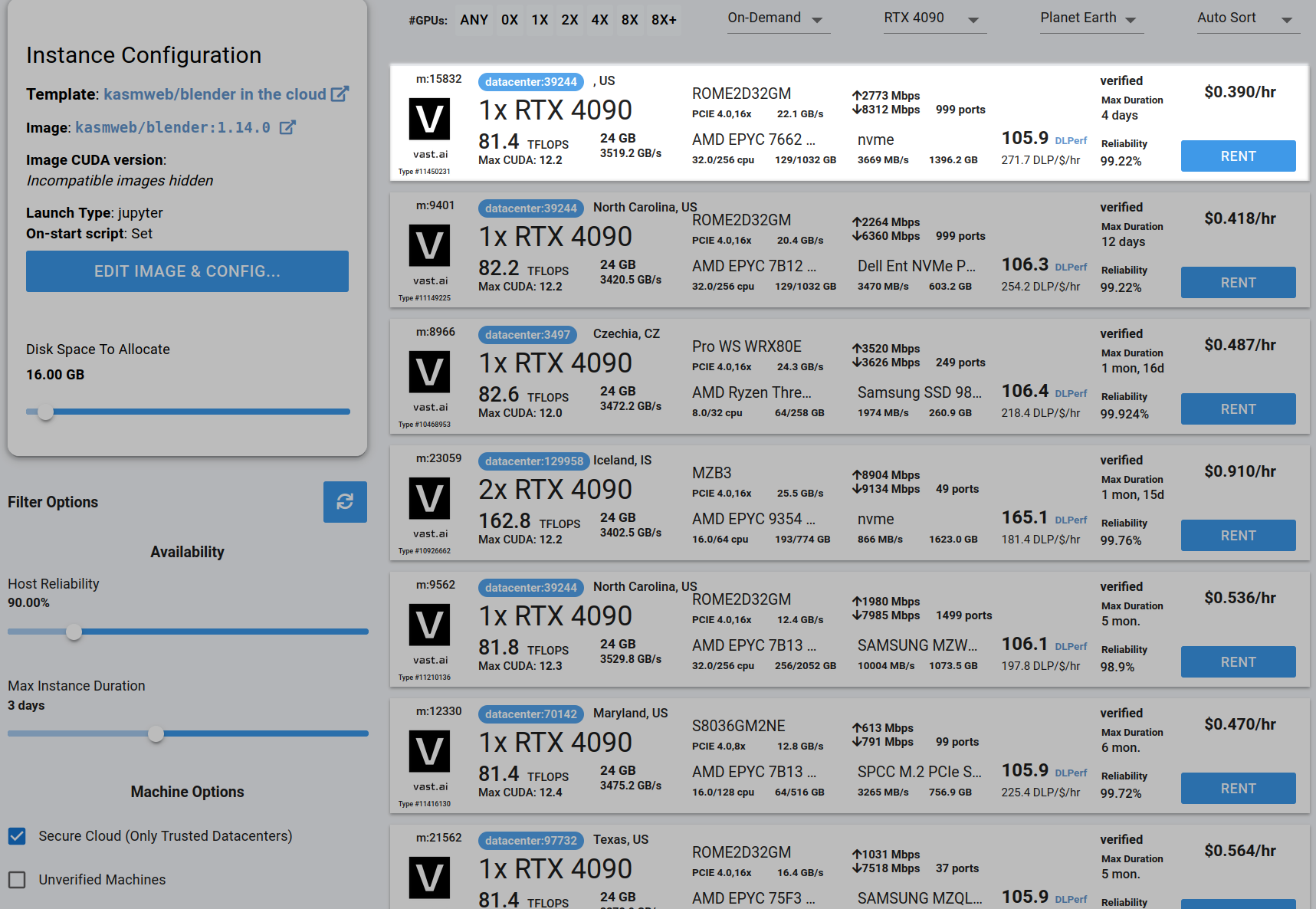
Step 4 - Choose a GPU by Clicking "RENT"
Choose a GPU that meets your budget, desired reliability %, and other constraints by clicking "RENT". GPUs are sorted by a complex proprietary algorithm that aims to give users the best machines for their value by default. You can filter GPUs further per your requirements if desired.
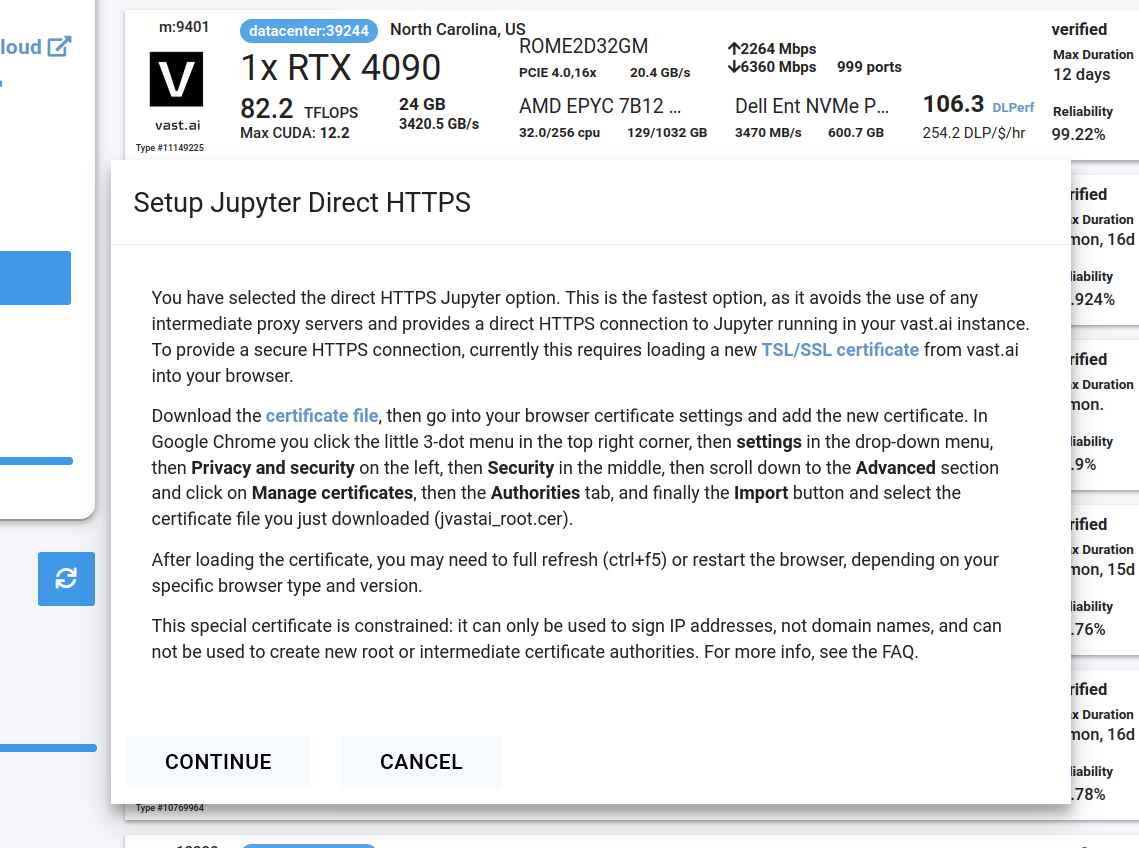
Step 5 - Use Jupyter Direct HTTPS Launch Mode
Follow the instructions related to adding a certificate to your browser if you need to when it asks you to "Setup Jupyter Direct HTTPS" and click "CONTINUE". Here's more information on the Jupyter direct HTTPS Launch Mode and Installing the TLS certificate: Jupyter.
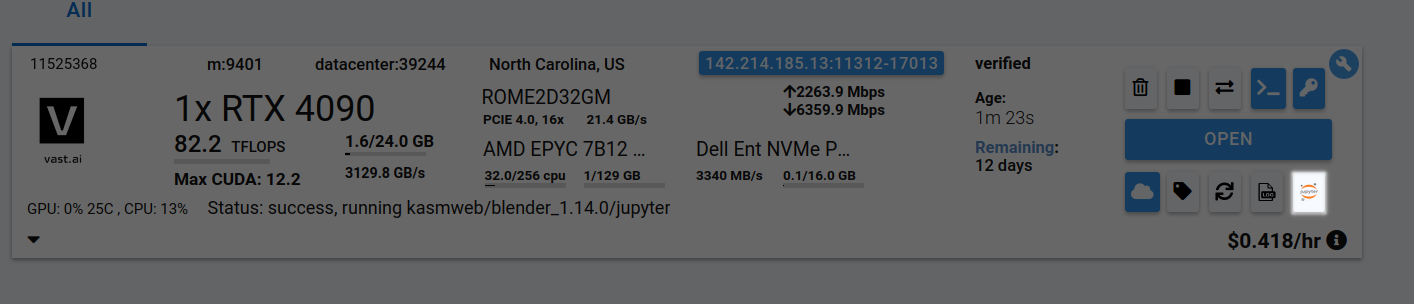
Step 6 - Click the Open Button or Jupyter Notebook button to open Jupyter Notebook
Step 7 - To Render Animation For Each Blend File In Batch Of Blend Files
If you want to render a respective animation for each blend file in a batch of blend files, follow the following steps.
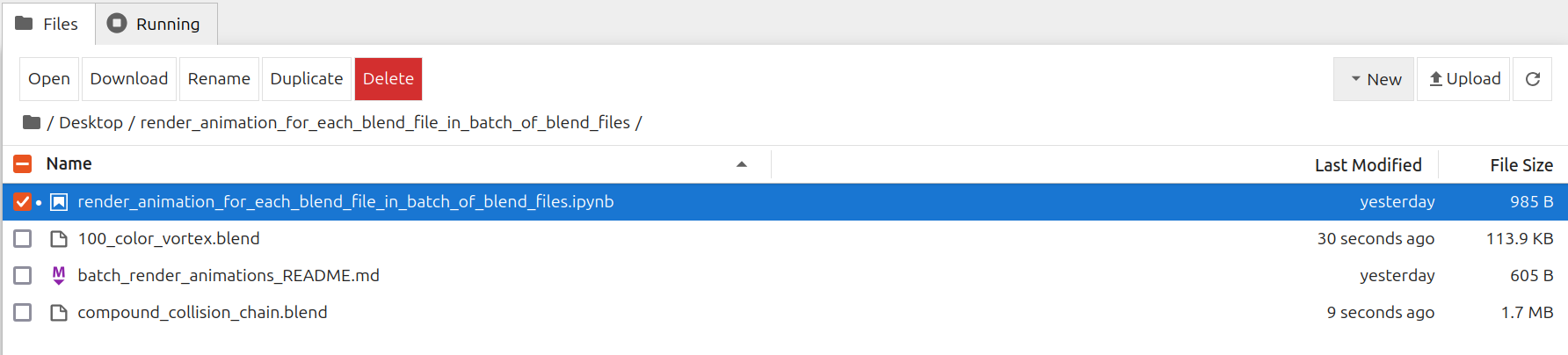
Go to /Desktop/render_animation_for_each_blend_file_in_batch_of_blend_files/ folder in Jupyter Notebook
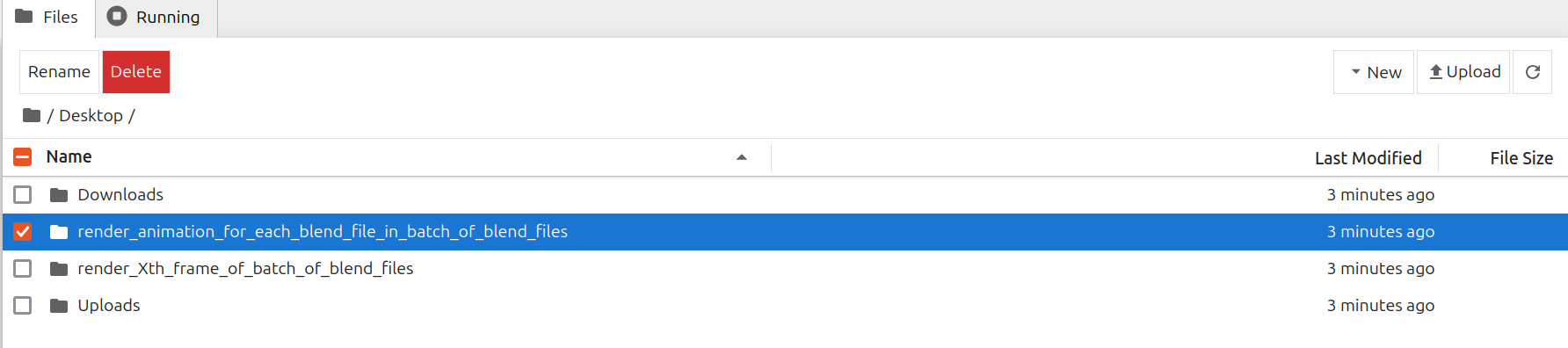
Upload .blend files to /Desktop/render_animation_for_each_blend_file_in_batch_of_blend_files/ folder
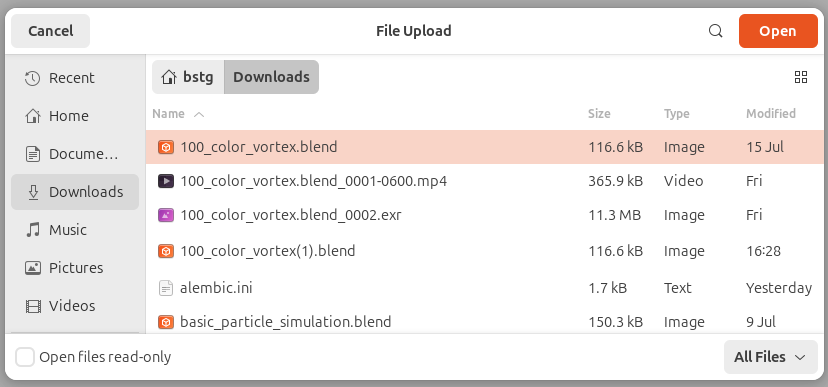
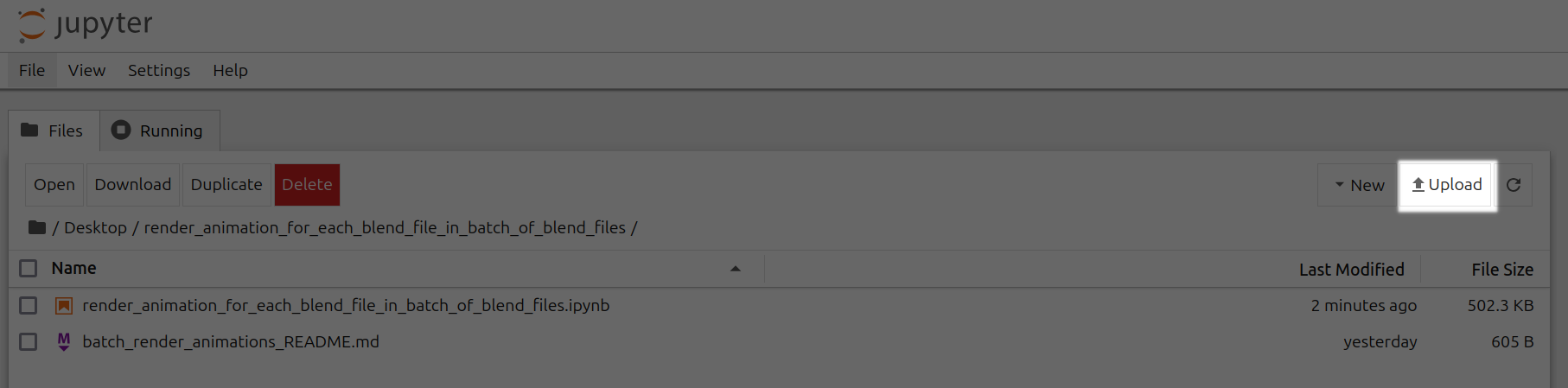

Open render_animation_for_each_blend_file_in_batch_of_blend_files.ipynb
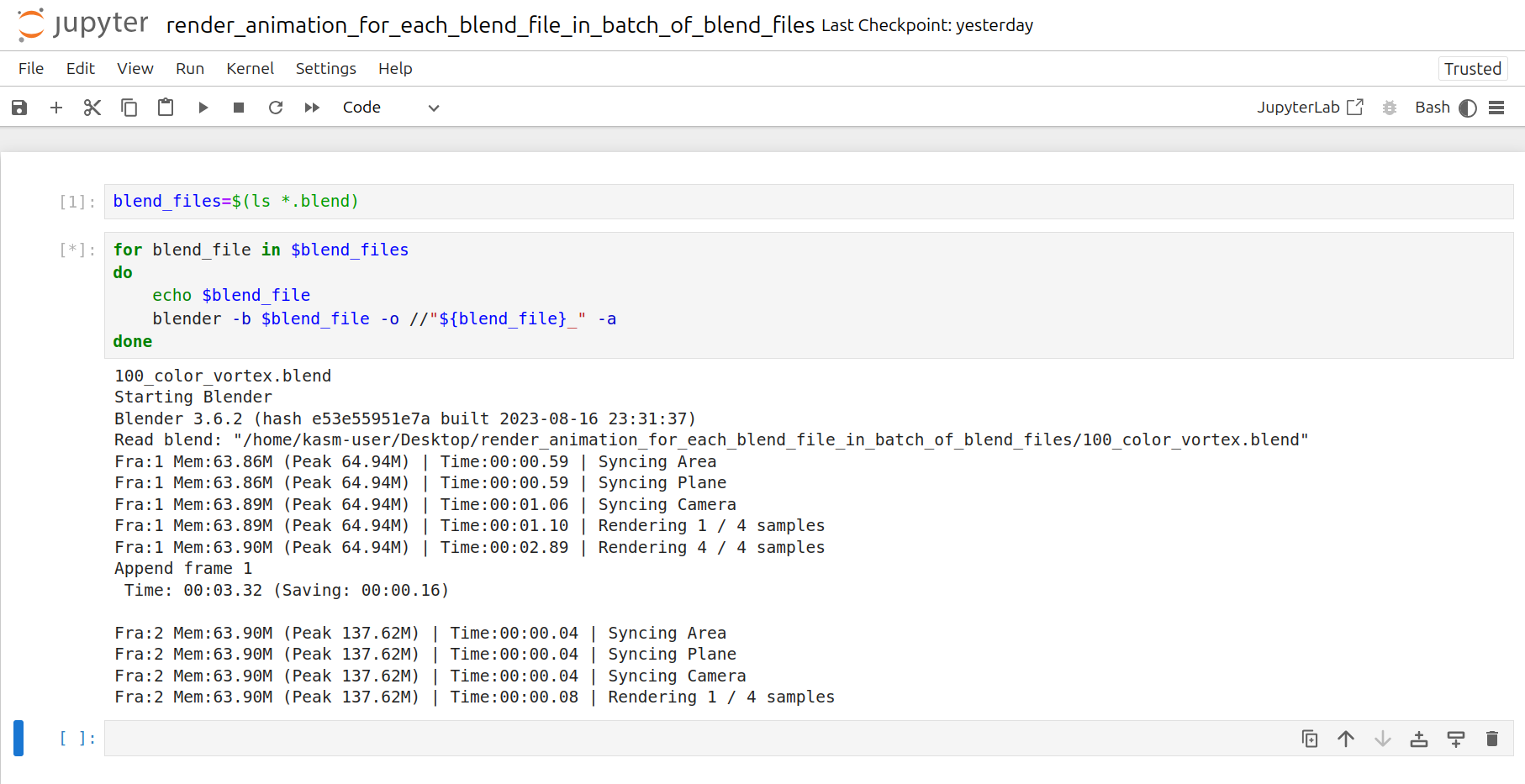
Click the Run tab and click Run All Cells
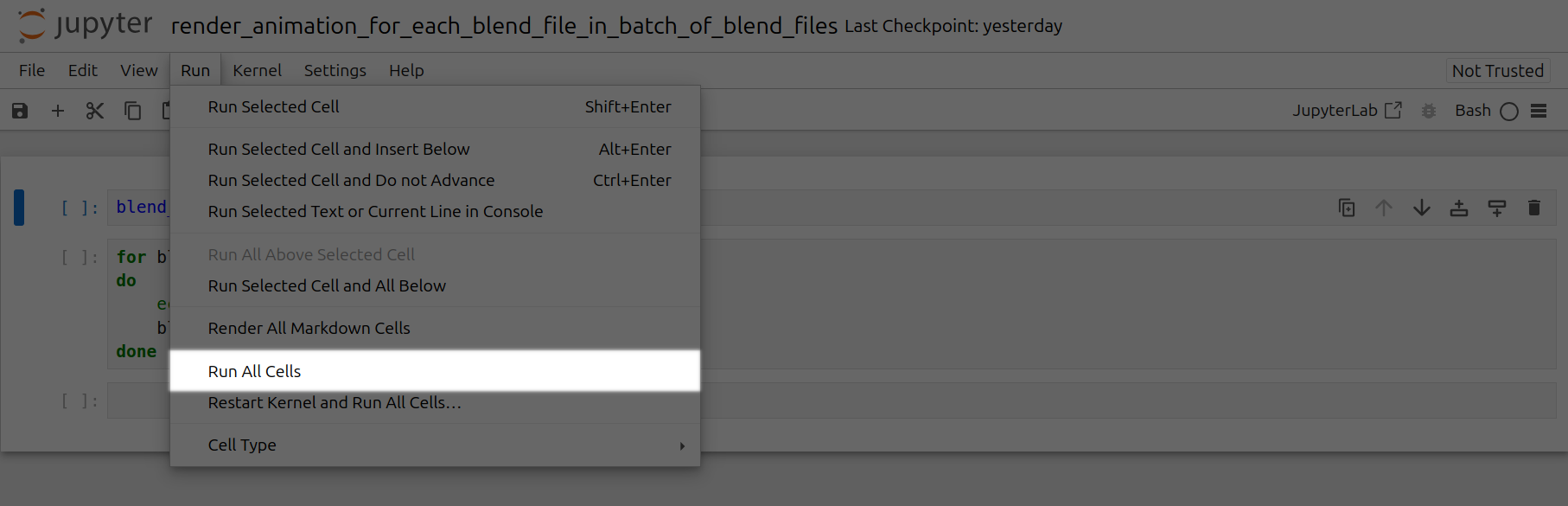

Now a corresponding animation will be rendered for each .blend file you have uploaded to this folder. You can also close out your jupyter notebook tab in your browser and this notebook will keep running as long as your instance in Vast is running.
Step 8 - To Render Animation For Xth Frame of Each Blend File In Batch Of Blend Files
If you want to render a respective animation for the Xth frame of each blend file in a batch of blend files, follow the following steps.
Go to /Desktop/render_Xth_frame_of_batch_of_blend_files/ folder in Jupyter Notebook
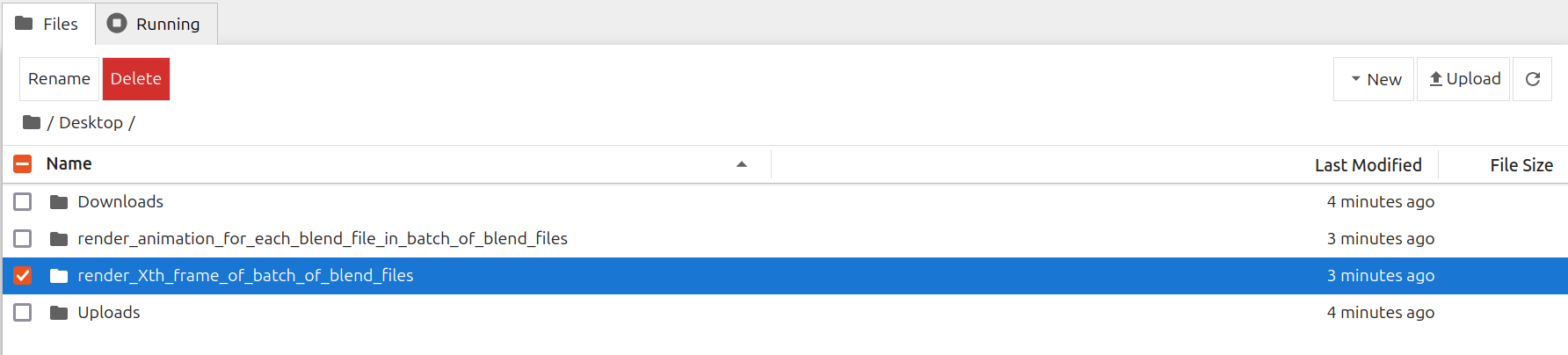
Upload .blend files to /Desktop/render_Xth_frame_of_batch_of_blend_files/ folder
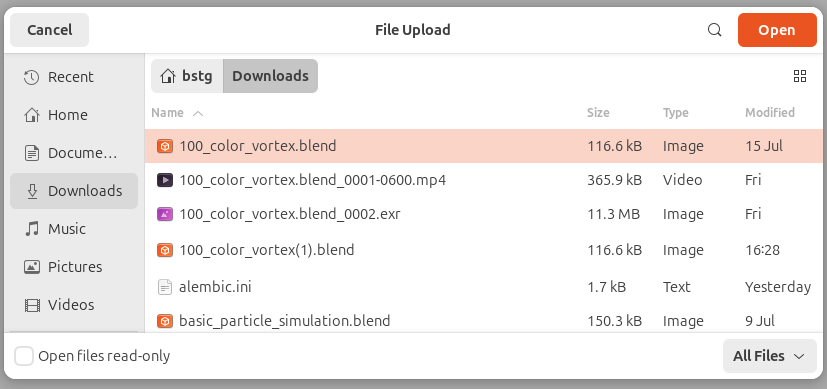
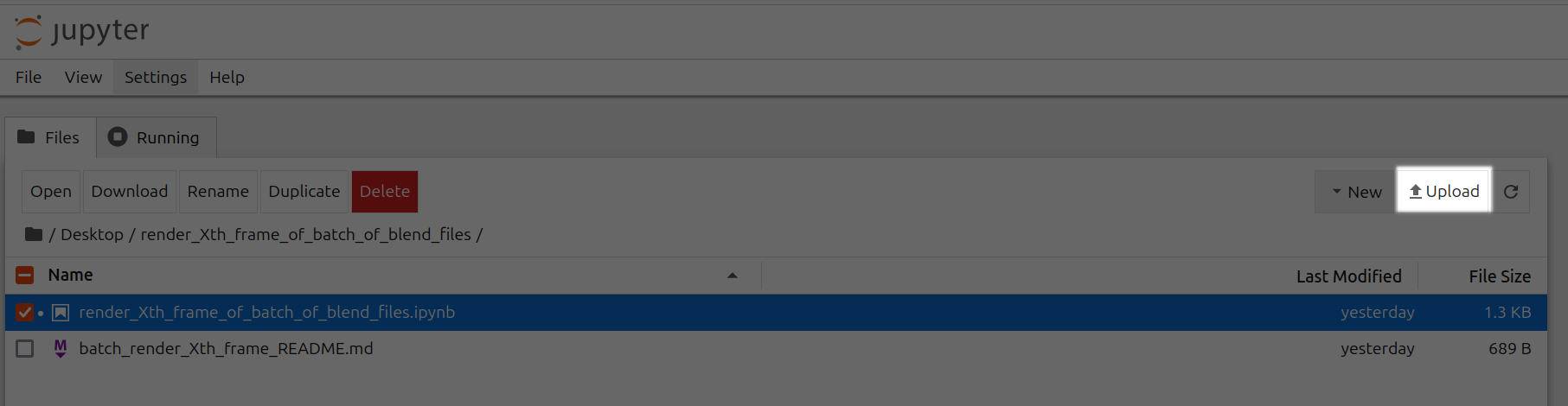

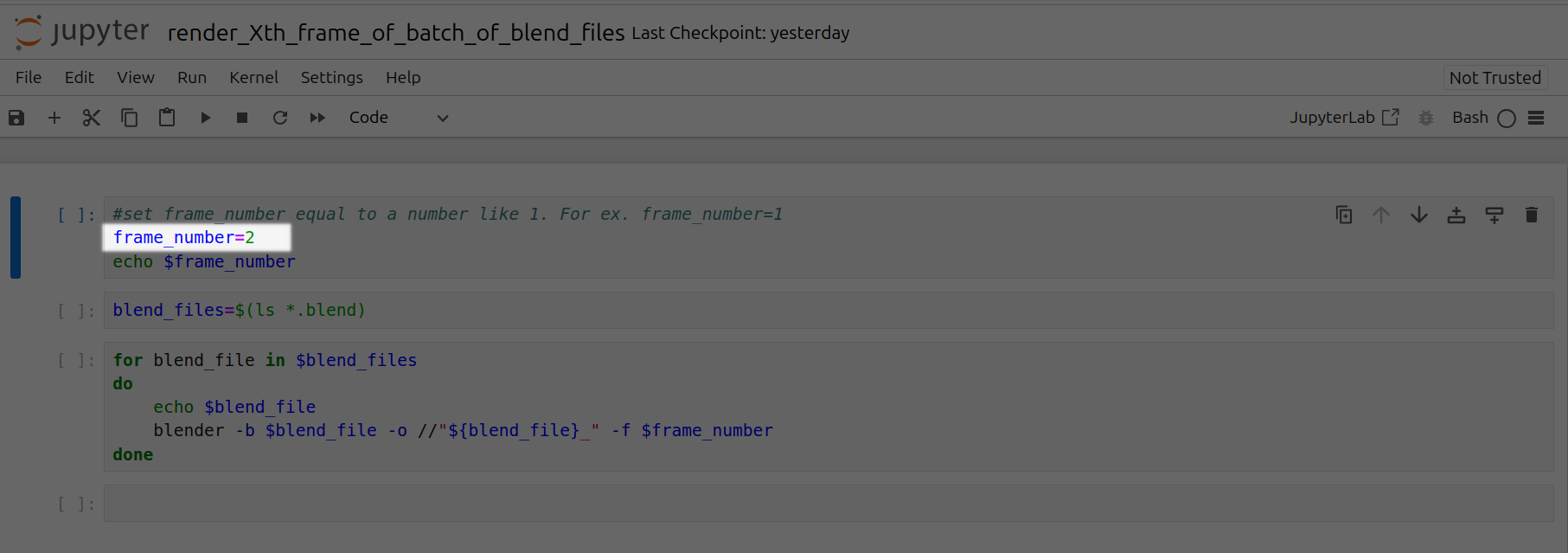
Open render_Xth_frame_of_batch_of_blend_files.ipynb

Set frame_number equal to a particular frame number. For ex. frame_number=2
Click the Run tab and click Run All Cells
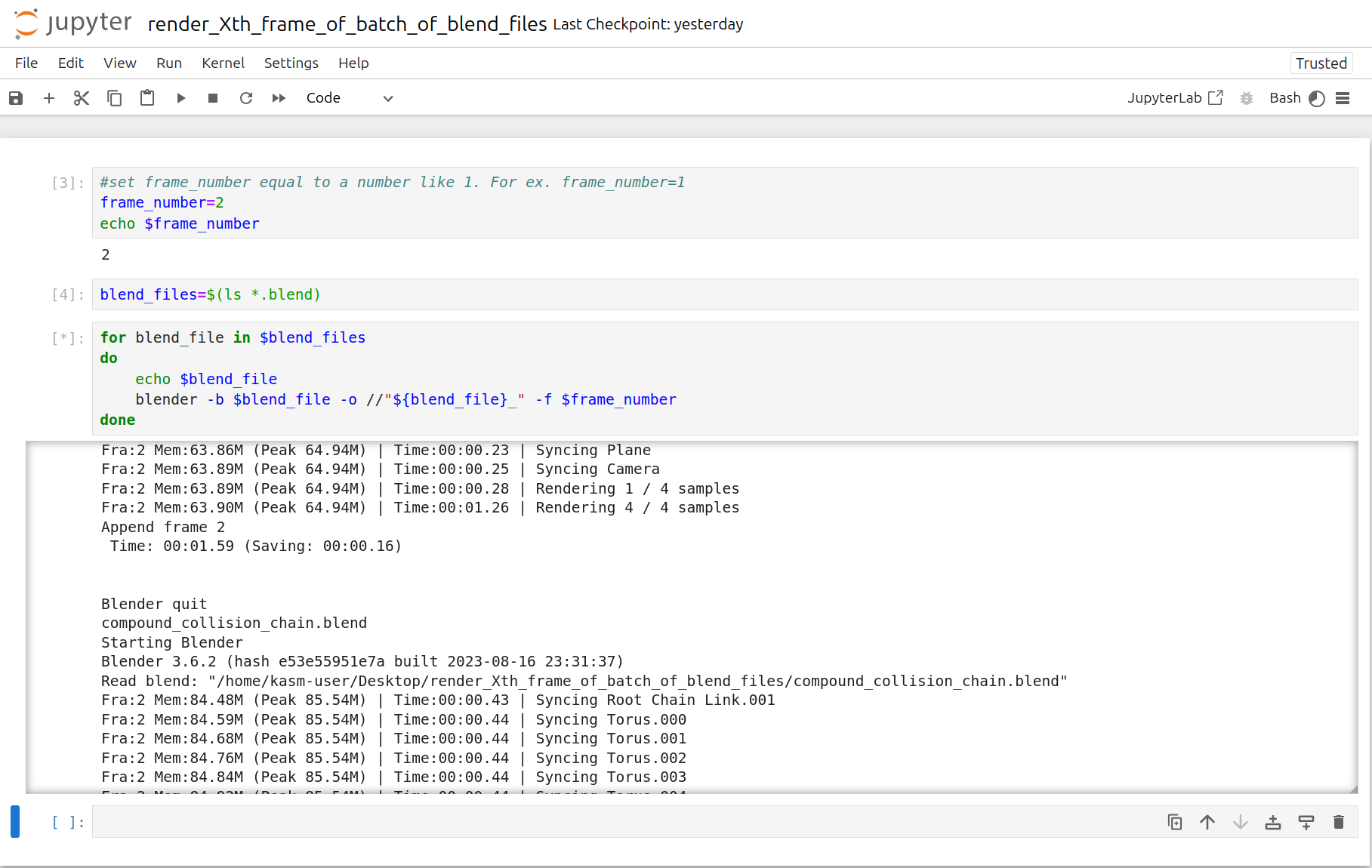
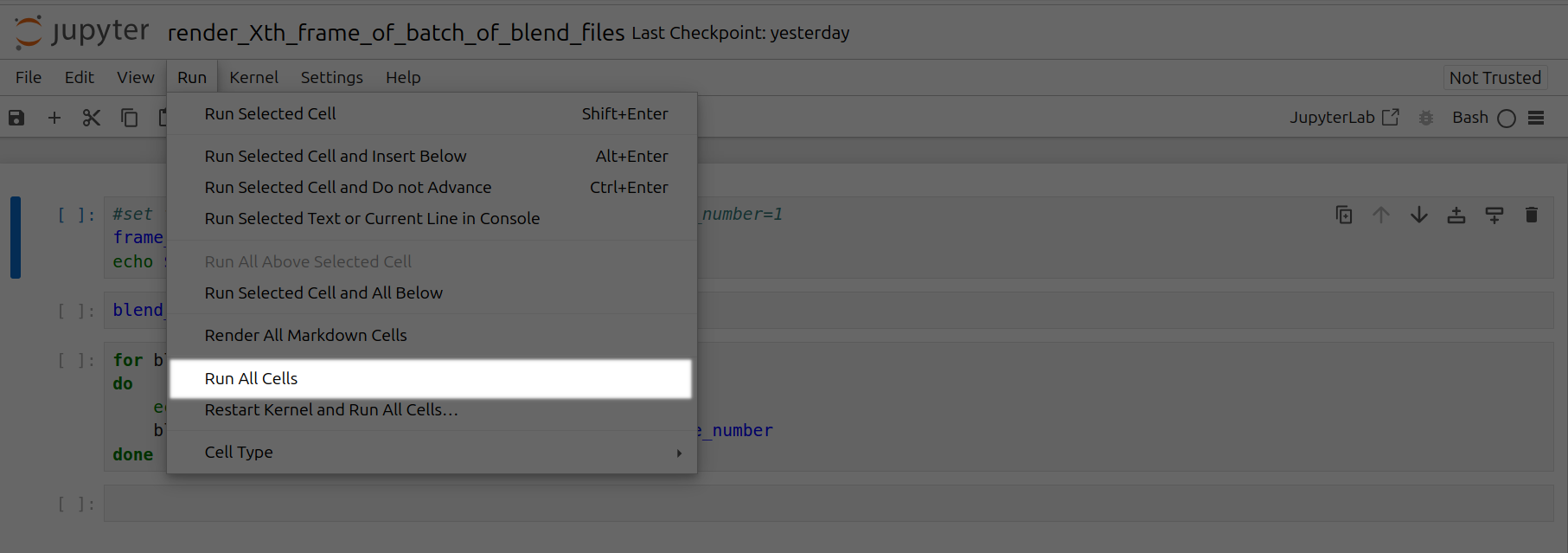

Now a corresponding animation will be rendered for each Xth frame of each .blend file you have uploaded to this folder. You can also close out your jupyter notebook tab in your browser and this notebook will keep running as long as your instance in Vast is running.
Blender in the Cloud
Source: https://docs.vast.ai/blender-in-the-cloud
Blender is a free, open source 3D creation suite. It can be used to create animated films, visual effects, art, 3D-printed models, motion graphics, interactive 3D applications, virtual reality, and video games. It supports the entirety of the 3D pipeline—modeling, rigging, animation, simulation, rendering, compositing and motion tracking, even video editing and game creation. You can find more information about Blender at blender.org.
Animators, game developers, 3D modelers, visual effects artists, architects, and product designers are some people who use Blender.
GPUs can speed up rendering in Blender.
Step 1 - Open Blender in the Cloud Template
Click on this link Blender in the Cloud Template to select the kasmweb/blender in the cloud template.
Step 2 - [Optional] Check the Secure Cloud box
You can narrow your search results to only data center machines if you want insured security standards from our trusted datacenters.
Step 3 - Filter for a GPU that you feel best suits your needs
If you have questions about which GPU to choose, there is some data around NVIDIA Geforce RTX 4090 giving the best render speed with Blender. You can find other GPUs that work well with Blender here Blender GPU Benchmarks. You can also find other options by searching on Google or asking ChatGPT.
The version of Blender running within Vast while using the template linked above at the time of this writing is 3.6.2.
Go to the GPUs filter and check the box for RTX 4090 or another GPU instance.
For example,
Step 4 - Choose a GPU by Clicking "RENT"
Choose a GPU that meets your budget, desired reliability %, and other constraints by clicking "RENT". GPUs are sorted by a complex proprietary algorithm that aims to give users the best machines for their value by default. You can filter GPUs further per your requirements if desired.
Step 5 - Use Jupyter Direct HTTPS Launch Mode
Follow the instructions related to adding a certificate to your browser if you need to when it asks you to "Setup Jupyter Direct HTTPS" and click "CONTINUE". Here's more information on the Jupyter direct HTTPS Launch Mode and Installing the TLS certificate: Jupyter
Step 6 - Open Blender
Go to the Instances tab to see your instance being created with it "Creating". When the message on the blue button changes to "Open", click on Open to open Blender.
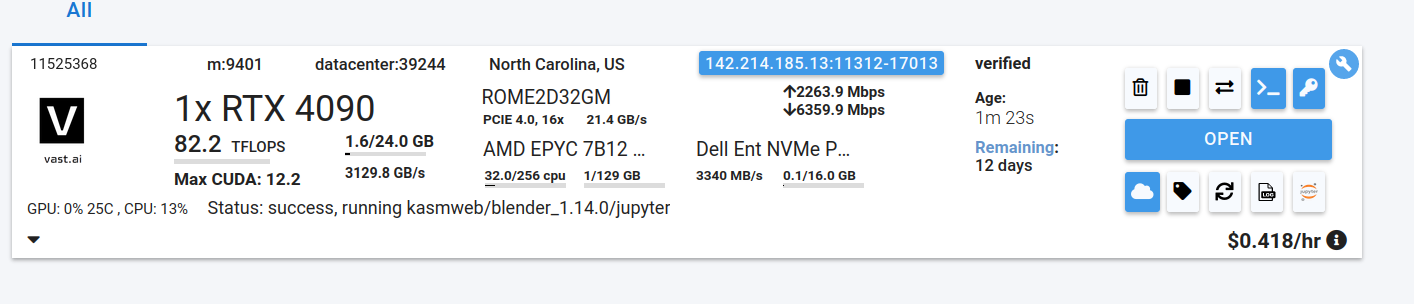
Here's more info about instances at Vast if you need to reference it: Instances Guide
If you see an error that says something like "'clipboard-read' is not a valid value for enumeration PermissionName", please close that window.
You should now see Blender!

Step 7 - Upload .blend file(s) through Jupyter Notebook
Click the Jupyter Notebook button to open Jupyter Notebook.
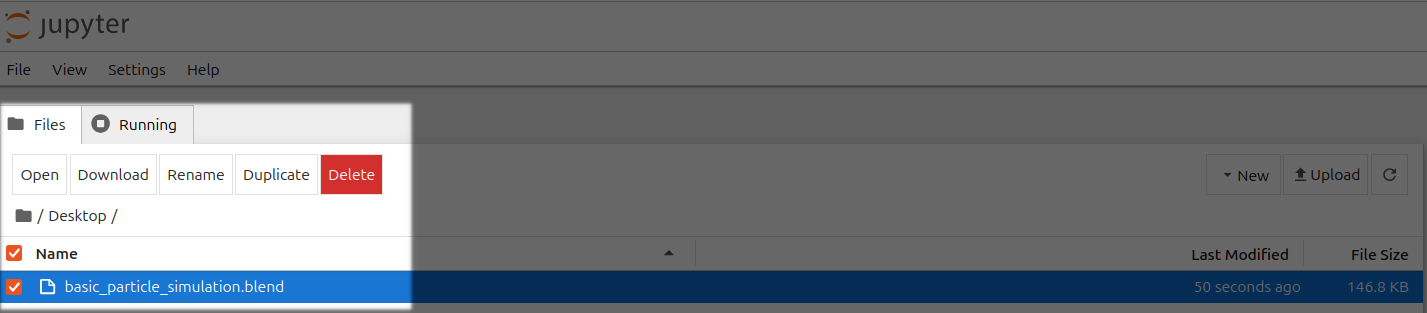
Go to your Jupyter Notebook, click the upload button on the top right, and upload one of your .blend files from your local computer to a directory in the Jupyter Notebook. In this case, I'm uploading basic_particle_simulation.blend to the Desktop directory.
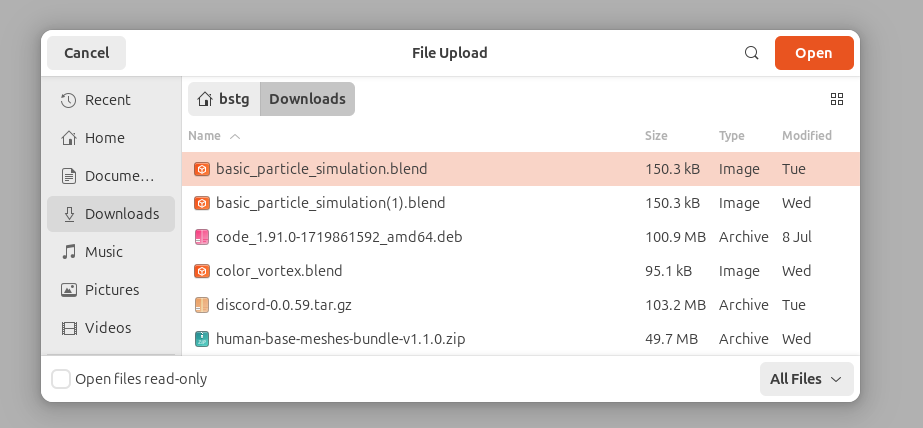


Step 8 - Open .blend file in Blender
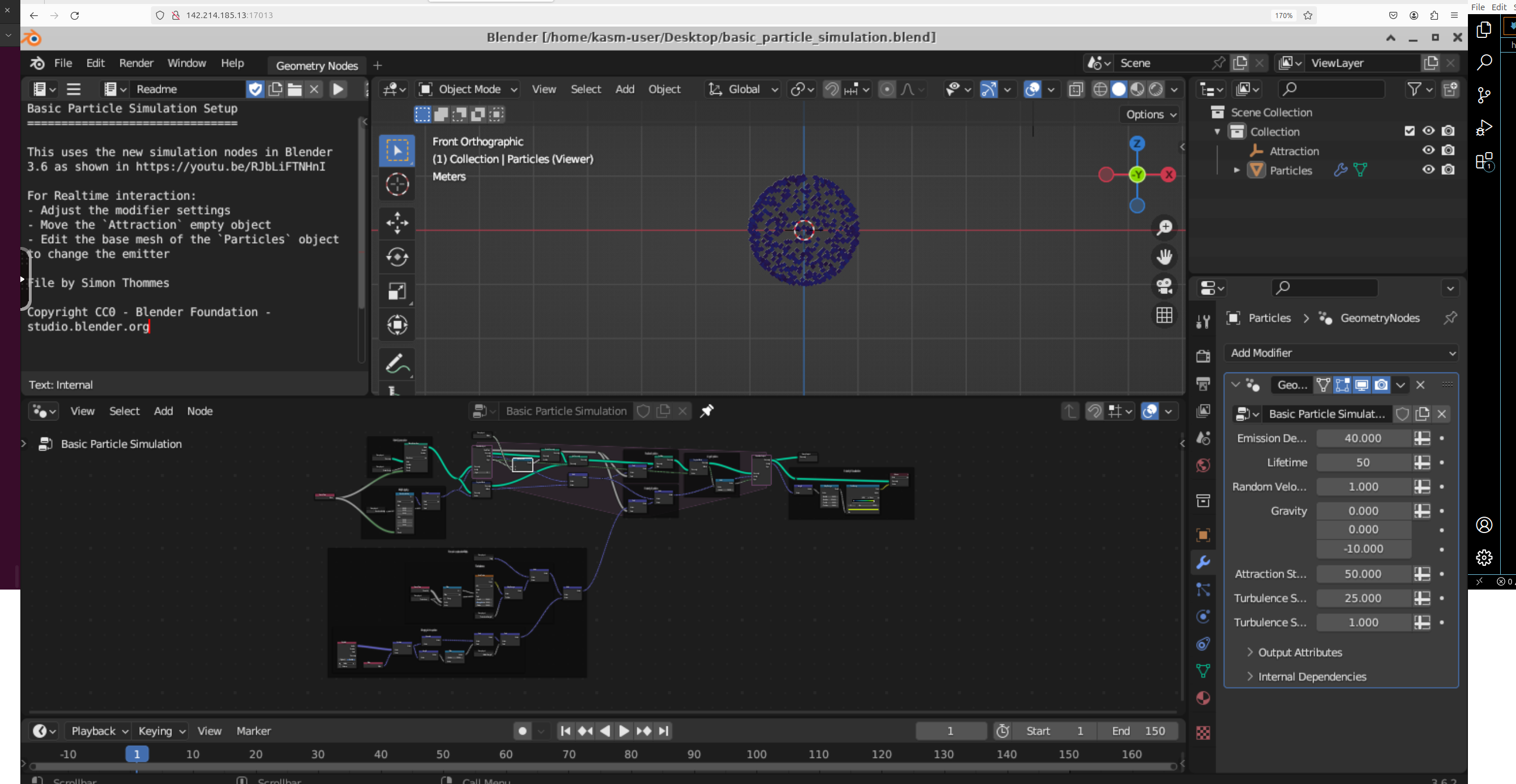
Go back to the tab where Blender is running, click on File, click on Open, find your file, and open it. In this case, my basic_particle_simulation.blend is in the Desktop directory since that's where I uploaded it in Jupyter Notebook
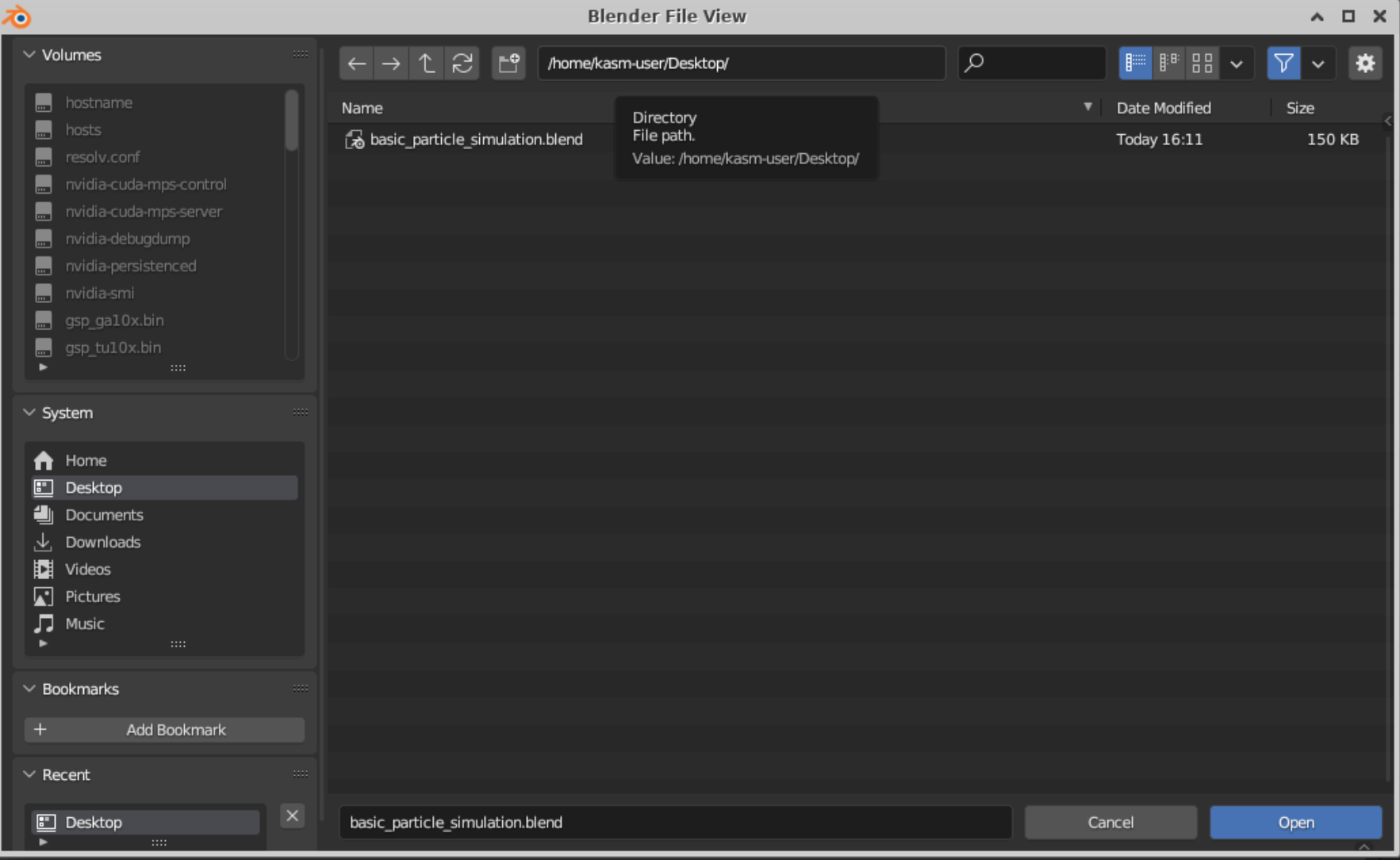
Step 9 - Work on Your .blend file in Blender!
- There you go! You should now able to see your .blend file in Blender in the Cloud using Vast.
Step 10 - Download files as needed from Jupyter Notebook
- You can save files in Blender and download them by selecting the file(s) and clicking the Download button in Jupyter Notebook.
Commands
Source: https://docs.vast.ai/cli/commands
<script type="application/ld+json" dangerouslySetInnerHTML={{ __html: JSON.stringify({ "@context": "https://schema.org", "@type": "TechArticle", "headline": "Vast.ai CLI Commands Reference", "description": "Complete reference documentation for all Vast.ai CLI commands including client commands for managing instances, host commands for machine management, and detailed usage examples.", "author": { "@type": "Organization", "name": "Vast.ai" }, "datePublished": "2025-01-13", "dateModified": "2025-07-12", "articleSection": "CLI Reference", "keywords": ["CLI", "command line", "API", "GPU", "vast.ai", "reference", "documentation", "Python", "instances", "hosting"], "about": { "@type": "SoftwareApplication", "name": "Vast.ai CLI", "applicationCategory": "DeveloperApplication", "operatingSystem": ["Linux", "macOS", "Windows"], "programmingLanguage": "Python" } }) }} /> # CLI Commands ```text Text theme={null} usage: vastai [-h] [--url URL] [--retry RETRY] [--raw] [--explain] [--curl] [--api-key API_KEY] [--version] command ... positional arguments: command command to run. one of: help print this help message attach ssh Attach an ssh key to an instance. This will allow you to connect to the instance with the ssh key cancel copy Cancel a remote copy in progress, specified by DST id cancel sync Cancel a remote copy in progress, specified by DST id change bid Change the bid price for a spot/interruptible instance clone volume Clone an existing volume copy Copy directories between instances and/or local cloud copy Copy files/folders to and from cloud providers take snapshot Schedule a snapshot of a running container and push it to your repo in a container registry create api-key Create a new api-key with restricted permissions. Can be sent to other users and teammates create env-var Create a new user environment variable create ssh-key Create a new ssh-key create autogroup Create a new autoscale group create endpoint Create a new endpoint group create instance Create a new instance create subaccount Create a subaccount create team Create a new team create team-role Add a new role to your team create template Create a new template create volume Create a new volume delete api-key Remove an api-key delete ssh-key Remove an ssh-key delete scheduled-job Delete a scheduled job delete autogroup Delete an autogroup group delete endpoint Delete an endpoint group delete env-var Delete a user environment variable delete template Delete a Template delete volume Delete a volume destroy instance Destroy an instance (irreversible, deletes data) destroy instances Destroy a list of instances (irreversible, deletes data) destroy team Destroy your team detach ssh Detach an ssh key from an instance execute Execute a (constrained) remote command on a machine get endpt-logs Fetch logs for a specific serverless endpoint group invite member Invite a team member label instance Assign a string label to an instance launch instance Launch the top instance from the search offers based on the given parameters logs Get the logs for an instance prepay instance Deposit credits into reserved instance reboot instance Reboot (stop/start) an instance recycle instance Recycle (destroy/create) an instance remove member Remove a team member remove team-role Remove a role from your team reports Get the user reports for a given machine reset api-key Reset your api-key (get new key from website) start instance Start a stopped instance start instances Start a list of instances stop instance Stop a running instance stop instances Stop a list of instances search benchmarks Search for benchmark results using custom query search invoices Search for benchmark results using custom query search offers Search for instance types using custom query search templates Search for template results using custom query search volumes Search for volume offers using custom query set api-key Set api-key (get your api-key from the console/CLI) set user Update user data from json file ssh-url ssh url helper scp-url scp url helper show api-key Show an api-key show api-keys List your api-keys associated with your account show audit-logs Display account's history of important actions show scheduled-jobs Display the list of scheduled jobs show ssh-keys List your ssh keys associated with your account show autogroups Display user's current autogroup groups show endpoints Display user's current endpoint groups show connections Display user's cloud connections show deposit Display reserve deposit info for an instance show earnings Get machine earning history reports show env-vars Show user environment variables show invoices Get billing history reports show instance Display user's current instances show instances Display user's current instances show ipaddrs Display user's history of ip addresses show user Get current user data show subaccounts Get current subaccounts show members Show your team members show team-role Show your team role show team-roles Show roles for a team show volumes Show stats on owned volumes. create cluster Create Vast cluster join cluster Join Machine to Cluster delete cluster Delete Cluster remove-machine-from-cluster Removes machine from cluster show overlays Show overlays associated with your account. create overlay Creates overlay network on top of a physical cluster join overlay Adds instance to an overlay network delete overlay Deletes overlay and removes all of its associated instances show clusters Show clusters associated with your account. transfer credit Transfer credits to another account update autogroup Update an existing autoscale group update endpoint Update an existing endpoint group update env-var Update an existing user environment variable update instance Update recreate an instance from a new/updated template update team-role Update an existing team role update template Update an existing template update ssh-key Update an existing ssh key cancel maint [Host] Cancel maint window cleanup machine [Host] Remove all expired storage instances from the machine, freeing up space delete machine [Host] Delete machine if the machine is not being used by clients. host jobs on their own machines are disregarded and machine is force deleted. list machine [Host] list a machine for rent list machines [Host] list machines for rent list volume [Host] list disk space for rent as a volume on a machine list volumes [Host] list disk space for rent as a volume on machines unlist volume [Host] unlist volume offer remove defjob [Host] Delete default jobs set defjob [Host] Create default jobs for a machine set min-bid [Host] Set the minimum bid/rental price for a machine schedule maint [Host] Schedule upcoming maint window show machine [Host] Show hosted machines show machines [Host] Show hosted machines show maints [Host] Show maintenance information for host machines unlist machine [Host] Unlist a listed machine self-test machine [Host] Perform a self-test on the specified machine options: -h, --help show this help message and exit --url URL server REST api url --retry RETRY retry limit --raw output machine-readable json --explain output verbose explanation of mapping of CLI calls to HTTPS API endpoints --curl show a curl equivalency to the call --api-key API_KEY api key. defaults to using the one stored in /home/scott_vast/.config/vastai/vast_api_key --version show version Use 'vast COMMAND --help' for more info about a command ``` # Client Commands ## cancel copy Cancel a remote copy in progress, specified by DST id ```text Text theme={null} usage: vastai cancel copy DST positional arguments: dst instance_id:/path to target of copy operation. options: -h, --help show this help message and exit --url URL server REST api url --retry RETRY retry limit --raw output machine-readable json --explain output verbose explanation of mapping of CLI calls to HTTPS API endpoints --api-key API_KEY api key. defaults to using the one stored in ~/.vast_api_key Use this command to cancel any/all current remote copy operations copying to a specific named instance, given by DST. Examples: vastai cancel copy 12371 The first example cancels all copy operations currently copying data into instance 12371 ``` ## cancel sync Cancel a remote copy in progress, specified by DST id ```text Text theme={null} usage: vastai cancel sync DST positional arguments: dst instance_id:/path to target of sync operation. options: -h, --help show this help message and exit --url URL server REST api url --retry RETRY retry limit --raw output machine-readable json --explain output verbose explanation of mapping of CLI calls to HTTPS API endpoints --api-key API_KEY api key. defaults to using the one stored in ~/.vast_api_key Use this command to cancel any/all current remote cloud sync operations copying to a specific named instance, given by DST. Examples: vastai cancel sync 12371 The first example cancels all copy operations currently copying data into instance 12371 ``` ## change bid Change the bid price for a spot/interruptible instance ```text Text theme={null} usage: vastai change bid id [--price PRICE] positional arguments: id id of instance type to change bid options: -h, --help show this help message and exit --price PRICE per machine bid price in $/hour --url URL server REST api url --retry RETRY retry limit --raw output machine-readable json --explain output verbose explanation of mapping of CLI calls to HTTPS API endpoints --api-key API_KEY api key. defaults to using the one stored in ~/.vast_api_key Change the current bid price of instance id to PRICE. If PRICE is not specified, then a winning bid price is used as the default. ``` ## cloud copy Copy files/folders to and from cloud providers ```text Text theme={null} usage: vastai cloud_copy SRC DST CLOUD_SERVICE INSTANCE_ID CLOUD_SERVICE_SELECTED TRANSFER options: -h, --help show this help message and exit --src SRC path to source of object to copy. --dst DST path to target of copy operation. --instance INSTANCE id of the instance --connection CONNECTION id of cloud connection on your account --transfer TRANSFER type of transfer, possible options include Instance To Cloud and Cloud To Instance --url URL server REST api url --retry RETRY retry limit --raw output machine-readable json --explain output verbose explanation of mapping of CLI calls to HTTPS API endpoints --api-key API_KEY api key. defaults to using the one stored in ~/.vast_api_key Copies a directory from a source location to a target location. Each of source and destination directories can be either local or remote, subject to appropriate read and write permissions required to carry out the action. The format for both src and dst is [instance_id:]path. You can find more information about the cloud copy operation here: [Cloud Sync](/documentation/instances/cloud-sync) Examples: vastai cloud_copy --src folder --dst /workspace --cloud_service "Amazon S3" --instance_id 6003036 --cloud_service_selected 52 --transfer "Instance To Cloud" The example copies all contents of /folder into /workspace on instance 6003036 from Amazon S3. ``` ## copy Copy directories between instances and/or local ```text Text theme={null} usage: vastai copy SRC DST positional arguments: src Source location for copy operation (supports multiple formats) dst Target location for copy operation (supports multiple formats) options: -h, --help show this help message and exit -i IDENTITY, --identity IDENTITY Location of ssh private key --url URL server REST api url --retry RETRY retry limit --raw output machine-readable json --explain output verbose explanation of mapping of CLI calls to HTTPS API endpoints --curl show a curl equivalency to the call --api-key API_KEY api key. defaults to using the one stored in /home/anthony-benjamin/.config/vastai/vast_api_key --version show version Copies a directory from a source location to a target location. Each of source and destination directories can be either local or remote, subject to appropriate read and write permissions required to carry out the action. Supported location formats: - [instance_id:]path (legacy format, still supported) - C.instance_id:path (container copy format) - cloud_service:path (cloud service format) - cloud_service.cloud_service_id:path (cloud service with ID) - local:path (explicit local path) You should not copy to /root or / as a destination directory, as this can mess up the permissions on your instance ssh folder, breaking future copy operations (as they use ssh authentication) You can see more information about constraints here: [Data Movement](/documentation/instances/data-movement#constraints) Examples: vast copy 6003036:/workspace/ 6003038:/workspace/ vast copy C.11824:/data/test local:data/test vast copy local:data/test C.11824:/data/test vast copy drive:/folder/file.txt C.6003036:/workspace/ vast copy s3.101:/data/ C.6003036:/workspace/ The first example copy syncs all files from the absolute directory '/workspace' on instance 6003036 to the directory '/workspace' on instance 6003038. The second example copy syncs files from container 11824 to the local machine using structured syntax. The third example copy syncs files from local to container 11824 using structured syntax. The fourth example copy syncs files from Google Drive to an instance. The fifth example copy syncs files from S3 bucket with id 101 to an instance. ``` ## create api-key Create a new api-key with restricted permissions. ```text Text theme={null} usage: vastai create api-key options: -h, --help show this help message and exit --permissions PERMISSIONS file path for json encoded permissions, look in the docs for more information --url URL server REST api url --retry RETRY retry limit --raw output machine-readable json --explain output verbose explanation of mapping of CLI calls to HTTPS API endpoints --api-key API_KEY api key. defaults to using the one stored in ~/.vast_api_key ``` ## create autoscaler Create a new autoscale group ```text Text theme={null} usage: vastai autoscaler create [OPTIONS] options: -h, --help show this help message and exit --min_load MIN_LOAD minimum floor load in perf units/s (token/s for LLms) --target_util TARGET_UTIL target capacity utilization (fraction, max 1.0, default 0.9) --cold_mult COLD_MULT cold/stopped instance capacity target as multiple of hot capacity target (default 2.5) --gpu_ram GPU_RAM estimated GPU RAM req (independent of search string) --template_hash TEMPLATE_HASH template hash (optional) --template_id TEMPLATE_ID template id (optional) --search_params SEARCH_PARAMS search param string for search offers ex: "gpu_ram>=23 num_gpus=2 gpu_name=RTX_4090 inet_down>200 direct_port_count>2 disk_space>=64" --launch_args LAUNCH_ARGS launch args string for create instance ex: "--onstart onstart_wget.sh --env '-e ONSTART_PATH=https://s3.amaz onaws.com/vast.ai/onstart_OOBA.sh' --image atinoda/text-generation-webui:default-nightly --disk 64" --endpoint_name ENDPOINT_NAME deployment endpoint name (allows multiple autoscale groups to share same deployment endpoint) --url URL server REST api url --retry RETRY retry limit --raw output machine-readable json --explain output verbose explanation of mapping of CLI calls to HTTPS API endpoints --api-key API_KEY api key. defaults to using the one stored in ~/.vast_api_key Create a new autoscaling group to manage a pool of worker instances. Example: vastai create autoscaler --min_load 100 --target_util 0.9 --cold_mult 2.0 --search_params "gpu_ram>=23 num_gpus=2 gpu_name=RTX_4090 inet_down>200 direct_port_count>2 disk_space>=64" --launch_args "--onstart onstart_wget.sh --env '-e ONSTART_PATH=https://s3.amazonaws.com/vast.ai/onstart_OOBA.sh' --image atinoda/text-generation-webui:default-nightly --disk 64" --gpu_ram 32.0 --endpoint_name "LLama" ``` ## create instance Create a new instance ```text Text theme={null} usage: vastai create instance ID [OPTIONS] [--args ...] positional arguments: ID id of instance type to launch (returned from search offers) options: -h, --help show this help message and exit --price PRICE per machine bid price in $/hour --disk DISK size of local disk partition in GB --image IMAGE docker container image to launch --login LOGIN docker login arguments for private repo authentication, surround with '' --label LABEL label to set on the instance --onstart ONSTART filename to use as onstart script --onstart-cmd ONSTART_CMD contents of onstart script as single argument --entrypoint ENTRYPOINT override entrypoint for args launch instance --ssh Launch as an ssh instance type. --jupyter Launch as a jupyter instance instead of an ssh instance. --direct Use (faster) direct connections for jupyter & ssh. --jupyter-dir JUPYTER_DIR For runtype 'jupyter', directory in instance to use to launch jupyter. Defaults to image's working directory. --jupyter-lab For runtype 'jupyter', Launch instance with jupyter lab. --lang-utf8 Workaround for images with locale problems: install and generate locales before instance launch, and set locale to C.UTF-8. --python-utf8 Workaround for images with locale problems: set python's locale to C.UTF-8. --env ENV env variables and port mapping options, surround with '' --args ... list of arguments passed to container ENTRYPOINT. Onstart is recommended for this purpose. --create-from CREATE_FROM Existing instance id to use as basis for new instance. Instance configuration should usually be identical, as only the difference from the base image is copied. --force Skip sanity checks when creating from an existing instance --url URL server REST api url --retry RETRY retry limit --raw output machine-readable json --explain output verbose explanation of mapping of CLI calls to HTTPS API endpoints --api-key API_KEY api key. defaults to using the one stored in ~/.vast_api_key Performs the same action as pressing the "RENT" button on the website at https://console.vast.ai/create/ Creates an instance from an offer ID (which is returned from "search offers"). Each offer ID can only be used to create one instance. Besides the offer ID, you must pass in an '--image' argument as a minimum. Examples: vastai create instance 6995713 --image pytorch/pytorch --disk 40 --env '-p 8081:80801/udp -h billybob' --ssh --direct --onstart-cmd "env | grep _ >> /etc/environment; echo 'starting up'"; vastai create instance 384827 --image bobsrepo/pytorch:latest --login '-u bob -p 9d8df!fd89ufZ docker.io' --jupyter --direct --env '-e TZ=PDT -e XNAME=XX4 -p 22:22 -p 8080:8080' --disk 20 Return value: Returns a json reporting the instance ID of the newly created instance. Example: {'success': True, 'new_contract': 7835610} ``` ## create overlay Create an overlay network inside a physical cluster. ```none theme={null} usage: vastai create overlay CLUSTER_ID OVERLAY_NAME positional arguments: cluster_id ID of cluster to create overlay on top of name overlay network name options: -h, --help show this help message and exit --url URL server REST api url --retry RETRY retry limit --raw output machine-readable json --explain output verbose explanation of mapping of CLI calls to HTTPS API endpoints --curl show a curl equivalency to the call --api-key API_KEY api key. defaults to using the one stored in /home/edgarlin/.config/vastai/vast_api_key --version show version Creates an overlay network to allow local networking between instances on a physical cluster ``` ## create subaccount Create a subaccount ```text Text theme={null} usage: vastai create subaccount --email EMAIL --username USERNAME --password PASSWORD --type TYPE options: -h, --help show this help message and exit --email EMAIL email address to use for login --username USERNAME username to use for login --password PASSWORD password to use for login --type TYPE host/client --url URL server REST api url --retry RETRY retry limit --raw output machine-readable json --explain output verbose explanation of mapping of CLI calls to HTTPS API endpoints --api-key API_KEY api key. defaults to using the one stored in ~/.vast_api_key Creates a new account that is considered a child of your current account as defined via the API key. ``` ## create team Create a new team ```text Text theme={null} usage: vastai create-team --team_name TEAM_NAME options: -h, --help show this help message and exit --team_name TEAM_NAME name of the team --url URL server REST api url --retry RETRY retry limit --raw output machine-readable json --explain output verbose explanation of mapping of CLI calls to HTTPS API endpoints --api-key API_KEY api key. defaults to using the one stored in ~/.vast_api_key ``` ## create team-role Add a new role to your ```text Text theme={null} usage: vastai create team-role name --permissions PERMISSIONS options: -h, --help show this help message and exit --name NAME name of the role --permissions PERMISSIONS file path for json encoded permissions, look in the docs for more information --url URL server REST api url --retry RETRY retry limit --raw output machine-readable json --explain output verbose explanation of mapping of CLI calls to HTTPS API endpoints --api-key API_KEY api key. defaults to using the one stored in ~/.vast_api_key ``` ## delete api-key Remove an api-key ```text Text theme={null} usage: vastai delete api-key ID positional arguments: ID id of apikey to remove options: -h, --help show this help message and exit --url URL server REST api url --retry RETRY retry limit --raw output machine-readable json --explain output verbose explanation of mapping of CLI calls to HTTPS API endpoints --api-key API_KEY api key. defaults to using the one stored in ~/.vast_api_key ``` ## delete autoscaler Delete an autoscaler group ```text Text theme={null} usage: vastai delete autoscaler ID positional arguments: ID id of group to delete options: -h, --help show this help message and exit --url URL server REST api url --retry RETRY retry limit --raw output machine-readable json --explain output verbose explanation of mapping of CLI calls to HTTPS API endpoints --api-key API_KEY api key. defaults to using the one stored in ~/.vast_api_key Note that deleteing an autoscaler group doesn't automatically destroy all the instances that are associated with your autoscaler group. Example: vastai delete autoscaler 4242 ``` ## delete overlay Deletes an overlay ```none theme={null} usage: vastai delete overlay OVERLAY_ID positional arguments: overlay_id ID of overlay to delete options: -h, --help show this help message and exit --url URL server REST api url --retry RETRY retry limit --raw output machine-readable json --explain output verbose explanation of mapping of CLI calls to HTTPS API endpoints --curl show a curl equivalency to the call --api-key API_KEY api key. defaults to using the one stored in /home/edgarlin/.config/vastai/vast_api_key ``` ## destroy instance Destroy an instance (irreversible, deletes data) ```text Text theme={null} usage: vastai destroy instance id [-h] [--api-key API_KEY] [--raw] positional arguments: id id of instance to delete options: -h, --help show this help message and exit --url URL server REST api url --retry RETRY retry limit --raw output machine-readable json --explain output verbose explanation of mapping of CLI calls to HTTPS API endpoints --api-key API_KEY api key. defaults to using the one stored in ~/.vast_api_key Perfoms the same action as pressing the "DESTROY" button on the website at https://console.vast.ai/instances/ Example: vastai destroy instance 4242 ``` ## destroy instances Destroy a list of instances (irreversible, deletes ```text Text theme={null} usage: vastai destroy instances [--raw] positional arguments: ids ids of instance to destroy options: -h, --help show this help message and exit --url URL server REST api url --retry RETRY retry limit --raw output machine-readable json --explain output verbose explanation of mapping of CLI calls to HTTPS API endpoints --api-key API_KEY api key. defaults to using the one stored in ~/.vast_api_key ``` ## destroy team Destroy your team ```text Text theme={null} usage: vastai destroy team options: -h, --help show this help message and exit --url URL server REST api url --retry RETRY retry limit --raw output machine-readable json --explain output verbose explanation of mapping of CLI calls to HTTPS API endpoints --api-key API_KEY api key. defaults to using the one stored in ~/.vast_api_key ``` ## execute Execute a (constrained) remote command on a machine ```text Text theme={null} usage: vastai execute ID COMMAND positional arguments: ID id of instance to execute on COMMAND bash command surrounded by single quotes options: -h, --help show this help message and exit --url URL server REST api url --retry RETRY retry limit --raw output machine-readable json --explain output verbose explanation of mapping of CLI calls to HTTPS API endpoints --api-key API_KEY api key. defaults to using the one stored in ~/.vast_api_key examples: vastai execute 99999 'ls -l -o -r' vastai execute 99999 'rm -r home/delete_this.txt' vastai execute 99999 'du -d2 -h' available commands: ls List directory contents rm Remote files or directories du Summarize device usage for a set of files Return value: Returns the output of the command which was executed on the instance, if successful. May take a few seconds to retrieve the results. ``` ## generate pdf-invoices ```text Text theme={null} usage: vastai generate pdf-invoices [OPTIONS] options: -h, --help show this help message and exit -q, --quiet only display numeric ids -s START_DATE, --start_date START_DATE start date and time for report. Many formats accepted (optional) -e END_DATE, --end_date END_DATE end date and time for report. Many formats accepted (optional) -c, --only_charges Show only charge items. -p, --only_credits Show only credit items. --url URL server REST api url --retry RETRY retry limit --raw output machine-readable json --explain output verbose explanation of mapping of CLI calls to HTTPS API endpoints --api-key API_KEY api key. defaults to using the one stored in ~/.vast_api_key ``` ## join overlay Attaches an instance to an overlay network ```none theme={null} usage: vastai join overlay OVERLAY_NAME INSTANCE_ID positional arguments: name Overlay network name to join instance to. instance_id Instance ID to add to overlay. options: -h, --help show this help message and exit --url URL server REST api url --retry RETRY retry limit --raw output machine-readable json --explain output verbose explanation of mapping of CLI calls to HTTPS API endpoints --curl show a curl equivalency to the call --api-key API_KEY api key. defaults to using the one stored in /home/edgarlin/.config/vastai/vast_api_key --version show version Adds an instance to a compatible overlay network. ``` ## invite team-member Invite a team member ```text Text theme={null} usage: vastai invite team-member --email EMAIL --role ROLE options: -h, --help show this help message and exit --email EMAIL email of user to be invited --role ROLE role of user to be invited --url URL server REST api url --retry RETRY retry limit --raw output machine-readable json --explain output verbose explanation of mapping of CLI calls to HTTPS API endpoints --api-key API_KEY api key. defaults to using the one stored in ~/.vast_api_key ``` ## label instance Assign a string label to an instance ```text Text theme={null} usage: vastai label instance positional arguments: id id of instance to label label label to set options: -h, --help show this help message and exit --url URL server REST api url --retry RETRY retry limit --raw output machine-readable json --explain output verbose explanation of mapping of CLI calls to HTTPS API endpoints --api-key API_KEY api key. defaults to using the one stored in ~/.vast_api_key ``` ## logs Get the logs for an instance ```text Text theme={null} usage: vastai logs [OPTIONS] INSTANCE_ID positional arguments: INSTANCE_ID id of instance options: -h, --help show this help message and exit --tail TAIL Number of lines to show from the end of the logs (default '1000') --url URL server REST api url --retry RETRY retry limit --raw output machine-readable json --explain output verbose explanation of mapping of CLI calls to HTTPS API endpoints --api-key API_KEY api key. defaults to using the one stored in ~/.vast_api_key ``` ## prepay instance Deposit credits into reserved instance. ```text Text theme={null} usage: vastai prepay instance positional arguments: id id of instance to prepay for amount amount of instance credit prepayment (default discount func of 0.2 for 1 month, 0.3 for 3 months) options: -h, --help show this help message and exit --url URL server REST api url --retry RETRY retry limit --raw output machine-readable json --explain output verbose explanation of mapping of CLI calls to HTTPS API endpoints --api-key API_KEY api key. defaults to using the one stored in ~/.vast_api_key ``` ## reboot instance Reboot (stop/start) an instance ```text Text theme={null} usage: vastai reboot instance [--raw] positional arguments: id id of instance to reboot options: -h, --help show this help message and exit --url URL server REST api url --retry RETRY retry limit --raw output machine-readable json --explain output verbose explanation of mapping of CLI calls to HTTPS API endpoints --api-key API_KEY api key. defaults to using the one stored in ~/.vast_api_key Instance is stopped and started without any risk of losing GPU priority. ``` ## remove team-member Remove a team member ```text Text theme={null} usage: vastai remove team-member ID positional arguments: ID id of user to remove options: -h, --help show this help message and exit --url URL server REST api url --retry RETRY retry limit --raw output machine-readable json --explain output verbose explanation of mapping of CLI calls to HTTPS API endpoints --api-key API_KEY api key. defaults to using the one stored in ~/.vast_api_key ``` ## remove team-role Remove a role from your team ```text Text theme={null} usage: vastai remove team-role NAME positional arguments: NAME name of the role options: -h, --help show this help message and exit --url URL server REST api url --retry RETRY retry limit --raw output machine-readable json --explain output verbose explanation of mapping of CLI calls to HTTPS API endpoints --api-key API_KEY api key. defaults to using the one stored in ~/.vast_api_key ``` ## reports Get the user reports for a given machine ```text Text theme={null} usage: vastai reports m_id positional arguments: m_id machine id options: -h, --help show this help message and exit --url URL server REST api url --retry RETRY retry limit --raw output machine-readable json --explain output verbose explanation of mapping of CLI calls to HTTPS API endpoints --api-key API_KEY api key. defaults to using the one stored in ~/.vast_api_key ``` ## reset api-key Reset your api-key (get new key from website). ```text Text theme={null} usage: vastai reset api-key options: -h, --help show this help message and exit --url URL server REST api url --retry RETRY retry limit --raw output machine-readable json --explain output verbose explanation of mapping of CLI calls to HTTPS API endpoints --api-key API_KEY api key. defaults to using the one stored in ~/.vast_api_key ``` ## scp-url scp url helper ```text Text theme={null} usage: vastai scp-url ID positional arguments: id id options: -h, --help show this help message and exit --url URL server REST api url --retry RETRY retry limit --raw output machine-readable json --explain output verbose explanation of mapping of CLI calls to HTTPS API endpoints --api-key API_KEY api key. defaults to using the one stored in ~/.vast_api_key ``` ## search offers Search for instance types using custom query ```text Text theme={null} usage: vastai search offers [--help] [--api-key API_KEY] [--raw] positional arguments: query Query to search for. default: 'external=false rentable=true verified=true', pass -n to ignore default options: -h, --help show this help message and exit -t TYPE, --type TYPE Show 'on-demand', 'reserved', or 'bid'(interruptible) pricing. default: on-demand -i, --interruptible Alias for --type=bid -b, --bid Alias for --type=bid -r, --reserved Alias for --type=reserved -d, --on-demand Alias for --type=on-demand -n, --no-default Disable default query --disable-bundling Show identical offers. This request is more heavily rate limited. --storage STORAGE Amount of storage to use for pricing, in GiB. default=5.0GiB -o ORDER, --order ORDER Comma-separated list of fields to sort on. postfix field with - to sort desc. ex: -o 'num_gpus,total_flops-'. default='score-' --url URL server REST api url --retry RETRY retry limit --raw output machine-readable json --explain output verbose explanation of mapping of CLI calls to HTTPS API endpoints --api-key API_KEY api key. defaults to using the one stored in ~/.vast_api_key Query syntax: query = comparison comparison... comparison = field op value field = op = one of: <, <=, ==, !=, >=, >, in, notin value = | 'any' bool: True, False note: to pass '>' and '<' on the command line, make sure to use quotes note: to encode a string query value (ie for gpu_name), replace any spaces ' ' with underscore '_' Examples: # search for somewhat reliable single RTX 3090 instances, filter out any duplicates or offers that conflict with our existing stopped instances vastai search offers 'reliability > 0.98 num_gpus=1 gpu_name=RTX_3090 rented=False' # search for datacenter gpus with minimal compute_cap and total_flops vastai search offers 'compute_cap > 610 total_flops > 5 datacenter=True' # search for reliable machines with at least 4 gpus, unverified, order by num_gpus, allow duplicates vastai search offers 'reliability > 0.99 num_gpus>=4 verified=False rented=any' -o 'num_gpus-' Available fields: Name Type Description bw_nvlink float bandwidth NVLink compute_cap: int cuda compute capability*100 (ie: 650 for 6.5, 700 for 7.0) cpu_cores: int # virtual cpus cpu_cores_effective: float # virtual cpus you get cpu_ram: float system RAM in gigabytes cuda_vers: float machine max supported cuda version (based on driver version) datacenter: bool show only datacenter offers direct_port_count int open ports on host's router disk_bw: float disk read bandwidth, in MB/s disk_space: float disk storage space, in GB dlperf: float DL-perf score (see FAQ for explanation) dlperf_usd: float DL-perf/$ dph: float $/hour rental cost driver_version string machine's nvidia driver version as 3 digit string ex. "535.86.05" duration: float max rental duration in days external: bool show external offers in addition to datacenter offers flops_usd: float TFLOPs/$ geolocation: string Two letter country code. Works with operators =, !=, in, not in (e.g. geolocation not in [XV,XZ]) gpu_mem_bw: float GPU memory bandwidth in GB/s gpu_name: string GPU model name (no quotes, replace spaces with underscores, ie: RTX_3090 rather than 'RTX 3090') gpu_ram: float GPU RAM in GB gpu_frac: float Ratio of GPUs in the offer to gpus in the system gpu_display_active: bool True if the GPU has a display attached has_avx: bool CPU supports AVX instruction set. id: int instance unique ID inet_down: float internet download speed in Mb/s inet_down_cost: float internet download bandwidth cost in $/GB inet_up: float internet upload speed in Mb/s inet_up_cost: float internet upload bandwidth cost in $/GB machine_id int machine id of instance min_bid: float current minimum bid price in $/hr for interruptible num_gpus: int # of GPUs pci_gen: float PCIE generation pcie_bw: float PCIE bandwidth (CPU to GPU) reliability: float machine reliability score (see FAQ for explanation) rentable: bool is the instance currently rentable rented: bool allow/disallow duplicates and potential conflicts with existing stopped instances storage_cost: float storage cost in $/GB/month static_ip: bool is the IP addr static/stable total_flops: float total TFLOPs from all GPUs ubuntu_version string host machine ubuntu OS version verified: bool is the machine verified ``` ## set api-key Set api-key (get your api-key from the console/CLI) ```text Text theme={null} usage: vastai set api-key APIKEY positional arguments: new_api_key Api key to set as currently logged in user options: -h, --help show this help message and exit --url URL server REST api url --retry RETRY retry limit --raw output machine-readable json --explain output verbose explanation of mapping of CLI calls to HTTPS API endpoints --api-key API_KEY api key. defaults to using the one stored in ~/.vast_api_key ``` ## show api-key Show an api-key ```text Text theme={null} usage: vastai show api-key positional arguments: id id of apikey to get options: -h, --help show this help message and exit --url URL server REST api url --retry RETRY retry limit --raw output machine-readable json --explain output verbose explanation of mapping of CLI calls to HTTPS API endpoints --api-key API_KEY api key. defaults to using the one stored in ~/.vast_api_key ``` ## show api-keys List your api-keys associated with your account ```text theme={null} usage: vastai show api-keys options: -h, --help show this help message and exit --url URL server REST api url --retry RETRY retry limit --raw output machine-readable json --explain output verbose explanation of mapping of CLI calls to HTTPS API endpoints --api-key API_KEY api key. defaults to using the one stored in ~/.vast_api_key ``` ## show autoscalers Display user's current autoscaler groups ```text Text theme={null} usage: vastai show autoscalers [--api-key API_KEY] options: -h, --help show this help message and exit --url URL server REST api url --retry RETRY retry limit --raw output machine-readable json --explain output verbose explanation of mapping of CLI calls to HTTPS API endpoints --api-key API_KEY api key. defaults to using the one stored in ~/.vast_api_key Example: vastai show autoscalers ``` ## show connections Displays user's cloud connections ```text Text theme={null} usage: vastai show connections [--api-key API_KEY] [--raw] options: -h, --help show this help message and exit --url URL server REST api url --retry RETRY retry limit --raw output machine-readable json --explain output verbose explanation of mapping of CLI calls to HTTPS API endpoints --api-key API_KEY api key. defaults to using the one stored in ~/.vast_api_key ``` ## show earnings Get machine earning history reports ```text Text theme={null} usage: vastai show earnings [OPTIONS] options: -h, --help show this help message and exit -q, --quiet only display numeric ids -s START_DATE, --start_date START_DATE start date and time for report. Many formats accepted -e END_DATE, --end_date END_DATE end date and time for report. Many formats accepted -m MACHINE_ID, --machine_id MACHINE_ID Machine id (optional) --url URL server REST api url --retry RETRY retry limit --raw output machine-readable json --explain output verbose explanation of mapping of CLI calls to HTTPS API endpoints --api-key API_KEY api key. defaults to using the one stored in ~/.vast_api_key ``` ## show instance Display user's current instances ```text Text theme={null} usage: vastai show instance [--api-key API_KEY] [--raw] positional arguments: id id of instance to get options: -h, --help show this help message and exit --url URL server REST api url --retry RETRY retry limit --raw output machine-readable json --explain output verbose explanation of mapping of CLI calls to HTTPS API endpoints --api-key API_KEY api key. defaults to using the one stored in ~/.vast_api_key ``` ## show instances Display user's current instances ```text Text theme={null} usage: vastai show instances [OPTIONS] [--api-key API_KEY] [--raw] options: -h, --help show this help message and exit -q, --quiet only display numeric ids --url URL server REST api url --retry RETRY retry limit --raw output machine-readable json --explain output verbose explanation of mapping of CLI calls to HTTPS API endpoints --api-key API_KEY api key. defaults to using the one stored in ~/.vast_api_key ``` ## show invoices Get billing history reports ```text Text theme={null} usage: vastai show invoices [OPTIONS] options: -h, --help show this help message and exit -q, --quiet only display numeric ids -s START_DATE, --start_date START_DATE start date and time for report. Many formats accepted (optional) -e END_DATE, --end_date END_DATE end date and time for report. Many formats accepted (optional) -c, --only_charges Show only charge items. -p, --only_credits Show only credit items. --instance_label INSTANCE_LABEL Filter charges on a particular instance label (useful for autoscaler groups) --url URL server REST api url --retry RETRY retry limit --raw output machine-readable json --explain output verbose explanation of mapping of CLI calls to HTTPS API endpoints --api-key API_KEY api key. defaults to using the one stored in ~/.vast_api_key ``` ## show ipaddrs Display user's history of ip addresses ```text Text theme={null} usage: vastai show ipaddrs [--api-key API_KEY] [--raw] options: -h, --help show this help message and exit --url URL server REST api url --retry RETRY retry limit --raw output machine-readable json --explain output verbose explanation of mapping of CLI calls to HTTPS API endpoints --api-key API_KEY api key. defaults to using the one stored in ~/.vast_api_key ``` ## show overlays Shows the client's created overlay networks ```none theme={null} usage: vastai show overlays options: -h, --help show this help message and exit --url URL server REST api url --retry RETRY retry limit --raw output machine-readable json --explain output verbose explanation of mapping of CLI calls to HTTPS API endpoints --curl show a curl equivalency to the call --api-key API_KEY api key. defaults to using the one stored in /home/edgarlin/.config/vastai/vast_api_key --version show version Show overlays associated with your account. ``` ## show subaccounts Get current subaccounts ```text Text theme={null} usage: vastai show subaccounts [OPTIONS] options: -h, --help show this help message and exit -q, --quiet display subaccounts from current user --url URL server REST api url --retry RETRY retry limit --raw output machine-readable json --explain output verbose explanation of mapping of CLI calls to HTTPS API endpoints --api-key API_KEY api key. defaults to using the one stored in ~/.vast_api_key ``` ## show team-members Show your team members ```text Text theme={null} usage: vastai show team-members options: -h, --help show this help message and exit --url URL server REST api url --retry RETRY retry limit --raw output machine-readable json --explain output verbose explanation of mapping of CLI calls to HTTPS API endpoints --api-key API_KEY api key. defaults to using the one stored in ~/.vast_api_key ``` ## show team-role Show your team role ```text Text theme={null} usage: vastai show team-role NAME positional arguments: NAME name of the role options: -h, --help show this help message and exit --url URL server REST api url --retry RETRY retry limit --raw output machine-readable json --explain output verbose explanation of mapping of CLI calls to HTTPS API endpoints --api-key API_KEY api key. defaults to using the one stored in ~/.vast_api_key ``` ## show team-roles Show roles for a team ```text Text theme={null} usage: vastai show team-roles options: -h, --help show this help message and exit --url URL server REST api url --retry RETRY retry limit --raw output machine-readable json --explain output verbose explanation of mapping of CLI calls to HTTPS API endpoints --api-key API_KEY api key. defaults to using the one stored in ~/.vast_api_key ``` ## show user Get current user data ```text Text theme={null} usage: vastai show user [OPTIONS] options: -h, --help show this help message and exit -q, --quiet display information about user --url URL server REST api url --retry RETRY retry limit --raw output machine-readable json --explain output verbose explanation of mapping of CLI calls to HTTPS API endpoints --api-key API_KEY api key. defaults to using the one stored in ~/.vast_api_key Shows stats for logged-in user. These include user balance, email, and ssh key. Does not show API key. ``` ## ssh-url ssh url helper ```text Text theme={null} usage: vastai ssh-url ID positional arguments: id id of instance options: -h, --help show this help message and exit --url URL server REST api url --retry RETRY retry limit --raw output machine-readable json --explain output verbose explanation of mapping of CLI calls to HTTPS API endpoints --api-key API_KEY api key. defaults to using the one stored in ~/.vast_api_key ``` ## start instance Start a stopped instance ```text Text theme={null} usage: vastai start instance [--raw] positional arguments: id id of instance to start/restart options: -h, --help show this help message and exit --url URL server REST api url --retry RETRY retry limit --raw output machine-readable json --explain output verbose explanation of mapping of CLI calls to HTTPS API endpoints --api-key API_KEY api key. defaults to using the one stored in ~/.vast_api_key This command attempts to bring an instance from the "stopped" state into the "running" state. This is subject to resource availability on the machine that the instance is located on. If your instance is stuck in the "scheduling" state for more than 30 seconds after running this, it likely means that the required resources on the machine to run your instance are currently unavailable. Examples: vastai start instances $(vastai show instances -q) vastai start instance 329838 ``` ## start instances Start a list of instances ```text Text theme={null} usage: vastai start instances [--raw] ID0 ID1 ID2... positional arguments: ids ids of instance to start options: -h, --help show this help message and exit --url URL server REST api url --retry RETRY retry limit --raw output machine-readable json --explain output verbose explanation of mapping of CLI calls to HTTPS API endpoints --api-key API_KEY api key. defaults to using the one stored in ~/.vast_api_key ``` ## stop instance Stop a running instance ```text Text theme={null} usage: vastai stop instance [--raw] ID positional arguments: id id of instance to stop options: -h, --help show this help message and exit --url URL server REST api url --retry RETRY retry limit --raw output machine-readable json --explain output verbose explanation of mapping of CLI calls to HTTPS API endpoints --api-key API_KEY api key. defaults to using the one stored in ~/.vast_api_key This command brings an instance from the "running" state into the "stopped" state. When an instance is "stopped" all of your data on the instance is preserved, and you can resume use of your instance by starting it again. Once stopped, starting an instance is subject to resource availability on the machine that the instance is located on. There are ways to move data off of a stopped instance, which are described here: [Data Movement](/documentation/instances/data-movement) ``` ## stop instances Stop a list of instances ```text Text theme={null} usage: vastai stop instances [--raw] ID0 ID1 ID2... positional arguments: ids ids of instance to stop options: -h, --help show this help message and exit --url URL server REST api url --retry RETRY retry limit --raw output machine-readable json --explain output verbose explanation of mapping of CLI calls to HTTPS API endpoints --api-key API_KEY api key. defaults to using the one stored in ~/.vast_api_key Examples: vastai stop instances $(vastai show instances -q) vastai stop instances 329838 984849 ``` ## transfer credit Transfer credits to another account ```text Text theme={null} usage: vastai transfer credit RECIPIENT AMOUNT positional arguments: recipient email of recipient account amount $dollars of credit to transfer options: -h, --help show this help message and exit --url URL server REST api url --retry RETRY retry limit --raw output machine-readable json --explain output verbose explanation of mapping of CLI calls to HTTPS API endpoints --api-key API_KEY api key. defaults to using the one stored in ~/.vast_api_key Transfer (amount) credits to account with email (recipient). ``` ## update autoscaler Update an existing autoscale group ```text Text theme={null} usage: vastai update autoscaler ID [OPTIONS] positional arguments: ID id of autoscale group to update options: -h, --help show this help message and exit --min_load MIN_LOAD minimum floor load in perf units/s (token/s for LLms) --target_util TARGET_UTIL target capacity utilization (fraction, max 1.0, default 0.9) --cold_mult COLD_MULT cold/stopped instance capacity target as multiple of hot capacity target (default 2.5) --gpu_ram GPU_RAM estimated GPU RAM req (independent of search string) --template_hash TEMPLATE_HASH template hash --template_id TEMPLATE_ID template id --search_params SEARCH_PARAMS search param string for search offers ex: "gpu_ram>=23 num_gpus=2 gpu_name=RTX_4090 inet_down>200 direct_port_count>2 disk_space>=64" --launch_args LAUNCH_ARGS launch args string for create instance ex: "--onstart onstart_wget.sh --env '-e ONSTART_PATH=https://s3.amaz onaws.com/vast.ai/onstart_OOBA.sh' --image atinoda/text-generation-webui:default-nightly --disk 64" --endpoint_name ENDPOINT_NAME deployment endpoint name (allows multiple autoscale groups to share same deployment endpoint) --url URL server REST api url --retry RETRY retry limit --raw output machine-readable json --explain output verbose explanation of mapping of CLI calls to HTTPS API endpoints --api-key API_KEY api key. defaults to using the one stored in ~/.vast_api_key Example: vastai update autoscaler 4242 --min_load 100 --target_util 0.9 --cold_mult 2.0 --search_params "gpu_ram>=23 num_gpus=2 gpu_name=RTX_4090 inet_down>200 direct_port_count>2 disk_space>=64" --launch_args "--onstart onstart_wget.sh --env '-e ONSTART_PATH=https://s3.amazonaws.com/vast.ai/onstart_OOBA.sh' --image atinoda/text-generation-webui:default-nightly --disk 64" --gpu_ram 32.0 --endpoint_name "LLama" ``` ## update team-role Update an existing team role ```text Text theme={null} usage: vastai update team-role ID --name NAME --permissions PERMISSIONS positional arguments: ID id of the role options: -h, --help show this help message and exit --name NAME name of the template --permissions PERMISSIONS file path for json encoded permissions, look in the docs for more information --url URL server REST api url --retry RETRY retry limit --raw output machine-readable json --explain output verbose explanation of mapping of CLI calls to HTTPS API endpoints --api-key API_KEY api key. defaults to using the one stored in ~/.vast_api_key ``` # Host Commands ## create cluster Registers a new locally-networked cluster with the Vast. ```none theme={null} usage: vastai create cluster SUBNET MANAGER_ID positional arguments: subnet local subnet for cluster, ex: '0.0.0.0/24' manager_id Machine ID of manager node in cluster. Must exist already. options: -h, --help show this help message and exit --url URL server REST api url --retry RETRY retry limit --raw output machine-readable json --explain output verbose explanation of mapping of CLI calls to HTTPS API endpoints --curl show a curl equivalency to the call --api-key API_KEY api key. defaults to using the one stored in /home/edgarlin/.config/vastai/vast_api_key --version show version Create Vast Cluster by defining a local subnet and manager id. ``` ## delete cluster Deregisters a cluster ```none theme={null} usage: vastai delete cluster CLUSTER_ID positional arguments: cluster_id ID of cluster to delete options: -h, --help show this help message and exit --url URL server REST api url --retry RETRY retry limit --raw output machine-readable json --explain output verbose explanation of mapping of CLI calls to HTTPS API endpoints --curl show a curl equivalency to the call --api-key API_KEY api key. defaults to using the one stored in /home/edgarlin/.config/vastai/vast_api_key --version show version Delete Vast Cluster ``` ## join cluster Registers a machine or list of machines as a member of a cluster. ```none theme={null} usage: vastai join cluster CLUSTER_ID MACHINE_IDS positional arguments: cluster_id ID of cluster to add machine to machine_ids machine id(s) to join cluster options: -h, --help show this help message and exit --url URL server REST api url --retry RETRY retry limit --raw output machine-readable json --explain output verbose explanation of mapping of CLI calls to HTTPS API endpoints --curl show a curl equivalency to the call --api-key API_KEY api key. defaults to using the one stored in /home/edgarlin/.config/vastai/vast_api_key --version show version Join's Machine to Vast Cluster ``` ## list machine \[Host] list a machine for rent ```text Text theme={null} usage: vastai list machine id [--price_gpu PRICE_GPU] [--price_inetu PRICE_INETU] [--price_inetd PRICE_INETD] [--api-key API_KEY] positional arguments: id id of machine to list options: -h, --help show this help message and exit -g PRICE_GPU, --price_gpu PRICE_GPU per gpu rental price in $/hour (price for active instances) -s PRICE_DISK, --price_disk PRICE_DISK storage price in $/GB/month (price for inactive instances), default: $0.15/GB/month -u PRICE_INETU, --price_inetu PRICE_INETU price for internet upload bandwidth in $/GB -d PRICE_INETD, --price_inetd PRICE_INETD price for internet download bandwidth in $/GB -r DISCOUNT_RATE, --discount_rate DISCOUNT_RATE Max long term prepay discount rate fraction, default: 0.4 -m MIN_CHUNK, --min_chunk MIN_CHUNK minimum amount of gpus -e END_DATE, --end_date END_DATE unix timestamp of the available until date (optional) --url URL server REST api url --retry RETRY retry limit --raw output machine-readable json --explain output verbose explanation of mapping of CLI calls to HTTPS API endpoints --api-key API_KEY api key. defaults to using the one stored in ~/.vast_api_key Performs the same action as pressing the "LIST" button on the site https://cloud.vast.ai/host/machines. On the end date the listing will expire and your machine will unlist. However any existing client jobs will still remain until ended by their owners. Once you list your machine and it is rented, it is extremely important that you don't interfere with the machine in any way. If your machine has an active client job and then goes offline, crashes, or has performance problems, this could permanently lower your reliability rating. We strongly recommend you test the machine first and only list when ready. ``` ## remove-machine-from-cluster Deregisters a machine from a cluster, changing the manager node if the machine removed is the only manager. ```none theme={null} usage: vastai remove-machine-from-cluster CLUSTER_ID MACHINE_ID NEW_MANAGER_ID positional arguments: cluster_id ID of cluster you want to remove machine from. machine_id ID of machine to remove from cluster. new_manager_id ID of machine to promote to manager. Must already be in cluster options: -h, --help show this help message and exit --url URL server REST api url --retry RETRY retry limit --raw output machine-readable json --explain output verbose explanation of mapping of CLI calls to HTTPS API endpoints --curl show a curl equivalency to the call --api-key API_KEY api key. defaults to using the one stored in /home/edgarlin/.config/vastai/vast_api_key --version show version Removes machine from cluster and also reassigns manager ID, if we're removing the manager node ``` ## remove defjob \[Host] Delete default jobs ```text Text theme={null} usage: vastai remove defjob id positional arguments: id id of machine to remove default instance from options: -h, --help show this help message and exit --url URL server REST api url --retry RETRY retry limit --raw output machine-readable json --explain output verbose explanation of mapping of CLI calls to HTTPS API endpoints --api-key API_KEY api key. defaults to using the one stored in ~/.vast_api_key ``` ## schedule maint \[Host] Schedule upcoming maint window ```text Text theme={null} usage: vastai schedule maintenance id [--sdate START_DATE --duration DURATION] positional arguments: id id of machine to schedule maintenance for options: -h, --help show this help message and exit --sdate SDATE maintenance start date in unix epoch time (UTC seconds) --duration DURATION maintenance duration in hours --url URL server REST api url --retry RETRY retry limit --raw output machine-readable json --explain output verbose explanation of mapping of CLI calls to HTTPS API endpoints --api-key API_KEY api key. defaults to using the one stored in ~/.vast_api_key The proper way to perform maintenance on your machine is to wait until all active contracts have expired or the machine is vacant. For unplanned or unscheduled maintenance, use this schedule maint command. That will notify the client that you have to take the machine down and that they should save their work. You can specify a date and duration. Example: vastai schedule maint 8207 --sdate 1677562671 --duration 0.5 ``` ## set defjob \[Host] Create default jobs for a machine ```text Text theme={null} usage: vastai set defjob id [--api-key API_KEY] [--price_gpu PRICE_GPU] [--price_inetu PRICE_INETU] [--price_inetd PRICE_INETD] [--image IMAGE] [--args ...] positional arguments: id id of machine to launch default instance on options: -h, --help show this help message and exit --price_gpu PRICE_GPU per gpu rental price in $/hour --price_inetu PRICE_INETU price for internet upload bandwidth in $/GB --price_inetd PRICE_INETD price for internet download bandwidth in $/GB --image IMAGE docker container image to launch --args ... list of arguments passed to container launch --url URL server REST api url --retry RETRY retry limit --raw output machine-readable json --explain output verbose explanation of mapping of CLI calls to HTTPS API endpoints --api-key API_KEY api key. defaults to using the one stored in ~/.vast_api_key Performs the same action as creating a background job at https://cloud.vast.ai/host/create. ``` ## set min-bid \[Host] Set the minimum bid/rental price for a machine ```text Text theme={null} usage: vastai set min_bid id [--price PRICE] positional arguments: id id of machine to set min bid price for options: -h, --help show this help message and exit --price PRICE per gpu min bid price in $/hour --url URL server REST api url --retry RETRY retry limit --raw output machine-readable json --explain output verbose explanation of mapping of CLI calls to HTTPS API endpoints --api-key API_KEY api key. defaults to using the one stored in ~/.vast_api_key Change the current min bid price of machine id to PRICE. ``` ## show clusters Shows information about the host's clusters ```none theme={null} usage: vastai show clusters options: -h, --help show this help message and exit --url URL server REST api url --retry RETRY retry limit --raw output machine-readable json --explain output verbose explanation of mapping of CLI calls to HTTPS API endpoints --curl show a curl equivalency to the call --api-key API_KEY api key. defaults to using the one stored in /home/edgarlin/.config/vastai/vast_api_key --version show version Show clusters associated with your account. ``` ## show machines \[Host] Show hosted machines ```text Text theme={null} usage: vastai show machines [OPTIONS] options: -h, --help show this help message and exit -q, --quiet only display numeric ids --url URL server REST api url --retry RETRY retry limit --raw output machine-readable json --explain output verbose explanation of mapping of CLI calls to HTTPS API endpoints --api-key API_KEY api key. defaults to using the one stored in ~/.vast_api_key ``` ## unlist machine \[Host] Unlist a listed machine ```text Text theme={null} usage: vastai unlist machine positional arguments: id id of machine to unlist options: -h, --help show this help message and exit --url URL server REST api url --retry RETRY retry limit --raw output machine-readable json --explain output verbose explanation of mapping of CLI calls to HTTPS API endpoints --api-key API_KEY api key. defaults to using the one stored in ~/.vast_api_key ``` # Overview & quickstart Source: https://docs.vast.ai/cli/get-started <script type="application/ld+json" dangerouslySetInnerHTML={{ __html: JSON.stringify({ "@context": "https://schema.org", "@type": "HowTo", "name": "How to Get Started with Vast.ai CLI", "description": "A quickstart guide to installing and using the Vast.ai Python CLI for managing GPU instances.", "step": [ { "@type": "HowToStep", "name": "Install the CLI", "text": "Install the latest stable PyPI release with: pip install vastai. Alternatively, get the very latest version directly from github with: wget https://raw.githubusercontent.com/vast-ai/vast-python/master/vast.py -O vast; chmod +x vast;" }, { "@type": "HowToStep", "name": "Set Your API Key", "text": "Login to the vast.ai website and get an api-key from https://cloud.vast.ai/cli/. Copy the command under the heading Login / Set API Key and run it. The command will be something like: vastai set api-key xxxxxxxxxxxxxxxxxxxxxxxxxxxxxxxxxxxxxxx. The set api-key command saves your api-key in a hidden file in your home directory. Do not share your api-keys with anyone." }, { "@type": "HowToStep", "name": "Search for GPU Instances", "text": "Use vastai search offers to find machines for rent. You can filter results with parameters like: vastai search offers 'compute_cap >= 800' or vastai search offers 'reliability > 0.99 num_gpus>=4' -o 'num_gpus-'. The search command supports all of the filters and sort options that the website GUI uses." }, { "@type": "HowToStep", "name": "Create an Instance", "text": "Create instances using the create instance command referencing an instance type ID returned from search offers. For example: vastai create instance 2459368 --image vastai/tensorflow --disk 32 --ssh --direct. Once created, the instance must first pull the image if not cached, then boots and transitions to the running state." }, { "@type": "HowToStep", "name": "Manage Your Instances", "text": "Use vastai show instances to view your instances. Use vastai start instance and vastai stop instance to control them. Stop an instance to avoid GPU charges while maintaining storage. Use vastai copy to move data between instances or cloud storage. When done, use vastai destroy instance to avoid ongoing storage charges." } ] }) }} /> We provide a python CLI (open-source) for a convenient interface to the rest API. You can use the --explain option with any CLI command and it will print out the underlying API calls. ## PyPI Install You can install the latest stable PyPI release with: ```text Text theme={null} pip install vastai ``` ## Github Alternatively you can get the very latest version directly from github: ```text Text theme={null} wget https://raw.githubusercontent.com/vast-ai/vast-python/master/vast.py -O vast; chmod +x vast; ``` This repository contains the open source python command line interface for vast.ai. This CLI has all of the functionality of the vast.ai website GUI and uses the same underlying REST API. The CLI is self-contained in the single script file `vast.py`. ## Quickstart In order to authenticate most commands you will need to first login to the vast.ai website and get an api-key. Go to [https://cloud.vast.ai/cli/](https://cloud.vast.ai/cli/). Copy the command under the heading "Login / Set API Key" and run it. The command will be something like: `vastai set api-key xxxxxxxxxxxxxxxxxxxxxxxxxxxxxxxxxxxxxxx` where the `xxxx...` is a unique api-key (a long hexadecimal number). Note that if the script is named "vast" in this command on the website and your installed script is named "vast.py" you will need to change the name of the script in the command you run. The `set api-key` command saves your api-key in a hidden file in your home directory. Do not share your api-keys with anyone as they authenticate commands from your account. Your default main key allows full access to all commands without limitations, but you can use the CLI to create additional keys with [fine-grained access restrictions](/cli/installation). ## Usage For the most up to date help, use 'vast.py --help'. You can then get a list of the available commands. Each command also typically has help documentation: ```text Text theme={null} vastai --help ``` To see how the API works you can use it to find machines for rent. ```text Text theme={null} vastai search offers --help ``` There are many parameters that can be used to filter the results. The search command supports all of the filters and sort options that the website GUI uses. To find GPU instances with compute capability 8.0 or higher: ```text Text theme={null} vastai search offers 'compute_cap >= 800 ' ``` To find instances with a reliability score >= 0.99 and at least 4 gpus, ordering by num of gpus descending: ```text Text theme={null} vastai search offers 'reliability > 0.99 num_gpus>=4' -o 'num_gpus-' ``` The output of this command at the time of this writing is ```text Text theme={null} ID CUDA Num Model PCIE_BW vCPUs RAM Storage $/hr DLPerf DLP/$ Nvidia Driver Version Net_up Net_down R Max_Days machine_id 1596177 11.4 10x GTX_1080 5.5 48.0 257.9 4628 2.0000 73.0 36.5 470.63.01 653.3 854.5 99.5 - 638 2459430 11.5 8x RTX_A5000 9.1 128.0 515.8 3094 4.0000 209.4 52.3 495.46 1844.2 2669.6 99.7 12.0 4384 2459380 11.4 8x RTX_3070 6.3 12.0 64.0 710 1.4200 67.2 47.3 470.86 0.0 0.0 99.8 - 4102 2456624 11.4 8x RTX_2080_Ti 10.7 32.0 257.9 1653 2.8000 126.4 45.2 470.82.00 14.6 214.2 99.8 28.7 3047 2456622 11.4 8x RTX_2080_Ti 10.8 32.0 128.9 1651 2.8000 127.1 45.4 470.82.00 14.9 214.7 99.1 28.7 1569 2456600 11.5 8x RTX_2080_Ti 10.9 48.0 256.6 1704 2.4000 125.5 52.3 495.29.05 169.0 169.8 99.7 25.7 4058 2455617 11.2 8x RTX_3090 21.7 64.0 515.8 6165 6.4000 261.1 40.8 460.67 477.6 707.2 99.8 28.7 2980 2454397 11.2 8x A100_SXM4 22.4 128.0 2064.1 21568 13.2000 300.1 22.7 460.106.00 708.7 1119.8 99.2 - 4762 2405590 11.4 8x RTX_2080_Ti 11.2 48.0 257.9 1629 3.8000 125.5 33.0 470.82.00 389.4 608.8 100.0 1.8 2776 2364579 11.4 8x A100_PCIE 18.5 128.0 515.8 4813 14.8000 278.8 18.8 470.74 472.4 699.0 99.9 28.7 3459 2281839 11.2 8x Tesla_V100 11.8 72.0 483.1 1171 5.6000 193.6 34.6 460.67 493.0 697.8 100.0 28.7 2744 2281832 11.2 8x A100_PCIE 17.7 64.0 515.9 5821 14.8000 276.7 18.7 460.91.03 478.2 655.5 99.9 28.7 2901 2452630 11.4 7x RTX_3090 6.3 28.0 64.0 61 3.5000 165.5 47.3 470.86 84.6 84.4 99.3 3.8 4420 2342561 11.4 7x RTX_3090 6.1 96.0 257.6 1664 4.5500 149.2 32.8 470.82.00 476.9 671.7 99.4 1.7 4202 2237983 11.4 7x RTX_3090 12.5 32.0 257.6 3228 3.1500 204.5 64.9 470.86 194.4 183.8 99.1 - 4207 2459511 11.4 6x RTX_3090 6.2 - 128.8 812 2.8200 150.2 53.2 470.94 374.4 271.4 99.0 6.7 3129 2448342 11.5 6x RTX_A6000 12.4 64.0 515.7 6695 3.6000 169.8 47.2 495.29.05 668.6 1082.6 99.6 - 3624 2437565 11.4 6x RTX_3090 23.0 16.0 128.8 1676 5.4000 196.8 36.5 470.94 34.1 131.5 99.4 - 4238 2332973 11.2 6x RTX_3090 11.9 48.0 193.3 1671 3.3000 180.3 54.6 460.84 582.1 737.6 99.9 25.6 3552 2459459 11.5 4x RTX_3090 23.1 32.0 257.8 1363 2.0000 131.2 65.6 495.46 1954.7 2725.8 99.6 12.0 3059 2459428 11.5 4x RTX_A5000 24.6 64.0 515.8 1547 2.0000 104.9 52.4 495.46 1844.2 2669.6 99.7 12.0 4384 2459368 11.4 4x RTX_3090 25.3 48.0 64.2 133 1.3967 130.5 93.4 470.86 0.0 0.0 99.4 - 4637 2458968 11.6 4x RTX_3090 11.7 16.0 128.5 752 1.4000 79.8 57.0 510.39.01 797.8 842.7 99.9 4.0 2555 2458878 11.6 4x RTX_3090 11.6 36.0 128.5 1531 1.4000 81.9 58.5 510.39.01 757.1 807.6 99.9 4.0 3646 2458845 11.6 4x RTX_3090 3.1 12.0 128.5 369 1.4000 92.4 66.0 510.39.01 725.7 852.2 99.8 4.0 700 2458838 11.6 4x RTX_3090 5.7 48.0 128.9 624 1.4000 85.3 60.9 510.39.01 574.9 731.7 99.8 4.0 2217 2454395 11.2 4x A100_SXM4 22.9 64.0 2064.1 10784 6.6000 150.0 22.7 460.106.00 708.7 1119.8 99.2 - 4762 2452632 11.4 4x RTX_3090 6.3 16.0 64.0 35 2.0000 123.5 61.8 470.86 84.6 84.4 99.3 3.8 4420 2450275 11.4 4x RTX_3080_Ti 12.5 32.0 128.7 817 1.8000 128.8 71.6 470.82.00 278.3 350.4 99.7 - 4260 2449210 11.5 4x RTX_3090 11.2 48.0 128.9 324 2.0000 89.7 44.9 495.29.05 688.3 775.4 99.8 - 2764 2445175 11.4 4x RTX_3090 11.9 32.0 257.6 1530 2.0000 135.4 67.7 470.86 868.6 887.1 99.7 25.9 3055 2444916 11.4 4x RTX_3090 11.9 16.0 128.7 1576 1.4000 131.8 94.2 470.82.00 39.4 402.3 99.9 - 3759 2437188 11.4 4x Tesla_P100 11.7 24.0 95.2 2945 0.7200 44.8 62.2 470.82.00 10.9 76.2 99.5 0.1 3969 2437179 11.4 4x Tesla_P100 11.7 32.0 192.1 3070 0.7200 44.8 62.3 470.82.00 11.1 66.0 99.2 0.0 4159 2431606 11.4 4x RTX_3090 17.9 32.0 110.7 330 1.8400 134.3 73.0 470.82.01 584.6 813.4 99.7 4.4 4079 2419191 11.4 4x RTX_2080_Ti 6.3 32.0 64.4 837 2.0000 64.7 32.4 470.63.01 40.5 205.9 99.7 - 162 2405589 11.4 4x RTX_2080_Ti 10.8 24.0 257.9 815 1.9000 62.8 33.0 470.82.00 389.4 608.8 100.0 1.8 2776 2392087 11.4 4x RTX_A6000 10.8 32.0 515.9 1247 1.8000 64.5 35.8 470.94 669.9 705.4 99.1 10.9 4782 2377227 11.2 4x RTX_3090 6.3 24.0 64.3 1638 2.0000 128.3 64.1 460.32.03 37.8 145.0 99.7 3.0 2672 2349173 11.4 4x RTX_3090 23.2 48.0 128.7 1475 2.0000 107.4 53.7 470.86 33.2 84.2 99.8 47.3 3949 2338635 11.4 4x RTX_3090 23.0 32.0 128.5 3151 1.6000 108.8 68.0 470.86 33.8 86.4 99.6 47.4 3948 2303959 11.2 4x RTX_3090 11.7 28.0 128.8 791 2.1200 131.3 61.9 460.32.03 519.7 570.7 99.5 - 3042 2281830 11.2 4x A100_PCIE 18.1 32.0 515.9 2910 7.4000 143.6 19.4 460.91.03 478.2 655.5 99.9 28.7 2901 2193726 11.4 4x RTX_3090 12.4 32.0 128.8 1646 3.6000 153.9 42.8 470.82.01 33.3 137.5 99.5 - 3434 1737692 11.2 4x RTX_3070 6.3 28.0 128.5 656 2.8000 37.5 13.4 460.91.03 452.6 703.2 99.6 - 3510 ``` ### Launching Instances ```text Text theme={null} vastai create instance --help ``` You create instances using the create instance command referencing an instance type ID returned from search offers. So to create an ssh direct instance of type 2459368 (using the ID returned from the search above for 4x 3090 on machine 4637) with the vastai/tensorflow image and 32 GB of disk storage: ```text Text theme={null} vastai create instance 2459368 --image vastai/tensorflow --disk 32 --ssh --direct ``` Once an instance is created, it then must first pull the image if it is not cached. After the image is loaded the instance boots and transititons to the running state. You are charged for the resources you reserve. As storage is reserved at creation, storage charges begin when the instance is created and end only when it is destroyed. GPU charges begin when the instance transitions to the running state, and end when it is stopped or destroyed. ### Get Instance Info ```text Text theme={null} vastai show instance --help vastai show instances --help ``` ### Starting Stopping ```text Text theme={null} vastai start instance --help vastai stop instance --help ``` You can stop an instance to avoid GPU charges, converting it into a storage unit - storage is usually very cheap compared to GPU. Starting an existing instance takes only a second or less whereas creating a new instance can take much longer (to pull a large docker image), so maintaining a pool of stopped instances is useful for many applications. You can [call stop/destroy instance from inside](/documentation/instances/docker-execution-environment) the instance using a special autogenerated instance apikey, to avoid exposing your main apikey. ### Copy Data ```text Text theme={null} vastai copy --help vastai cloud copy --help ``` You can copy data from a stopped instance to a running instance, to/from cloud storage, or to/from another machine. ### Destroy Instances ```text Text theme={null} vastai destroy instance --help vastai destroy instances --help ``` Once you are done with an instance make sure to destroy it to avoid ongoing storage charges. # Permissions-and-authorization Source: https://docs.vast.ai/cli/installation <script type="application/ld+json" dangerouslySetInnerHTML={{ __html: JSON.stringify({ "@context": "https://schema.org", "@type": "HowTo", "name": "How to Manage API Keys and Permissions on Vast.ai", "description": "A guide to creating API keys with restricted permissions and managing access control for your Vast.ai account and teams.", "step": [ { "@type": "HowToStep", "name": "Understand Permission Categories", "text": "Every API Key has a list of permissions associated with it. Permission categories include: instance_read, instance_write, user_read, user_write, billing_read, billing_write, machine_read, machine_write, misc, team_read, and team_write. Each category controls access to specific API endpoints and operations." }, { "@type": "HowToStep", "name": "Create Custom Roles", "text": "Custom roles can be created and managed through the CLI. Team roles can be managed on the Manage page by users with team_read level access. When creating a custom role, select from a wide range of permissions such as instance creation, billing access, monitoring, etc. This allows for precise control over what each role can and cannot do." }, { "@type": "HowToStep", "name": "Define Permission JSON", "text": "Create a JSON file defining the permissions. For example, to allow instance creation and billing access: {\"api\": {\"misc\": {}, \"user_read\":{}, \"instance_read\": {}, \"instance_write\": {}, \"billing_read\": {}, \"billing_write\": {}}}. For restricted access without billing: {\"api\": {\"misc\": {}, \"user_read\":{}, \"instance_read\": {}, \"instance_write\": {}}}." }, { "@type": "HowToStep", "name": "Add Constraints (Optional)", "text": "Constraints can be added at different levels to enforce certain parameters. You can use wildcards to represent placeholder values. For example, to restrict access to specific instance IDs, add constraints in the permission JSON with operators like eq, lte, gte." }, { "@type": "HowToStep", "name": "Assign Custom Roles", "text": "Once a custom role is created, it can be assigned to team members through the team management interface or CLI commands." } ] }) }} /> # API Endpoints and Permission Categories This document outlines the various API endpoints and their associated permission categories, providing a clear reference for understanding the access control within our system. **Note:** In the early days we are going to describe these concepts as things like 'instance\_read' or 'instance\_write', We realize these are confusing. Any questions about what permissions are attributed to what actions should be asked via our support channels. Every API Key has a list of permissions associated with it. Every user has the ability to create keys with restricted permissions on their own account. Users can also create restricted keys in team environments using the team-centric endpoints. ### Creating Custom Roles * **Accessing Role Management**: Custom roles can be created and managed through the CLI. Team roles can be managed on the 'Manage' page by users with team\_read level access. * **Defining Permissions**: When creating a custom role, anyone can select from a wide range of permissions, such as instance creation, billing access, monitoring, etc. This allows for precise control over what each role can and cannot do. * **Assigning Custom Roles**: Once a custom role is created, it can be assigned to team members through the team management interface. ### Important Elements * **constraints**: Constraints can be added at different levels to enforce certain parameters of the body to be specific values * **params**: You can use wildcards to represent placeholder values. (Useful if you want to generate many keys all doing similar operations) ### Examples The following json would create a user that has access to the specified categories. In this instance, someone with these permissions would be able to create an instance as well as access billing information ```text Text theme={null} { "api": { "misc": {}, "user_read":{}, "instance_read": {}, "instance_write": {}, "billing_read": {}, "billing_write": {} } } ``` The following json would create restricted access to only the presented categories. In this example, someone with these permissions would be able to create an instance, but they would not be able to access billing information ```text Text theme={null} { "api": { "misc": {}, "user_read":{}, "instance_read": {}, "instance_write": {} } } ``` You can see a full list of permission types as well as the endpoints attached to that permission below ## Permission Categories ### instance\_read * [Get Instances](https://docs.vast.ai/api-reference/instances/show-instances) * [Request Logs](https://docs.vast.ai/api-reference/instances/show-logs) The following permissions would allow a user to read the instance logs of instance id 1227 only ```text Text theme={null} { "api": { "misc": {}, "user_read":{}, "instance_read": {}, "instance_write": {}, "billing_read": { "api.instance.request_logs": { "constraints": { "id": { "eq": 1227 } } } } } } ``` The following permissions would allow a user to read the instance logs of instance id from $1 to $2. Apikeys using this feature have to be created using the CLI call [create api-key](/cli/commands) ```text Text theme={null} { "api": { "instance_read": { "api.instance.request_logs": { "constraints": { "id": { "lte": $1, "gte": $2 } } } } } } ``` ### instance\_write ```text theme={null} { "api": { "instance_write": {} } } ``` * [Create Instances](https://docs.vast.ai/api-reference/instances/create-instance) * [Update Instances](https://docs.vast.ai/api-reference/instances/manage-instance) * [Destroy Instances](https://docs.vast.ai/api-reference/instances/destroy-instance) * [Reboot Instances](https://docs.vast.ai/api-reference/instances/reboot-instance) * [Execute Command](https://docs.vast.ai/api-reference/instances/execute) * [Change Bid Price](https://docs.vast.ai/api-reference/instances/change-bid) ### user\_read ```text Text theme={null} { "api": { "user_read": {} } } ``` * [Show User](https://docs.vast.ai/api-reference/accounts/show-user) * [Show IP Addresses](https://docs.vast.ai/api-reference/accounts/show-ipaddrs) * [Get Subaccount](https://docs.vast.ai/api-reference/accounts/show-subaccounts) ### user\_write ```text Text theme={null} { "api": { "user_write": {} } } ``` * [Create Subaccount](https://docs.vast.ai/api-reference/accounts/create-subaccount) * [Reset API Key](https://docs.vast.ai/api-reference/accounts/reset-api-key) ### billing\_read ```text Text theme={null} { "api": { "billing_read": {} } } ``` * [Get Machine Earnings](https://docs.vast.ai/api-reference/billing/show-earnings) * [Get Invoices](https://docs.vast.ai/api-reference/billing/search-invoices) ### billing\_write ```text Text theme={null} { "api": { "billing_write": {} } } ``` * [Transfer Credit](https://docs.vast.ai/api-reference/accounts/transfer-credit) ### machine\_read ```text Text theme={null} { "api": { "machine_read": {} } } ``` * [Get Machines](https://docs.vast.ai/api-reference/machines/show-machines) ### machine\_write ```text theme={null} { "api": { "machine_write": {} } } ``` * [Set Minimum Bid](https://docs.vast.ai/api-reference/machines/set-min-bid) * [Set Default Job](https://docs.vast.ai/api-reference/machines/set-defjob) * [Remove Default Job](https://docs.vast.ai/api-reference/machines/remove-defjob) * [Schedule Maintenance](https://docs.vast.ai/api-reference/machines/schedule-maint) * [List Machine](https://docs.vast.ai/api-reference/machines/list-machine) * [Unlist Machine](https://docs.vast.ai/api-reference/machines/unlist-machine) ### misc ```text Text theme={null} { "api": { "misc": {} } } ``` * [Copy Data](https://docs.vast.ai/api-reference/instances/copy) * [Cancel Copy](https://docs.vast.ai/api-reference/instances/cancel-sync) * [Search GPUs](https://docs.vast.ai/api-reference/search/search-offers) * [Search GPUs Advanced](https://docs.vast.ai/api-reference/search/search-offers) ### team\_read ```text Text theme={null} { "api": { "team_read": {} } } ``` * [Get Team Role](https://docs.vast.ai/api-reference/team/show-team-role) * [Get Team Roles](https://docs.vast.ai/api-reference/team/show-team-roles) * [Get Team Members](https://docs.vast.ai/api-reference/team/show-team-members) ### team\_write ```json JSON theme={null} { "api": { "team_write": {} } } ``` * [Create Team](https://docs.vast.ai/api-reference/team/create-team) * [Delete Team](https://docs.vast.ai/api-reference/team/destroy-team) * [Create Team Role](https://docs.vast.ai/api-reference/team/create-team-role) * [Update Team Role](https://docs.vast.ai/api-reference/team/update-team-role) * [Delete Team Role](https://docs.vast.ai/api-reference/team/destroy-team-role) * [Invite Team Member](https://docs.vast.ai/api-reference/team/invite-team-member) * [Delete Team Member](https://docs.vast.ai/api-reference/team/remove-team-member) # CUDA Source: https://docs.vast.ai/cuda # CUDA Programming on Vast.ai ## Introduction This guide walks you through setting up and running CUDA applications on Vast.ai's cloud platform. You'll learn how to set up a CUDA development environment, connect to your instance, and develop CUDA applications efficiently using NVIDIA's development tools. ## Prerequisites * A Vast.ai account * Basic familiarity with CUDA programming concepts * Basic knowledge of Linux command line * [(Optional) Install TLS Certificate for Jupyter](/documentation/instances/jupyter) * [(Optional) SSH client installed on your local machine and SSH public key added the Keys section at cloud.vast.ai](/documentation/instances/sshscp) * [(Optional) Vast-cli installed on your local machine for command-line management](/cli/get-started) * [(Optional) Docker knowledge for customizing development environments](https://docs.docker.com/get-started/) ## Setup ### 1. Selecting the Right Template Navigate to the [Templates tab](https://cloud.vast.ai/templates/) to view recommended templates. Search for [NVIDIA CUDA](https://cloud.vast.ai?ref_id=62897\&template_id=61e14a0dd1f97aa0aa6719d20bc9b02e) template if: * You need a standard CUDA development environment * You want pre-configured security features (TLS, authentication) * You require Jupyter notebook integration * You need additional development tools like Tensorboard [Make a custom CUDA template](/documentation/templates/creating-templates) if: * You need a specific CUDA or Python version * You have special library requirements * You want to minimize image size for faster instance startup ### 2. Edit the Template and Select Template You can edit the template to use Jupyter launch mode if: * You're behind a corporate firewall that blocks SSH * You prefer browser-based development * You want persistent terminal sessions that survive browser disconnects * You need quick access without SSH client setup * You want to combine CUDA development with notebook documentation * You plan to switch between multiple terminal sessions in the browser You can edit the template to use SSH launch mode if: * You're using [VSCode Remote-SSH](https://code.visualstudio.com/docs/remote/ssh) or other IDE integrations * You need lowest possible terminal latency * You prefer using your local terminal emulator * You want to use advanced terminal features like tmux * You're doing extensive command-line development * You need to transfer files frequently using scp or rsync ### 2. Create Your Instance Select your desired GPU configuration based on your computational needs from the [Search tab](https://cloud.vast.ai/create/). For CUDA development, consider: * System Requirements: * RAM: Minimum 16GB for development tools * Storage: 10GB is usually sufficient * CUDA Toolkit core: \~2GB * Development files and builds: \~3-4GB * Room for source code and dependencies: \~4GB * CPU: 4+ cores recommended for compilation * Network: 100+ Mbps for remote development Rent the GPU of your choice. ### 3. Connecting to Your Instance Go to [Instances tab](https://cloud.vast.ai/instances/) to see your instance being created. There are multiple ways to connect to your instance: * If Jupyter launch mode is selected in your template: * Click the "OPEN" button or "Jupyter" button on your instance card * Access a full development environment with notebook support * If you selected SSH launch mode: * Click Open Terminal Access button * Copy Direct ssh connect string contents that looks like this "ssh -p 12345 root\@123.456.789.10 -L 8080:localhost:8080" * You take the ssh command and execute in your terminal in your [Mac or Linux-based computer or in Powershell](/documentation/instances/sshscp) * You can use [Powershell or Windows Putty tools](/documentation/instances/sshscp) if you have a Windows computer ## Installation ### Setting Up Your Development Environment 1. The base environment includes: * CUDA toolkit and development tools * Python with common ML libraries * Development utilities (gcc, make, etc.) 2. Install additional CUDA dependencies: ```bash theme={null} apt-get update apt-get install -y cuda-samples ``` ### Configuring Your Workspace 1. Navigate to your workspace: ```bash theme={null} cd ${WORKSPACE} ``` 1. Set up CUDA environment variables: ```bash theme={null} echo 'export PATH=/usr/local/cuda/bin:$PATH' >> ~/.bashrc echo 'export LD_LIBRARY_PATH=/usr/local/cuda/lib64:$LD_LIBRARY_PATH' >> ~/.bashrc source ~/.bashrc ``` ## Troubleshooting ### Common Issues and Solutions CUDA not found: * Check if GPU is detectable: `nvidia-smi` ```linux theme={null} nvidia-smi ``` If output like "No devices were found" shows up, report the machine after clicking on the wrench icon and rent a different machine. ## Best Practices ### Development Workflow * Code Organization * Keep source files in `${WORKSPACE}` * Use version control for code management * Maintain separate directories for builds and source * Performance Optimization * Use proper CUDA stream management * Optimize memory transfers * Profile code using NVIDIA tools ## Advanced Topics ### Custom Environment Setup Create a provisioning script for custom environment setup: ```bash theme={null} #!/bin/bash . /venv/main/bin/activate pip install additional-packages wget custom-tools.tar.gz ``` ### Remote Development Setup Configure VS Code or other IDEs for [remote development](https://code.visualstudio.com/docs/remote/ssh): * Use SSH port forwarding for secure connections * Configure development tools to use remote CUDA compiler * Set up source synchronization using Syncthing ## Conclusion You now have a fully configured CUDA development environment on Vast.ai. This setup provides the flexibility of cloud GPU resources with the convenience of local development. ## Additional Resources * [NVIDIA CUDA Documentation](https://docs.nvidia.com/cuda/) * [Vast.ai Documentation](https://vast.ai/docs/) * [CUDA Sample Projects](https://github.com/NVIDIA/cuda-samples) # Disco Diffusion Source: https://docs.vast.ai/disco-diffusion ## DEPRECATED: Please see [Stable Diffusion guide](/stable-diffusion) ## Overview Disco diffusion is an incredibly powerful free and open source AI image generator, which is easy to use on vast.ai. With the right settings and powerful GPUs, it can generate artist quality high-res images for a wide variety of subjects. All of these images were generated purely through DD on vast.ai, without any other tools or clean up. There are a few ways to run Disco Diffusion on Vast. The simple method is to use the pytorch docker image, plain vanilla jupyter and our slightly modified notebook which you download and then upload into your instance. The core of this guide will detail this method. There is a custom docker image (fork) made specifically to run DD in docker- [jinaai/discoart](https://github.com/jina-ai/discoart). Discoart can spin up somewhat faster and has a number of advanced features beyond the original notebook. Directions for using Discoart on Vast are [here](/disco-diffusion) We have created a video guide that shows all the steps for using Disco Diffusion on Vast: