---
slug: /dashboard-user
---
# User management
Log in to the obshell Dashboard console and click **User Management** in the left-side navigation pane to go to the **User Management** page.
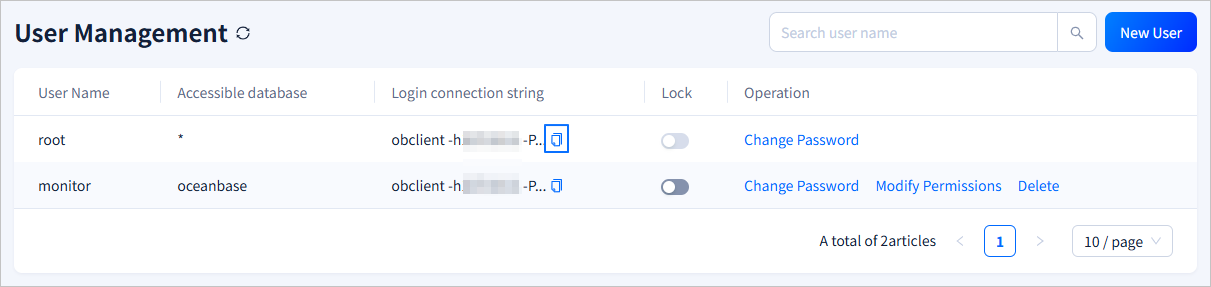
On the **User Management** page, you can view all users in the instance. You can click the  icon in the **Login connection string** column to copy the connection string for a user. If the instance contains a large number of users, you can use the search bar in the upper-right corner to search for and view the information about a specified user.
## Create a user
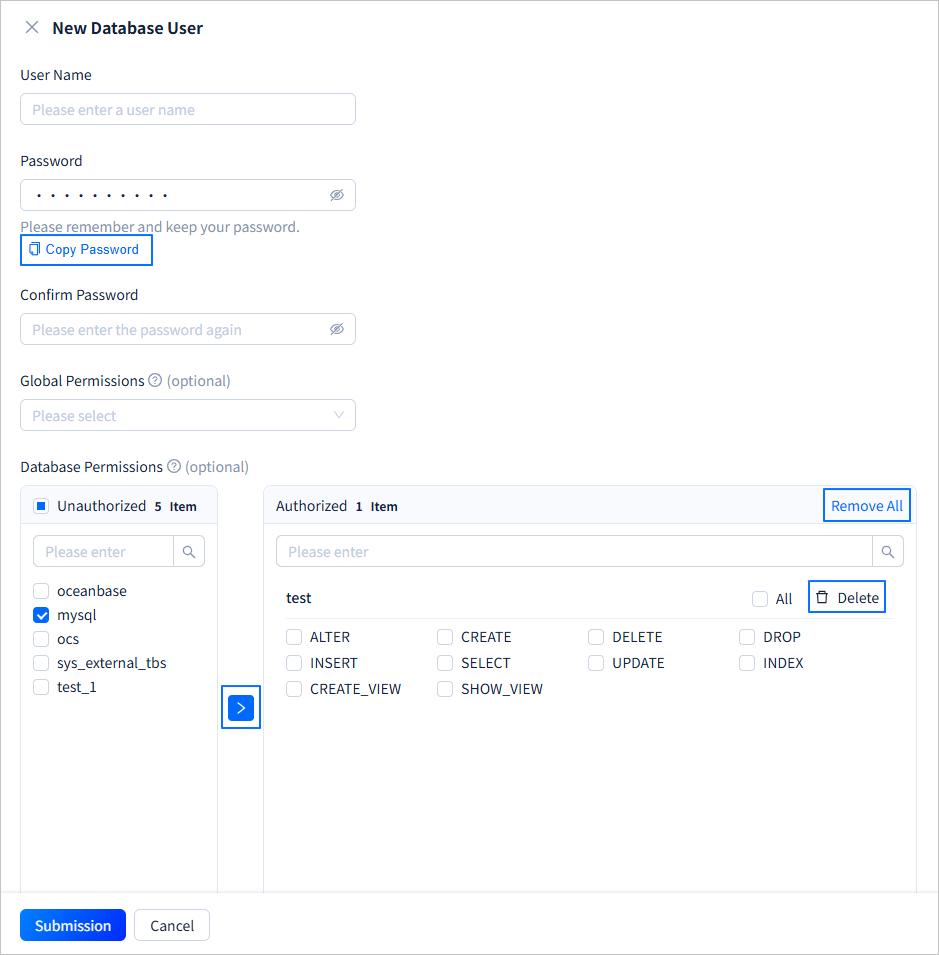
On the **User Management** page, click **New User** in the upper-right corner. On the **New Database User** page, set the **User Name**, **Password**, **Global Permissions**, and **Database Permissions**. After the settings are completed, click **Submission**.
| Parameter | Description |
|-------|------|
| User Name | Set the name of the new user. The username must meet the following requirements:
icon in the **Login connection string** column to copy the connection string for a user. If the instance contains a large number of users, you can use the search bar in the upper-right corner to search for and view the information about a specified user.

## Create a user
On the **User Management** page, click **New User** in the upper-right corner. On the **New Database User** page, set the **User Name**, **Password**, **Global Permissions**, and **Database Permissions**. After the settings are completed, click **Submission**.

| Parameter | Description |
|-------|------|
| User Name | Set the name of the new user. The username must meet the following requirements:- Length: 2 to 64 characters.
- Contains lowercase letters, digits, and underscores, and must start with a letter.
|
| Password | The password must meet the following requirements:- Length: 8 to 32 characters
- Contains at least 2 of each of the following four types of characters: digits (0 to 9), uppercase letters (A to Z), lowercase letters (a to z), and special characters (
~!@#%^&*_-+=\|(){}[]:;,.?/).
After the password is configured, click **Copy Password** to copy the password for later use. |
| Confirm Password | Re-enter the password to confirm the configuration. If the two passwords are inconsistent, a prompt is displayed: `The new password entered twice is inconsistent, please re-enter.`. |
| Global Permissions (Optional) | You can select the privileges that the user can have from the drop-down list. The privileges apply to all databases. For more information about the privileges, see [Privilege types in MySQL mode](https://en.oceanbase.com/docs/common-oceanbase-database-10000000001974758). If no privileges are selected, the user has no privileges. |
| Database Permissions | Set the privileges of the new user for each database. The privileges apply to all targets in the specified database. To set the privileges, perform the following steps:- Select one or more databases from the left list. The left list displays all databases in the current instance. You can also search for a specified database in the search box of the left list.
- Click **>** in the middle. The selected databases are moved to the right list.
- Select the privileges that the user can have in the specified database from the right list. Click **All** in the upper-right corner of the specified database to grant all privileges to the user.
- Repeat steps 1, 2, and 3 to set the privileges for other databases. You can also search for a specified database in the search box of the right list.
- To cancel the privileges of the user for a specified database, click **Delete** in the upper-right corner of the database in the right list to move the database back to the left list. You can also click **Remove All** in the upper-right corner of the right list, and then click **Determine** in the dialog box that appears to move all databases in the right list back to the left list.
|
## Lock a user
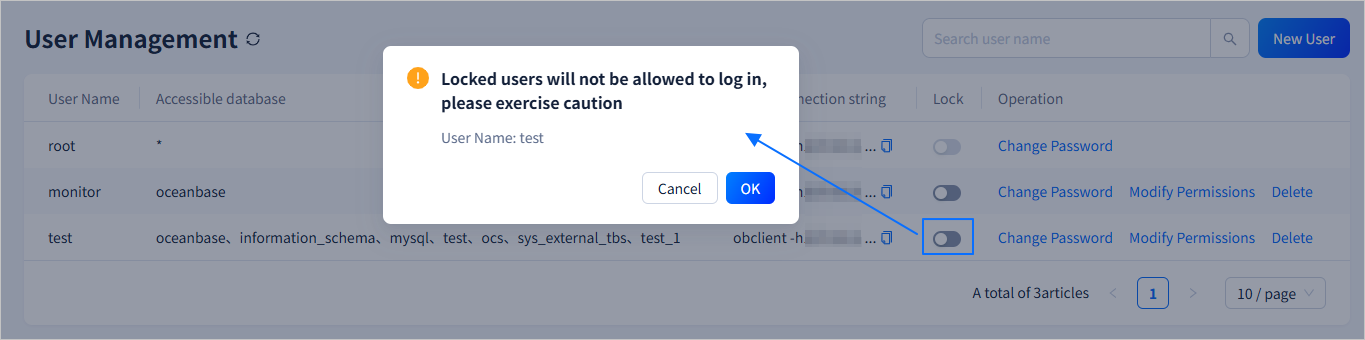
You can click the switch icon in the **Lock** column to lock or unlock a user. If the user is not locked, click  in the **Lock** column. In the dialog box that appears, click **OK** to lock the user. A locked user cannot log in. Proceed with caution. If the user is locked, click
  in the **Lock** column. In the dialog box that appears, click **OK** to unlock the user. An unlocked user can log in.
## Change a password
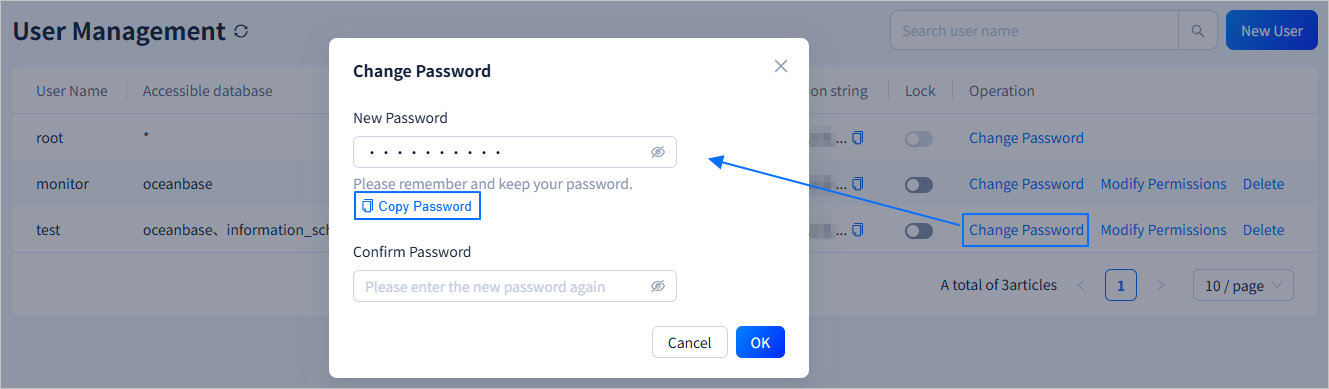
Click the **Change Password** field in the **Operation** column. In the dialog box that appears, enter the **New Password** and **Confirm Password**. After you complete the entries, click **OK** to change the password. The password must meet the following requirements:
* The password must be 8 to 32 characters long.
* The password must contain at least two characters of each of the following types: digits (0 to 9), uppercase letters (A to Z), lowercase letters (a to z), and special characters (
in the **Lock** column. In the dialog box that appears, click **OK** to unlock the user. An unlocked user can log in.

## Change a password
Click the **Change Password** field in the **Operation** column. In the dialog box that appears, enter the **New Password** and **Confirm Password**. After you complete the entries, click **OK** to change the password. The password must meet the following requirements:
* The password must be 8 to 32 characters long.
* The password must contain at least two characters of each of the following types: digits (0 to 9), uppercase letters (A to Z), lowercase letters (a to z), and special characters (~!@#%^&*_-+=\|(){}[]:;,.?/).
After you configure the password, click **Copy Password** to copy the password for later use.
## Modify permissions
Click the **Modify Permissions** field in the **Operation** column to modify the global and database permissions of the corresponding user. You can directly select a global permission from the drop-down list. To modify the database permissions of the user, perform the following steps:
1. In the left list, select one or more databases. The left list displays all databases in the current instance. You can also search for a specific database in the left search field.
2. Click **>** in the middle. The selected databases are moved to the right list.
3. In the right list, select the permissions that the user can have in the specified database. To grant all permissions to the user in the specified database, click **All** in the upper-right corner of the database.
4. Repeat steps 1, 2, and 3 to set the user permissions for different databases. You can also search for a specific database in the right search field.
5. To revoke the user permissions of a specified database, click **Delete** in the upper-right corner of the database in the right list. This moves the database back to the left list. You can also click **Remove All** in the upper-right corner of the right list. In the dialog box that appears, click **Determine** to move all databases in the right list back to the left list.
6. After you complete the settings, click **Submission**.

## Delete a user
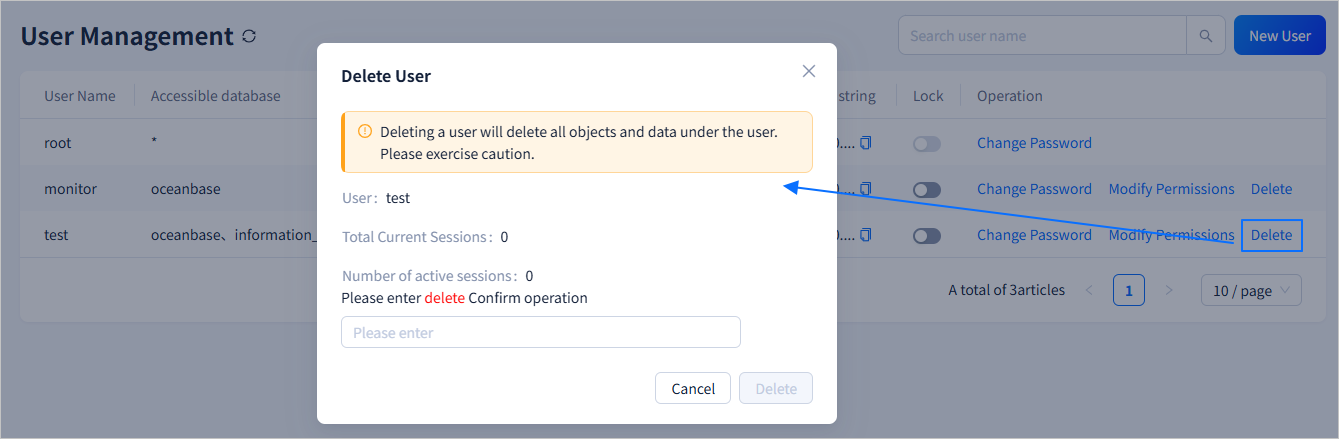
Click the **Delete** field in the **Operation** column. In the dialog box that appears, enter `delete` in the input field and click **Delete**. This deletes the specified user. The objects and data under the user will also be deleted. Proceed with caution.