# Custom Templates Guide For Google Tag Manager
May 23, 2019 in Analytics \|
[Comments](https://www.simoahava.com/analytics/custom-templates-guide-for-google-tag-manager/#commento)
> **Last updated 12 August 2020**: Added details about [server-side
> tagging](https://www.simoahava.com/analytics/server-side-tagging-google-tag-manager/).
As I have finally managed to pick up my jaw from the floor, it’s now
time to tell you what’s got me so excited. [Google Tag
Manager](https://tagmanager.google.com/) recently released a new feature
called [**Custom
Templates**](https://developers.google.com/tag-manager/templates/).
Actually, it’s not fair to call it a *feature*. It’s a full-blown
paradigm shift in how we use Google Tag Manager. It’s a *suite* of
features designed to help brands, companies, and users create and share
their own custom JavaScript and HTML setups with ease, while taking care
that the code is optimized for delivery in the web browser.
[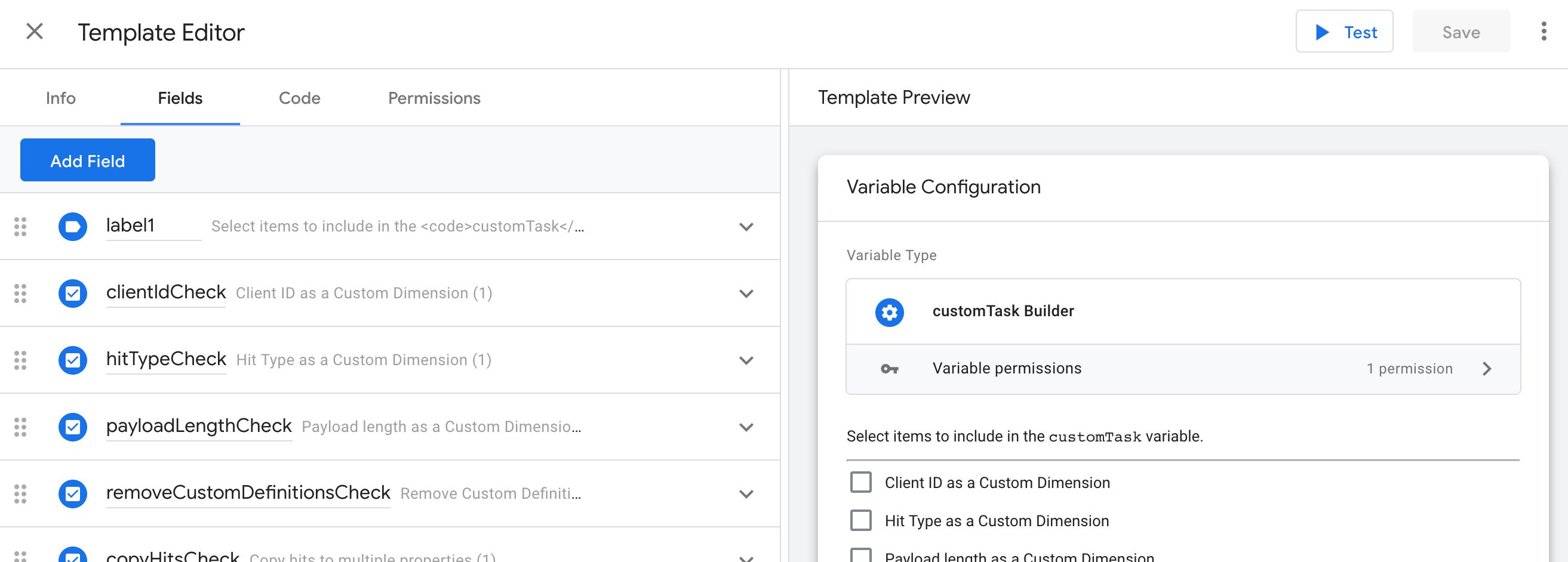 ](https://www.simoahava.com/images/2019/01/custom-templates-google-tag-manager.jpg "custom templates in google tag manager")
**Custom Templates**, in short, are tag, variable, and Client templates
that **you** can create and configure. In other words, if you have a
cool idea for a tag (e.g. an analytics tracking tag for a vendor not
natively supported by GTM), a variable (e.g. a Custom JavaScript
variable that does something with a string), or a Client (e.g. a
server-side endpoint for some new analytics tool), you can now turn them
into reusable templates which can, in turn, be shared with other users
and containers via template export and import. You can also use the
[Community gallery](https://tagmanager.google.com/gallery/) to
distribute your templates.
[
](https://www.simoahava.com/images/2019/01/custom-templates-google-tag-manager.jpg "custom templates in google tag manager")
**Custom Templates**, in short, are tag, variable, and Client templates
that **you** can create and configure. In other words, if you have a
cool idea for a tag (e.g. an analytics tracking tag for a vendor not
natively supported by GTM), a variable (e.g. a Custom JavaScript
variable that does something with a string), or a Client (e.g. a
server-side endpoint for some new analytics tool), you can now turn them
into reusable templates which can, in turn, be shared with other users
and containers via template export and import. You can also use the
[Community gallery](https://tagmanager.google.com/gallery/) to
distribute your templates.
[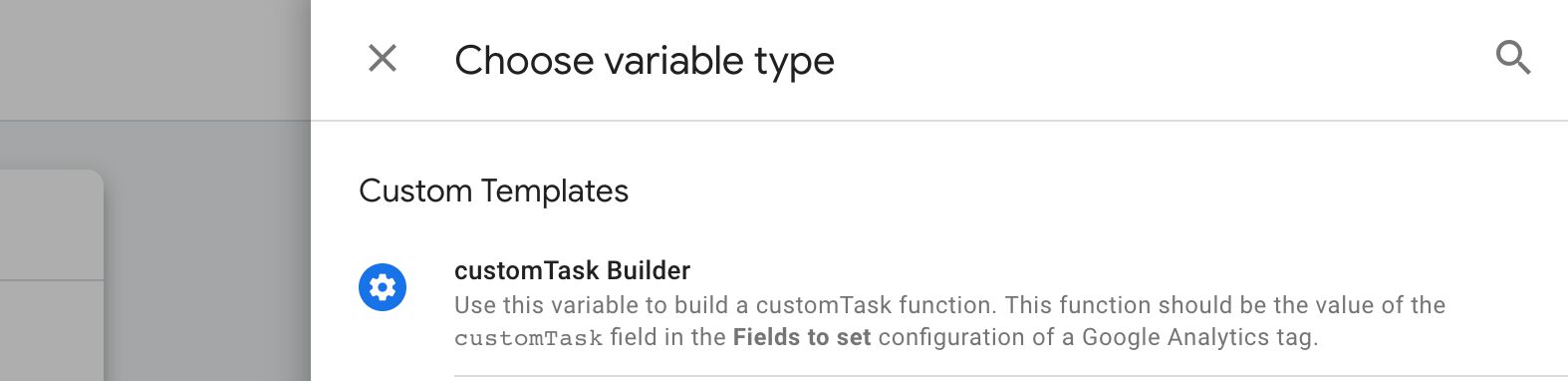 ](https://www.simoahava.com/images/2019/01/template-in-the-list.jpg "Example template")
Templates use a customized, sandboxed version of JavaScript, which has
its own idiosyncratic vernacular that you must learn (with the help of
this guide, of course). The reason for this added complexity is that
with templates you can ensure that the code being executed is safe,
unintrusive, and optimized.
Furthermore, templates you create will define certain **permissions**
that are required for the template code to be able to run. An additional
level of governance is provided by way of **policies** defined on the
web page itself where the template code might be run. The interplay
between these permissions and policies is a core feature of template
security.
There are lots and lots of things to cover in this guide, so let’s just
get started.
# Table of Contents
# Table of Contents
\[+show\] \[–hide\]
- [How to read this guide](#how-to-read-this-guide)
- [Custom Templates in a nutshell](#custom-templates-in-a-nutshell)
- [Getting started](#getting-started)
- [Tag template walkthrough](#tag-template-walkthrough)
- [Step 1 - Create and set the details of the tag
template](#step-1---create-and-set-the-details-of-the-tag-template)
- [Step 2 - Create the UI](#step-2---create-the-ui)
- [Step 3 - Add some code](#step-3---add-some-code)
- [Step 4 - Modify permissions](#step-4---modify-permissions)
- [Step 5 - Preview and test](#step-5---preview-and-test)
- [Step 6 - Create tag and
preview](#step-6---create-tag-and-preview)
- [Step 7 - You’re done!](#step-7---youre-done)
- [Variable template walkthrough](#variable-template-walkthrough)
- [Step 1 - Create and set the details of the variable
template](#step-1---create-and-set-the-details-of-the-variable-template)
- [Step 2 - Create the UI](#step-2---create-the-ui-1)
- [Step 3 - Add some code](#step-3---add-some-code-1)
- [Step 4 - Modify permissions](#step-4---modify-permissions-1)
- [Step 5 - Create variable, add to tag, and
preview](#step-5---create-variable-add-to-tag-and-preview)
- [Step 7 - You’re done!](#step-7---youre-done-1)
- [Core concepts](#core-concepts)
- [Sandboxed JavaScript](#sandboxed-javascript)
- [ES6+ syntax](#es6-syntax)
- [Restrictions to what type of data you can
handle](#restrictions-to-what-type-of-data-you-can-handle)
- [Template APIs](#template-apis)
- [Server-side tagging](#server-side-tagging)
- [Policies](#policies)
- [Tests](#tests)
- [Official documentation](#official-documentation)
- [The editor](#the-editor)
- [Info view](#info-view)
- [Fields editor](#fields-editor)
- [Field configuration](#field-configuration)
- [Text input](#text-input)
- [Drop-down menu](#drop-down-menu)
- [Checkbox](#checkbox)
- [Radio buttons](#radio-buttons)
- [Simple table](#simple-table)
- [Param table](#param-table)
- [Group](#group)
- [Label](#label)
- [Utilizing APIs](#utilizing-apis)
- [The `data` object](#the-data-object)
- [Variable templates in the code
editor](#variable-templates-in-the-code-editor)
- [Tag templates in the code
editor](#tag-templates-in-the-code-editor)
- [Client templates in the code
editor](#client-templates-in-the-code-editor)
- [Permissions](#permissions)
- [Accesses Global Variables](#accesses-global-variables)
- [Accesses Local Storage](#accesses-local-storage)
- [Accesses Template Storage](#accesses-template-storage)
- [Reads Cookie Value(s)](#reads-cookie-values)
- [Reads Referrer URL](#reads-referrer-url)
- [Reads URL](#reads-url)
- [Injects Hidden Iframes](#injects-hidden-iframes)
- [Injects Scripts](#injects-scripts)
- [Logs To Console](#logs-to-console)
- [Reads Data Layer](#reads-data-layer)
- [Reads Document Character Set](#reads-document-character-set)
- [Reads Container Data](#reads-container-data)
- [Reads Event Metadata](#reads-event-metadata)
- [Reads Document Title](#reads-document-title)
- [Sends Pixels](#sends-pixels)
- [Sets A Cookie Value](#sets-a-cookie-value)
- [Tests](#tests-1)
- [Template preview](#template-preview)
- [Importing and exporting](#importing-and-exporting)
- [Advanced settings](#advanced-settings)
- [Running the template code](#running-the-template-code)
- [Templates in GTM’s Preview mode](#templates-in-gtms-preview-mode)
- [Field configuration reference](#field-configuration-reference)
- [“Edit row” dialog title](#edit-row-dialog-title)
- [“New row” button text](#new-row-button-text)
- [“New row” dialog title](#new-row-dialog-title)
- [“Not set” option](#not-set-option)
- [Allow empty strings](#allow-empty-strings)
- [Always in summary](#always-in-summary)
- [Clear on copy](#clear-on-copy)
- [Default value](#default-value)
- [Display line count](#display-line-count)
- [Display message when not set](#display-message-when-not-set)
- [Display name](#display-name)
- [Enabling conditions](#enabling-conditions)
- [Group style](#group-style)
- [Help text](#help-text)
- [Include variables](#include-variables)
- [Nested fields](#nested-fields)
- [Text as list](#text-as-list)
- [Validation rules](#validation-rules)
- [Value hint](#value-hint)
- [Value unit](#value-unit)
- [Policies reference](#policies-reference)
- [access_globals](#access_globals)
- [get_cookies](#get_cookies)
- [get_referrer](#get_referrer)
- [get_url](#get_url)
- [inject_hidden_iframe](#inject_hidden_iframe)
- [inject_script](#inject_script)
- [logging](#logging)
- [read_character_set](#read_character_set)
- [read_data_layer](#read_data_layer)
- [read_event_metadata](#read_event_metadata)
- [read_title](#read_title)
- [send_pixel](#send_pixel)
- [set_cookies](#set_cookies)
- [Final thoughts](#final-thoughts)
X
**The Simmer Newsletter**
Subscribe to the [Simmer
newsletter](https://www.simoahava.com/newsletter/) to get the latest
news and content from Simo Ahava into your email inbox!
## How to read this guide
This is a long guide. It has to be - there’s so much about custom
templates that needs to be addressed in any document whose purpose is to
provide a comprehensive treatment of the subject matter.
However, **don’t interpret my inability to write concise prose as
indicative of how complex custom templates are**. I can assure you -
they’re absolutely manageable by anyone who’s been using Google Tag
Manager for a while.
This guide is a **reference**. Its purpose is to offer you documentation
to support your work with custom templates.
Because of this, I want to suggest some different ways to approach this
guide.
- **Everyone** should read the chapters [Custom Templates in a
nutshell](#custom-templates-in-a-nutshell) and [Core
concepts](#core-concepts).
- I really recommend that **everyone** take a look at the two
walkthroughs in the [Getting started](#getting-started) chapter.
- Keep the [Official documentation](#official-documentation) handy at
all times, particularly the API references for [web
templates](https://developers.google.com/tag-manager/templates/api)
and for [server-side
templates](https://developers.google.com/tag-manager/serverside/api).
- When working with templates, the [Fields editor](#field-editor) (with
a deep-dive into [Field
configurations](#field-configuration-reference)) chapter should be
very useful - same as the one on [Permissions](#permissions).
- If you’re a site admin, you might want to read through the [Policies
reference](#policies-reference) to get an idea of how you can further
restrict the execution of custom code on your site.
- If you suffer from insomnia, start from the beginning and don’t stop
until you fall asleep. Should happen by the 10,000 word mark.
Be sure to check out my other guide on how to [create a Facebook pixel
template](https://www.simoahava.com/analytics/create-facebook-pixel-custom-tag-template/) -
it should shed more light on how templates work. You can also check the
corresponding [video](https://youtu.be/5ESEtwq7fxc) if you prefer
watching rather than reading.
You can also view all the custom templates I have created and/or
collected in [this GitHub
repository](https://github.com/sahava/GoogleTagManagerTemplates) and in
the [Templates](https://www.simoahava.com/custom-templates/) section of
this site.
## Custom Templates in a nutshell
Google Tag Manager’s Custom Templates offer a way to build a user
interface around the custom code you might want to run on the site using
Google Tag Manager. The user interface is what you’ve come accustomed to
when using GTM’s tags and variables. It comprises **text input fields**,
**settings**, **tables**, **labels**, **drop-down menus**, and so forth.
[
](https://www.simoahava.com/images/2019/01/template-in-the-list.jpg "Example template")
Templates use a customized, sandboxed version of JavaScript, which has
its own idiosyncratic vernacular that you must learn (with the help of
this guide, of course). The reason for this added complexity is that
with templates you can ensure that the code being executed is safe,
unintrusive, and optimized.
Furthermore, templates you create will define certain **permissions**
that are required for the template code to be able to run. An additional
level of governance is provided by way of **policies** defined on the
web page itself where the template code might be run. The interplay
between these permissions and policies is a core feature of template
security.
There are lots and lots of things to cover in this guide, so let’s just
get started.
# Table of Contents
# Table of Contents
\[+show\] \[–hide\]
- [How to read this guide](#how-to-read-this-guide)
- [Custom Templates in a nutshell](#custom-templates-in-a-nutshell)
- [Getting started](#getting-started)
- [Tag template walkthrough](#tag-template-walkthrough)
- [Step 1 - Create and set the details of the tag
template](#step-1---create-and-set-the-details-of-the-tag-template)
- [Step 2 - Create the UI](#step-2---create-the-ui)
- [Step 3 - Add some code](#step-3---add-some-code)
- [Step 4 - Modify permissions](#step-4---modify-permissions)
- [Step 5 - Preview and test](#step-5---preview-and-test)
- [Step 6 - Create tag and
preview](#step-6---create-tag-and-preview)
- [Step 7 - You’re done!](#step-7---youre-done)
- [Variable template walkthrough](#variable-template-walkthrough)
- [Step 1 - Create and set the details of the variable
template](#step-1---create-and-set-the-details-of-the-variable-template)
- [Step 2 - Create the UI](#step-2---create-the-ui-1)
- [Step 3 - Add some code](#step-3---add-some-code-1)
- [Step 4 - Modify permissions](#step-4---modify-permissions-1)
- [Step 5 - Create variable, add to tag, and
preview](#step-5---create-variable-add-to-tag-and-preview)
- [Step 7 - You’re done!](#step-7---youre-done-1)
- [Core concepts](#core-concepts)
- [Sandboxed JavaScript](#sandboxed-javascript)
- [ES6+ syntax](#es6-syntax)
- [Restrictions to what type of data you can
handle](#restrictions-to-what-type-of-data-you-can-handle)
- [Template APIs](#template-apis)
- [Server-side tagging](#server-side-tagging)
- [Policies](#policies)
- [Tests](#tests)
- [Official documentation](#official-documentation)
- [The editor](#the-editor)
- [Info view](#info-view)
- [Fields editor](#fields-editor)
- [Field configuration](#field-configuration)
- [Text input](#text-input)
- [Drop-down menu](#drop-down-menu)
- [Checkbox](#checkbox)
- [Radio buttons](#radio-buttons)
- [Simple table](#simple-table)
- [Param table](#param-table)
- [Group](#group)
- [Label](#label)
- [Utilizing APIs](#utilizing-apis)
- [The `data` object](#the-data-object)
- [Variable templates in the code
editor](#variable-templates-in-the-code-editor)
- [Tag templates in the code
editor](#tag-templates-in-the-code-editor)
- [Client templates in the code
editor](#client-templates-in-the-code-editor)
- [Permissions](#permissions)
- [Accesses Global Variables](#accesses-global-variables)
- [Accesses Local Storage](#accesses-local-storage)
- [Accesses Template Storage](#accesses-template-storage)
- [Reads Cookie Value(s)](#reads-cookie-values)
- [Reads Referrer URL](#reads-referrer-url)
- [Reads URL](#reads-url)
- [Injects Hidden Iframes](#injects-hidden-iframes)
- [Injects Scripts](#injects-scripts)
- [Logs To Console](#logs-to-console)
- [Reads Data Layer](#reads-data-layer)
- [Reads Document Character Set](#reads-document-character-set)
- [Reads Container Data](#reads-container-data)
- [Reads Event Metadata](#reads-event-metadata)
- [Reads Document Title](#reads-document-title)
- [Sends Pixels](#sends-pixels)
- [Sets A Cookie Value](#sets-a-cookie-value)
- [Tests](#tests-1)
- [Template preview](#template-preview)
- [Importing and exporting](#importing-and-exporting)
- [Advanced settings](#advanced-settings)
- [Running the template code](#running-the-template-code)
- [Templates in GTM’s Preview mode](#templates-in-gtms-preview-mode)
- [Field configuration reference](#field-configuration-reference)
- [“Edit row” dialog title](#edit-row-dialog-title)
- [“New row” button text](#new-row-button-text)
- [“New row” dialog title](#new-row-dialog-title)
- [“Not set” option](#not-set-option)
- [Allow empty strings](#allow-empty-strings)
- [Always in summary](#always-in-summary)
- [Clear on copy](#clear-on-copy)
- [Default value](#default-value)
- [Display line count](#display-line-count)
- [Display message when not set](#display-message-when-not-set)
- [Display name](#display-name)
- [Enabling conditions](#enabling-conditions)
- [Group style](#group-style)
- [Help text](#help-text)
- [Include variables](#include-variables)
- [Nested fields](#nested-fields)
- [Text as list](#text-as-list)
- [Validation rules](#validation-rules)
- [Value hint](#value-hint)
- [Value unit](#value-unit)
- [Policies reference](#policies-reference)
- [access_globals](#access_globals)
- [get_cookies](#get_cookies)
- [get_referrer](#get_referrer)
- [get_url](#get_url)
- [inject_hidden_iframe](#inject_hidden_iframe)
- [inject_script](#inject_script)
- [logging](#logging)
- [read_character_set](#read_character_set)
- [read_data_layer](#read_data_layer)
- [read_event_metadata](#read_event_metadata)
- [read_title](#read_title)
- [send_pixel](#send_pixel)
- [set_cookies](#set_cookies)
- [Final thoughts](#final-thoughts)
X
**The Simmer Newsletter**
Subscribe to the [Simmer
newsletter](https://www.simoahava.com/newsletter/) to get the latest
news and content from Simo Ahava into your email inbox!
## How to read this guide
This is a long guide. It has to be - there’s so much about custom
templates that needs to be addressed in any document whose purpose is to
provide a comprehensive treatment of the subject matter.
However, **don’t interpret my inability to write concise prose as
indicative of how complex custom templates are**. I can assure you -
they’re absolutely manageable by anyone who’s been using Google Tag
Manager for a while.
This guide is a **reference**. Its purpose is to offer you documentation
to support your work with custom templates.
Because of this, I want to suggest some different ways to approach this
guide.
- **Everyone** should read the chapters [Custom Templates in a
nutshell](#custom-templates-in-a-nutshell) and [Core
concepts](#core-concepts).
- I really recommend that **everyone** take a look at the two
walkthroughs in the [Getting started](#getting-started) chapter.
- Keep the [Official documentation](#official-documentation) handy at
all times, particularly the API references for [web
templates](https://developers.google.com/tag-manager/templates/api)
and for [server-side
templates](https://developers.google.com/tag-manager/serverside/api).
- When working with templates, the [Fields editor](#field-editor) (with
a deep-dive into [Field
configurations](#field-configuration-reference)) chapter should be
very useful - same as the one on [Permissions](#permissions).
- If you’re a site admin, you might want to read through the [Policies
reference](#policies-reference) to get an idea of how you can further
restrict the execution of custom code on your site.
- If you suffer from insomnia, start from the beginning and don’t stop
until you fall asleep. Should happen by the 10,000 word mark.
Be sure to check out my other guide on how to [create a Facebook pixel
template](https://www.simoahava.com/analytics/create-facebook-pixel-custom-tag-template/) -
it should shed more light on how templates work. You can also check the
corresponding [video](https://youtu.be/5ESEtwq7fxc) if you prefer
watching rather than reading.
You can also view all the custom templates I have created and/or
collected in [this GitHub
repository](https://github.com/sahava/GoogleTagManagerTemplates) and in
the [Templates](https://www.simoahava.com/custom-templates/) section of
this site.
## Custom Templates in a nutshell
Google Tag Manager’s Custom Templates offer a way to build a user
interface around the custom code you might want to run on the site using
Google Tag Manager. The user interface is what you’ve come accustomed to
when using GTM’s tags and variables. It comprises **text input fields**,
**settings**, **tables**, **labels**, **drop-down menus**, and so forth.
[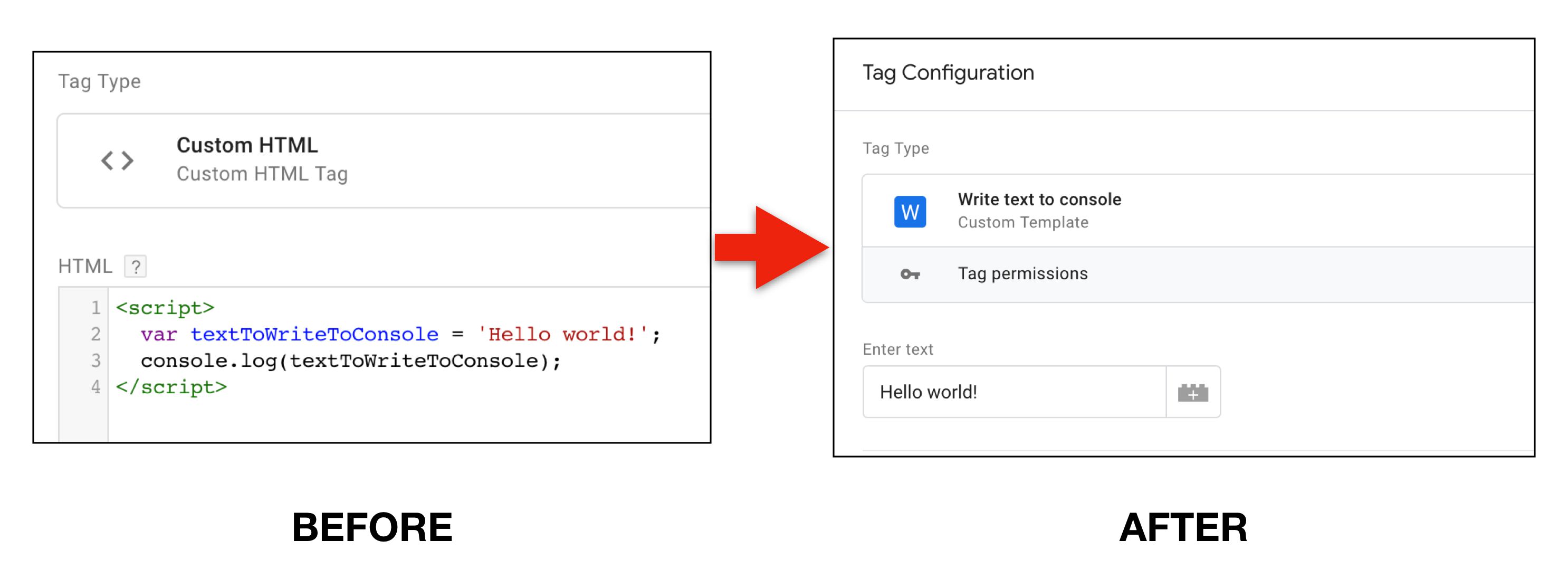 ](https://www.simoahava.com/images/2019/01/tag-template-before-after.jpg "Tag template before and after")
Obviously, the UI itself is already a huge asset. Being able to offer a
user interface in lieu of a complicated code block will minimize
problems arising from input errors, and will help keep the code stable.
However, the templates have another, less apparent (but no less
impactful) function. They add layers of **protection** and **security**
to the code they abstract. Templates use a [custom **JavaScript
framework**](#sandboxed-javascript) which introduces a handful of
[APIs](#template-apis) (application programming interfaces) that you
must use if you want the code to actually do anything.
This introduces a steep learning curve, because you can’t just
copy-paste code from [Stack Overflow](https://www.stackoverflow.com/)
any more. If you want to set a global `window` property, you need to use
[an API for
that](https://developers.google.com/tag-manager/templates/api#setinwindow).
If you want to log to console, you need to use [an API for
that](https://developers.google.com/tag-manager/templates/api#logtoconsole).
If you want to check the value of a cookie, guess what, you need to use
[an API for
that](https://developers.google.com/tag-manager/templates/api#getcookievalues).
[
](https://www.simoahava.com/images/2019/01/tag-template-before-after.jpg "Tag template before and after")
Obviously, the UI itself is already a huge asset. Being able to offer a
user interface in lieu of a complicated code block will minimize
problems arising from input errors, and will help keep the code stable.
However, the templates have another, less apparent (but no less
impactful) function. They add layers of **protection** and **security**
to the code they abstract. Templates use a [custom **JavaScript
framework**](#sandboxed-javascript) which introduces a handful of
[APIs](#template-apis) (application programming interfaces) that you
must use if you want the code to actually do anything.
This introduces a steep learning curve, because you can’t just
copy-paste code from [Stack Overflow](https://www.stackoverflow.com/)
any more. If you want to set a global `window` property, you need to use
[an API for
that](https://developers.google.com/tag-manager/templates/api#setinwindow).
If you want to log to console, you need to use [an API for
that](https://developers.google.com/tag-manager/templates/api#logtoconsole).
If you want to check the value of a cookie, guess what, you need to use
[an API for
that](https://developers.google.com/tag-manager/templates/api#getcookievalues).
[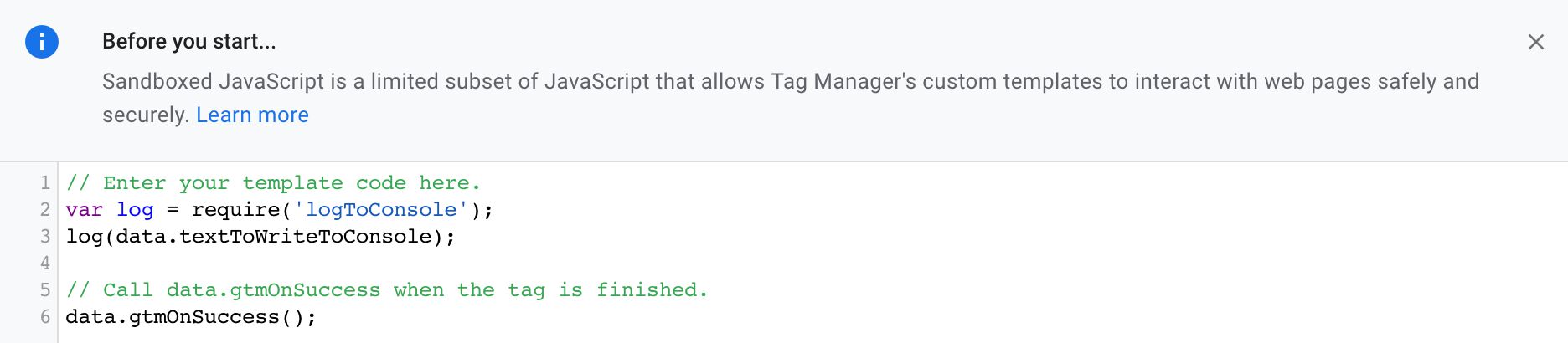 ](https://www.simoahava.com/images/2019/01/api-in-use.jpg "API in use")
Basically any code that tries to access the global state of the page or
run any native JavaScript functions defined on the global level requires
an API call.
So why this added complexity? Well, for one, these APIs make sure that
potentially dangerous and/or intrusive modifications to the global state
are done in a controlled manner.
Whenever you want to use an API, you must `require()` it in the template
code. And when you introduce an API like that, the template
automatically generates a set of configurable
[permissions](#permissions) for that API call.
[
](https://www.simoahava.com/images/2019/01/api-in-use.jpg "API in use")
Basically any code that tries to access the global state of the page or
run any native JavaScript functions defined on the global level requires
an API call.
So why this added complexity? Well, for one, these APIs make sure that
potentially dangerous and/or intrusive modifications to the global state
are done in a controlled manner.
Whenever you want to use an API, you must `require()` it in the template
code. And when you introduce an API like that, the template
automatically generates a set of configurable
[permissions](#permissions) for that API call.
[ ](https://www.simoahava.com/images/2019/01/api-permissions.jpg "API permissions")
In a nutshell, templates encapsulate the logic you would otherwise
introduce with custom code. By introducing APIs with **permissions**,
the templates can be configured to work in a secure and easily managed
context.
An added level of security is the introduction of
[**policies**](#policies-reference), where you as the site owner can add
some code to the web page itself, which can have additional levels of
control over how template permissions are resolved.
For example, if I have a tag configured to send hits to some endpoint, I
can write a policy on the page that only allows pixel requests to one of
the many endpoints configured in the tag.
```
window.dataLayer = window.dataLayer || [];
function gtag(){dataLayer.push(arguments);}
gtag('policy', 'send_pixel', function(container, policy, data) {
if (data.url !== 'https://snowplow.simoahava.com/i') {
throw('Invalid pixel endpoint!');
} else {
return true;
}
});
```
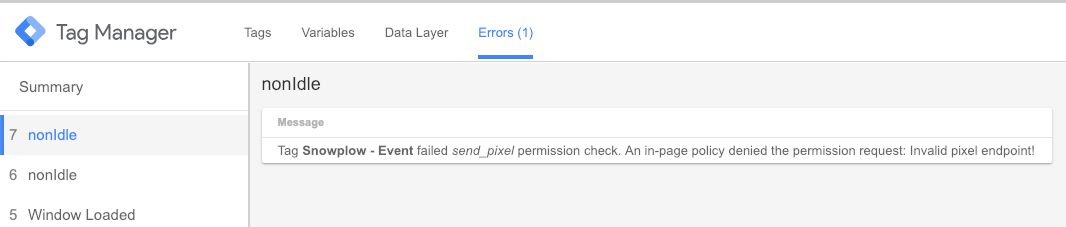
With that policy in place, the image request will only be executed if
the endpoint URL is `https://snowplow.simoahava.com/i`. Otherwise, the
tag will fail in an error, and you can see the error message in the
[**Errors**
tab](https://www.simoahava.com/analytics/new-errors-tab-preview-mode/)
of Preview mode.
[
](https://www.simoahava.com/images/2019/01/api-permissions.jpg "API permissions")
In a nutshell, templates encapsulate the logic you would otherwise
introduce with custom code. By introducing APIs with **permissions**,
the templates can be configured to work in a secure and easily managed
context.
An added level of security is the introduction of
[**policies**](#policies-reference), where you as the site owner can add
some code to the web page itself, which can have additional levels of
control over how template permissions are resolved.
For example, if I have a tag configured to send hits to some endpoint, I
can write a policy on the page that only allows pixel requests to one of
the many endpoints configured in the tag.
```
window.dataLayer = window.dataLayer || [];
function gtag(){dataLayer.push(arguments);}
gtag('policy', 'send_pixel', function(container, policy, data) {
if (data.url !== 'https://snowplow.simoahava.com/i') {
throw('Invalid pixel endpoint!');
} else {
return true;
}
});
```
With that policy in place, the image request will only be executed if
the endpoint URL is `https://snowplow.simoahava.com/i`. Otherwise, the
tag will fail in an error, and you can see the error message in the
[**Errors**
tab](https://www.simoahava.com/analytics/new-errors-tab-preview-mode/)
of Preview mode.
[ ](https://www.simoahava.com/images/2019/01/tag-errors.jpg "Tag errors")
An additional perk of using templates is that you don’t have to add the
nasty `unsafe-eval` keyword to your [Content Security
Policy](https://www.simoahava.com/analytics/google-tag-manager-content-security-policy/).
Any code run through a template is compiled into JavaScript when the
container is written, and thus doesn’t require the use of `eval()`.
Conversely, with Custom HTML tags and Custom JavaScript variables, the
code is written into a string which is then compiled with `eval()` at
runtime. This is a bad practice and requires a huge compromise in
security if using a Content Security Policy.
I hope you can see the usefulness of Custom Templates. Imagine a library
of Custom Templates, where anyone can share their own work for others to
download and use in their containers. Smaller brands and companies could
finally get their tools and platforms out there for the masses using
Google Tag Manager.
> **Update 2 October 2019**: You no longer have to imagine such a
> library as it now exists. Check out the [Community Template
> Gallery](https://tagmanager.google.com/gallery/) as well as my
> [introduction](https://www.simoahava.com/analytics/introducing-tag-manager-template-gallery/)
> to it.
## Getting started
Before exhausting you with all the details about custom templates (and
trust me, there’s a **lot** to digest in the feature), I want to start
by walking you through creating a **tag template** and a **variable
template**. We won’t use all the most complex features for this, but it
should serve as a nice intro to how custom templates work in Google Tag
Manager.
Be sure to check out [this
guide](https://www.simoahava.com/gtm-tips/build-custom-universal-analytics-client-server-side-tagging/)
for a walkthrough of building a Client template for **server-side
tagging**.
Don’t forget to check out my other article, which covers the creation of
a [Facebook pixel
template](https://www.simoahava.com/analytics/create-facebook-pixel-custom-tag-template/).
It should provide a more comprehensive (and more overwhelming) look at
how templates are created.
### Tag template walkthrough
In this walkthrough, we’ll go through how to create a simple **script
injection tag**. This is how many of the third-party vendors out there
want their scripts to be loaded.
We’ll use a wonderful company called
[Conductrics](https://conductrics.com/) as an example. They have
developed a tool with which you can do A/B-testing and personalization,
using ML-driven targeting logic, dynamic goals, server-side and
client-side deployment options, and a whole host of other features to
help you answer those difficult business questions you have with
**data**.
[
](https://www.simoahava.com/images/2019/01/tag-errors.jpg "Tag errors")
An additional perk of using templates is that you don’t have to add the
nasty `unsafe-eval` keyword to your [Content Security
Policy](https://www.simoahava.com/analytics/google-tag-manager-content-security-policy/).
Any code run through a template is compiled into JavaScript when the
container is written, and thus doesn’t require the use of `eval()`.
Conversely, with Custom HTML tags and Custom JavaScript variables, the
code is written into a string which is then compiled with `eval()` at
runtime. This is a bad practice and requires a huge compromise in
security if using a Content Security Policy.
I hope you can see the usefulness of Custom Templates. Imagine a library
of Custom Templates, where anyone can share their own work for others to
download and use in their containers. Smaller brands and companies could
finally get their tools and platforms out there for the masses using
Google Tag Manager.
> **Update 2 October 2019**: You no longer have to imagine such a
> library as it now exists. Check out the [Community Template
> Gallery](https://tagmanager.google.com/gallery/) as well as my
> [introduction](https://www.simoahava.com/analytics/introducing-tag-manager-template-gallery/)
> to it.
## Getting started
Before exhausting you with all the details about custom templates (and
trust me, there’s a **lot** to digest in the feature), I want to start
by walking you through creating a **tag template** and a **variable
template**. We won’t use all the most complex features for this, but it
should serve as a nice intro to how custom templates work in Google Tag
Manager.
Be sure to check out [this
guide](https://www.simoahava.com/gtm-tips/build-custom-universal-analytics-client-server-side-tagging/)
for a walkthrough of building a Client template for **server-side
tagging**.
Don’t forget to check out my other article, which covers the creation of
a [Facebook pixel
template](https://www.simoahava.com/analytics/create-facebook-pixel-custom-tag-template/).
It should provide a more comprehensive (and more overwhelming) look at
how templates are created.
### Tag template walkthrough
In this walkthrough, we’ll go through how to create a simple **script
injection tag**. This is how many of the third-party vendors out there
want their scripts to be loaded.
We’ll use a wonderful company called
[Conductrics](https://conductrics.com/) as an example. They have
developed a tool with which you can do A/B-testing and personalization,
using ML-driven targeting logic, dynamic goals, server-side and
client-side deployment options, and a whole host of other features to
help you answer those difficult business questions you have with
**data**.
[ ](https://www.simoahava.com/images/2019/04/conductrics.jpg "Conductrics tag template")
**Note!** You can of course replace the Conductrics-specific stuff with
some other vendor source URL, if you want. The steps you take in this
guide would still be identical.
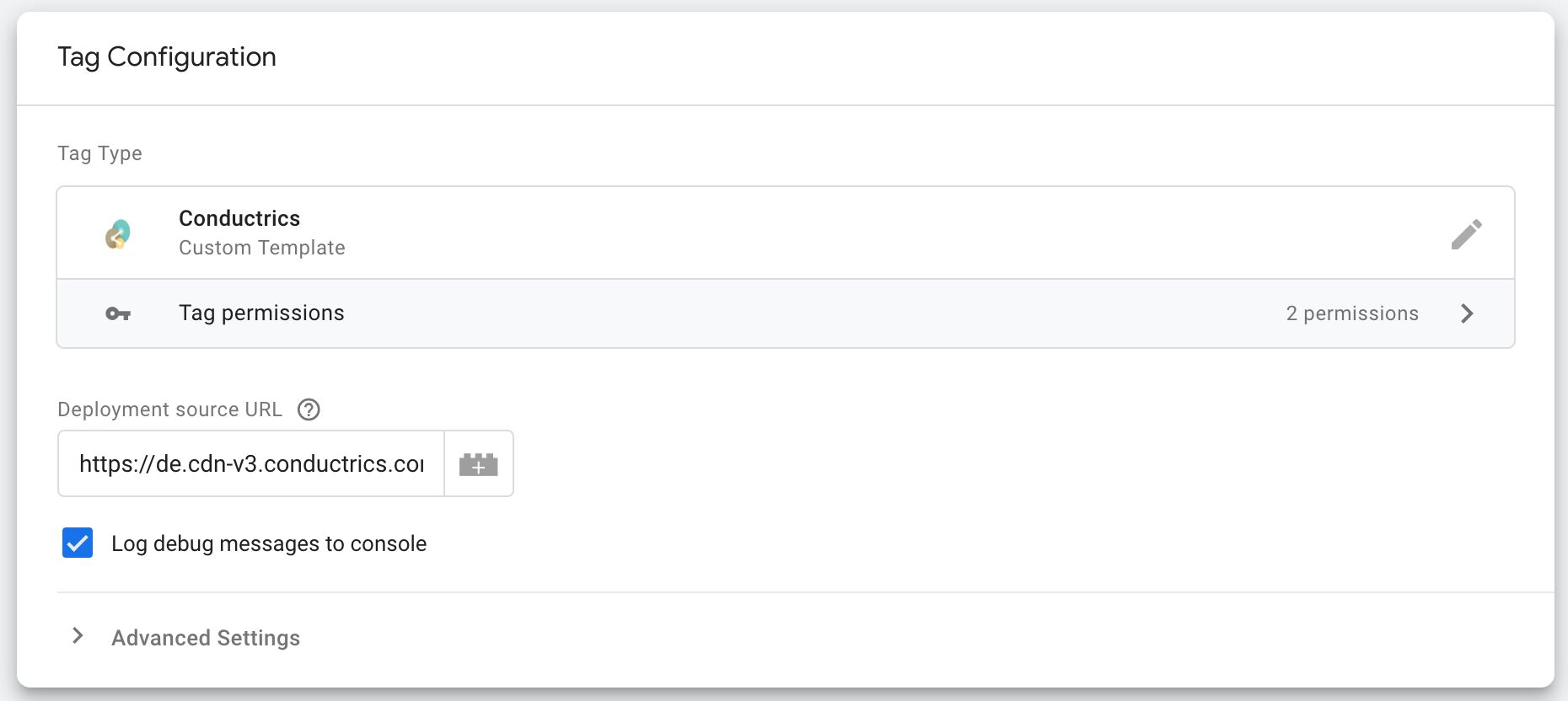
The tag template is simple, by design. Conductrics offers the option to
host the required JavaScript for you, so all you need to do is add the
``.
Once you’re done, click **Save** and move on to the next chapter.
#### Step 4 - Modify permissions
The final thing to edit are the **permissions**. When you `require()`
APIs, you’ll also automatically enable their permission configurations
in the **Permissions** tab. See the [chapter on
permissions](#permissions) for more details on how these work.
Anyway, since you are using the `logToConsole` and `injectScript` APIs,
their permissions are now available for editing. The `queryPermission`
and `require` APIs don’t have any permissions associated with them.
Click to the **Permissions** tab and expand the two permissions you
find.
[
](https://www.simoahava.com/images/2019/04/conductrics.jpg "Conductrics tag template")
**Note!** You can of course replace the Conductrics-specific stuff with
some other vendor source URL, if you want. The steps you take in this
guide would still be identical.
The tag template is simple, by design. Conductrics offers the option to
host the required JavaScript for you, so all you need to do is add the
``.
Once you’re done, click **Save** and move on to the next chapter.
#### Step 4 - Modify permissions
The final thing to edit are the **permissions**. When you `require()`
APIs, you’ll also automatically enable their permission configurations
in the **Permissions** tab. See the [chapter on
permissions](#permissions) for more details on how these work.
Anyway, since you are using the `logToConsole` and `injectScript` APIs,
their permissions are now available for editing. The `queryPermission`
and `require` APIs don’t have any permissions associated with them.
Click to the **Permissions** tab and expand the two permissions you
find.
[ ](https://www.simoahava.com/images/2019/04/permissions-expanded.jpg "Permissions expanded")
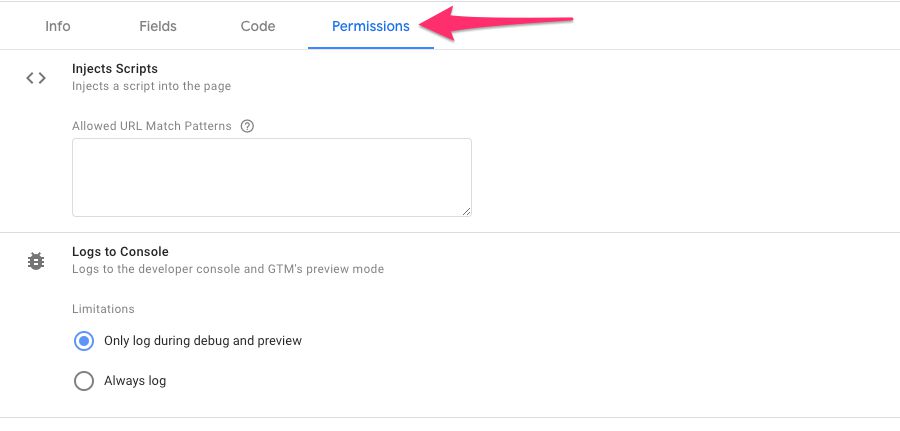
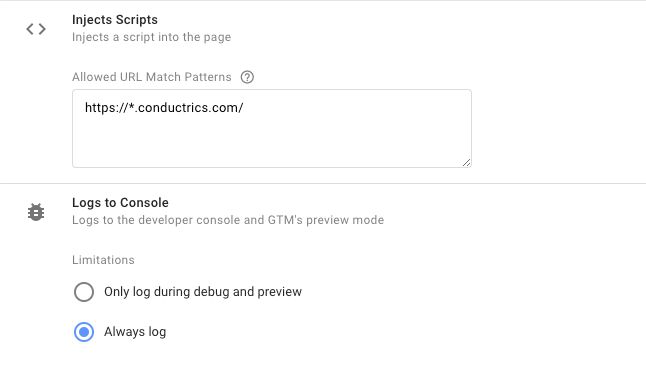
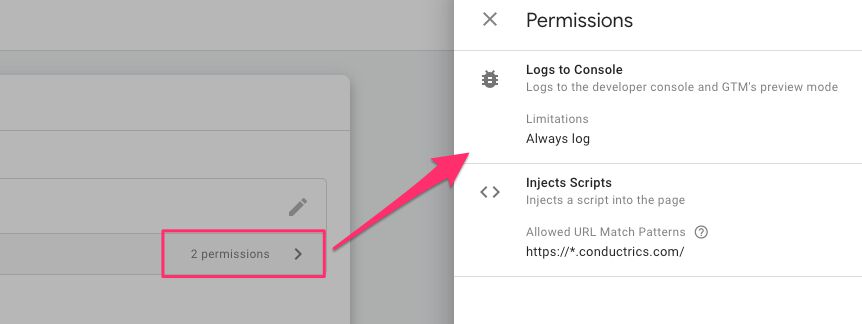
The [Injects Scripts](#injects-scripts) permission is, surprise
surprise, for the `injectScript` API. It expects URL match patterns that
the value input by the user into the text field must match.
Add the value `https://*.conductrics.com/` into the text field.
This value basically means that the script URL injected in the page must
be a subdomain of `conductrics.com`, and it can have any path structure
(the `/` after the hostname acts as a wildcard). Thus it will match, for
example:
- `https://conductrics.com/tracker`
- `https://de.cdn-v3.conductrics.com/ac-aBcDeFgH/v3/agent-api/js/f-aBcDeFggg/dt-b1234567?apikey=api-w123456`
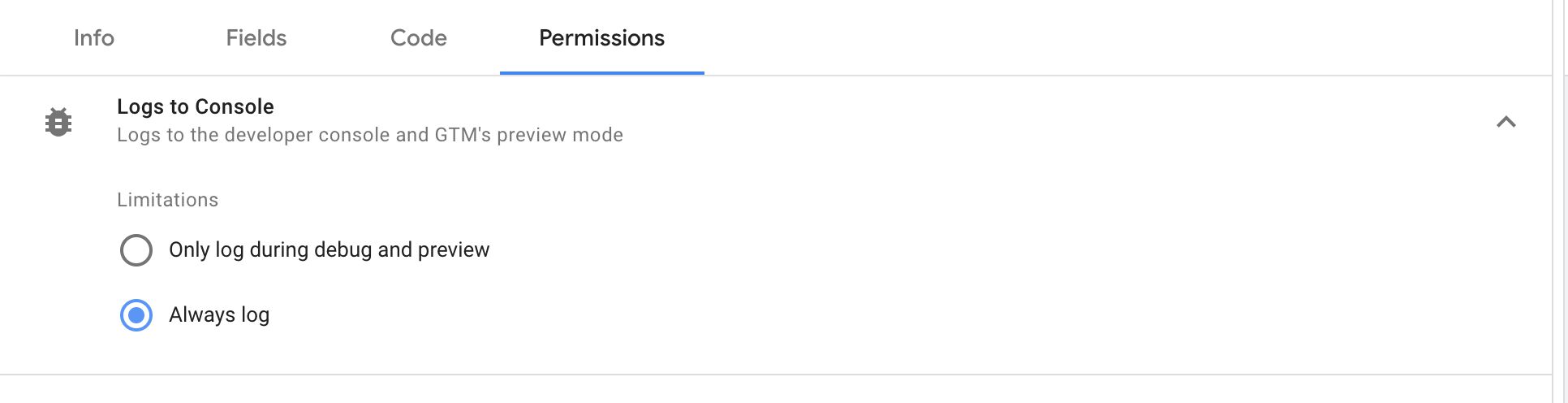
The [Logs to Console](#logs-to-console) permission should be
self-explanatory. It governs how the `logToConsole` API works. You can
check the **Always log** option, because we manage logging to console in
the template code itself.
Right now, the permissions should look like this:
[
](https://www.simoahava.com/images/2019/04/permissions-expanded.jpg "Permissions expanded")
The [Injects Scripts](#injects-scripts) permission is, surprise
surprise, for the `injectScript` API. It expects URL match patterns that
the value input by the user into the text field must match.
Add the value `https://*.conductrics.com/` into the text field.
This value basically means that the script URL injected in the page must
be a subdomain of `conductrics.com`, and it can have any path structure
(the `/` after the hostname acts as a wildcard). Thus it will match, for
example:
- `https://conductrics.com/tracker`
- `https://de.cdn-v3.conductrics.com/ac-aBcDeFgH/v3/agent-api/js/f-aBcDeFggg/dt-b1234567?apikey=api-w123456`
The [Logs to Console](#logs-to-console) permission should be
self-explanatory. It governs how the `logToConsole` API works. You can
check the **Always log** option, because we manage logging to console in
the template code itself.
Right now, the permissions should look like this:
[ ](https://www.simoahava.com/images/2019/04/permission-settings-done.jpg "Permission settings done")
Click **Save** to save the current template.
#### Step 5 - Preview and test
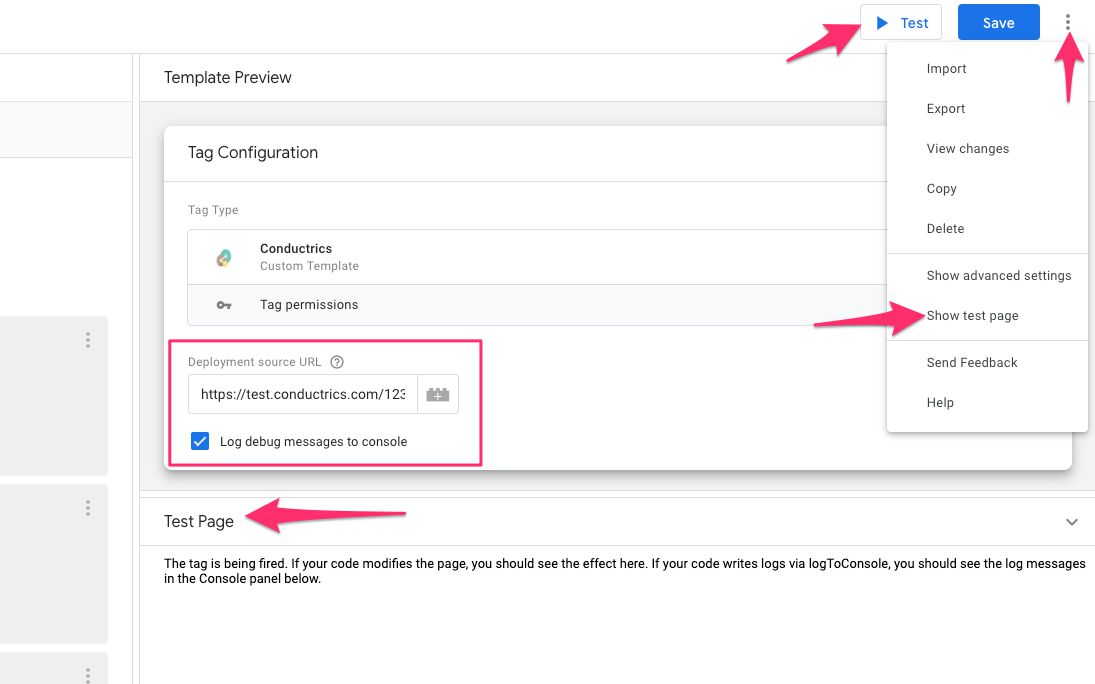
You can now click to edit the tag in the **Template Preview** window.
When you’ve added some text, you can click the **Test** button to see
what happens.
You can also choose to show a **test page** from the template menu:
[
](https://www.simoahava.com/images/2019/04/permission-settings-done.jpg "Permission settings done")
Click **Save** to save the current template.
#### Step 5 - Preview and test
You can now click to edit the tag in the **Template Preview** window.
When you’ve added some text, you can click the **Test** button to see
what happens.
You can also choose to show a **test page** from the template menu:
[ ](https://www.simoahava.com/images/2019/04/template-preview.jpg "Template preview")
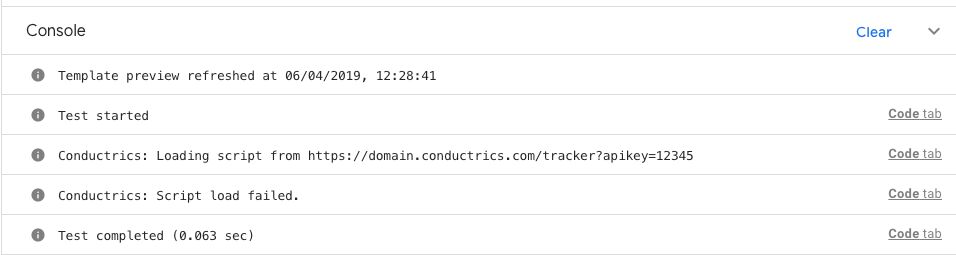
Test different things:
- Try with a random, non-URL string to see the warning about the missing
`https://`.
- Try with `https://` but with a hostname that doesn’t contain
`conductrics.com` to see the error for incorrect URL.
- Try with `https://domain.conductrics.com/loader` to see the error for
missing `apikey`.
- Try with `https://domain.conductrics.com/loader?apikey=12345` to see
the code pass with flying colors.
- Try with and without the **Debug** checkbox checked, and see how this
impacts what you see in the **Console**.
[
](https://www.simoahava.com/images/2019/04/template-preview.jpg "Template preview")
Test different things:
- Try with a random, non-URL string to see the warning about the missing
`https://`.
- Try with `https://` but with a hostname that doesn’t contain
`conductrics.com` to see the error for incorrect URL.
- Try with `https://domain.conductrics.com/loader` to see the error for
missing `apikey`.
- Try with `https://domain.conductrics.com/loader?apikey=12345` to see
the code pass with flying colors.
- Try with and without the **Debug** checkbox checked, and see how this
impacts what you see in the **Console**.
[ ](https://www.simoahava.com/images/2019/04/console-logging.jpg "Console output")
If you already have a [Conductrics
account](https://conductrics.com/contact/), you can test with a real
deployment URL to see the success message in the console.
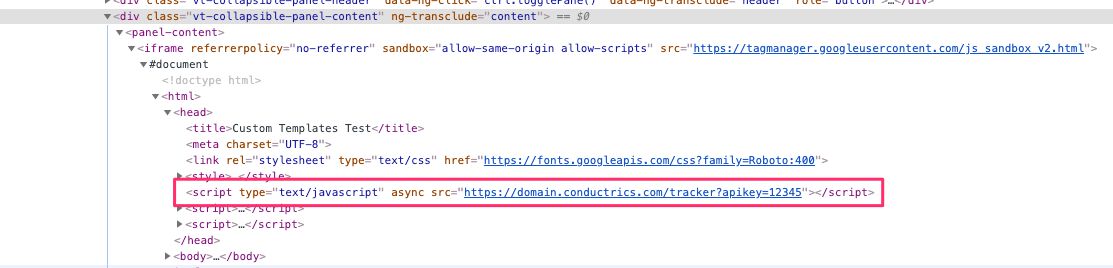
Finally, you can dig deep into the `iframe` of the **Test page** to find
your script tag there.
[
](https://www.simoahava.com/images/2019/04/console-logging.jpg "Console output")
If you already have a [Conductrics
account](https://conductrics.com/contact/), you can test with a real
deployment URL to see the success message in the console.
Finally, you can dig deep into the `iframe` of the **Test page** to find
your script tag there.
[ ](https://www.simoahava.com/images/2019/04/script-in-test-page.jpg "Script in the test page")
Once done testing to your satisfaction, you can do one final **Save**
and then close the template editor - you are ready to create your first
tag off of this template!
#### Step 6 - Create tag and preview
In the GTM UI, go to Tags and click **New**. In the overlay that opens,
find your new template and click it.
[
](https://www.simoahava.com/images/2019/04/script-in-test-page.jpg "Script in the test page")
Once done testing to your satisfaction, you can do one final **Save**
and then close the template editor - you are ready to create your first
tag off of this template!
#### Step 6 - Create tag and preview
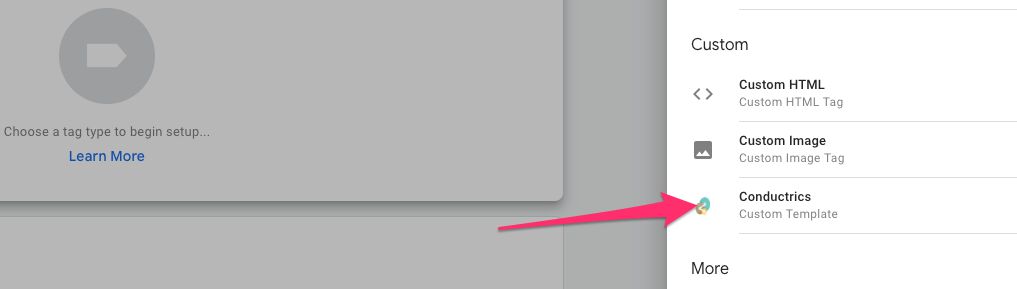
In the GTM UI, go to Tags and click **New**. In the overlay that opens,
find your new template and click it.
[ ](https://www.simoahava.com/images/2019/04/create-new-tag.jpg "Create new tag")
This screen should be familiar to you. The only difference to native
templates in GTM is the **Tag permissions** bar. Click it to preview
what permissions have been set for the template.
[
](https://www.simoahava.com/images/2019/04/create-new-tag.jpg "Create new tag")
This screen should be familiar to you. The only difference to native
templates in GTM is the **Tag permissions** bar. Click it to preview
what permissions have been set for the template.
[ ](https://www.simoahava.com/images/2019/04/permissions-in-the-template.jpg "Permissions in the template")
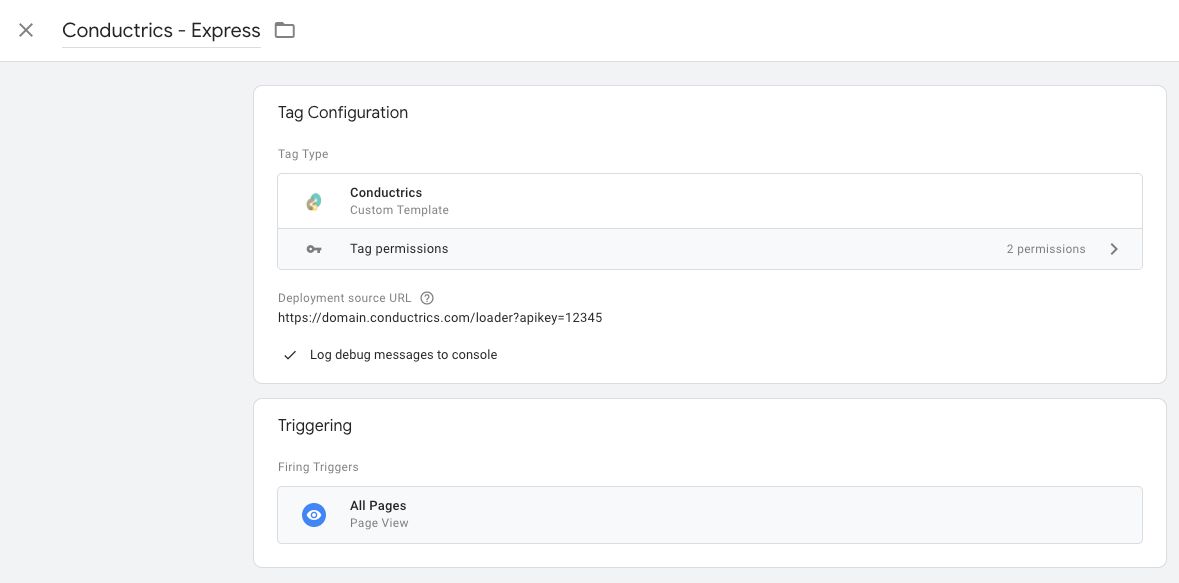
Then, fill in the tag fields as you would with a regular template. For
testing purposes, just set it to fire on the **All Pages** trigger.
You can try with invalid URLs to see the error messages. However, to
test how the tag actually works, use a correct (but ultimately invalid)
URL like `https://domain.conductrics.com/loader?apikey=12345`, and the
tag should look like this:
[
](https://www.simoahava.com/images/2019/04/permissions-in-the-template.jpg "Permissions in the template")
Then, fill in the tag fields as you would with a regular template. For
testing purposes, just set it to fire on the **All Pages** trigger.
You can try with invalid URLs to see the error messages. However, to
test how the tag actually works, use a correct (but ultimately invalid)
URL like `https://domain.conductrics.com/loader?apikey=12345`, and the
tag should look like this:
[ ](https://www.simoahava.com/images/2019/04/first-conductrics-tag.jpg "First Conductrics tag")
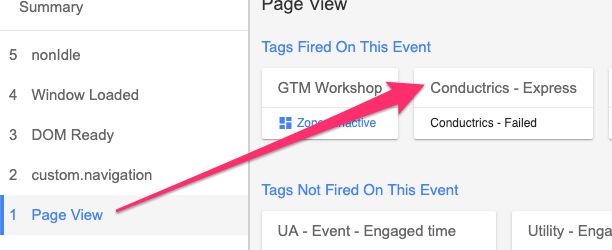
Then, go the **Preview mode** and enter your site.
You should see the tag having fired, but in **Failed** state because the
endpoint returned a `404` error.
[
](https://www.simoahava.com/images/2019/04/first-conductrics-tag.jpg "First Conductrics tag")
Then, go the **Preview mode** and enter your site.
You should see the tag having fired, but in **Failed** state because the
endpoint returned a `404` error.
[ ](https://www.simoahava.com/images/2019/04/conductrics-failed.jpg "Conductrics failed")
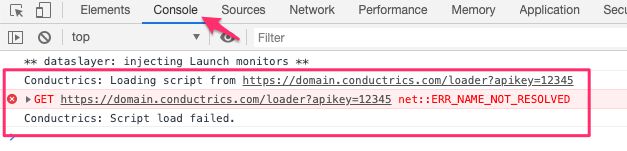
Check out the [JavaScript
console](https://kb.mailster.co/how-can-i-open-the-browsers-console/),
too. You should see some relevant output there.
[
](https://www.simoahava.com/images/2019/04/conductrics-failed.jpg "Conductrics failed")
Check out the [JavaScript
console](https://kb.mailster.co/how-can-i-open-the-browsers-console/),
too. You should see some relevant output there.
[ ](https://www.simoahava.com/images/2019/04/javascript-console-output.jpg "JavaScript console output")
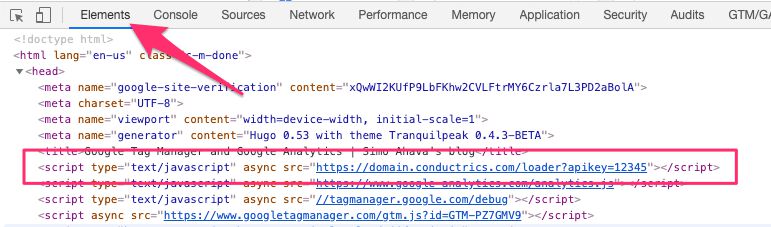
Finally, since we’re **injecting a script**, you can drill into the page
elements to find it in the `` of the page.
[
](https://www.simoahava.com/images/2019/04/javascript-console-output.jpg "JavaScript console output")
Finally, since we’re **injecting a script**, you can drill into the page
elements to find it in the `` of the page.
[ ](https://www.simoahava.com/images/2019/04/elements-panel.jpg "Elements panel")
#### Step 7 - You’re done!
**And that’s it!**. This was an extremely simple use case, and it might
seem like a really complicated way to go about it. However, remember
that you’re providing controls for **governance** and **responsible**
code injection here.
The use of [permissions](#permissions), [sandboxed
JavaScript](#sandboxed-javascript), and, if you choose to use them,
[policies](#policies-reference) help you run a tight ship on what the
custom tags can and can’t do on the site.
The template itself does a simple script injection, but I hope I
convinced you how powerful the UI editor can be, and we barely scratched
the surface!
### Variable template walkthrough
Variable templates differ from tag templates in that they only have a
singular purpose: to **return** a value. Optimally, they should **not**
have any *side effects*, which include e.g. setting variables in the
global scope, writing cookies, pushing to `dataLayer`, injecting
scripts, or firing pixels.
In this example, we’ll create a simple variable which is intended to
work with the
[`hitCallback`](https://www.simoahava.com/gtm-tips/hitcallback-eventcallback/)
field of your Google Analytics tags.
The idea is that the variable will return a function (`hitCallback`
always requires a function as its value), which when executed will write
a cookie into the browser. This cookie can then be used to check if less
than 30 minutes (the default expiration) have passed since the last
Google Analytics hit to GA, thus giving you a *very rough* estimate of
whether a GA session is currently active.
So yes, we’re breaking the “no side effects” rule I literally *just*
mentioned, but this is a bit different. It’s not an uncontrollable side
effect, which it would be if it fired every single time the variable is
called. Instead, the functionality is restricted to the `hitCallback`
function, which is only executed **once**, when the Google Analytics
request has been dispatched.
[
](https://www.simoahava.com/images/2019/04/elements-panel.jpg "Elements panel")
#### Step 7 - You’re done!
**And that’s it!**. This was an extremely simple use case, and it might
seem like a really complicated way to go about it. However, remember
that you’re providing controls for **governance** and **responsible**
code injection here.
The use of [permissions](#permissions), [sandboxed
JavaScript](#sandboxed-javascript), and, if you choose to use them,
[policies](#policies-reference) help you run a tight ship on what the
custom tags can and can’t do on the site.
The template itself does a simple script injection, but I hope I
convinced you how powerful the UI editor can be, and we barely scratched
the surface!
### Variable template walkthrough
Variable templates differ from tag templates in that they only have a
singular purpose: to **return** a value. Optimally, they should **not**
have any *side effects*, which include e.g. setting variables in the
global scope, writing cookies, pushing to `dataLayer`, injecting
scripts, or firing pixels.
In this example, we’ll create a simple variable which is intended to
work with the
[`hitCallback`](https://www.simoahava.com/gtm-tips/hitcallback-eventcallback/)
field of your Google Analytics tags.
The idea is that the variable will return a function (`hitCallback`
always requires a function as its value), which when executed will write
a cookie into the browser. This cookie can then be used to check if less
than 30 minutes (the default expiration) have passed since the last
Google Analytics hit to GA, thus giving you a *very rough* estimate of
whether a GA session is currently active.
So yes, we’re breaking the “no side effects” rule I literally *just*
mentioned, but this is a bit different. It’s not an uncontrollable side
effect, which it would be if it fired every single time the variable is
called. Instead, the functionality is restricted to the `hitCallback`
function, which is only executed **once**, when the Google Analytics
request has been dispatched.
[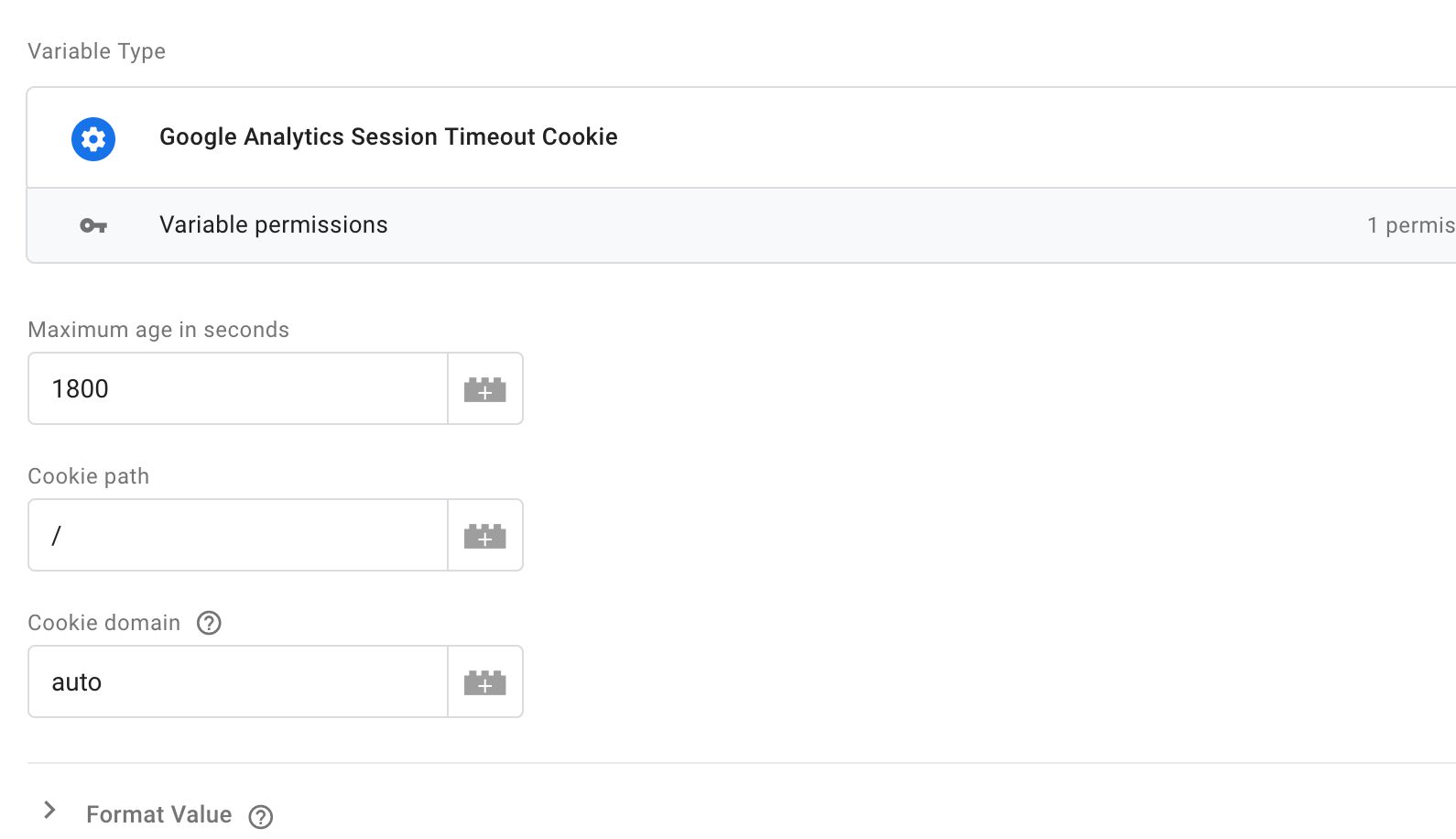 ](https://www.simoahava.com/images/2019/04/session-cookie-variable.jpg "Session cookie variable")
Note, there are [more elegant
ways](https://www.simoahava.com/analytics/create-and-update-google-analytics-session-timeout-cookie/)
to handle this, but for the purposes of this guide I wanted to start off
with something simple.
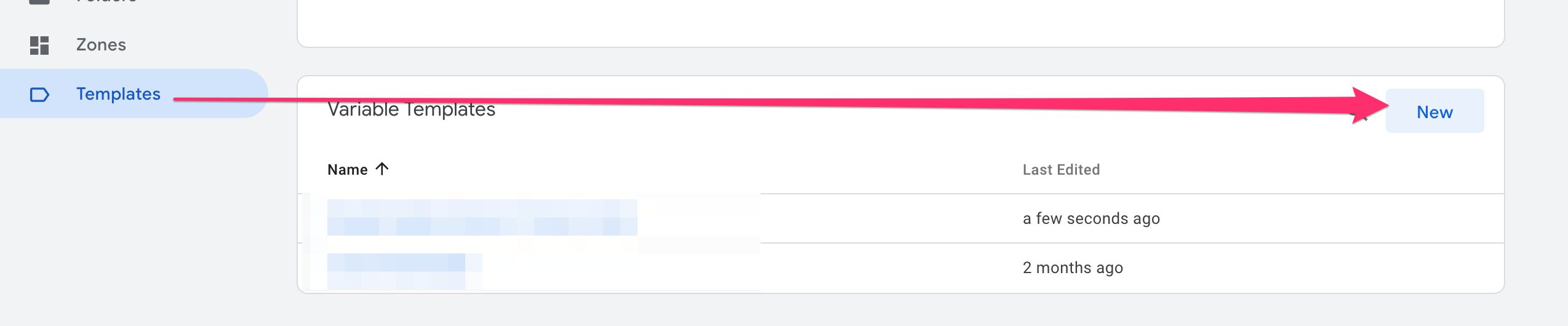
#### Step 1 - Create and set the details of the variable template
Browse to **Templates**, and click **New** in the corner of the
**Variable Templates** area.
[
](https://www.simoahava.com/images/2019/04/session-cookie-variable.jpg "Session cookie variable")
Note, there are [more elegant
ways](https://www.simoahava.com/analytics/create-and-update-google-analytics-session-timeout-cookie/)
to handle this, but for the purposes of this guide I wanted to start off
with something simple.
#### Step 1 - Create and set the details of the variable template
Browse to **Templates**, and click **New** in the corner of the
**Variable Templates** area.
[ ](https://www.simoahava.com/images/2019/04/session-cookie-new-template.jpg "New variable template")
In the view that opens, make sure the **Info** tab is selected, and add
a **Name** and **Description** to the variable.
[
](https://www.simoahava.com/images/2019/04/session-cookie-new-template.jpg "New variable template")
In the view that opens, make sure the **Info** tab is selected, and add
a **Name** and **Description** to the variable.
[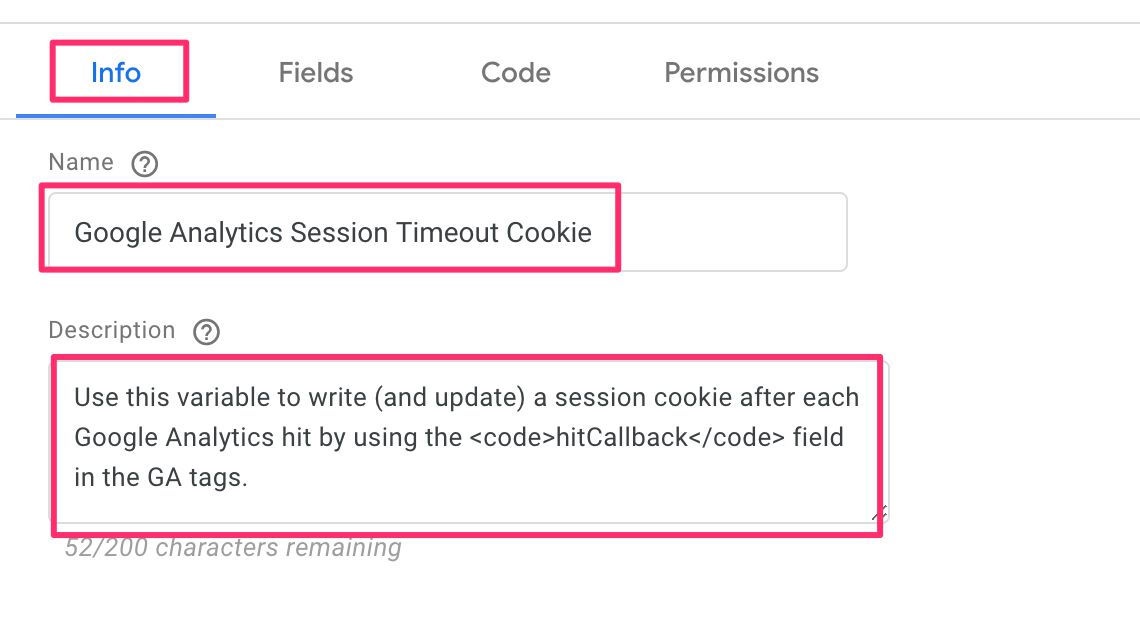 ](https://www.simoahava.com/images/2019/04/session-cookie-description.jpg "Variable template details")
As you can see, you can add HTML styling to the description field. The
text I wrote was this:
```
Use this variable to write (and update) a session cookie after each Google Analytics hit by using the
](https://www.simoahava.com/images/2019/04/session-cookie-description.jpg "Variable template details")
As you can see, you can add HTML styling to the description field. The
text I wrote was this:
```
Use this variable to write (and update) a session cookie after each Google Analytics hit by using the hitCallback field in the GA tags.
```
Once done, click **Save** in the top right corner and you should see the
**Template Preview** area show the new template name.
[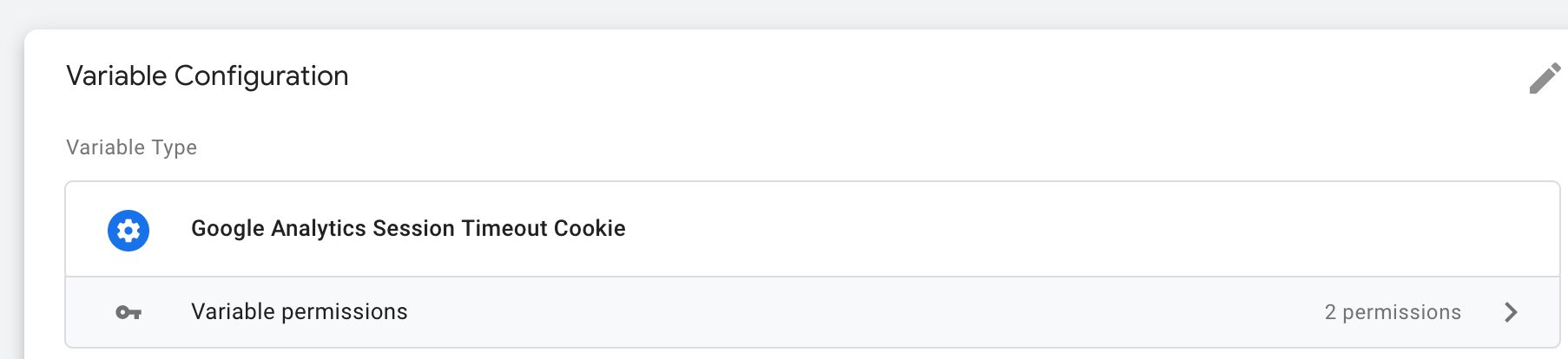 ](https://www.simoahava.com/images/2019/04/session-cookie-preview.jpg "Variable template preview")
Next, let’s create the user interface for this template!
#### Step 2 - Create the UI
Click over to the **Fields** tab in the template editor.
This template will comprise three [text input](#text-input) fields. One
for the cookie’s **maximum age**, one for the **cookie path**, and one
for the **cookie domain**.
Click the **Add Field** button, and choose the Text Input field from the
overlay.
[
](https://www.simoahava.com/images/2019/04/session-cookie-preview.jpg "Variable template preview")
Next, let’s create the user interface for this template!
#### Step 2 - Create the UI
Click over to the **Fields** tab in the template editor.
This template will comprise three [text input](#text-input) fields. One
for the cookie’s **maximum age**, one for the **cookie path**, and one
for the **cookie domain**.
Click the **Add Field** button, and choose the Text Input field from the
overlay.
[ ](https://www.simoahava.com/images/2019/04/session-cookie-text-input.jpg "Text input fields")
Do this two more times, so that you end up with three text input fields.
Name the first field `maxAge`, the second `cookiePath`, and the third
`cookieDomain`.
[
](https://www.simoahava.com/images/2019/04/session-cookie-text-input.jpg "Text input fields")
Do this two more times, so that you end up with three text input fields.
Name the first field `maxAge`, the second `cookiePath`, and the third
`cookieDomain`.
[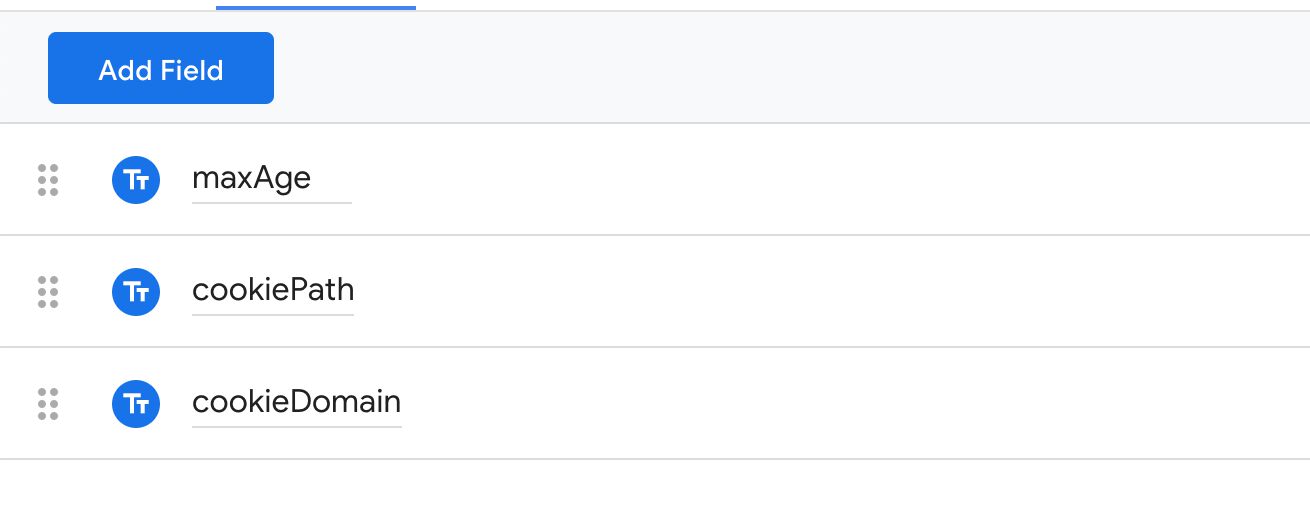 ](https://www.simoahava.com/images/2019/04/session-cookie-three-fields.jpg "Three text fields")
Expand the first field, `maxAge`, and click the **cogwheel** icon to
open its field configurations. Toggle on [**Always in
summary**](#always-in-summary), [**Default value**](#default-value), and
[**Display name**](#display-name).
[
](https://www.simoahava.com/images/2019/04/session-cookie-three-fields.jpg "Three text fields")
Expand the first field, `maxAge`, and click the **cogwheel** icon to
open its field configurations. Toggle on [**Always in
summary**](#always-in-summary), [**Default value**](#default-value), and
[**Display name**](#display-name).
[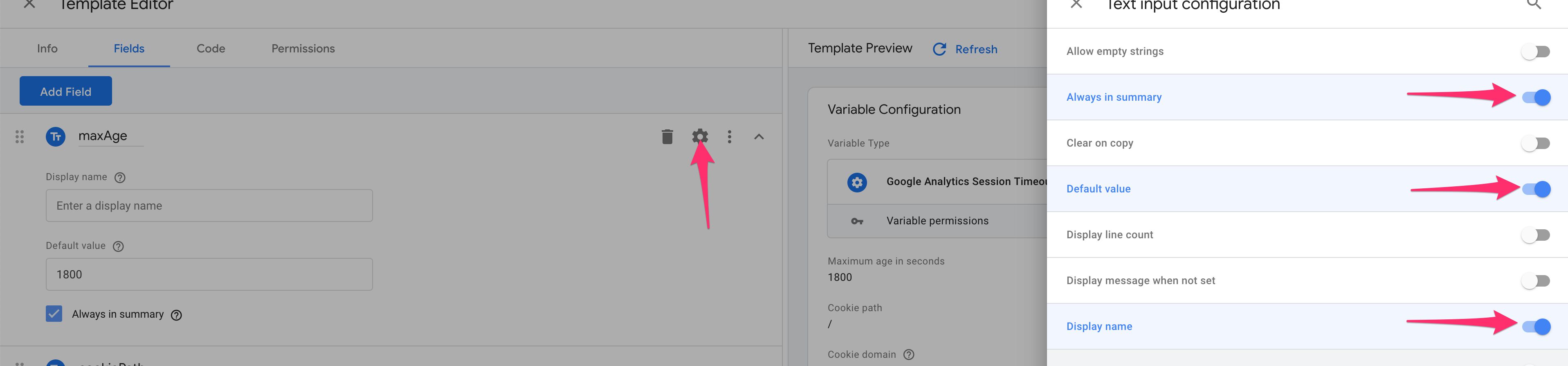 ](https://www.simoahava.com/images/2019/04/session-cookie-max-age-configurations.jpg "Max Age configurations")
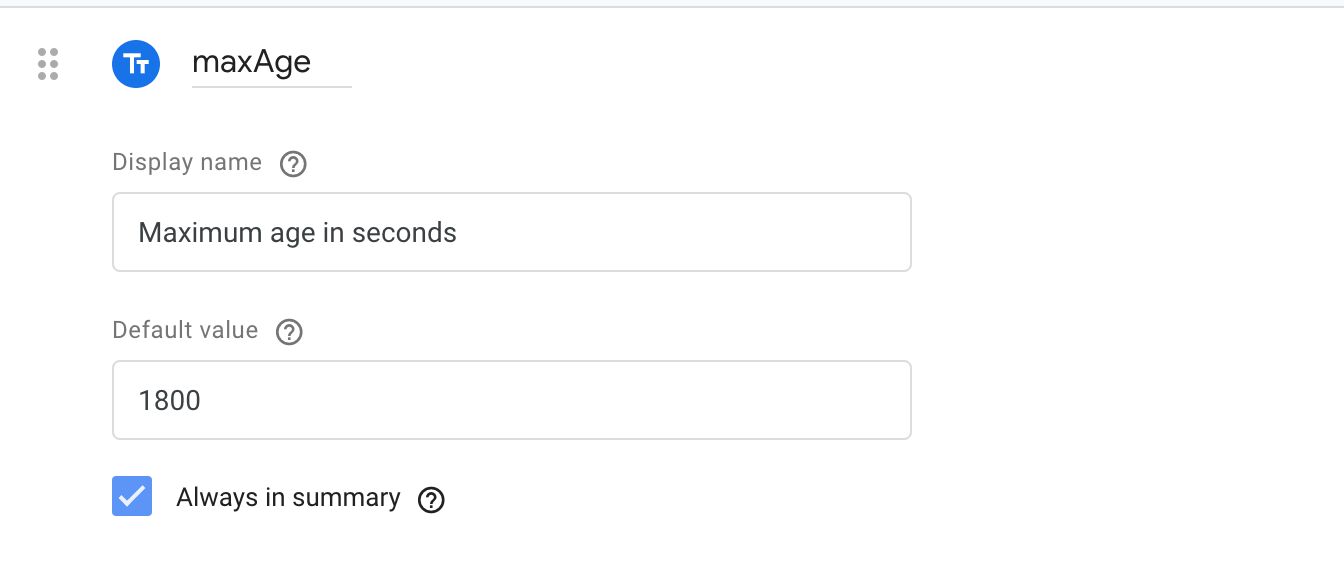
Edit the `maxAge` settings to be like this:n
**Display name**: Maximum age in seconds
**Default value**: 1800
**Always in summary**: Checked
The **Display name** is what appears above the field in the editor.
We’ll use a **Default value** of `1800` seconds (that’s 30 minutes), so
if the user doesn’t touch the field, that’s the value that will be used.
**Always in summary** means that the field contents will show up when
the variable is opened in the UI but not in edit mode. It’s a
convenience thing, not vital in any way.
[
](https://www.simoahava.com/images/2019/04/session-cookie-max-age-configurations.jpg "Max Age configurations")
Edit the `maxAge` settings to be like this:n
**Display name**: Maximum age in seconds
**Default value**: 1800
**Always in summary**: Checked
The **Display name** is what appears above the field in the editor.
We’ll use a **Default value** of `1800` seconds (that’s 30 minutes), so
if the user doesn’t touch the field, that’s the value that will be used.
**Always in summary** means that the field contents will show up when
the variable is opened in the UI but not in edit mode. It’s a
convenience thing, not vital in any way.
[ ](https://www.simoahava.com/images/2019/04/session-cookie-max-age-ready.jpg "Max age ready")
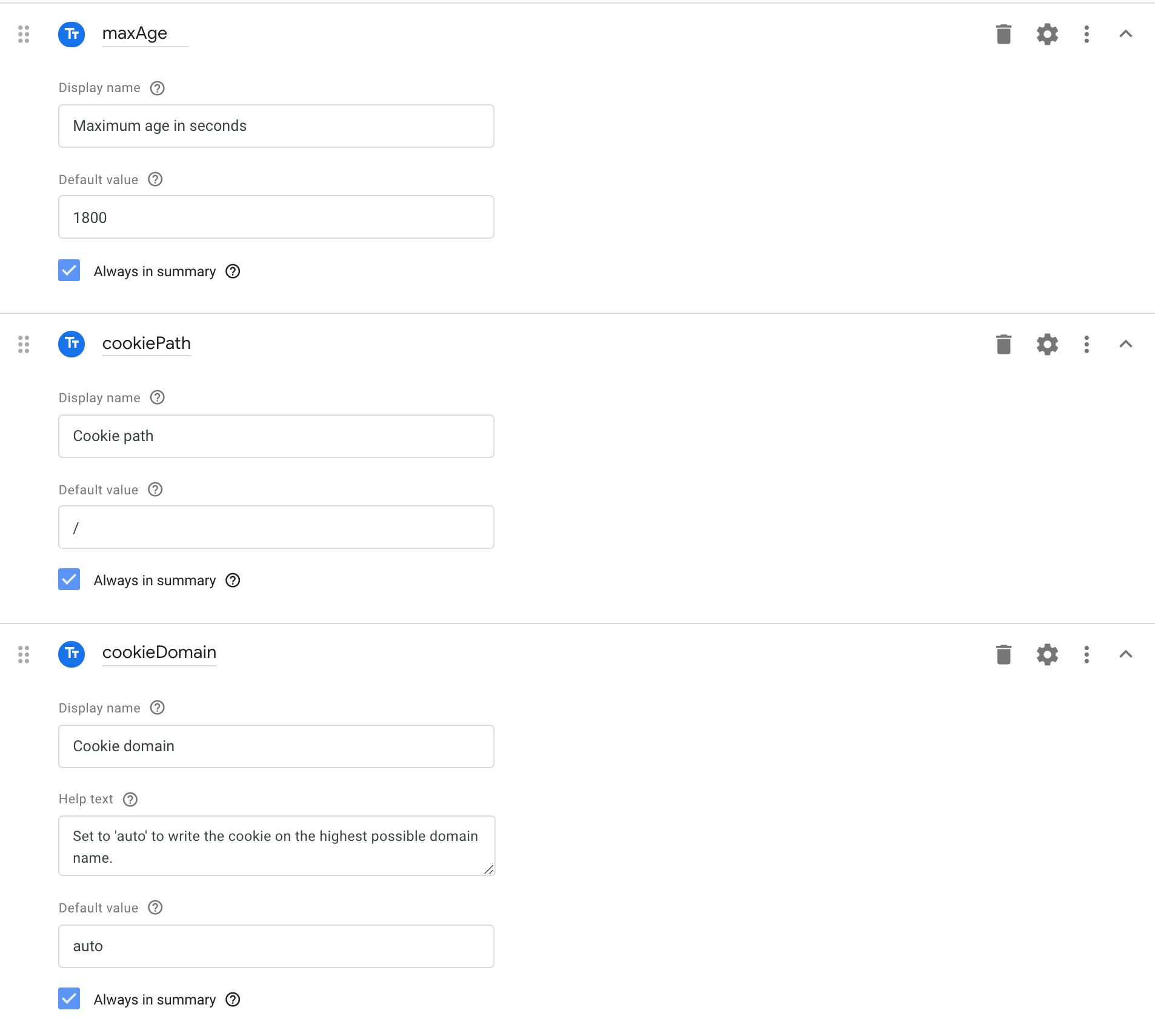
Next, click the **cogwheel** for the `cookiePath` field, and toggle the
same configurations on (**Display name**, **Default value**, and
**Always in summary**).
Set them to these values:
**Display name**: Cookie path
**Default value**: /
**Always in summary**: Checked
Finally, click the **cogwheel** for the `cookieDomain` field, and toggle
the same conditions on, together with the **Help text** configuration.
Set them to these values:
**Display name**: Cookie domain
**Help text**: Set to ‘auto’ to write the cookie on the highest possible
domain name.
**Default value**: auto
**Always in summary**: Checked
The fields should look like this:
[
](https://www.simoahava.com/images/2019/04/session-cookie-max-age-ready.jpg "Max age ready")
Next, click the **cogwheel** for the `cookiePath` field, and toggle the
same configurations on (**Display name**, **Default value**, and
**Always in summary**).
Set them to these values:
**Display name**: Cookie path
**Default value**: /
**Always in summary**: Checked
Finally, click the **cogwheel** for the `cookieDomain` field, and toggle
the same conditions on, together with the **Help text** configuration.
Set them to these values:
**Display name**: Cookie domain
**Help text**: Set to ‘auto’ to write the cookie on the highest possible
domain name.
**Default value**: auto
**Always in summary**: Checked
The fields should look like this:
[ ](https://www.simoahava.com/images/2019/04/session-cookie-finished-fields.jpg "Session cookie finished fields")
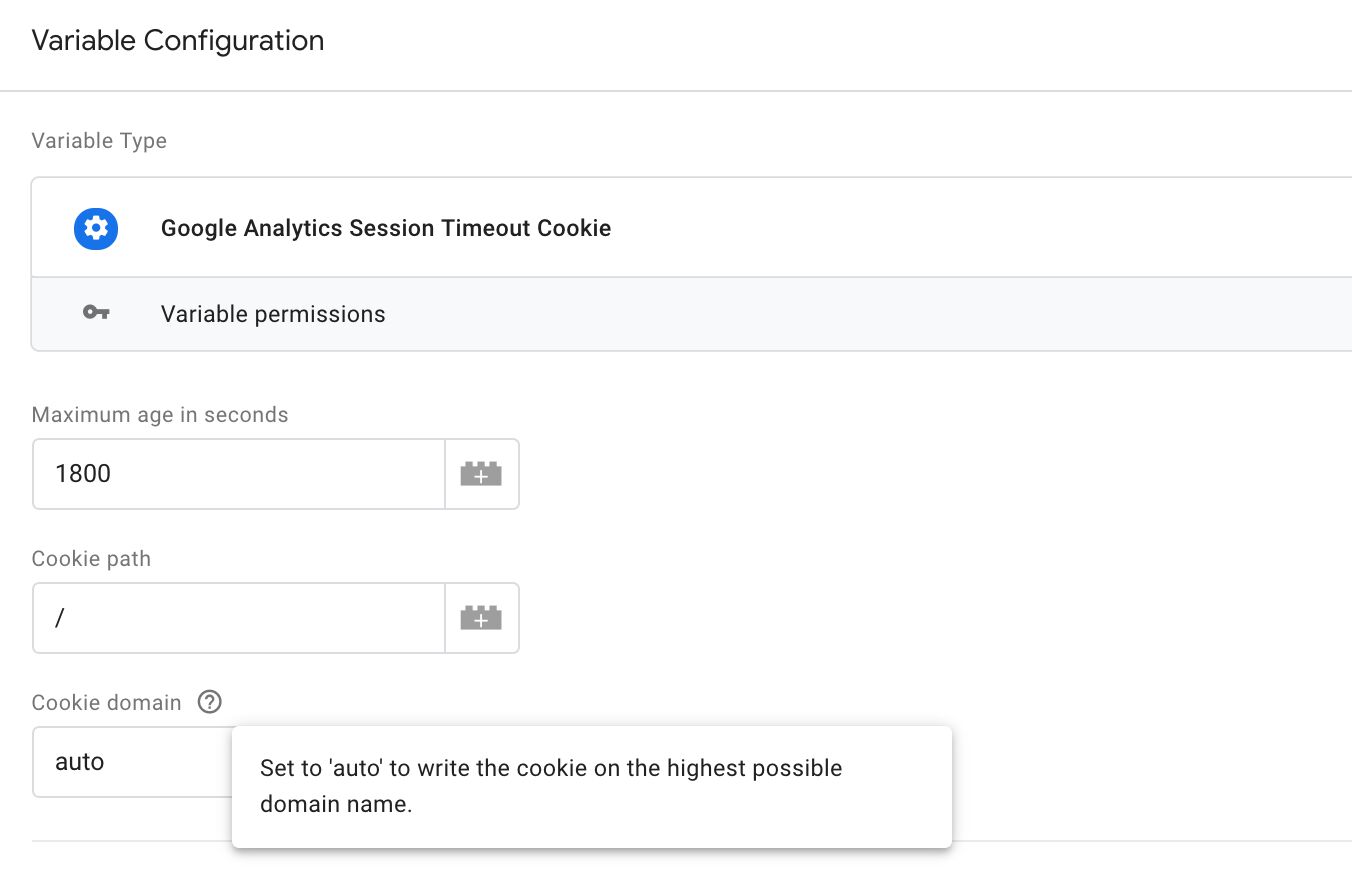
The [**Help text**](#help-text) configuration is pretty cool. If you
refresh the **Template Preview**, you’ll see how there’s a little
question mark next to the **Cookie domain** field. By hovering over it,
you’ll see the help text.
[
](https://www.simoahava.com/images/2019/04/session-cookie-finished-fields.jpg "Session cookie finished fields")
The [**Help text**](#help-text) configuration is pretty cool. If you
refresh the **Template Preview**, you’ll see how there’s a little
question mark next to the **Cookie domain** field. By hovering over it,
you’ll see the help text.
[ ](https://www.simoahava.com/images/2019/04/session-cookie-template-preview.jpg "Session cookie template preview")
Now you’re ready to add the code!
#### Step 3 - Add some code
Click the **Code** tab, and replace the contents with the following:
```
// Require the necessary APIs
const setCookie = require('setCookie');
// Build the options object from user input
const options = {
domain: data.cookieDomain,
'max-age': data.maxAge,
path: data.path
};
// Return the hitCallback function
return () => {
// Set the cookie when the hit has been dispatched
setCookie('_ga_session', 'true', options);
};
```
As you can see, it’s a **very** simple variable. It uses a single API,
[`setCookie`](https://developers.google.com/tag-manager/templates/api#setcookie)
(for obvious reasons), and it has a `return` statement at the end, which
returns a function wherever the variable is called.
If you read the [`setCookie`
specification](https://developers.google.com/tag-manager/templates/api#setcookie),
you can see that it takes three arguments.
`setCookie(name, value, options)`
To make things a bit easier, we’re building the `options` object before
calling the method. The object has three properties, `domain` for the
domain name, `max-age` for the maximum age, and `path` for the cookie
path.
The `setCookie` API has a nice feature where if you set the value of
`domain` to `'auto'`, it automatically finds the highest possible (i.e.
shortest) domain name it can use. Thus, if the variable is called on
`sub.domain.simoahava.com`, the API writes it on `simoahava.com`.
As you can see, there are no validations or permission checks going on
here. After reading this guide, you’ll be able to extend the UI to do
the validations directly on the fields, or you can also check the field
values in code, falling back to some valid values in case the user input
is not perfect.
Once you’ve added the code, make sure to **save** the template, and then
click on over to the **Permissions** tab of the editor. You’ll need to
make sure the template has permissions to write the cookie.
#### Step 4 - Modify permissions
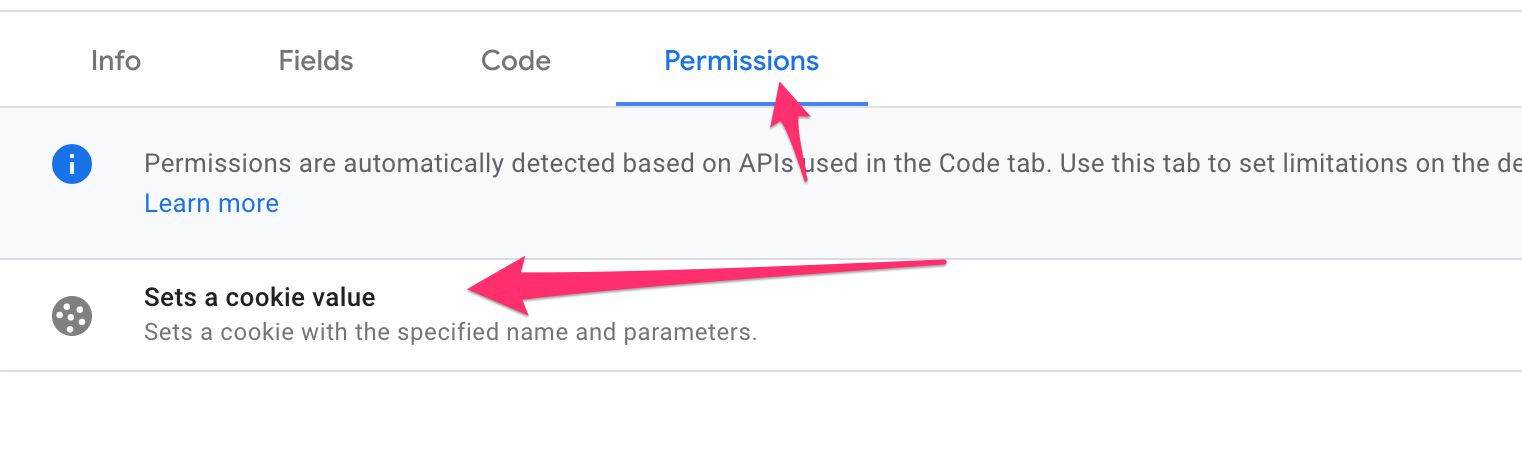
In the **Permissions** tab, you should now see a permission for [Sets A
Cookie Value](#sets-a-cookie-value). It’s added automatically when you
run `require('setCookie')` in the template code. Pretty sweet!
[
](https://www.simoahava.com/images/2019/04/session-cookie-template-preview.jpg "Session cookie template preview")
Now you’re ready to add the code!
#### Step 3 - Add some code
Click the **Code** tab, and replace the contents with the following:
```
// Require the necessary APIs
const setCookie = require('setCookie');
// Build the options object from user input
const options = {
domain: data.cookieDomain,
'max-age': data.maxAge,
path: data.path
};
// Return the hitCallback function
return () => {
// Set the cookie when the hit has been dispatched
setCookie('_ga_session', 'true', options);
};
```
As you can see, it’s a **very** simple variable. It uses a single API,
[`setCookie`](https://developers.google.com/tag-manager/templates/api#setcookie)
(for obvious reasons), and it has a `return` statement at the end, which
returns a function wherever the variable is called.
If you read the [`setCookie`
specification](https://developers.google.com/tag-manager/templates/api#setcookie),
you can see that it takes three arguments.
`setCookie(name, value, options)`
To make things a bit easier, we’re building the `options` object before
calling the method. The object has three properties, `domain` for the
domain name, `max-age` for the maximum age, and `path` for the cookie
path.
The `setCookie` API has a nice feature where if you set the value of
`domain` to `'auto'`, it automatically finds the highest possible (i.e.
shortest) domain name it can use. Thus, if the variable is called on
`sub.domain.simoahava.com`, the API writes it on `simoahava.com`.
As you can see, there are no validations or permission checks going on
here. After reading this guide, you’ll be able to extend the UI to do
the validations directly on the fields, or you can also check the field
values in code, falling back to some valid values in case the user input
is not perfect.
Once you’ve added the code, make sure to **save** the template, and then
click on over to the **Permissions** tab of the editor. You’ll need to
make sure the template has permissions to write the cookie.
#### Step 4 - Modify permissions
In the **Permissions** tab, you should now see a permission for [Sets A
Cookie Value](#sets-a-cookie-value). It’s added automatically when you
run `require('setCookie')` in the template code. Pretty sweet!
[ ](https://www.simoahava.com/images/2019/04/sets-a-cookie-value.jpg "Sets a cookie value")
Expand the permission, and click the **+ Add allowed cookie** button. In
the overlay that opens, configure the cookie as follows:
**Cookie name**: \_ga_session
**Domain**: \*
**Path**: \*
**Secure**: Any
**Session**: Any
Click **Save** in the overlay when done. This is what you should see in
the permissions area:
[
](https://www.simoahava.com/images/2019/04/sets-a-cookie-value.jpg "Sets a cookie value")
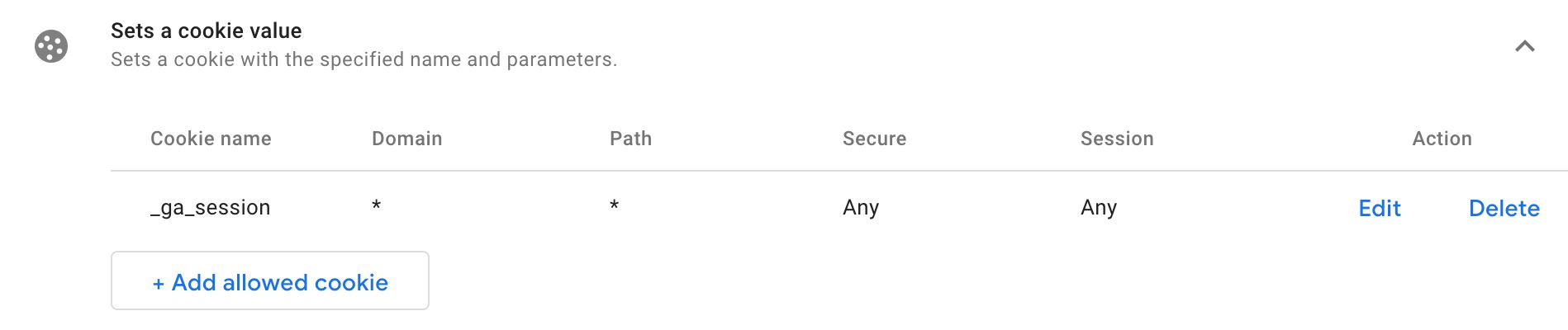
Expand the permission, and click the **+ Add allowed cookie** button. In
the overlay that opens, configure the cookie as follows:
**Cookie name**: \_ga_session
**Domain**: \*
**Path**: \*
**Secure**: Any
**Session**: Any
Click **Save** in the overlay when done. This is what you should see in
the permissions area:
[ ](https://www.simoahava.com/images/2019/04/cookie-permissions.jpg "Cookie permissions")
You’re done with the template! Remember to **Save** it one last time.
There’s not much sense in previewing or testing it in the template
editor itself. The variable returns a **function**, so the only logical
place to test it is in an environment where the function is actually
executed in context.
Thus, it’s time to create a variable from the template and add it to a
tag!
#### Step 5 - Create variable, add to tag, and preview
Click to **Variables** in the GTM UI, and click **New** in the
**User-Defined Variables** section.
In the variable type picker, choose your newly created template from the
list.
[
](https://www.simoahava.com/images/2019/04/cookie-permissions.jpg "Cookie permissions")
You’re done with the template! Remember to **Save** it one last time.
There’s not much sense in previewing or testing it in the template
editor itself. The variable returns a **function**, so the only logical
place to test it is in an environment where the function is actually
executed in context.
Thus, it’s time to create a variable from the template and add it to a
tag!
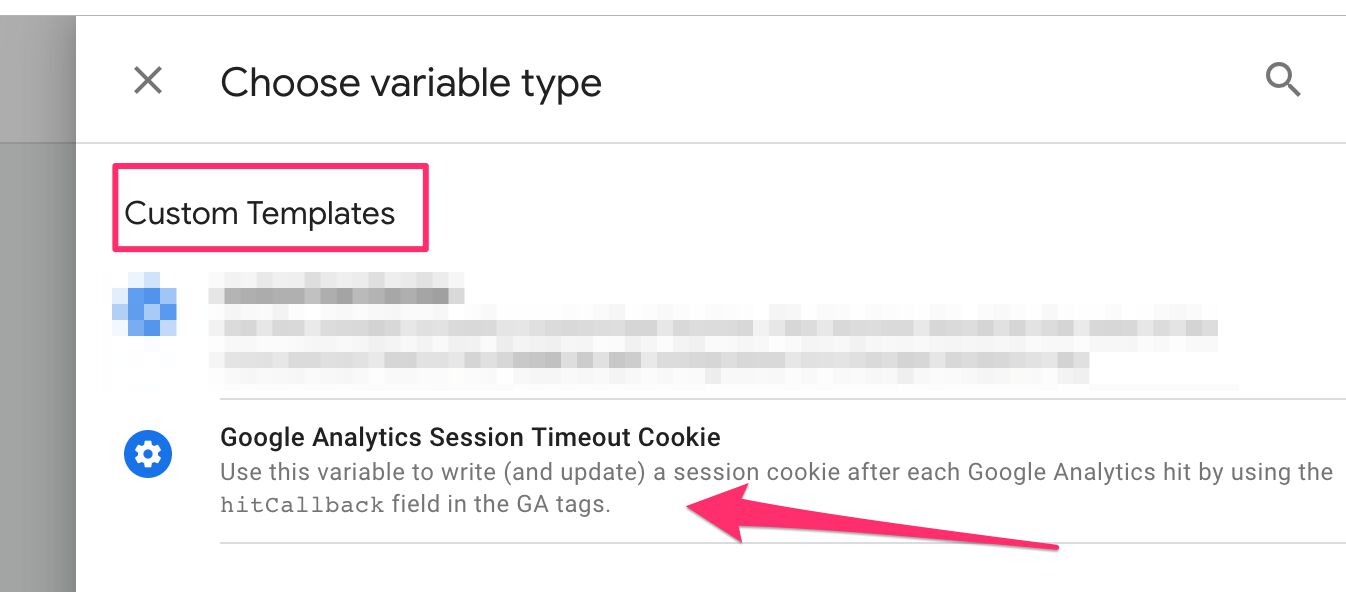
#### Step 5 - Create variable, add to tag, and preview
Click to **Variables** in the GTM UI, and click **New** in the
**User-Defined Variables** section.
In the variable type picker, choose your newly created template from the
list.
[ ](https://www.simoahava.com/images/2019/04/variable-picker.jpg "Variable picker")
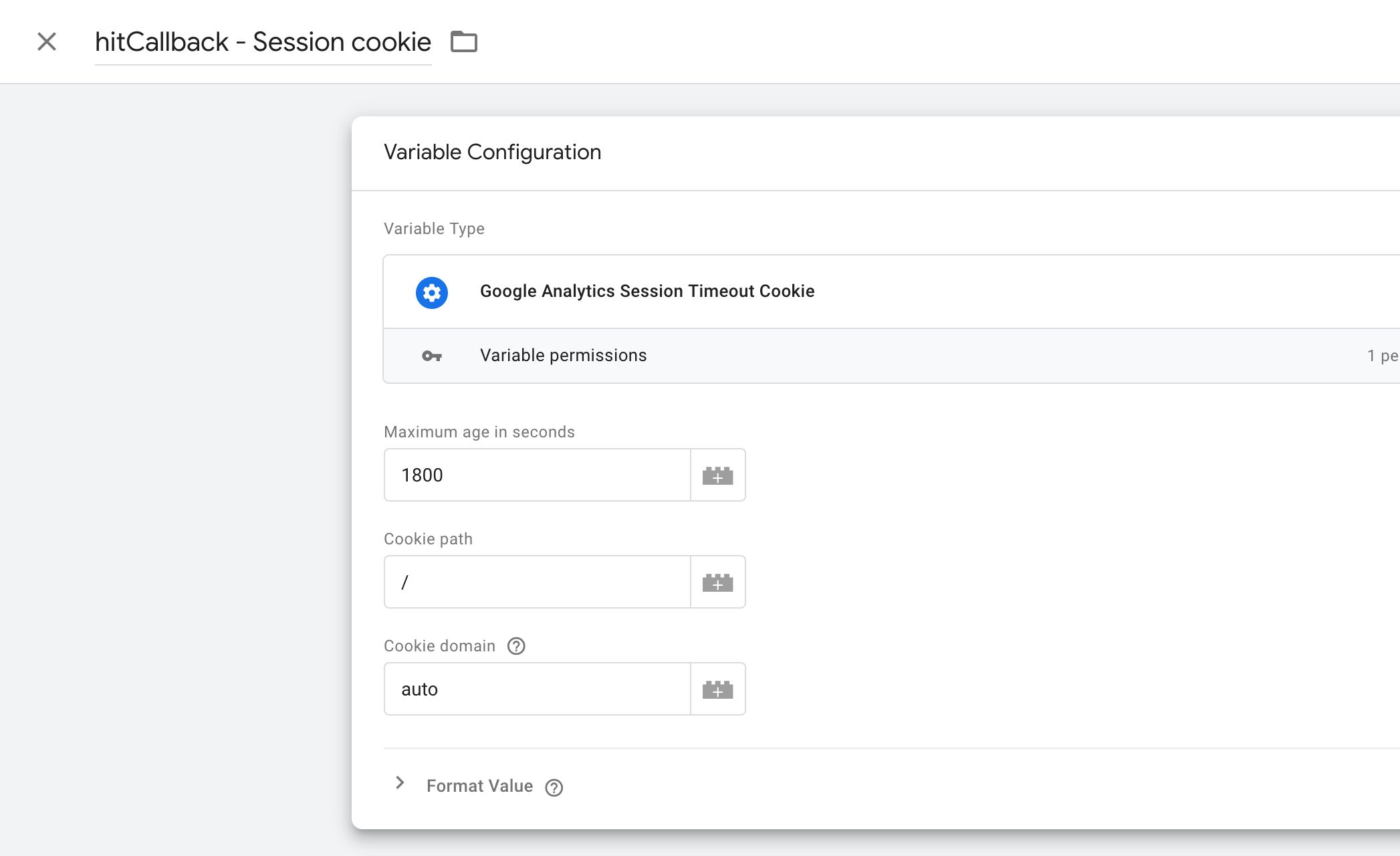
You can now configure the variable to your liking. The default settings
are more than fine for most cases, though.
[
](https://www.simoahava.com/images/2019/04/variable-picker.jpg "Variable picker")
You can now configure the variable to your liking. The default settings
are more than fine for most cases, though.
[ ](https://www.simoahava.com/images/2019/04/hitcallback-session-cookie.jpg "Hitcallback session cookie")
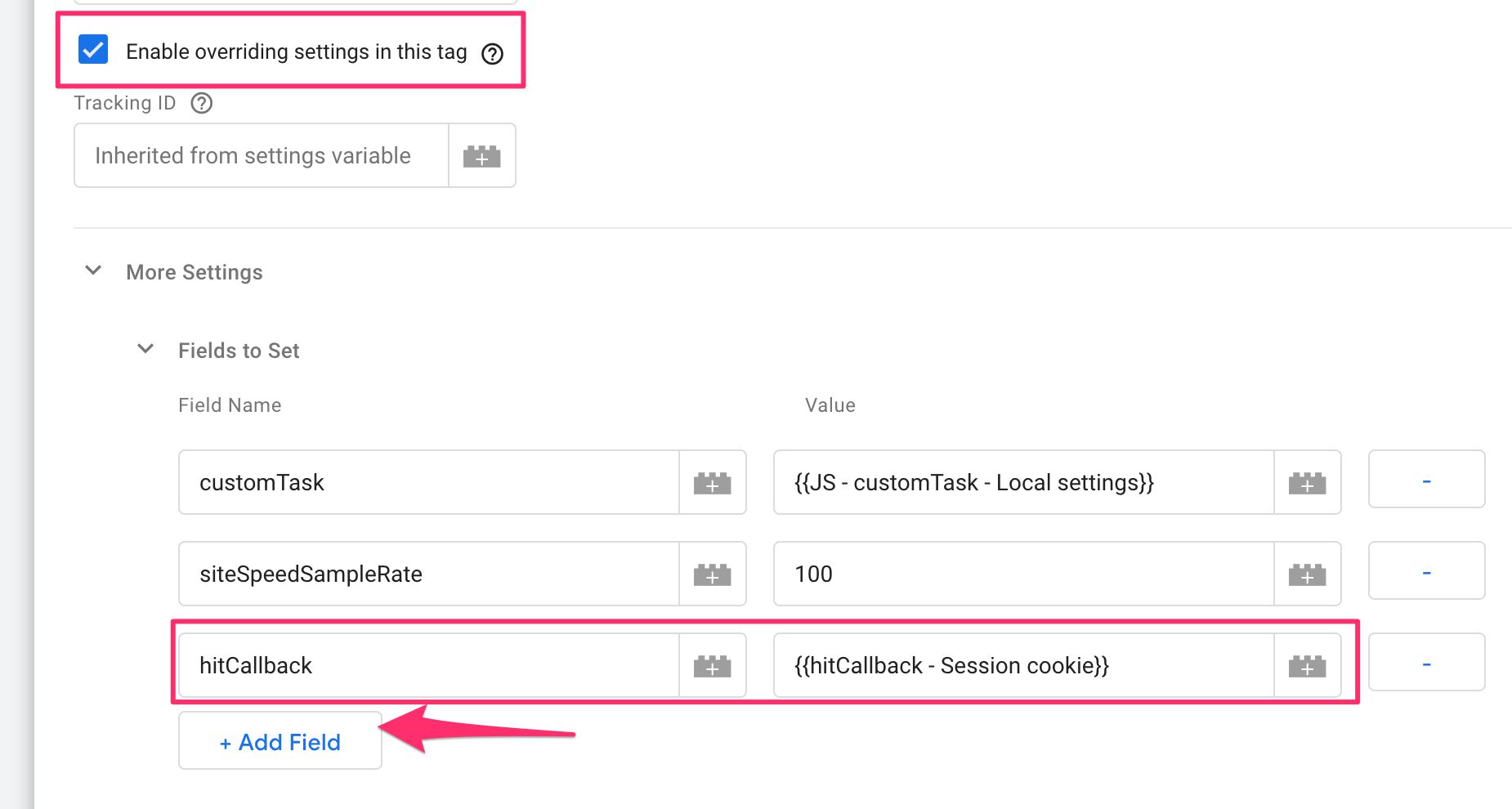
Next, find your Google Analytics Page View tag (or create one if you
don’t have it), check its **Enable overriding settings in this tag**,
and browse to **More Settings** \> **Fields to Set**. Click **+Add
Field**.
Set the **Field Name** to `hitCallback`, and **Value** to the variable
you just created.
[
](https://www.simoahava.com/images/2019/04/hitcallback-session-cookie.jpg "Hitcallback session cookie")
Next, find your Google Analytics Page View tag (or create one if you
don’t have it), check its **Enable overriding settings in this tag**,
and browse to **More Settings** \> **Fields to Set**. Click **+Add
Field**.
Set the **Field Name** to `hitCallback`, and **Value** to the variable
you just created.
[ ](https://www.simoahava.com/images/2019/04/hitcallback-in-tag.jpg "Hitcallback in tag")
Save the tag, and go to **Preview mode**. Then, load the page where the
Page View tag will fire.
If all goes as planned, you should now find a new browser cookie named
`_ga_session`, with an expiration set to the number of seconds you set
in the **Maximum age in seconds** field. Easiest way to find your
browser cookies is to use the developer tools of your browser.
In Chrome, press **CMD + OPT + I** (Mac) or **CTRL + SHIFT + I**
(Win/Linux) to open the developer tools. Then, activate the
**Application** tab, and select the **Cookies** option for your domain.
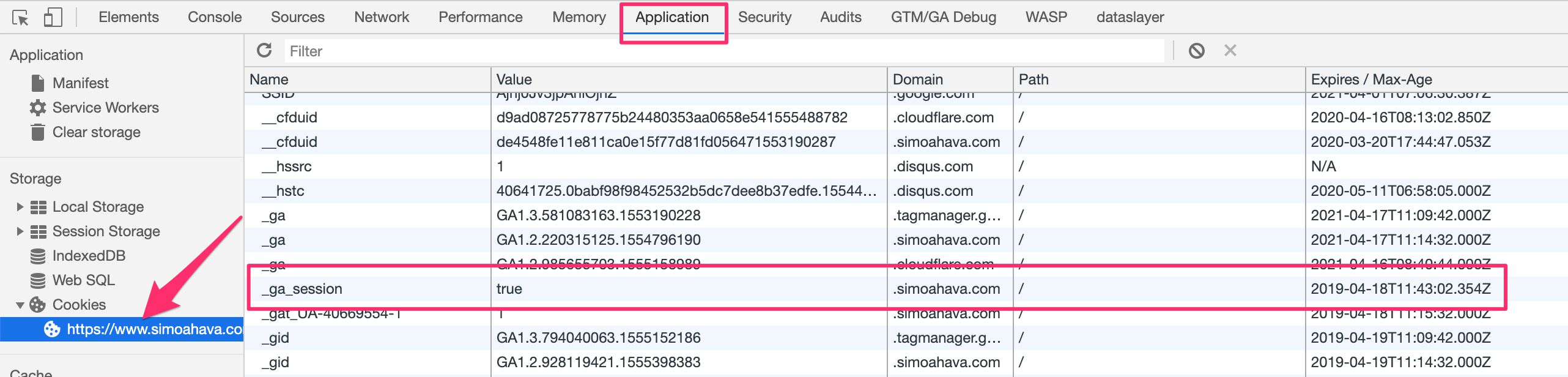
You should see the `_ga_session` cookie with value `true`, and an
expiration in the future (or in the past if you set its maximum age to
`0`).
[
](https://www.simoahava.com/images/2019/04/hitcallback-in-tag.jpg "Hitcallback in tag")
Save the tag, and go to **Preview mode**. Then, load the page where the
Page View tag will fire.
If all goes as planned, you should now find a new browser cookie named
`_ga_session`, with an expiration set to the number of seconds you set
in the **Maximum age in seconds** field. Easiest way to find your
browser cookies is to use the developer tools of your browser.
In Chrome, press **CMD + OPT + I** (Mac) or **CTRL + SHIFT + I**
(Win/Linux) to open the developer tools. Then, activate the
**Application** tab, and select the **Cookies** option for your domain.
You should see the `_ga_session` cookie with value `true`, and an
expiration in the future (or in the past if you set its maximum age to
`0`).
[ ](https://www.simoahava.com/images/2019/04/ga-session-cookie-dev-tools.jpg "GA Session cookie")
If you see the cookie then congratulations, your variable template works
as intended!
#### Step 7 - You’re done!
The purpose of this guide was to walk you through the steps how to
create a variable template.
Yes, we used an extremely simple example, but the idea was to get
familiarized with the *routine* of template creation, rather than jump
in the deep end with all the APIs, field configurations, and permissions
available.
The main difference to tag templates is that the variable needs to
**return** something. Whatever happens before that final `return`
statement is up to you, but you might want to avoid too many side
effects unless you are absolutely certain they are only invoked in a
specific, predictable context (such as `hitCallback`).
That’s it for the tutorial part! Now it’s time to explore with more
detail what custom templates are, how they work, and how they are such a
game-changer for tag management with GTM.
But first, take a break. You’ve earned it.
## Core concepts
Welcome back!
Before we get to the good stuff, let me go over some of the **core
concepts** of Custom Templates. These concepts will emerge and re-emerge
in much of the discussion below, and they are fundamental to
understanding what Custom Templates are and what they can do.
### Sandboxed JavaScript
Custom Templates are written with **JavaScript**. If you are unfamiliar
with the language but still aching to start working with templates, I
recommend taking a look at some [learning
materials](https://www.simoahava.com/analytics/10-javascript-concepts-for-web-analytics-implementation/#get-the-basics-right)
before trying your hand with the template code. Check out these (free)
learning portals, too:
- [freeCodeCamp](https://www.freecodecamp.org) - Excellent and
comprehensive JavaScript and web technology tracks that span
everything from the very basics to creating stateful web services.
- [Codecademy](https://www.codecademy.com) - Great tracks for all sorts
of programming languages and disciplines offered in a nice,
interactive way.
A further complication is that Custom Templates don’t actually use just
any old browser JavaScript. They use a special, [**sandboxed**
version](https://developers.google.com/tag-manager/templates/sandboxed-javascript)
of the JavaScript language.
Basically, any code you write in the code editor will be automatically
wrapped in a function that provides a single argument named `data`.
```
function(data) {
// Start of code editor code
const log = require('logToConsole');
const copyFromWindow = require('copyFromWindow');
const ga = copyFromWindow('GoogleAnalyticsObject');
if (typeof ga === 'undefined') {
log('Google Analytics not loaded!');
}
log(data.userInputText);
data.gtmOnSuccess();
// End of code editor code
}
```
The `data` object is really important. Each field in the template will
be accessible as a property of the `data` object, and the value of that
property will be the result of the user’s interaction with the field.
The `data` object also has the `gtmOnSuccess()` and `gtmOnFailure()`
methods you must use to signal the tag’s successful completion or its
failure. Variable completion is signalled by a `return` statement.
In addition to being automatically wrapped as a function body, the set
of JavaScript methods and accessors available to you is limited.
Basically, you will have no access to the global `window` object. This
includes things like `location`, `document` (and `document.cookie`),
`console`, and any constructors (such as `new Date()`.
To access these global methods and properties, you’ll need to use the
**template APIs** exposed by the template editor.
### ES6+ syntax
ES6 (ECMAScript 6) is one of the most significant updates the JavaScript
standard, originally released in 2015, with prominent support in all the
major browsers. The code editor in GTM’s templates supports **some** ES6
features. These features include:
- [**`const` and `let`
keywords**](https://medium.com/front-end-weekly/es6-cool-stuffs-var-let-and-const-in-depth-24512e593268).
These two keywords are offered as alternatives to JavaScript’s `var`
keyword. The main difference is that `const` and `let` have
**block-level scope**, meaning they are scoped to the context of the
wrapping `{` and `}`, rather than the whole surrounding function
context as with `var`. Furthermore, there’s no [variable
hoisting](https://www.w3schools.com/js/js_hoisting.asp) - `const` and
`let` variables cannot be referenced before their declaration.
Finally, `const` variables cannot be reassigned.
- [**Arrow
functions**](https://developer.mozilla.org/en-US/docs/Web/JavaScript/Reference/Functions/Arrow_functions).
Arrow functions are a new way to write JavaScript function
expressions. It’s syntactically more compact, so pursuers of “elegant
code” rejoice. For example,
`var multiplyByTwo = function(a) { return a*2; };` becomes
`const multiplyByTwo = a => a*2;`. Unlike “regular” JavaScript
functions, there’s no `this` binding and no access to the `arguments`
object.
You are of course free to use the “old” style of JavaScript. In the
templates’ code editor, I will try to adhere to ES6 syntax purely out of
habit, but also because using `const` and `let` actually has some
functional weight in the code, too.
### Restrictions to what type of data you can handle
To prevent users from circumventing template permissions and from
running code that breaks through the templates’ sandbox, Google Tag
Manager has a number of suppression mechanisms built in.
1. **You can’t access `window` or `document` directly**. Access to the
global namespace is restricted to [template APIs](#template-apis).
Even if you tried something clever such as returning
`window.setTimeout` in a JavaScript variable, so that it’s
*technically* not in the code editor itself, the template editor
automatically parses all variables and user-based input brought into
the template before it is made accessible to the code editor.
2. **You can’t pass non-plain objects**, such as instances created with
construtors, to the template code. It’s difficult to contain
security of these, because the prototype chain can be manipulated by
code outside the template, making the template itself vulnerable and
less secure. This basically means that things like
[`customTask`](https://www.simoahava.com/analytics/customtask-the-guide/)
will not be possible to do with variable templates for now, because
it requires access to a constructed, non-plain `model` object to
function.
3. **You can’t access DOM elements**. This is kind of the same as (2),
because a DOM element represents a complex, non-plain object type.
Nevertheless, it means that you can’t access things like
`{{Click Element}}` in template code.
[
](https://www.simoahava.com/images/2019/04/ga-session-cookie-dev-tools.jpg "GA Session cookie")
If you see the cookie then congratulations, your variable template works
as intended!
#### Step 7 - You’re done!
The purpose of this guide was to walk you through the steps how to
create a variable template.
Yes, we used an extremely simple example, but the idea was to get
familiarized with the *routine* of template creation, rather than jump
in the deep end with all the APIs, field configurations, and permissions
available.
The main difference to tag templates is that the variable needs to
**return** something. Whatever happens before that final `return`
statement is up to you, but you might want to avoid too many side
effects unless you are absolutely certain they are only invoked in a
specific, predictable context (such as `hitCallback`).
That’s it for the tutorial part! Now it’s time to explore with more
detail what custom templates are, how they work, and how they are such a
game-changer for tag management with GTM.
But first, take a break. You’ve earned it.
## Core concepts
Welcome back!
Before we get to the good stuff, let me go over some of the **core
concepts** of Custom Templates. These concepts will emerge and re-emerge
in much of the discussion below, and they are fundamental to
understanding what Custom Templates are and what they can do.
### Sandboxed JavaScript
Custom Templates are written with **JavaScript**. If you are unfamiliar
with the language but still aching to start working with templates, I
recommend taking a look at some [learning
materials](https://www.simoahava.com/analytics/10-javascript-concepts-for-web-analytics-implementation/#get-the-basics-right)
before trying your hand with the template code. Check out these (free)
learning portals, too:
- [freeCodeCamp](https://www.freecodecamp.org) - Excellent and
comprehensive JavaScript and web technology tracks that span
everything from the very basics to creating stateful web services.
- [Codecademy](https://www.codecademy.com) - Great tracks for all sorts
of programming languages and disciplines offered in a nice,
interactive way.
A further complication is that Custom Templates don’t actually use just
any old browser JavaScript. They use a special, [**sandboxed**
version](https://developers.google.com/tag-manager/templates/sandboxed-javascript)
of the JavaScript language.
Basically, any code you write in the code editor will be automatically
wrapped in a function that provides a single argument named `data`.
```
function(data) {
// Start of code editor code
const log = require('logToConsole');
const copyFromWindow = require('copyFromWindow');
const ga = copyFromWindow('GoogleAnalyticsObject');
if (typeof ga === 'undefined') {
log('Google Analytics not loaded!');
}
log(data.userInputText);
data.gtmOnSuccess();
// End of code editor code
}
```
The `data` object is really important. Each field in the template will
be accessible as a property of the `data` object, and the value of that
property will be the result of the user’s interaction with the field.
The `data` object also has the `gtmOnSuccess()` and `gtmOnFailure()`
methods you must use to signal the tag’s successful completion or its
failure. Variable completion is signalled by a `return` statement.
In addition to being automatically wrapped as a function body, the set
of JavaScript methods and accessors available to you is limited.
Basically, you will have no access to the global `window` object. This
includes things like `location`, `document` (and `document.cookie`),
`console`, and any constructors (such as `new Date()`.
To access these global methods and properties, you’ll need to use the
**template APIs** exposed by the template editor.
### ES6+ syntax
ES6 (ECMAScript 6) is one of the most significant updates the JavaScript
standard, originally released in 2015, with prominent support in all the
major browsers. The code editor in GTM’s templates supports **some** ES6
features. These features include:
- [**`const` and `let`
keywords**](https://medium.com/front-end-weekly/es6-cool-stuffs-var-let-and-const-in-depth-24512e593268).
These two keywords are offered as alternatives to JavaScript’s `var`
keyword. The main difference is that `const` and `let` have
**block-level scope**, meaning they are scoped to the context of the
wrapping `{` and `}`, rather than the whole surrounding function
context as with `var`. Furthermore, there’s no [variable
hoisting](https://www.w3schools.com/js/js_hoisting.asp) - `const` and
`let` variables cannot be referenced before their declaration.
Finally, `const` variables cannot be reassigned.
- [**Arrow
functions**](https://developer.mozilla.org/en-US/docs/Web/JavaScript/Reference/Functions/Arrow_functions).
Arrow functions are a new way to write JavaScript function
expressions. It’s syntactically more compact, so pursuers of “elegant
code” rejoice. For example,
`var multiplyByTwo = function(a) { return a*2; };` becomes
`const multiplyByTwo = a => a*2;`. Unlike “regular” JavaScript
functions, there’s no `this` binding and no access to the `arguments`
object.
You are of course free to use the “old” style of JavaScript. In the
templates’ code editor, I will try to adhere to ES6 syntax purely out of
habit, but also because using `const` and `let` actually has some
functional weight in the code, too.
### Restrictions to what type of data you can handle
To prevent users from circumventing template permissions and from
running code that breaks through the templates’ sandbox, Google Tag
Manager has a number of suppression mechanisms built in.
1. **You can’t access `window` or `document` directly**. Access to the
global namespace is restricted to [template APIs](#template-apis).
Even if you tried something clever such as returning
`window.setTimeout` in a JavaScript variable, so that it’s
*technically* not in the code editor itself, the template editor
automatically parses all variables and user-based input brought into
the template before it is made accessible to the code editor.
2. **You can’t pass non-plain objects**, such as instances created with
construtors, to the template code. It’s difficult to contain
security of these, because the prototype chain can be manipulated by
code outside the template, making the template itself vulnerable and
less secure. This basically means that things like
[`customTask`](https://www.simoahava.com/analytics/customtask-the-guide/)
will not be possible to do with variable templates for now, because
it requires access to a constructed, non-plain `model` object to
function.
3. **You can’t access DOM elements**. This is kind of the same as (2),
because a DOM element represents a complex, non-plain object type.
Nevertheless, it means that you can’t access things like
`{{Click Element}}` in template code.
[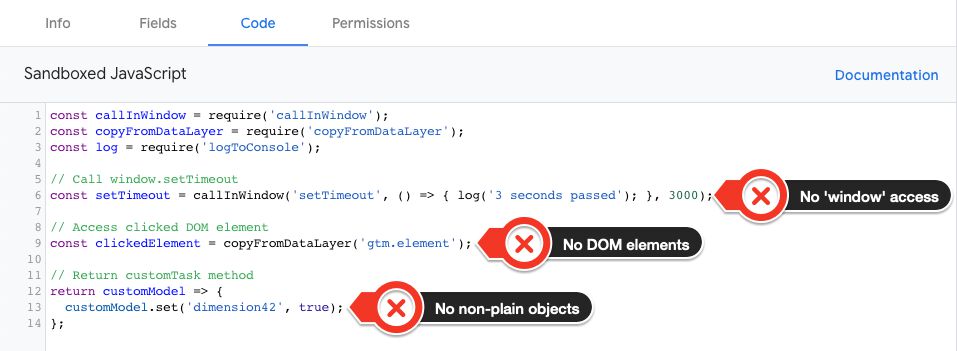 ](https://www.simoahava.com/images/2019/05/template-restrictions.jpg "Template restrictions")
In time, I’m certain the proliferation of APIs in the template will
solve many of the restrictions above, but first and foremost the point
of templates is to add a layer of security to prevent scripts outside
the template from messing with the code within.
Another one of the idiosyncracies of the templates’ sandboxed JavaScript
is how function expressions exposed outside the template code are
encapsulated in a **wrapper** by GTM.
The purpose of this wrapper is to make sure functions set in the window
or returned by the variable template can’t be used to circumvent
permissions set in the template.
The wrapper itself is **almost always** inconsequential, because it
passes the parameters collected by the wrapper to the function created
in or handled by the template. However, if any one of the parameters
violates the restrictions listed above, the parameter is suppressed and
replaced with `undefined`.
### Template APIs
The most common global properties and methods you’ll need to use are
abstracted behind custom **APIs**. We’ve covered a number of API
examples in the preceding chapters. For example, there’s `logToConsole`
for logging items to the JavaScript console of the browser, and there’s
`copyFromWindow` for accessing global variables defined in the `window`
object.
Each API comes with its own configurable set of permissions. The
`copyFromWindow` API, for example, requires that you define the global
keys the code has access to. As soon as you type the
`require('copyFromWindow')` statement and refresh the template, the
**Accesses Global Variables** permissions will become available in the
respective tab.
[
](https://www.simoahava.com/images/2019/05/template-restrictions.jpg "Template restrictions")
In time, I’m certain the proliferation of APIs in the template will
solve many of the restrictions above, but first and foremost the point
of templates is to add a layer of security to prevent scripts outside
the template from messing with the code within.
Another one of the idiosyncracies of the templates’ sandboxed JavaScript
is how function expressions exposed outside the template code are
encapsulated in a **wrapper** by GTM.
The purpose of this wrapper is to make sure functions set in the window
or returned by the variable template can’t be used to circumvent
permissions set in the template.
The wrapper itself is **almost always** inconsequential, because it
passes the parameters collected by the wrapper to the function created
in or handled by the template. However, if any one of the parameters
violates the restrictions listed above, the parameter is suppressed and
replaced with `undefined`.
### Template APIs
The most common global properties and methods you’ll need to use are
abstracted behind custom **APIs**. We’ve covered a number of API
examples in the preceding chapters. For example, there’s `logToConsole`
for logging items to the JavaScript console of the browser, and there’s
`copyFromWindow` for accessing global variables defined in the `window`
object.
Each API comes with its own configurable set of permissions. The
`copyFromWindow` API, for example, requires that you define the global
keys the code has access to. As soon as you type the
`require('copyFromWindow')` statement and refresh the template, the
**Accesses Global Variables** permissions will become available in the
respective tab.
[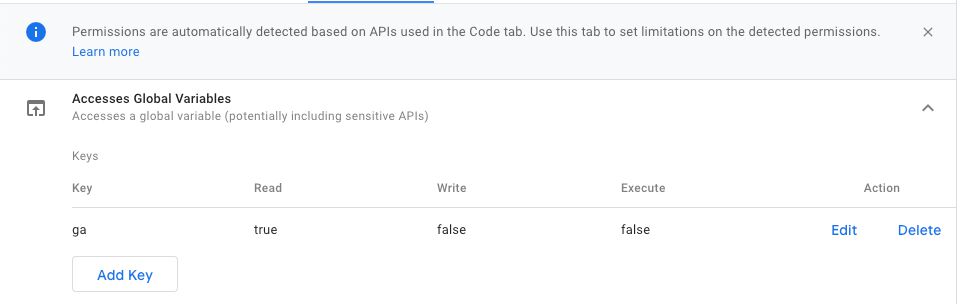 ](https://www.simoahava.com/images/2019/01/copyfromwindow-permissions.jpg "Accesses global variables")
As you can see, for these particular permissions you can define the keys
and whether the code has read and/or write and/or execution permissions
for them. You might have guessed now that **Access Global Variables** is
not limited to just `copyFromWindow` (which is read-only), but also
determines the usefulness of e.g. `setInWindow` (for writing/setting
global variables) and `callInWindow` (for calling global methods).
The purpose of this sandboxed JavaScript is to give you a **safe and
secure** JavaScript environment to write and run your code in. The
interplay between your code and the permissions model is designed to
produce code that is as conservative as possible without compromising
the runtime logic of what you want to do with the code.
This doesn’t mean that you can’t cause havoc with your custom template -
quite the contrary. However, the user interface guides you to make the
correct choices when choosing the APIs and the permissions thereof.
Hopefully the guide you are currently reading will further help you
understand how to make your code run in the most efficient and
responsible way possible.
### Server-side tagging
[Server-side
tagging](https://www.simoahava.com/analytics/server-side-tagging-google-tag-manager/)
has its [own set of
APIs](https://developers.google.com/tag-manager/serverside/api), which
mainly revolve around parsing HTTP requests and compiling HTTP
responses. The purpose of a Client is to read the incoming requests,
launch virtual container processes for tags and triggers, and then build
a response back to the source of the original request.
This guide is mostly focused on Custom Templates in web containers, but
all the main features apply to Server-side tagging as well.
### Policies
The counterpart of permissions are **policies**. Policies give the site
owner the ability to block potentially hazardous code from running. It’s
somewhat similar to Google Tag Manager’s
[whitelist/blacklist](https://developers.google.com/tag-manager/devguide#restrict)
feature, except with policies you have extremely granular access to how
individual permissions are handled.
Policies are basically `dataLayer` commands which specify what happens
when a Custom Template for which some permissions have been set tries to
execute on the page.
If you don’t define any policies then the tag or variable will run its
course unimpeded.
However, you can create a policy which is invoked whenever some specific
permission is accessed by the template. Let me show you an example:
```
const getCookie = require('getCookieValues');
const log = require('logToConsole');
log(getCookie('_user_id'));
data.gtmOnSuccess();
```
The template code above uses the `getCookieValues` API to log the value
of a cookie named `_user_id`. When you save that code, a new permission
appears in the editor, and you need to whitelist the cookie names the
code is allowed to access:
[
](https://www.simoahava.com/images/2019/01/copyfromwindow-permissions.jpg "Accesses global variables")
As you can see, for these particular permissions you can define the keys
and whether the code has read and/or write and/or execution permissions
for them. You might have guessed now that **Access Global Variables** is
not limited to just `copyFromWindow` (which is read-only), but also
determines the usefulness of e.g. `setInWindow` (for writing/setting
global variables) and `callInWindow` (for calling global methods).
The purpose of this sandboxed JavaScript is to give you a **safe and
secure** JavaScript environment to write and run your code in. The
interplay between your code and the permissions model is designed to
produce code that is as conservative as possible without compromising
the runtime logic of what you want to do with the code.
This doesn’t mean that you can’t cause havoc with your custom template -
quite the contrary. However, the user interface guides you to make the
correct choices when choosing the APIs and the permissions thereof.
Hopefully the guide you are currently reading will further help you
understand how to make your code run in the most efficient and
responsible way possible.
### Server-side tagging
[Server-side
tagging](https://www.simoahava.com/analytics/server-side-tagging-google-tag-manager/)
has its [own set of
APIs](https://developers.google.com/tag-manager/serverside/api), which
mainly revolve around parsing HTTP requests and compiling HTTP
responses. The purpose of a Client is to read the incoming requests,
launch virtual container processes for tags and triggers, and then build
a response back to the source of the original request.
This guide is mostly focused on Custom Templates in web containers, but
all the main features apply to Server-side tagging as well.
### Policies
The counterpart of permissions are **policies**. Policies give the site
owner the ability to block potentially hazardous code from running. It’s
somewhat similar to Google Tag Manager’s
[whitelist/blacklist](https://developers.google.com/tag-manager/devguide#restrict)
feature, except with policies you have extremely granular access to how
individual permissions are handled.
Policies are basically `dataLayer` commands which specify what happens
when a Custom Template for which some permissions have been set tries to
execute on the page.
If you don’t define any policies then the tag or variable will run its
course unimpeded.
However, you can create a policy which is invoked whenever some specific
permission is accessed by the template. Let me show you an example:
```
const getCookie = require('getCookieValues');
const log = require('logToConsole');
log(getCookie('_user_id'));
data.gtmOnSuccess();
```
The template code above uses the `getCookieValues` API to log the value
of a cookie named `_user_id`. When you save that code, a new permission
appears in the editor, and you need to whitelist the cookie names the
code is allowed to access:
[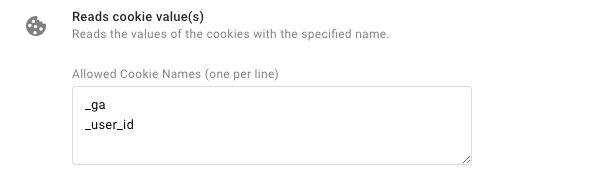 ](https://www.simoahava.com/images/2019/01/whitelist-cookie-values.jpg "Whitelisted cookie values")
Now, if you didn’t specify a policy, the code would always log the
cookie value into the console when the tag runs, because the `_user_id`
cookie has been whitelisted in the tag permissions.
However, let’s say the page has the following code in the HTML:
```
window.dataLayer = window.dataLayer || [];
function gtag(){dataLayer.push(arguments);}
gtag('policy', 'get_cookies', function(container, policy, data) {
if (data.name === '_user_id') {
throw('You are not allowed to query _user_id on this page!');
}
return true;
});
```
> Don’t be confused by the `gtag()` command - policies use the `gtag()`
> method, which is essentially a helper to push the arguments into
> `dataLayer`. You do **not** need to download the gtag.js library to be
> able to run policies on the site template.
Now when the tag is run and the `getCookie('_user_id')` code is
executed, the policy you created will activate. This policy checks if
the requested cookie was named `_user_id`, and reacts by throwing an
error. Perhaps the developers have deemed it too risky to allow GTM to
query the `_user_id` cookie like this.
You don’t **need** policies to work with Google Tag Manager’s Custom
Templates. However, given how popular Custom Templates are likely to
become, I do expect to see more and more policies defined, too.
Be sure to check out the [policy reference](#policy-reference) at the
end of this guide for more details on how individual policies should be
set.
### Tests
**Tests** allow you to write *unit tests* for your template code
directly in the editor. The **tests** feature comprises a number of APIs
you can use to, for example, mock the data object and write assertions
against the compiled and executed template code.
[
](https://www.simoahava.com/images/2019/01/whitelist-cookie-values.jpg "Whitelisted cookie values")
Now, if you didn’t specify a policy, the code would always log the
cookie value into the console when the tag runs, because the `_user_id`
cookie has been whitelisted in the tag permissions.
However, let’s say the page has the following code in the HTML:
```
window.dataLayer = window.dataLayer || [];
function gtag(){dataLayer.push(arguments);}
gtag('policy', 'get_cookies', function(container, policy, data) {
if (data.name === '_user_id') {
throw('You are not allowed to query _user_id on this page!');
}
return true;
});
```
> Don’t be confused by the `gtag()` command - policies use the `gtag()`
> method, which is essentially a helper to push the arguments into
> `dataLayer`. You do **not** need to download the gtag.js library to be
> able to run policies on the site template.
Now when the tag is run and the `getCookie('_user_id')` code is
executed, the policy you created will activate. This policy checks if
the requested cookie was named `_user_id`, and reacts by throwing an
error. Perhaps the developers have deemed it too risky to allow GTM to
query the `_user_id` cookie like this.
You don’t **need** policies to work with Google Tag Manager’s Custom
Templates. However, given how popular Custom Templates are likely to
become, I do expect to see more and more policies defined, too.
Be sure to check out the [policy reference](#policy-reference) at the
end of this guide for more details on how individual policies should be
set.
### Tests
**Tests** allow you to write *unit tests* for your template code
directly in the editor. The **tests** feature comprises a number of APIs
you can use to, for example, mock the data object and write assertions
against the compiled and executed template code.
[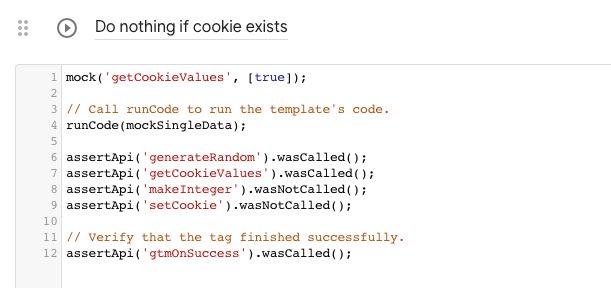 ](https://www.simoahava.com/images/2019/11/template-test-example.jpg "Tests")
For more information about how to write and run tests with custom
templates, see this guide:
[Writing Tests For Custom Templates In Google Tag
Manager](https://www.simoahava.com/analytics/writing-tests-for-custom-templates-google-tag-manager/)
## Official documentation
When working with **Custom Templates**, you should have two documents at
hand:
- [**Custom template APIs
reference**](https://developers.google.com/tag-manager/templates/api) -
This document introduces the various APIs you’ll need to use if you
want your code to run beyond the boundaries of the sandbox.
- [**Custom template permissions
reference**](https://developers.google.com/tag-manager/templates/permissions) -
This reference lists the permissions the APIs require, and which are
used to create **policies** with which web pages can deploy an
additional layer of governance for running custom templates.
[\*\*Custom template APIs for Server-side
tagging](https://developers.google.com/tag-manager/serverside/api) -
This document lists the APIs available for Client and tag templates in
[Server-side
tagging](https://www.simoahava.com/analytics/server-side-tagging-google-tag-manager/).
Keep those documents open when working with Custom Templates. I won’t
repeat their contents in this guide, but I do refer to them where
necessary.
## The editor
Let’s jump right in! To start creating a new template, click the
**Templates** menu option.
[
](https://www.simoahava.com/images/2019/11/template-test-example.jpg "Tests")
For more information about how to write and run tests with custom
templates, see this guide:
[Writing Tests For Custom Templates In Google Tag
Manager](https://www.simoahava.com/analytics/writing-tests-for-custom-templates-google-tag-manager/)
## Official documentation
When working with **Custom Templates**, you should have two documents at
hand:
- [**Custom template APIs
reference**](https://developers.google.com/tag-manager/templates/api) -
This document introduces the various APIs you’ll need to use if you
want your code to run beyond the boundaries of the sandbox.
- [**Custom template permissions
reference**](https://developers.google.com/tag-manager/templates/permissions) -
This reference lists the permissions the APIs require, and which are
used to create **policies** with which web pages can deploy an
additional layer of governance for running custom templates.
[\*\*Custom template APIs for Server-side
tagging](https://developers.google.com/tag-manager/serverside/api) -
This document lists the APIs available for Client and tag templates in
[Server-side
tagging](https://www.simoahava.com/analytics/server-side-tagging-google-tag-manager/).
Keep those documents open when working with Custom Templates. I won’t
repeat their contents in this guide, but I do refer to them where
necessary.
## The editor
Let’s jump right in! To start creating a new template, click the
**Templates** menu option.
[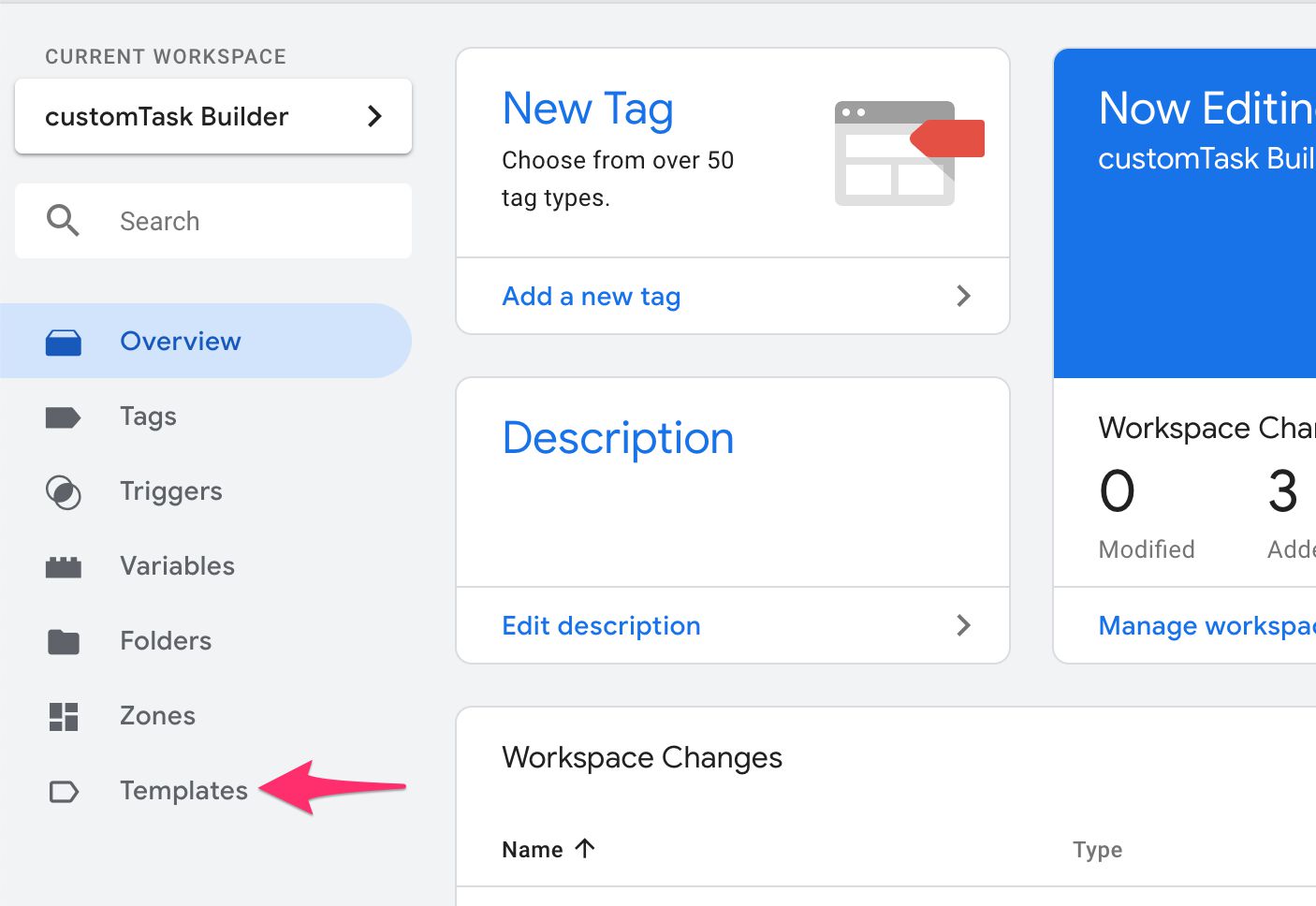 ](https://www.simoahava.com/images/2019/01/templates-menu.jpg "Templates in the menu")
Next, click **New** in the right corner of the **Tag Templates** card.
[
](https://www.simoahava.com/images/2019/01/templates-menu.jpg "Templates in the menu")
Next, click **New** in the right corner of the **Tag Templates** card.
[ ](https://www.simoahava.com/images/2019/01/tag-templates-new.jpg "Tag templates new")
What you see now is the **template** editor. There are several views and
menus here, so let’s start with a quick overview.
[
](https://www.simoahava.com/images/2019/01/tag-templates-new.jpg "Tag templates new")
What you see now is the **template** editor. There are several views and
menus here, so let’s start with a quick overview.
[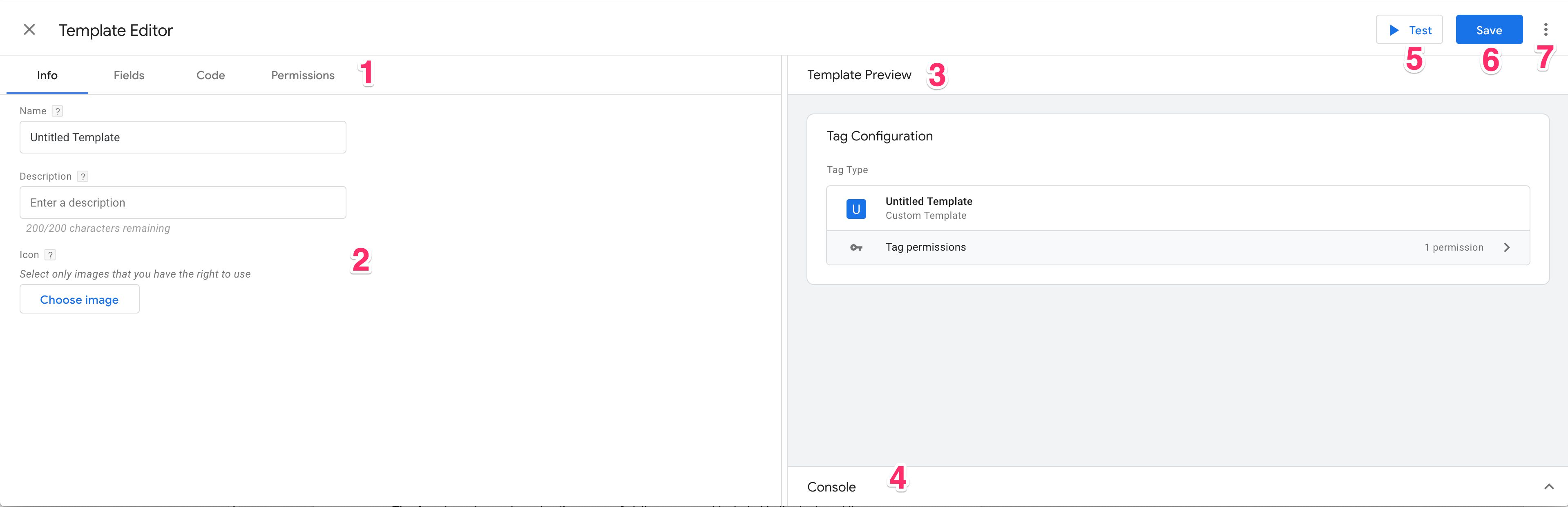 ](https://www.simoahava.com/images/2019/01/editor-overview.jpg "Editor overview")
**1** - The main navigation of the editor. If you have **Show advanced
settings** checked in the editor menu, you’ll also see the **Notes** tab
here.
**2** - The editor view for the selected tab. If you have **Show
advanced settings** checked in the editor menu, you might see extra
options here.
**3** - Template Preview shows what the template will look like when
saved. If you’ve made changes to the template, you’ll see a **Refresh**
link here, which will update the preview when clicked.
**4** - The Console will log information about template performance when
you **Test** the template. Additionally, any calls to the `logging` API
will be output here, too.
If you select **Show Test Page** from the editor menu, you’ll see the
**Test Page** window between the Template Preview and Console.
**5** - Click Test to execute the template code with the settings you
have entered in the preview. If you’ve chosen **Show Test Page** from
the editor menu, then any code that modifies the page will impact what
the Test Page shows.
**6** - Save the template. The template cannot be saved if the code has
syntax errors or invalid JavaScript. You need to fix the errors before
saving. Note that the template can be saved even if you have incorrect
permissions for the APIs you use.
**7** - The editor menu. The editor menu has options for managing the
template and for customizing the editor.
The editor for **tag templates** and **variable templates** is largely
the same. The main difference is the absence of an icon/logo selector in
the [info view](#info-view) and how the code editor is utilized. With
tags, the code editor needs `data.gtmOnSuccess()` for successful
execution and `data.gtmOnFailure()` (if necessary) for a failure.
Variables, on the other hand, don’t use this. You just need a `return`
statement that returns whatever the variable is supposed to return.
### Info view
The **Info view** is where you’ll customize what the template looks
like. Verbosity is not a sin - try to be as clear and descriptive in the
template name and description as possible.
[
](https://www.simoahava.com/images/2019/01/editor-overview.jpg "Editor overview")
**1** - The main navigation of the editor. If you have **Show advanced
settings** checked in the editor menu, you’ll also see the **Notes** tab
here.
**2** - The editor view for the selected tab. If you have **Show
advanced settings** checked in the editor menu, you might see extra
options here.
**3** - Template Preview shows what the template will look like when
saved. If you’ve made changes to the template, you’ll see a **Refresh**
link here, which will update the preview when clicked.
**4** - The Console will log information about template performance when
you **Test** the template. Additionally, any calls to the `logging` API
will be output here, too.
If you select **Show Test Page** from the editor menu, you’ll see the
**Test Page** window between the Template Preview and Console.
**5** - Click Test to execute the template code with the settings you
have entered in the preview. If you’ve chosen **Show Test Page** from
the editor menu, then any code that modifies the page will impact what
the Test Page shows.
**6** - Save the template. The template cannot be saved if the code has
syntax errors or invalid JavaScript. You need to fix the errors before
saving. Note that the template can be saved even if you have incorrect
permissions for the APIs you use.
**7** - The editor menu. The editor menu has options for managing the
template and for customizing the editor.
The editor for **tag templates** and **variable templates** is largely
the same. The main difference is the absence of an icon/logo selector in
the [info view](#info-view) and how the code editor is utilized. With
tags, the code editor needs `data.gtmOnSuccess()` for successful
execution and `data.gtmOnFailure()` (if necessary) for a failure.
Variables, on the other hand, don’t use this. You just need a `return`
statement that returns whatever the variable is supposed to return.
### Info view
The **Info view** is where you’ll customize what the template looks
like. Verbosity is not a sin - try to be as clear and descriptive in the
template name and description as possible.
[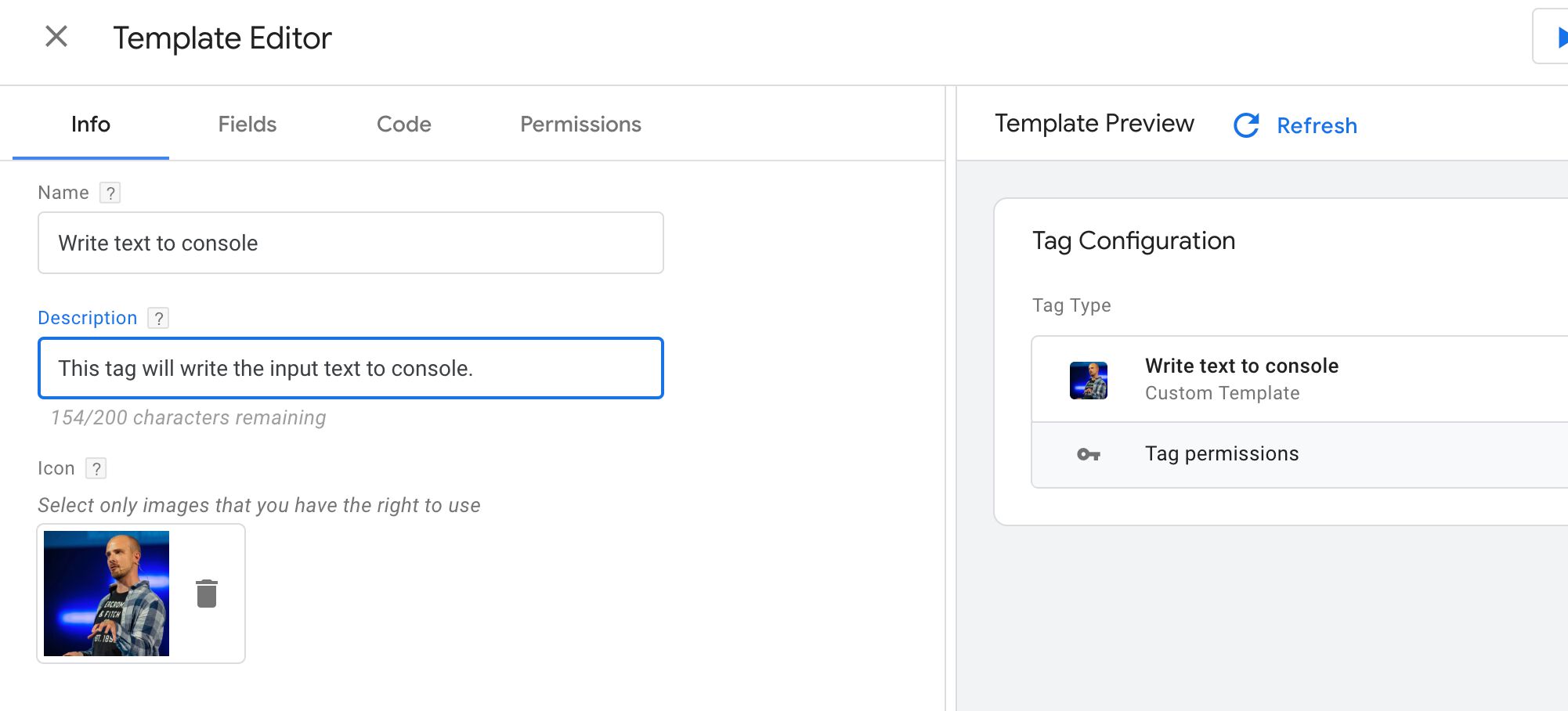 ](https://www.simoahava.com/images/2019/01/info-view.jpg "Info view")
The **Name** of the template is what appears in the tag/variable
selection menu as well as in the template itself when you create a new
instance from it.
The **Description** will appear in the tag/variable selection menu below
the template name.
Tag templates allow you to choose an **image** for the template. This
image will appear in the tag selection menu and the template itself.
[
](https://www.simoahava.com/images/2019/01/info-view.jpg "Info view")
The **Name** of the template is what appears in the tag/variable
selection menu as well as in the template itself when you create a new
instance from it.
The **Description** will appear in the tag/variable selection menu below
the template name.
Tag templates allow you to choose an **image** for the template. This
image will appear in the tag selection menu and the template itself.
[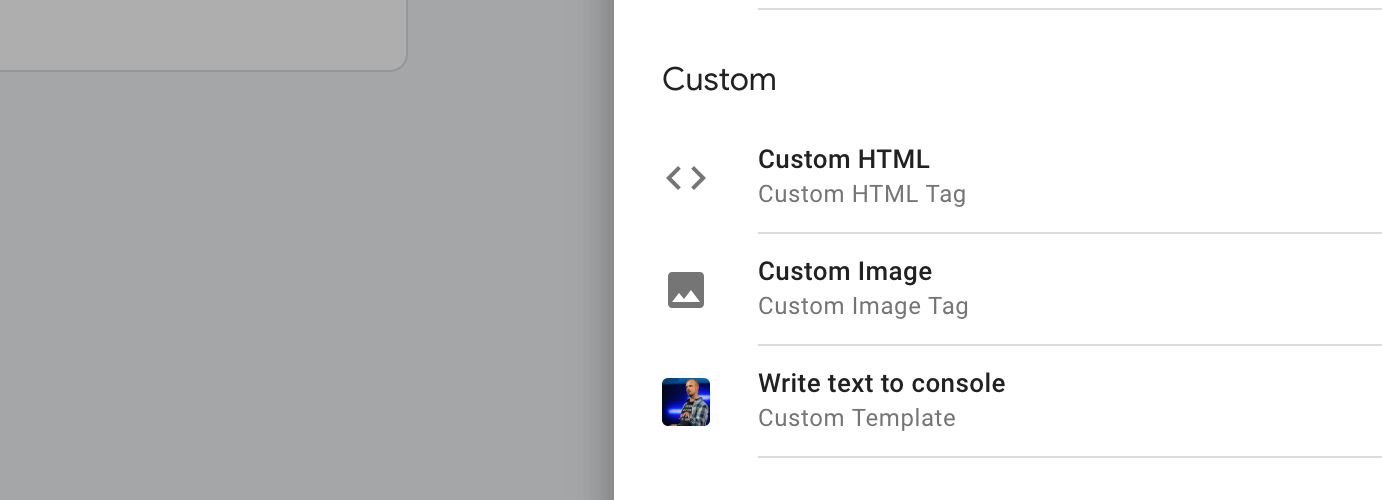 ](https://www.simoahava.com/images/2019/01/tag-template-menu.jpg "Tag template menu")
At the bottom of the Info view is the checkbox for approving the terms
of service for the **Community Template Gallery**. You only need to
check this if you want to submit your template to the
[gallery](https://tagmanager.google.com/gallery/).
[
](https://www.simoahava.com/images/2019/01/tag-template-menu.jpg "Tag template menu")
At the bottom of the Info view is the checkbox for approving the terms
of service for the **Community Template Gallery**. You only need to
check this if you want to submit your template to the
[gallery](https://tagmanager.google.com/gallery/).
[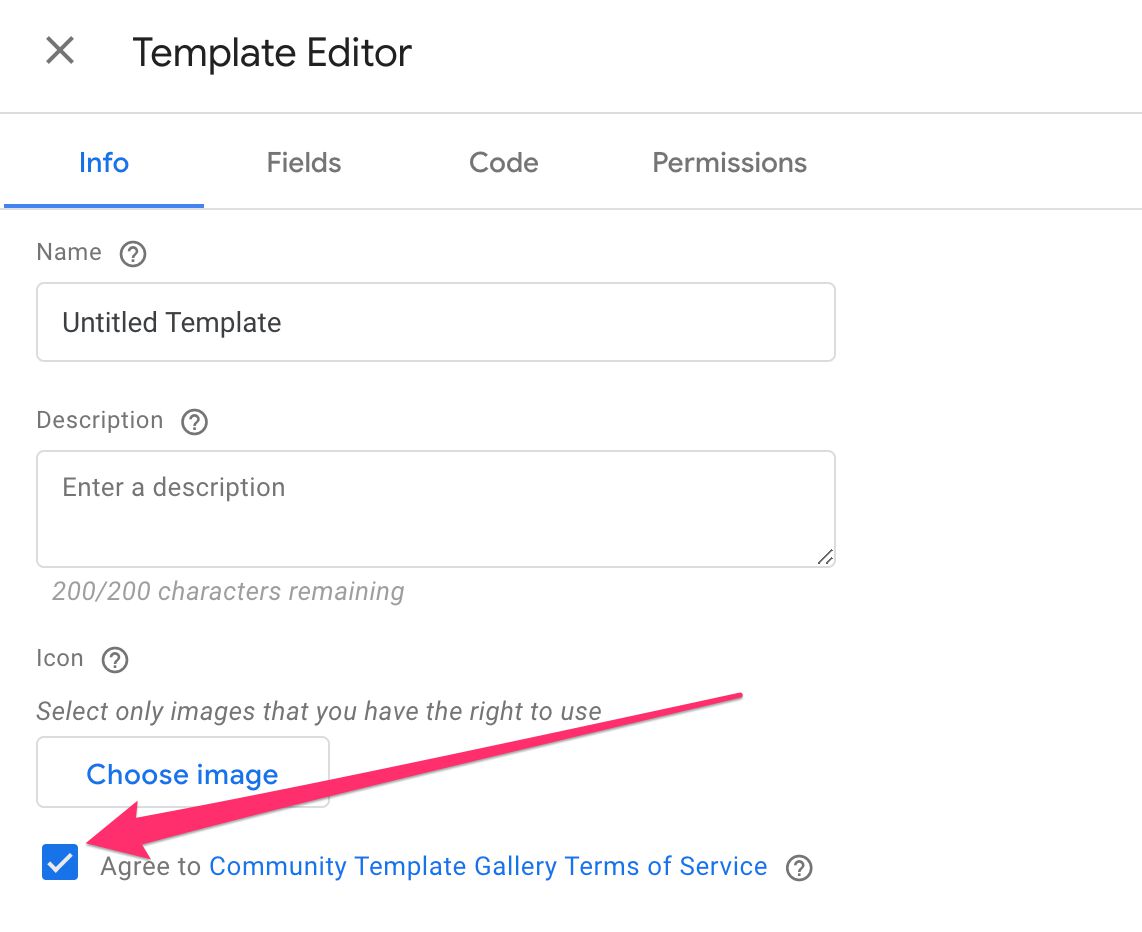 ](https://www.simoahava.com/images/2019/10/terms-of-service-template.jpg "TOS template")
If you have **Show advanced settings** selected, you’ll also see the
template **version** as well as the **contexts** in which the template
works.
You’ll also see a **Source** toggle in the top of the view. By clicking
the toggle, you’ll see the JSON representation of the template info,
which you can edit (if you want to change the context, for example).
[
](https://www.simoahava.com/images/2019/10/terms-of-service-template.jpg "TOS template")
If you have **Show advanced settings** selected, you’ll also see the
template **version** as well as the **contexts** in which the template
works.
You’ll also see a **Source** toggle in the top of the view. By clicking
the toggle, you’ll see the JSON representation of the template info,
which you can edit (if you want to change the context, for example).
[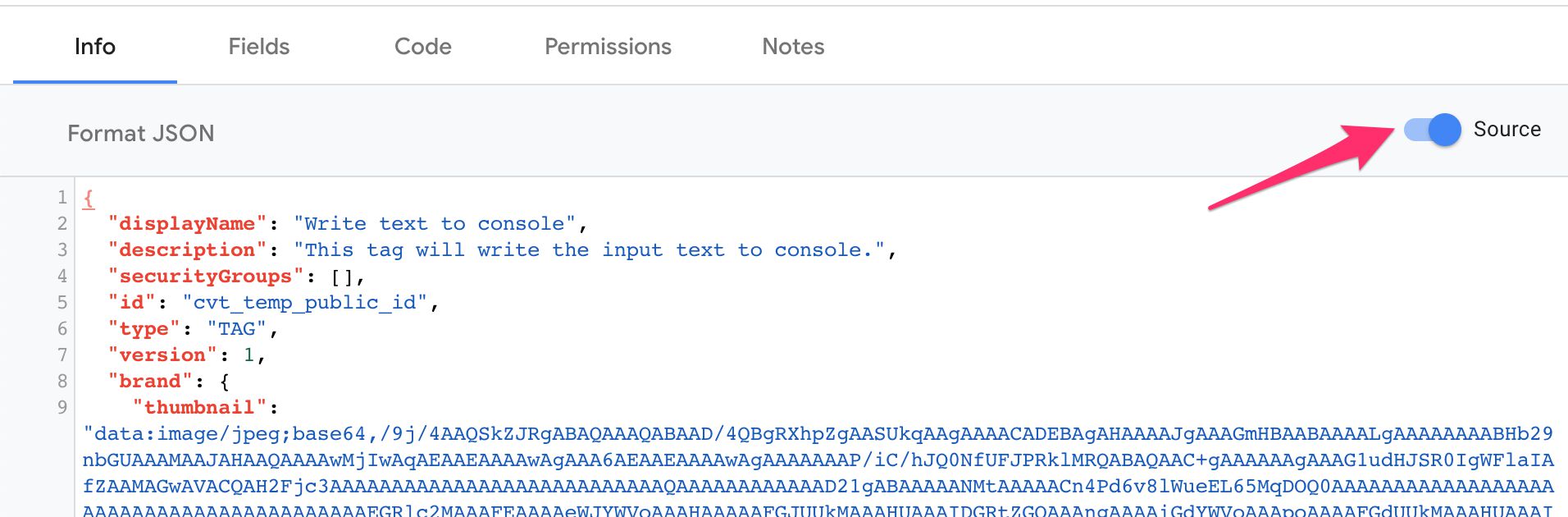 ](https://www.simoahava.com/images/2019/01/source-toggle-info.jpg "Source toggle for info")
### Fields editor
The **Fields editor** is where you’ll spend a lot of your time. You use
this editor to establish what the tag or variable user interface will
look like, and how individual fields interact with each other.
For each field you create, you need to specify (at least) a name with
which you can refer to the field value in the code editor. The field
name must be **unique**, since all fields (even those nested within
other fields) will be directly accessible using the field name as a
property of the `data` object. For example, to access the value of a
field whose name is `gaTrackingId`, you’d use this in the code editor:
```
const ua = data.gaTrackingId;
log(ua); // logs UA-12345-1 or whatever the user set the value of the field to.
```
Furthermore, each field has a **field configuration** that you’ll use to
establish how the field functions in the user interface of the template
itself.
[
](https://www.simoahava.com/images/2019/01/source-toggle-info.jpg "Source toggle for info")
### Fields editor
The **Fields editor** is where you’ll spend a lot of your time. You use
this editor to establish what the tag or variable user interface will
look like, and how individual fields interact with each other.
For each field you create, you need to specify (at least) a name with
which you can refer to the field value in the code editor. The field
name must be **unique**, since all fields (even those nested within
other fields) will be directly accessible using the field name as a
property of the `data` object. For example, to access the value of a
field whose name is `gaTrackingId`, you’d use this in the code editor:
```
const ua = data.gaTrackingId;
log(ua); // logs UA-12345-1 or whatever the user set the value of the field to.
```
Furthermore, each field has a **field configuration** that you’ll use to
establish how the field functions in the user interface of the template
itself.
[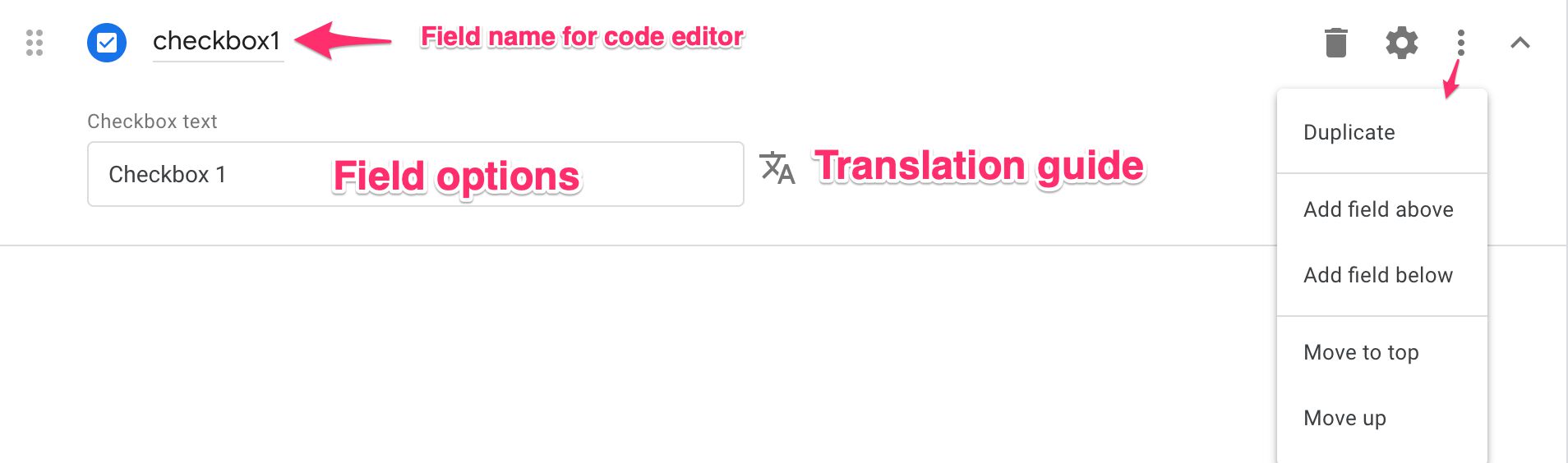 ](https://www.simoahava.com/images/2019/01/field-editor.jpg "Field editor view")
Below the **field name** are the options and settings for the field.
You’ll see more of these as you add additional **configurations**.
In the top right corner of each field row you’ll see a **trash can** for
deleting the field.
There’s also a **cogwheel** which opens the **field configuration**
options.
The **more options** menu opens options for manipulating the positioning
of the field (see screenshot above), and the **caret** at the very right
lets you collapse and expand the field in the editor.
If you have **Show advanced settings** enabled, you can toggle the
**Source** toggle in the top corner of the view to see a JSON
representation of the fields.
[
](https://www.simoahava.com/images/2019/01/field-editor.jpg "Field editor view")
Below the **field name** are the options and settings for the field.
You’ll see more of these as you add additional **configurations**.
In the top right corner of each field row you’ll see a **trash can** for
deleting the field.
There’s also a **cogwheel** which opens the **field configuration**
options.
The **more options** menu opens options for manipulating the positioning
of the field (see screenshot above), and the **caret** at the very right
lets you collapse and expand the field in the editor.
If you have **Show advanced settings** enabled, you can toggle the
**Source** toggle in the top corner of the view to see a JSON
representation of the fields.
[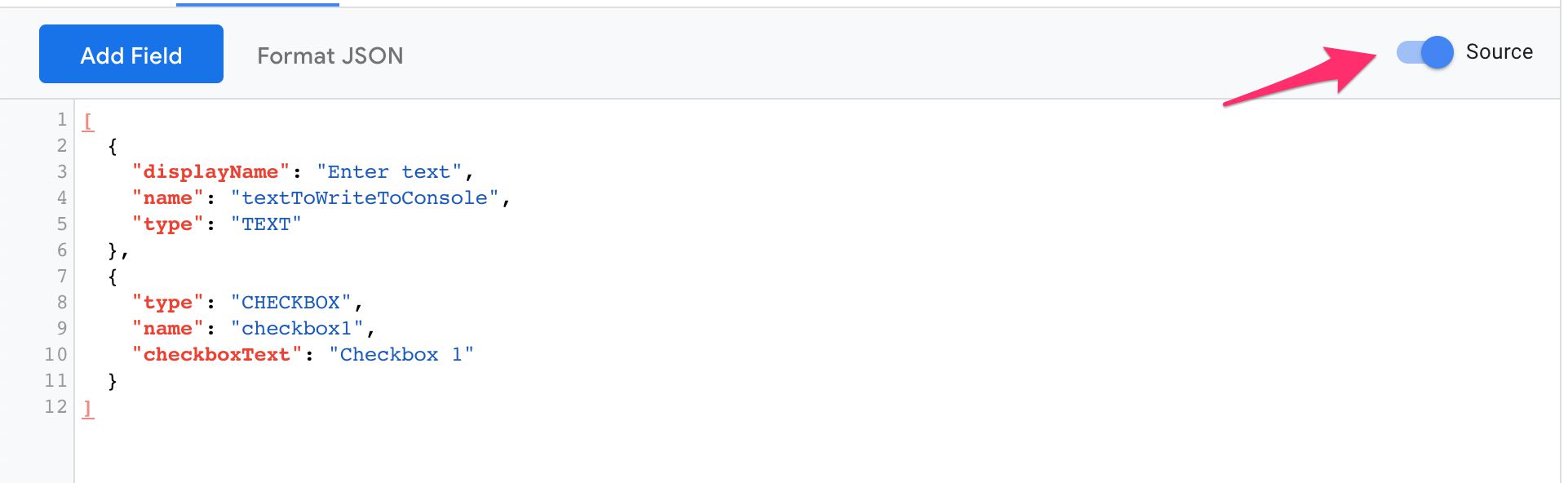 ](https://www.simoahava.com/images/2019/01/source-toggle-fields.jpg "Source toggle for fields")
#### Field configuration
Whenever you add a field in the editor, you have the option of
configuring field-specific rules and settings by clicking the
**cogwheel** icon next to the field.
[
](https://www.simoahava.com/images/2019/01/source-toggle-fields.jpg "Source toggle for fields")
#### Field configuration
Whenever you add a field in the editor, you have the option of
configuring field-specific rules and settings by clicking the
**cogwheel** icon next to the field.
[ ](https://www.simoahava.com/images/2019/01/field-configuration-intro.jpg "Field configuration")
Depending on the field you opened the configuration for, you’ll see a
set of toggles that you can toggle on or off. Some toggles are on by
default, again depending on the field you are configuring.
[
](https://www.simoahava.com/images/2019/01/field-configuration-intro.jpg "Field configuration")
Depending on the field you opened the configuration for, you’ll see a
set of toggles that you can toggle on or off. Some toggles are on by
default, again depending on the field you are configuring.
[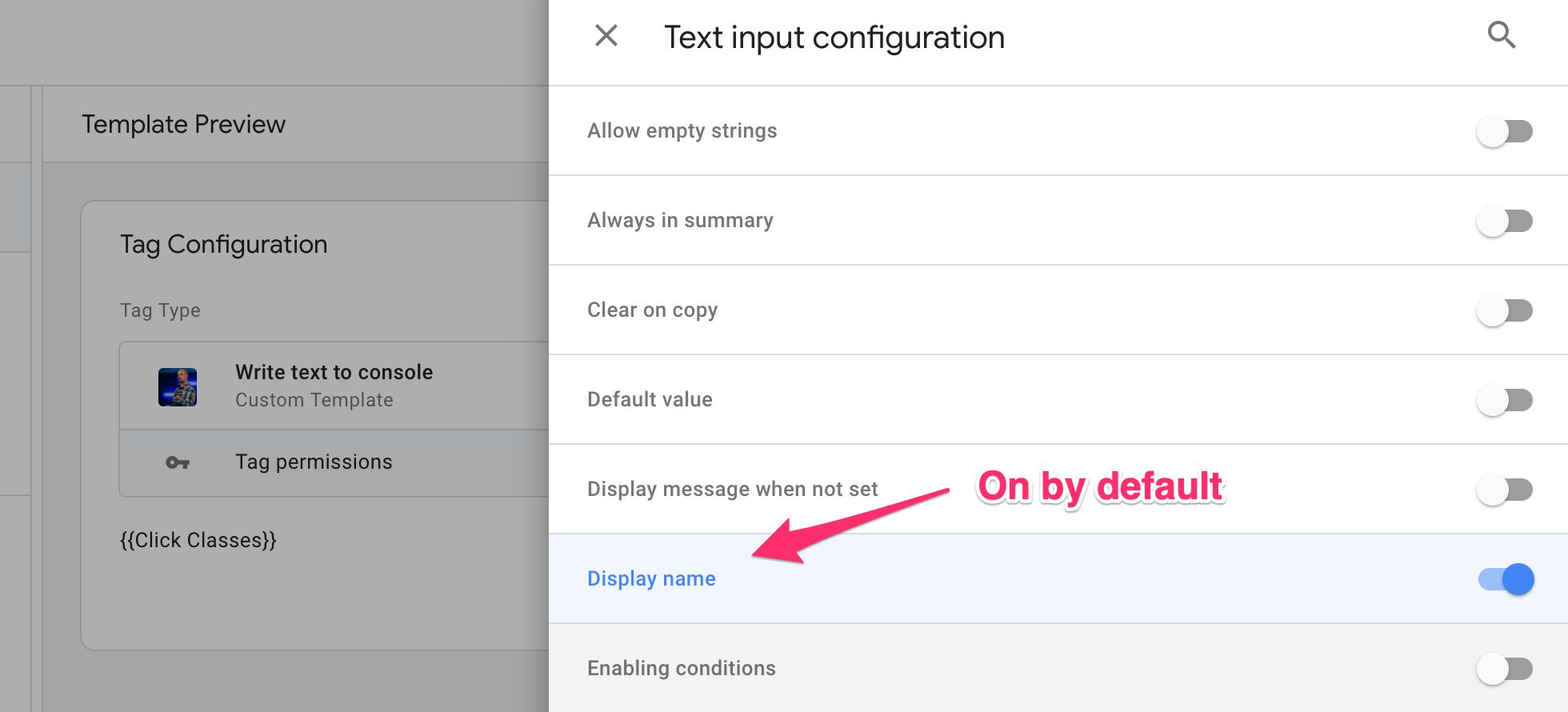 ](https://www.simoahava.com/images/2019/01/text-input-configuration.jpg "Text input configuration")
As you read through the field descriptions below, I’ve added the
configuration options for each field. Furthermore, at the end of this
guide there’s a [field configuration
reference](#field-configuration-reference) which lists all the possible
configuration options in more detail.
Note that some fields can be **nested**, and some fields actually
include nested fields by default (e.g. the [Param table](#param-table)
field). In these cases, the nested fields are treated as their own
fields with their own configurations. The only difference between an
isolated and nested field is that the latter is subservient to the field
configurations of its parent. For example, if the parent is disabled due
to enabling conditions not validating, the nested fields will be
disabled, too.
#### Text input
##### Description
The **Text input** field is a simple input box to which the user can
write text.
[
](https://www.simoahava.com/images/2019/01/text-input-configuration.jpg "Text input configuration")
As you read through the field descriptions below, I’ve added the
configuration options for each field. Furthermore, at the end of this
guide there’s a [field configuration
reference](#field-configuration-reference) which lists all the possible
configuration options in more detail.
Note that some fields can be **nested**, and some fields actually
include nested fields by default (e.g. the [Param table](#param-table)
field). In these cases, the nested fields are treated as their own
fields with their own configurations. The only difference between an
isolated and nested field is that the latter is subservient to the field
configurations of its parent. For example, if the parent is disabled due
to enabling conditions not validating, the nested fields will be
disabled, too.
#### Text input
##### Description
The **Text input** field is a simple input box to which the user can
write text.
[ ](https://www.simoahava.com/images/2019/01/text-input-1.jpg "Text input field in the editor")
Text input field in the editor
[
](https://www.simoahava.com/images/2019/01/text-input-1.jpg "Text input field in the editor")
Text input field in the editor
[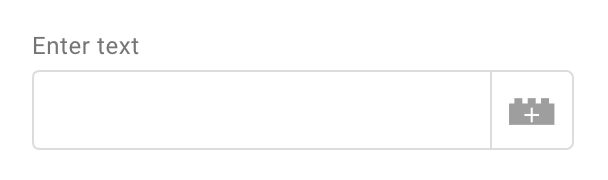 ](https://www.simoahava.com/images/2019/01/text-input-2.jpg "Text input field in the UI")
Text input field in the UI
##### Code editor output
The property `data.fieldName` will resolve to whatever the user typed in
the field, or whatever a GTM variable used in the field resolves to.
```
// Using the example from the screenshot above
const textFieldValue = data.textToWriteToConsole;
```
##### Available field configurations
> Click the configuration name to jump to details about the
> configuration in the reference at the end of this guide.
- [Allow empty strings](#allow-empty-strings) - Convert and unfilled
field into an empty string. OFF by default.
- [Always in summary](#always-in-summary) - Show the field and its
current value in the summary view of the tag or variable. OFF by
default.
- [Clear on copy](#clear-on-copy) - Prevent filled field values from
being copied when a copy is made of the tag or variable. OFF by
default.
- [Default value](#default-value) - The value of the field until the
user decides to change it. OFF by default.
- [Display line count](#display-line-count) - Line count of greater than
1 turns the field into a text area. OFF by default.
- [Display message when not set](#display-message-when-not-set) - When
the field is untouched, show this text in the summary view. OFF by
default.
- [Display name](#display-name) - The label of the field shown in the
GTM UI. **ON by default**.
- [Enabling conditions](#enabling-conditions) - Establish conditions
(based on other field inputs) for showing this particular field. OFF
by default.
- [Help text](#help-text) - Add text to a question mark tooltip shown
next to the field. OFF by default.
- [Text as list](#text-as-list) - When the text field is a text area
(see **Display line count** above), store the value of the field as an
array, where each item represents a row of input. OFF by default.
- [Validation rules](#validation-rules)- One or more rules against which
the field must validate before the user can save the tag or variable.
OFF by default.
- [Value hint](#value-hint) - Text shown as a placeholder help text in
the field before the user starts editing it. OFF by default.
- [Value unit](#value-unit) - Text shown next to the field. Useful to
specify a format or type, for example. OFF by default.
#### Drop-down menu
##### Description
The **Drop-down menu** field provides a menu where only **a single item
can be selected**. It’s often a combination of predefined items (such as
`True` and `False`), and all the Google Tag Manager variables in the
container.
[
](https://www.simoahava.com/images/2019/01/text-input-2.jpg "Text input field in the UI")
Text input field in the UI
##### Code editor output
The property `data.fieldName` will resolve to whatever the user typed in
the field, or whatever a GTM variable used in the field resolves to.
```
// Using the example from the screenshot above
const textFieldValue = data.textToWriteToConsole;
```
##### Available field configurations
> Click the configuration name to jump to details about the
> configuration in the reference at the end of this guide.
- [Allow empty strings](#allow-empty-strings) - Convert and unfilled
field into an empty string. OFF by default.
- [Always in summary](#always-in-summary) - Show the field and its
current value in the summary view of the tag or variable. OFF by
default.
- [Clear on copy](#clear-on-copy) - Prevent filled field values from
being copied when a copy is made of the tag or variable. OFF by
default.
- [Default value](#default-value) - The value of the field until the
user decides to change it. OFF by default.
- [Display line count](#display-line-count) - Line count of greater than
1 turns the field into a text area. OFF by default.
- [Display message when not set](#display-message-when-not-set) - When
the field is untouched, show this text in the summary view. OFF by
default.
- [Display name](#display-name) - The label of the field shown in the
GTM UI. **ON by default**.
- [Enabling conditions](#enabling-conditions) - Establish conditions
(based on other field inputs) for showing this particular field. OFF
by default.
- [Help text](#help-text) - Add text to a question mark tooltip shown
next to the field. OFF by default.
- [Text as list](#text-as-list) - When the text field is a text area
(see **Display line count** above), store the value of the field as an
array, where each item represents a row of input. OFF by default.
- [Validation rules](#validation-rules)- One or more rules against which
the field must validate before the user can save the tag or variable.
OFF by default.
- [Value hint](#value-hint) - Text shown as a placeholder help text in
the field before the user starts editing it. OFF by default.
- [Value unit](#value-unit) - Text shown next to the field. Useful to
specify a format or type, for example. OFF by default.
#### Drop-down menu
##### Description
The **Drop-down menu** field provides a menu where only **a single item
can be selected**. It’s often a combination of predefined items (such as
`True` and `False`), and all the Google Tag Manager variables in the
container.
[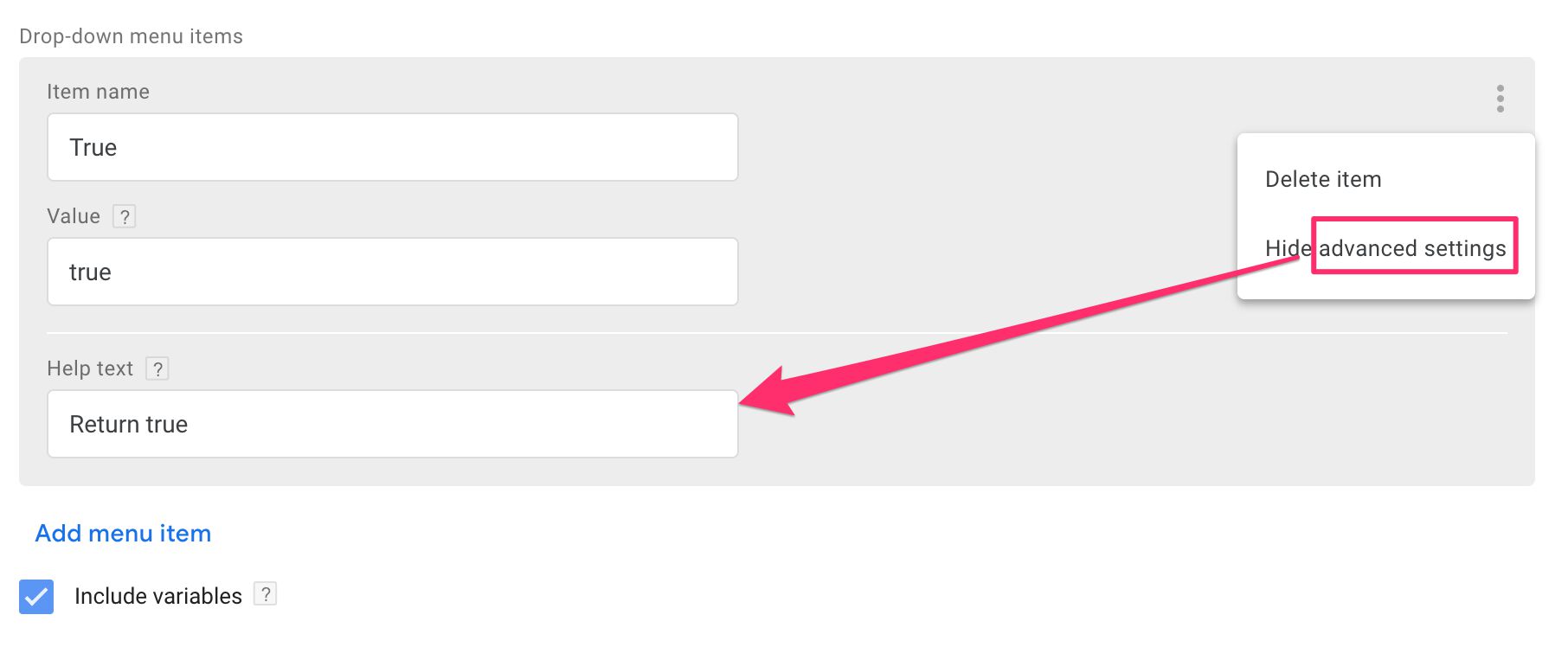 ](https://www.simoahava.com/images/2019/01/dropdown-menu-1.jpg "Drop-down menu in the editor")
Drop-down menu in the editor
[
](https://www.simoahava.com/images/2019/01/dropdown-menu-1.jpg "Drop-down menu in the editor")
Drop-down menu in the editor
[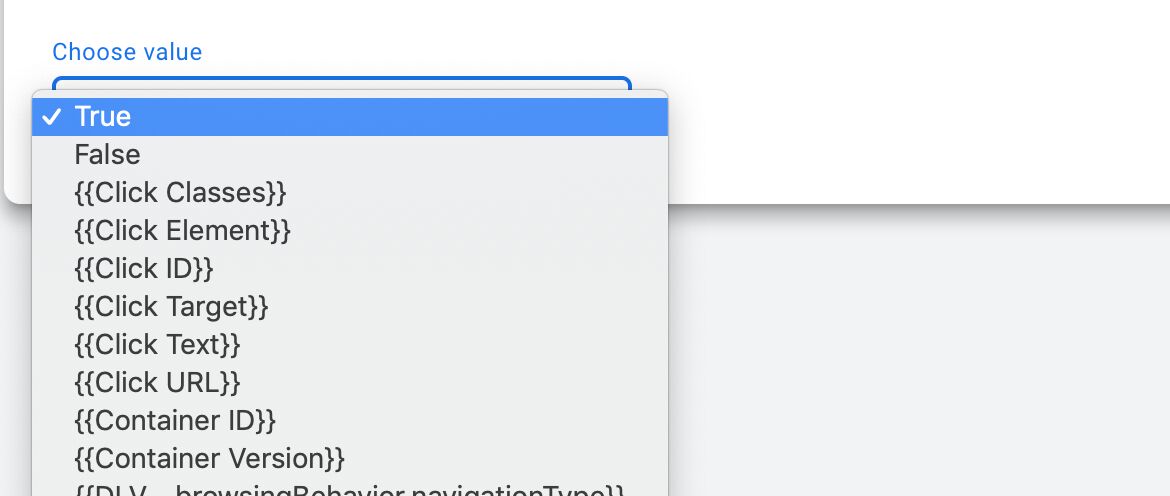 ](https://www.simoahava.com/images/2019/01/drop-down-menu-2.jpg "Drop-down menu in the UI")
Drop-down menu in the UI
##### Code editor output
The `data.fieldName` property will resolve to the value of the item
selected from the drop-down menu. If the item was one of those you
defined in the template editor, then what you wrote in the Value field
is what the property resolves to. If the user selected a GTM variable,
then the value returned by that variable is what the property resolves
to.
```
const dropDownFieldValue = data.dropDownMenu1;
log(dropDownFieldValue); // logs true if an item whose Value is true is selected.
```
##### Available field configurations
> Click the configuration name to jump to details about the
> configuration in the reference at the end of this guide.
- [“Not set” option](#not-set-option) - Show a placeholder value in the
menu before the user has selected anything. If menu is left untouched,
the field returns an empty string. OFF by default.
- [Always in summary](#always-in-summary) - Show the field and its
current value in the summary view of the tag or variable. OFF by
default.
- [Clear on copy](#clear-on-copy) - Prevent filled field values from
being copied when a copy is made of the tag or variable. OFF by
default.
- [Default value](#default-value) - The value of the field until the
user decides to change it. OFF by default.
- [Display name](#display-name) - The label of the field shown in the
GTM UI. **ON by default**.
- [Enabling conditions](#enabling-conditions) - Establish conditions
(based on other field inputs) for showing this particular field. OFF
by default.
- [Help text](#help-text) - Add text to a question mark tooltip shown
next to the field. OFF by default.
- [Include variables](#include-variables) - Check this box if you want
to include all GTM variables in the drop-down menu. **ON by default**.
- [Nested fields](#nested-fields) - Nested fields are useful if you want
to show fields related to a specific value of the parent field only
under certain conditions, for example. OFF by default.
- [Validation rules](#validation-rules)- One or more rules against which
the field must validate before the user can save the tag or variable.
OFF by default.
- [Value unit](#value-unit) - Text shown next to the field. Useful to
specify a format or type, for example. OFF by default.
#### Checkbox
##### Description
The **Checkbox** field should be self-explanatory. The checkbox doesn’t
have a display name by default. Instead, text you type in the **Checkbox
text** field will be shown next to the box in the UI.
[
](https://www.simoahava.com/images/2019/01/drop-down-menu-2.jpg "Drop-down menu in the UI")
Drop-down menu in the UI
##### Code editor output
The `data.fieldName` property will resolve to the value of the item
selected from the drop-down menu. If the item was one of those you
defined in the template editor, then what you wrote in the Value field
is what the property resolves to. If the user selected a GTM variable,
then the value returned by that variable is what the property resolves
to.
```
const dropDownFieldValue = data.dropDownMenu1;
log(dropDownFieldValue); // logs true if an item whose Value is true is selected.
```
##### Available field configurations
> Click the configuration name to jump to details about the
> configuration in the reference at the end of this guide.
- [“Not set” option](#not-set-option) - Show a placeholder value in the
menu before the user has selected anything. If menu is left untouched,
the field returns an empty string. OFF by default.
- [Always in summary](#always-in-summary) - Show the field and its
current value in the summary view of the tag or variable. OFF by
default.
- [Clear on copy](#clear-on-copy) - Prevent filled field values from
being copied when a copy is made of the tag or variable. OFF by
default.
- [Default value](#default-value) - The value of the field until the
user decides to change it. OFF by default.
- [Display name](#display-name) - The label of the field shown in the
GTM UI. **ON by default**.
- [Enabling conditions](#enabling-conditions) - Establish conditions
(based on other field inputs) for showing this particular field. OFF
by default.
- [Help text](#help-text) - Add text to a question mark tooltip shown
next to the field. OFF by default.
- [Include variables](#include-variables) - Check this box if you want
to include all GTM variables in the drop-down menu. **ON by default**.
- [Nested fields](#nested-fields) - Nested fields are useful if you want
to show fields related to a specific value of the parent field only
under certain conditions, for example. OFF by default.
- [Validation rules](#validation-rules)- One or more rules against which
the field must validate before the user can save the tag or variable.
OFF by default.
- [Value unit](#value-unit) - Text shown next to the field. Useful to
specify a format or type, for example. OFF by default.
#### Checkbox
##### Description
The **Checkbox** field should be self-explanatory. The checkbox doesn’t
have a display name by default. Instead, text you type in the **Checkbox
text** field will be shown next to the box in the UI.
[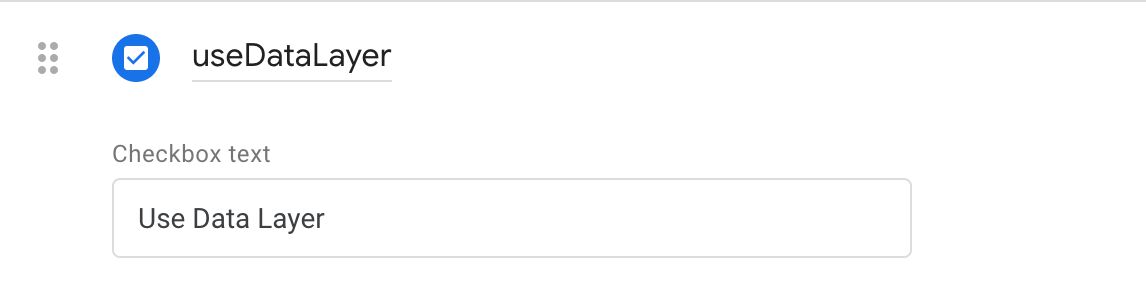 ](https://www.simoahava.com/images/2019/01/checkbox-1.jpg "Checkbox in the editor")
Checkbox in the editor
[
](https://www.simoahava.com/images/2019/01/checkbox-1.jpg "Checkbox in the editor")
Checkbox in the editor
[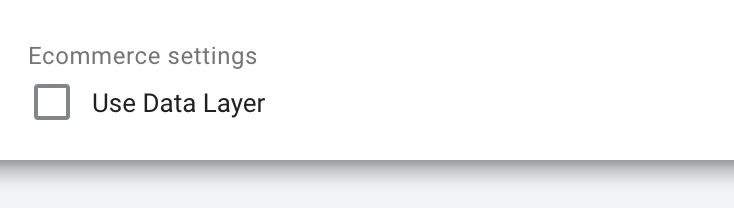 ](https://www.simoahava.com/images/2019/01/checkbox-2.jpg "Checkbox in the UI")
Checkbox in the UI
##### Code editor output
The `data.fieldName` property resolves to `true` if the checkbox was
checked and `false` if not.
```
const checkBoxValue = data.useDataLayer;
log(checkBoxValue); // true
```
##### Available field configurations
> Click the configuration name to jump to details about the
> configuration in the reference at the end of this guide.
- [Always in summary](#always-in-summary) - Show the field and its
current value in the summary view of the tag or variable. OFF by
default.
- [Clear on copy](#clear-on-copy) - Prevent filled field values from
being copied when a copy is made of the tag or variable. OFF by
default.
- [Default value](#default-value) - The value of the field until the
user decides to change it. OFF by default.
- [Display name](#display-name) - The label of the field shown in the
GTM UI. OFF by default.
- [Enabling conditions](#enabling-conditions) - Establish conditions
(based on other field inputs) for showing this particular field. OFF
by default.
- [Help text](#help-text) - Add text to a question mark tooltip shown
next to the field. OFF by default.
- [Nested fields](#nested-fields) - Nested fields are useful if you want
to show fields related to a specific value of the parent field only
under certain conditions, for example. OFF by default.
- [Validation rules](#validation-rules)- One or more rules against which
the field must validate before the user can save the tag or variable.
OFF by default.
#### Radio buttons
##### Description
You can add one or more radio buttons into a single radio button group.
The radio button group is treated as a single field. Each radio button
has a name (displayed next to the button) and a value (what is returned
if the button is selected). The user can only select one button from the
group. You can expand **advanced settings** to add a help text and to
add nested fields under each radio button selection.
[
](https://www.simoahava.com/images/2019/01/checkbox-2.jpg "Checkbox in the UI")
Checkbox in the UI
##### Code editor output
The `data.fieldName` property resolves to `true` if the checkbox was
checked and `false` if not.
```
const checkBoxValue = data.useDataLayer;
log(checkBoxValue); // true
```
##### Available field configurations
> Click the configuration name to jump to details about the
> configuration in the reference at the end of this guide.
- [Always in summary](#always-in-summary) - Show the field and its
current value in the summary view of the tag or variable. OFF by
default.
- [Clear on copy](#clear-on-copy) - Prevent filled field values from
being copied when a copy is made of the tag or variable. OFF by
default.
- [Default value](#default-value) - The value of the field until the
user decides to change it. OFF by default.
- [Display name](#display-name) - The label of the field shown in the
GTM UI. OFF by default.
- [Enabling conditions](#enabling-conditions) - Establish conditions
(based on other field inputs) for showing this particular field. OFF
by default.
- [Help text](#help-text) - Add text to a question mark tooltip shown
next to the field. OFF by default.
- [Nested fields](#nested-fields) - Nested fields are useful if you want
to show fields related to a specific value of the parent field only
under certain conditions, for example. OFF by default.
- [Validation rules](#validation-rules)- One or more rules against which
the field must validate before the user can save the tag or variable.
OFF by default.
#### Radio buttons
##### Description
You can add one or more radio buttons into a single radio button group.
The radio button group is treated as a single field. Each radio button
has a name (displayed next to the button) and a value (what is returned
if the button is selected). The user can only select one button from the
group. You can expand **advanced settings** to add a help text and to
add nested fields under each radio button selection.
[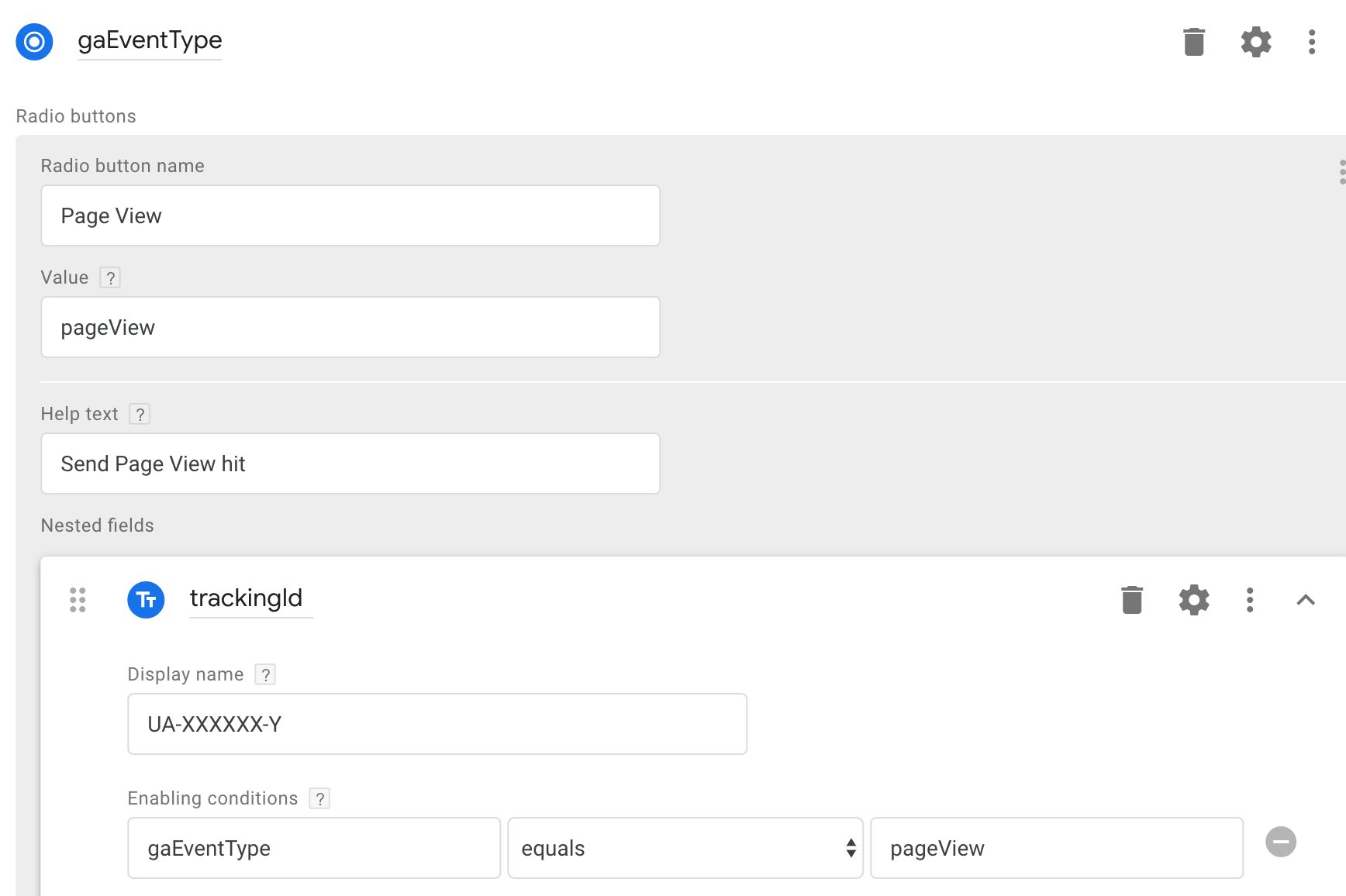 ](https://www.simoahava.com/images/2019/01/radio-buttons-1.jpg "Radio buttons in the editor")
Radio buttons in the editor
[
](https://www.simoahava.com/images/2019/01/radio-buttons-1.jpg "Radio buttons in the editor")
Radio buttons in the editor
[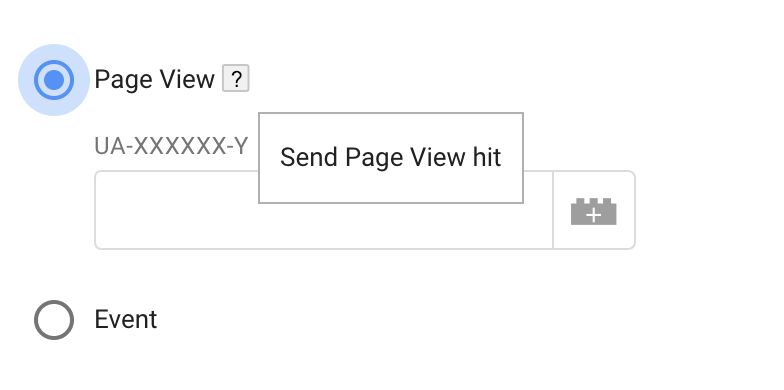 ](https://www.simoahava.com/images/2019/01/radio-buttons-2.jpg "Radio buttons in the UI")
Radio buttons in the UI
##### Code editor output
The `data.fieldName` property, where `fieldName` is the name of the
entire radio button group, will resolve to the value of the selected
radio button.
```
const selectedButton = data.gaEventType;
if (selectedButton === 'pageView') {
const gaId = data.trackingId;
// Do something with gaId
}
```
##### Available field configurations
> Click the configuration name to jump to details about the
> configuration in the reference at the end of this guide.
- [Clear on copy](#clear-on-copy) - Prevent filled field values from
being copied when a copy is made of the tag or variable. OFF by
default.
- [Default value](#default-value) - The value of the field until the
user decides to change it. OFF by default.
- [Display name](#display-name) - The label of the field shown in the
GTM UI. **ON by default**.
- [Enabling conditions](#enabling-conditions) - Establish conditions
(based on other field inputs) for showing this particular field. OFF
by default.
- [Help text](#help-text) - Add text to a question mark tooltip shown
next to the field. OFF by default.
- [Nested fields](#nested-fields) - Nested fields are useful if you want
to show fields related to a specific value of the parent field only
under certain conditions, for example. OFF by default.
- [Validation rules](#validation-rules)- One or more rules against which
the field must validate before the user can save the tag or variable.
OFF by default.
#### Simple table
##### Description
With a **simple table**, you can define columns (either [text
input](#text-input) fields or [drop-down menus](#drop-down-menu)), and
the users can add and remove rows to and from the table as they wish.
You can specify that all values in a column must be unique (i.e. the
user can’t add multiple rows with the same value in such a column), and
you can add things like default values and validation rules to each
column, once you have selected to **Show advanced settings** for the
column.
[
](https://www.simoahava.com/images/2019/01/radio-buttons-2.jpg "Radio buttons in the UI")
Radio buttons in the UI
##### Code editor output
The `data.fieldName` property, where `fieldName` is the name of the
entire radio button group, will resolve to the value of the selected
radio button.
```
const selectedButton = data.gaEventType;
if (selectedButton === 'pageView') {
const gaId = data.trackingId;
// Do something with gaId
}
```
##### Available field configurations
> Click the configuration name to jump to details about the
> configuration in the reference at the end of this guide.
- [Clear on copy](#clear-on-copy) - Prevent filled field values from
being copied when a copy is made of the tag or variable. OFF by
default.
- [Default value](#default-value) - The value of the field until the
user decides to change it. OFF by default.
- [Display name](#display-name) - The label of the field shown in the
GTM UI. **ON by default**.
- [Enabling conditions](#enabling-conditions) - Establish conditions
(based on other field inputs) for showing this particular field. OFF
by default.
- [Help text](#help-text) - Add text to a question mark tooltip shown
next to the field. OFF by default.
- [Nested fields](#nested-fields) - Nested fields are useful if you want
to show fields related to a specific value of the parent field only
under certain conditions, for example. OFF by default.
- [Validation rules](#validation-rules)- One or more rules against which
the field must validate before the user can save the tag or variable.
OFF by default.
#### Simple table
##### Description
With a **simple table**, you can define columns (either [text
input](#text-input) fields or [drop-down menus](#drop-down-menu)), and
the users can add and remove rows to and from the table as they wish.
You can specify that all values in a column must be unique (i.e. the
user can’t add multiple rows with the same value in such a column), and
you can add things like default values and validation rules to each
column, once you have selected to **Show advanced settings** for the
column.
[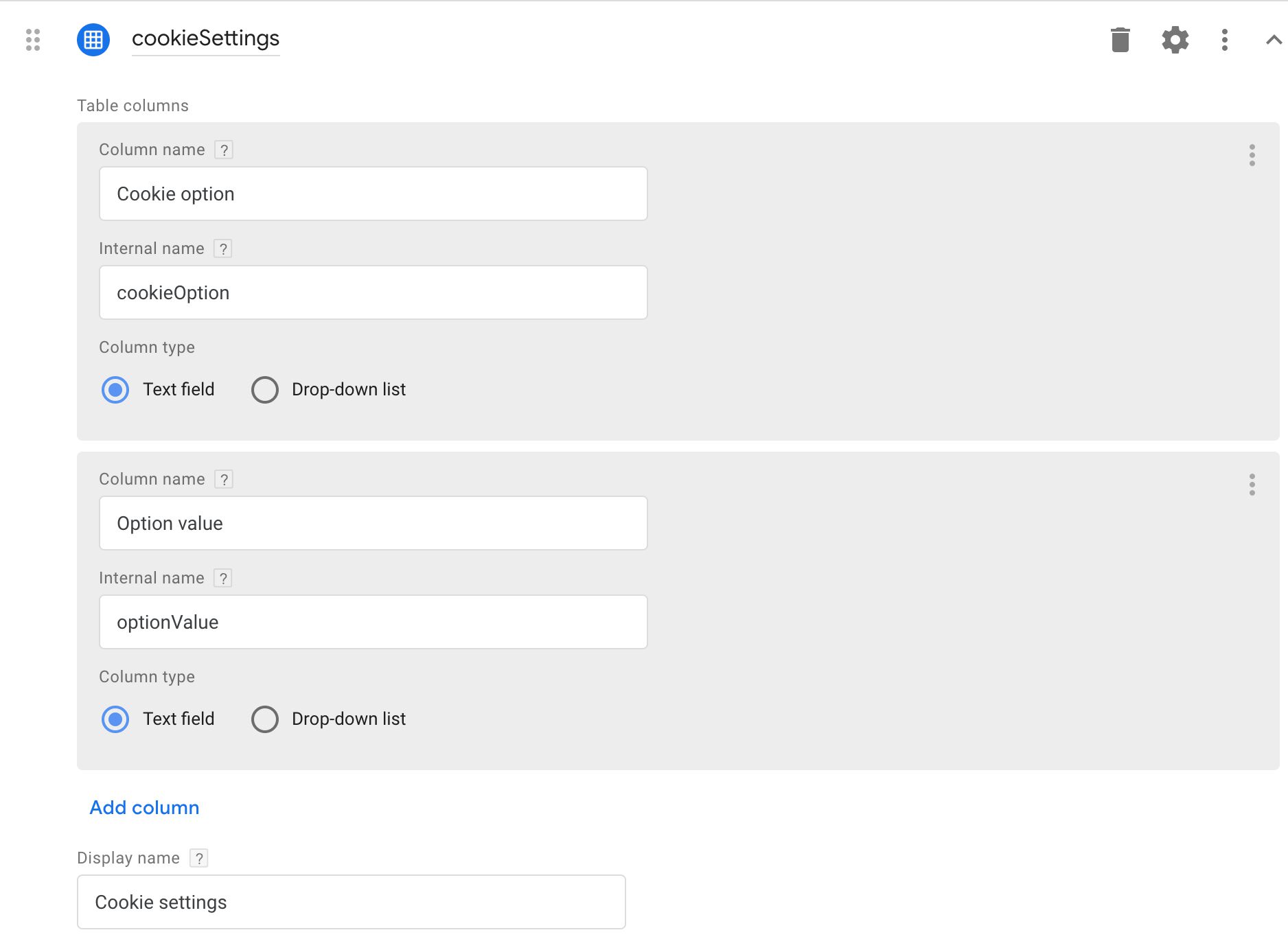 ](https://www.simoahava.com/images/2019/01/simple-table-1.jpg "Simple table in the editor")
Simple table in the editor
[
](https://www.simoahava.com/images/2019/01/simple-table-1.jpg "Simple table in the editor")
Simple table in the editor
[ ](https://www.simoahava.com/images/2019/01/simple-table-2.jpg "Simple table in the UI")
Simple table in the UI
##### Code editor output
The `data.fieldName` property will resolve to an array of objects, where
each object represents a row the user has added in the UI. Furthermore,
each row object will have key-value pairs for every column, where the
key is the column name and the value is the value of the input (the
selection value if a drop-down menu or the input text if a text field).
```
log(data.cookieSettings);
/* Logs:
[
{"cookieOption":"cookieDomain","optionValue":"simoahava.com"},
{"cookieOption":"cookieName","optionValue":"myCookie"}
]
*/
```
##### Available field configurations
> Click the configuration name to jump to details about the
> configuration in the reference at the end of this guide.
- [“New row” button text](#new-row-button-text) - Change the value of
the “Add row” button text. OFF by default.
- [Always in summary](#always-in-summary) - Show the field and its
current value in the summary view of the tag or variable. OFF by
default.
- [Clear on copy](#clear-on-copy) - Prevent filled field values from
being copied when a copy is made of the tag or variable. OFF by
default.
- [Default value](#default-value) - The value of the field until the
user decides to change it. OFF by default.
- [Display message when not set](#display-message-when-not-set) - When
the field is untouched, show this text in the summary view. OFF by
default.
- [Display name](#display-name) - The label of the field shown in the
GTM UI. **ON by default**.
- [Enabling conditions](#enabling-conditions) - Establish conditions
(based on other field inputs) for showing this particular field. OFF
by default.
- [Help text](#help-text) - Add text to a question mark tooltip shown
next to the field. OFF by default.
- [Validation rules](#validation-rules)- One or more rules against which
the field must validate before the user can save the tag or variable.
OFF by default.
#### Param table
##### Description
A **Param table** is a more complicated table. Instead of being able to
edit individual column values in the table itself, a param table
requires you to input all the values of the row in a special overlay
menu that pops up when you click to add a row. The individual columns
can be any of the supported field types, and thus you can add far more
complexity into the table than you could with a regular [simple
table](#simple-table) field.
[
](https://www.simoahava.com/images/2019/01/simple-table-2.jpg "Simple table in the UI")
Simple table in the UI
##### Code editor output
The `data.fieldName` property will resolve to an array of objects, where
each object represents a row the user has added in the UI. Furthermore,
each row object will have key-value pairs for every column, where the
key is the column name and the value is the value of the input (the
selection value if a drop-down menu or the input text if a text field).
```
log(data.cookieSettings);
/* Logs:
[
{"cookieOption":"cookieDomain","optionValue":"simoahava.com"},
{"cookieOption":"cookieName","optionValue":"myCookie"}
]
*/
```
##### Available field configurations
> Click the configuration name to jump to details about the
> configuration in the reference at the end of this guide.
- [“New row” button text](#new-row-button-text) - Change the value of
the “Add row” button text. OFF by default.
- [Always in summary](#always-in-summary) - Show the field and its
current value in the summary view of the tag or variable. OFF by
default.
- [Clear on copy](#clear-on-copy) - Prevent filled field values from
being copied when a copy is made of the tag or variable. OFF by
default.
- [Default value](#default-value) - The value of the field until the
user decides to change it. OFF by default.
- [Display message when not set](#display-message-when-not-set) - When
the field is untouched, show this text in the summary view. OFF by
default.
- [Display name](#display-name) - The label of the field shown in the
GTM UI. **ON by default**.
- [Enabling conditions](#enabling-conditions) - Establish conditions
(based on other field inputs) for showing this particular field. OFF
by default.
- [Help text](#help-text) - Add text to a question mark tooltip shown
next to the field. OFF by default.
- [Validation rules](#validation-rules)- One or more rules against which
the field must validate before the user can save the tag or variable.
OFF by default.
#### Param table
##### Description
A **Param table** is a more complicated table. Instead of being able to
edit individual column values in the table itself, a param table
requires you to input all the values of the row in a special overlay
menu that pops up when you click to add a row. The individual columns
can be any of the supported field types, and thus you can add far more
complexity into the table than you could with a regular [simple
table](#simple-table) field.
[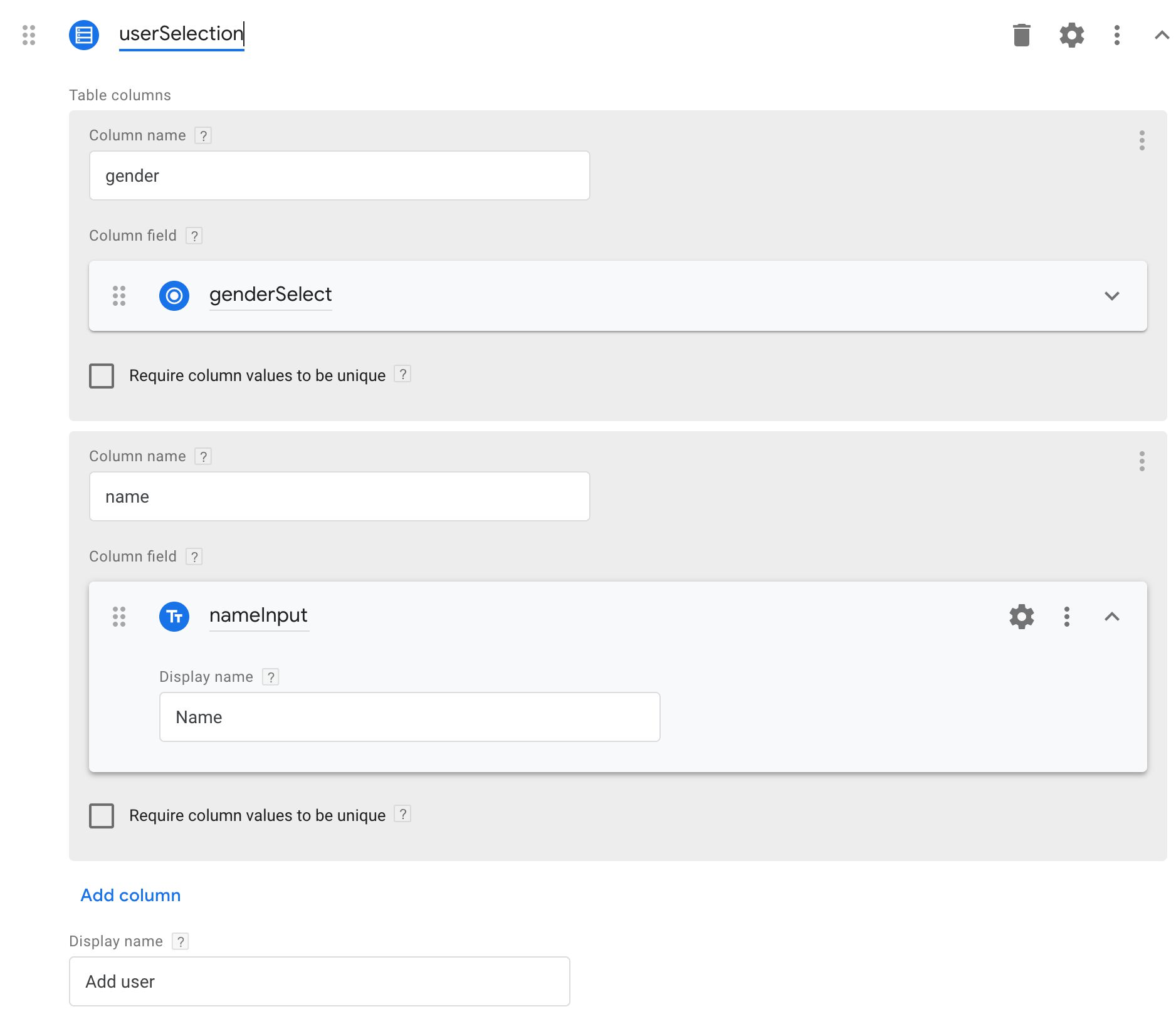 ](https://www.simoahava.com/images/2019/01/param-table-1.jpg "Param table in the editor")
Param table in the editor
[
](https://www.simoahava.com/images/2019/01/param-table-1.jpg "Param table in the editor")
Param table in the editor
[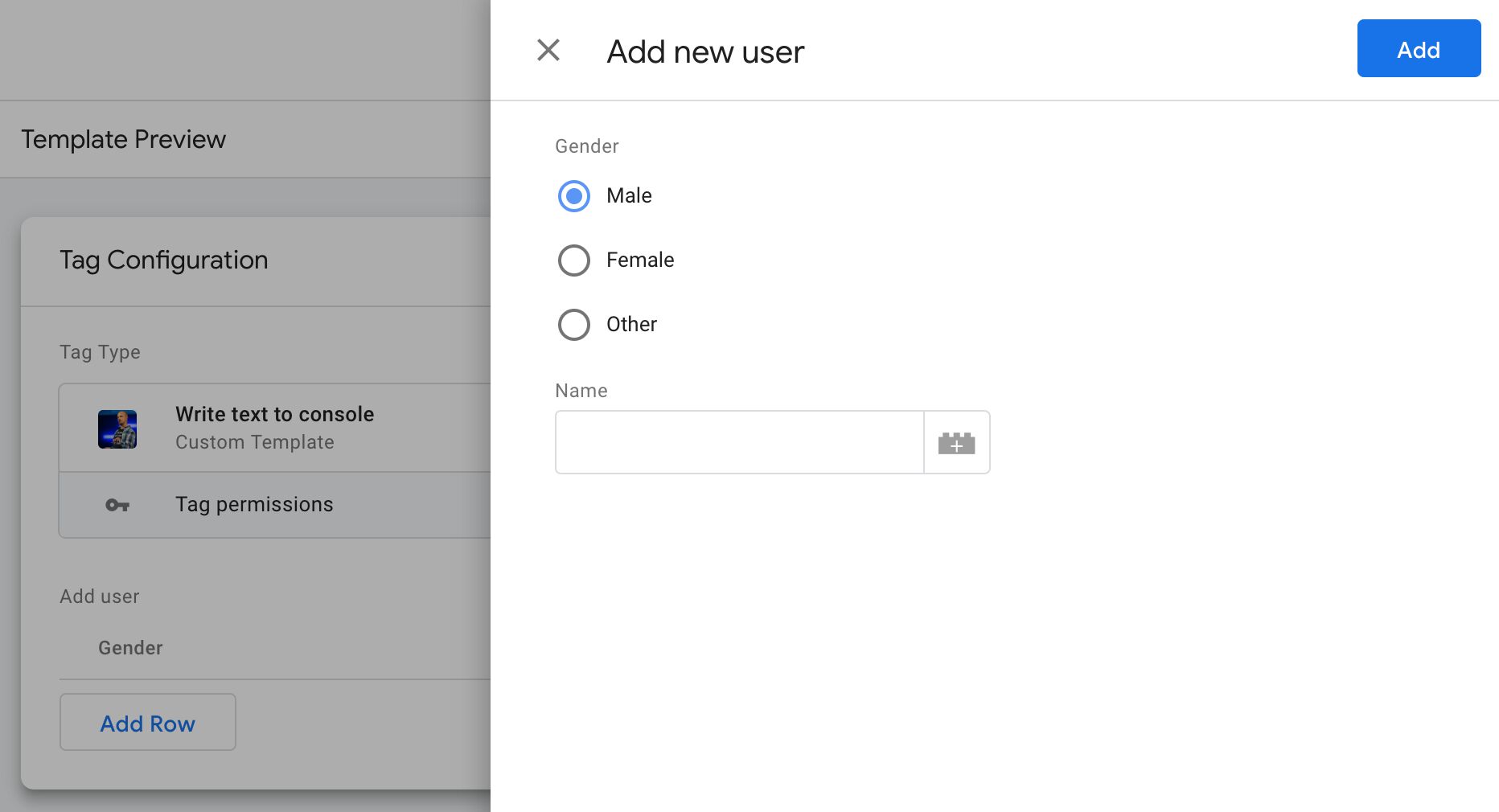 ](https://www.simoahava.com/images/2019/01/param-table-2.jpg "Param table in the UI")
Param table in the UI
##### Code editor output
Similar to the [simple table](#simple-table), the `data.fieldName`
property resolves to an array of objects, where each object represents a
row in the table. Each row object has key-value pairs for each column,
and the value is whatever the column field returns. For example, the
screenshot above would render as:
```
log(data.userSelection);
/* Logs:
[
{"genderSelect": "male", "nameInput": "Simo Ahava"},
{"genderSelect": "female", "nameInput": "Simona Ahava"}
]
*/
```
##### Available field configurations
> Click the configuration name to jump to details about the
> configuration in the reference at the end of this guide.
- [“Edit row” dialog title](#edit-row-dialog-title) - You can change
what the heading of the “Edit row” overlay is. OFF by default.
- [“New row” button text](#new-row-button-text) - Change the value of
the “Add row” button text. OFF by default.
- [“New row” dialog title](#new-row-dialog-title) - You can change what
the heading text is in the overlay you see when adding a new row. OFF
by default.
- [Always in summary](#always-in-summary) - Show the field and its
current value in the summary view of the tag or variable. OFF by
default.
- [Clear on copy](#clear-on-copy) - Prevent filled field values from
being copied when a copy is made of the tag or variable. OFF by
default.
- [Default value](#default-value) - The value of the field until the
user decides to change it. OFF by default.
- [Display message when not set](#display-message-when-not-set) - When
the field is untouched, show this text in the summary view. OFF by
default.
- [Display name](#display-name) - The label of the field shown in the
GTM UI. **ON by default**.
- [Enabling conditions](#enabling-conditions) - Establish conditions
(based on other field inputs) for showing this particular field. OFF
by default.
- [Help text](#help-text) - Add text to a question mark tooltip shown
next to the field. OFF by default.
- [Validation rules](#validation-rules)- One or more rules against which
the field must validate before the user can save the tag or variable.
OFF by default.
#### Group
##### Description
A **Group** is simply a logical way to group different fields together.
The main benefit is that it offers you a **Group style** selection.
- **Simple section** - This style simply shows the nested fields in the
group without any collapsing.
- **Collapsible section – Open** - This style shows the nested fields in
a collapsible section which is open initially.
- **Collapsible section – Closed** - This style shows the nested fields
in a collapsible section which is collapsed initially.
- **Collapsible section – Open if not default** - This style shows the
nested fields in a collapsible section which is open if the nested
field(s) don’t have default values (i.e. the user has changed the
value of the fields).
A Group is useful if you want to section a set of fields separately,
because you can also control the entire groups visibility with the
**Enabling condition** field configuration.
[
](https://www.simoahava.com/images/2019/01/param-table-2.jpg "Param table in the UI")
Param table in the UI
##### Code editor output
Similar to the [simple table](#simple-table), the `data.fieldName`
property resolves to an array of objects, where each object represents a
row in the table. Each row object has key-value pairs for each column,
and the value is whatever the column field returns. For example, the
screenshot above would render as:
```
log(data.userSelection);
/* Logs:
[
{"genderSelect": "male", "nameInput": "Simo Ahava"},
{"genderSelect": "female", "nameInput": "Simona Ahava"}
]
*/
```
##### Available field configurations
> Click the configuration name to jump to details about the
> configuration in the reference at the end of this guide.
- [“Edit row” dialog title](#edit-row-dialog-title) - You can change
what the heading of the “Edit row” overlay is. OFF by default.
- [“New row” button text](#new-row-button-text) - Change the value of
the “Add row” button text. OFF by default.
- [“New row” dialog title](#new-row-dialog-title) - You can change what
the heading text is in the overlay you see when adding a new row. OFF
by default.
- [Always in summary](#always-in-summary) - Show the field and its
current value in the summary view of the tag or variable. OFF by
default.
- [Clear on copy](#clear-on-copy) - Prevent filled field values from
being copied when a copy is made of the tag or variable. OFF by
default.
- [Default value](#default-value) - The value of the field until the
user decides to change it. OFF by default.
- [Display message when not set](#display-message-when-not-set) - When
the field is untouched, show this text in the summary view. OFF by
default.
- [Display name](#display-name) - The label of the field shown in the
GTM UI. **ON by default**.
- [Enabling conditions](#enabling-conditions) - Establish conditions
(based on other field inputs) for showing this particular field. OFF
by default.
- [Help text](#help-text) - Add text to a question mark tooltip shown
next to the field. OFF by default.
- [Validation rules](#validation-rules)- One or more rules against which
the field must validate before the user can save the tag or variable.
OFF by default.
#### Group
##### Description
A **Group** is simply a logical way to group different fields together.
The main benefit is that it offers you a **Group style** selection.
- **Simple section** - This style simply shows the nested fields in the
group without any collapsing.
- **Collapsible section – Open** - This style shows the nested fields in
a collapsible section which is open initially.
- **Collapsible section – Closed** - This style shows the nested fields
in a collapsible section which is collapsed initially.
- **Collapsible section – Open if not default** - This style shows the
nested fields in a collapsible section which is open if the nested
field(s) don’t have default values (i.e. the user has changed the
value of the fields).
A Group is useful if you want to section a set of fields separately,
because you can also control the entire groups visibility with the
**Enabling condition** field configuration.
[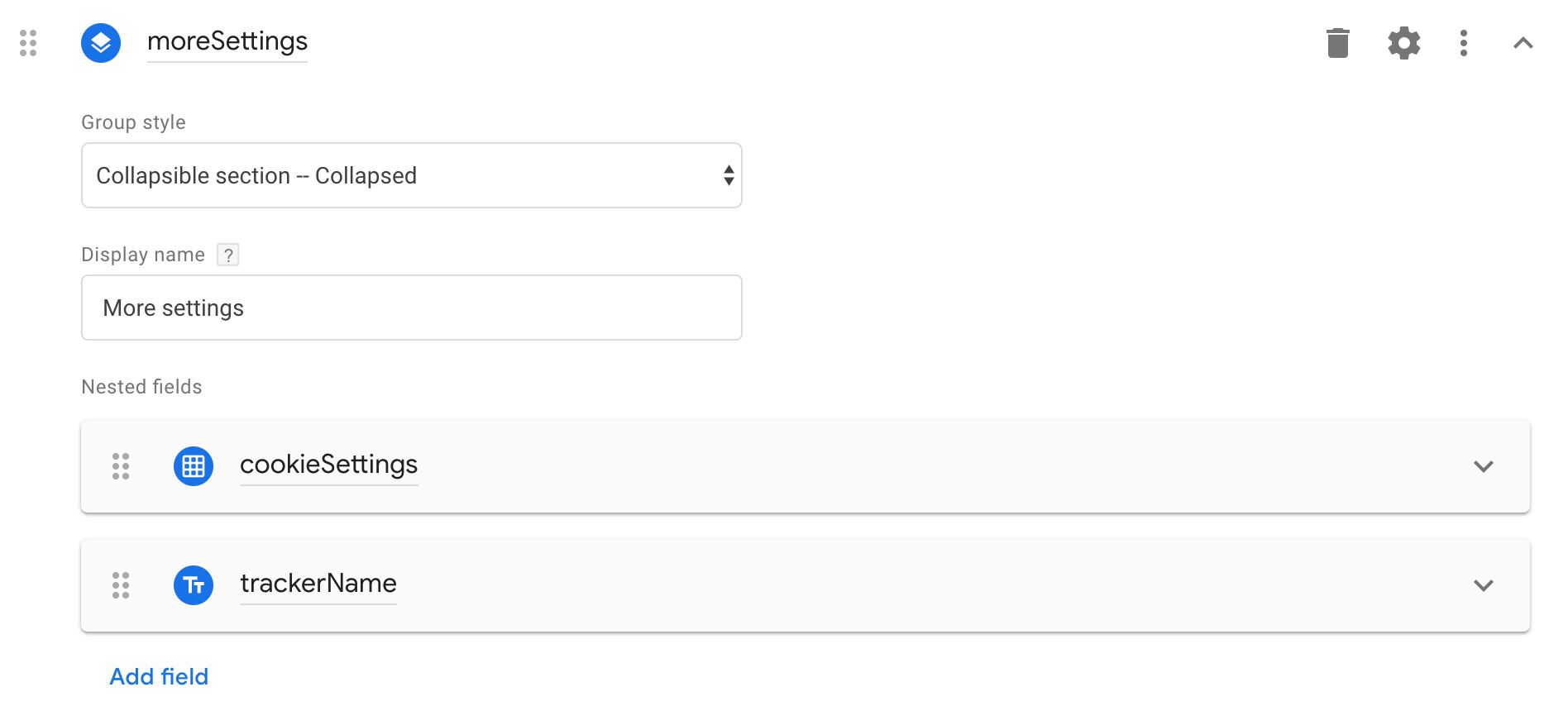 ](https://www.simoahava.com/images/2019/01/more-settings-1.jpg "Collapsible group in the editor")
Collapsible group in the editor
[
](https://www.simoahava.com/images/2019/01/more-settings-1.jpg "Collapsible group in the editor")
Collapsible group in the editor
[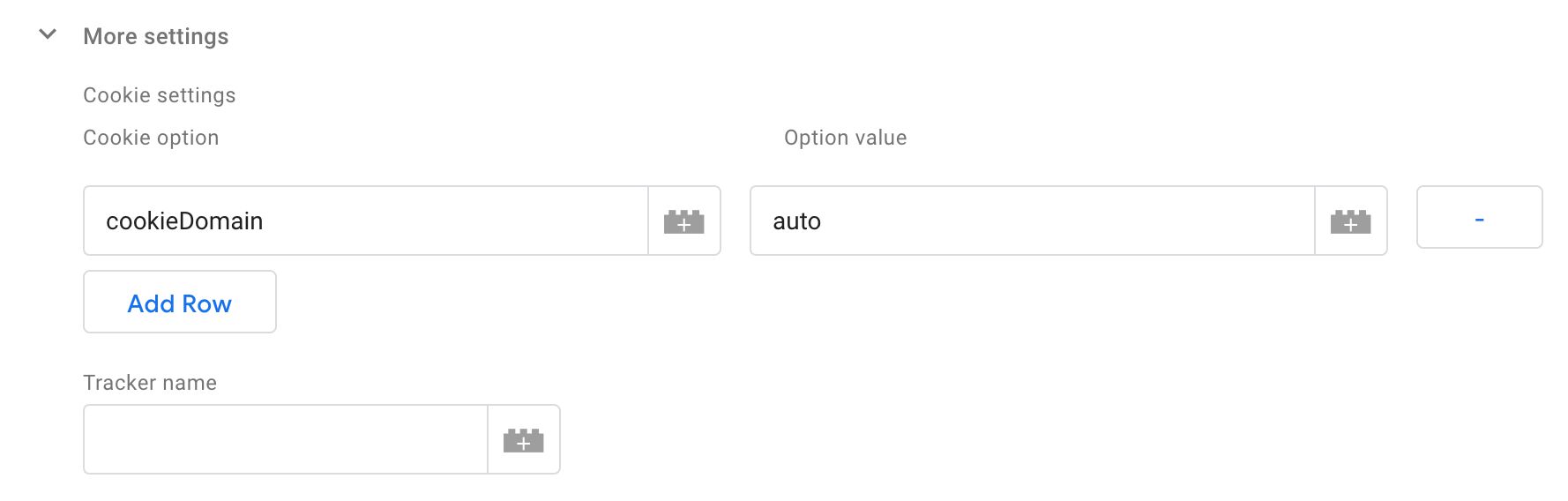 ](https://www.simoahava.com/images/2019/01/more-settings-2.jpg "Collapsible group in the UI")
Collapsible group in the UI
##### Code editor output
The **Group** doesn’t bring anything extra to the code editor. The
nested fields are accessed directly as properties of the `data` object -
the group itself is not present in the object in any way.
```
log(data);
/* Logs:
[
{"cookieSettings": [{"cookieOption": "cookieDomain", "optionValue": "auto"}]},
{"trackerName": "_ga_tracker"}
]
*/
```
##### Available field configurations
> Click the configuration name to jump to details about the
> configuration in the reference at the end of this guide.
- [Display name](#display-name) - The label of the field shown in the
GTM UI. **ON by default**.
- [Enabling conditions](#enabling-conditions) - Establish conditions
(based on other field inputs) for showing this particular field. OFF
by default.
- [Group style](#group-style) - How the group section is rendered in the
GTM UI (simple vs. collapsed vs. open). **ON by default**.
- [Help text](#help-text) - Add text to a question mark tooltip shown
next to the field. OFF by default.
#### Label
##### Description
The **Label** field is extremely simple. It’s just text that you show in
the GTM UI when the instance is opened. The **Display name**
configuration determines the text that is shown. Additionally, a Label
field has only one other configuration: an **Enabling condition** which
you can use to conditionally show the text.
[
](https://www.simoahava.com/images/2019/01/more-settings-2.jpg "Collapsible group in the UI")
Collapsible group in the UI
##### Code editor output
The **Group** doesn’t bring anything extra to the code editor. The
nested fields are accessed directly as properties of the `data` object -
the group itself is not present in the object in any way.
```
log(data);
/* Logs:
[
{"cookieSettings": [{"cookieOption": "cookieDomain", "optionValue": "auto"}]},
{"trackerName": "_ga_tracker"}
]
*/
```
##### Available field configurations
> Click the configuration name to jump to details about the
> configuration in the reference at the end of this guide.
- [Display name](#display-name) - The label of the field shown in the
GTM UI. **ON by default**.
- [Enabling conditions](#enabling-conditions) - Establish conditions
(based on other field inputs) for showing this particular field. OFF
by default.
- [Group style](#group-style) - How the group section is rendered in the
GTM UI (simple vs. collapsed vs. open). **ON by default**.
- [Help text](#help-text) - Add text to a question mark tooltip shown
next to the field. OFF by default.
#### Label
##### Description
The **Label** field is extremely simple. It’s just text that you show in
the GTM UI when the instance is opened. The **Display name**
configuration determines the text that is shown. Additionally, a Label
field has only one other configuration: an **Enabling condition** which
you can use to conditionally show the text.
[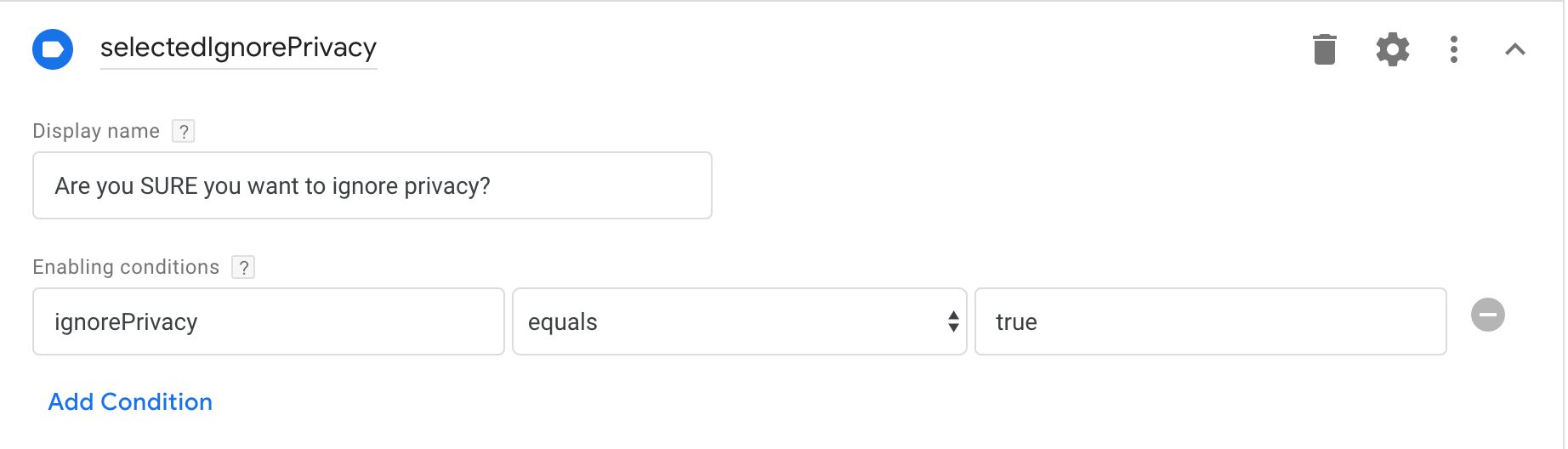 ](https://www.simoahava.com/images/2019/01/label-1.jpg "Label in the editor")
Label in the editor
[
](https://www.simoahava.com/images/2019/01/label-1.jpg "Label in the editor")
Label in the editor
[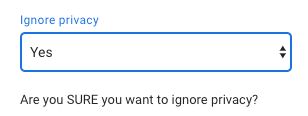 ](https://www.simoahava.com/images/2019/01/label-2.jpg "Label in the UI")
Label in the UI
##### Code editor output
There is no way to access the label in the code editor.
##### Available field configurations
> Click the configuration name to jump to details about the
> configuration in the reference at the end of this guide.
- [Display name](#display-name) - The label of the field shown in the
GTM UI. **ON by default**.
- [Enabling conditions](#enabling-conditions) - Establish conditions
(based on other field inputs) for showing this particular field. OFF
by default.
#### Utilizing APIs
**Template APIs** are methods in the Google Tag Manager sandboxed
JavaScript which let you invoke commonly used utilities of the browser.
GTM restricts direct access to global methods to improve the stability
and reliability of the code, and to optimize the way the code is
delivered in the browser.
When working with the code editor, remember to always have the [API
reference](https://developers.google.com/tag-manager/templates/api)
document open in your browser.
Because the official documentation is pretty thorough, I won’t do an
exhaustive overview of all the APIs. Instead, I’ll point out **quirks**
or **things you should know** about some of the APIs, listed below in
their separate chapters.
##### The `require` API
To invoke a template API, you must first **require** it in the editor.
If you’ve been working with [Node.js](https://nodejs.org/en/), you’ll
recognize the `require()` method as a way to include JavaScript
**modules** into your code.
In GTM templates, `require()` is used to gain access to template APIs,
so the functionality is similar even if quite a bit more restricted, as
the list of APIs you can integrate is limited.
To utilize an API, you simply run `const method = require(name);`, where
`name` is the name of the API you want to use, and `method` is the name
of the variable to which you will locally scope the API function.
For example, to make it possible to log to the console and to set
cookies in the template code, you would need to require the respective
APIs:
```
const log = require('logToConsole');
const setCookie = require('setCookie');
```
When you require an API that is governed by a set of **permissions**,
those permissions will automatically appear in the
[Permissions](#permissions) tab of the template UI. When you use the
API, you need to make sure that the permissions allow you to perform the
tasks you are trying to perform.
##### The `queryPermission` API
Especially if you’ve written the template for public use, you might want
to utilize the `queryPermission` API to wrap your code in a validator
that only runs if the required permissions have been set.
For example, if you want to make sure you can actually set some cookie,
you might want to use this type of syntax:
```
const queryPermission = require('queryPermission');
const setCookie = require('setCookie');
const options = {
domain: 'www.simoahava.com'
};
// Check whether it's possible to write the cookie before writing it
if (queryPermission('set_cookies', '_gaClientId', options)) {
setCookie('_gaClientId', 'abc123', options);
}
```
The `setCookie()` API code is only run if the permissions allow you to
write a cookie named `_gaClientId` on the domain `www.simoahava.com`.
This is a good way to avoid your tag running into errors.
##### The `copyFromDataLayer` API
[This
API](https://developers.google.com/tag-manager/templates/api/#copyfromdatalayer)
is relatively straightforward - it fetches the item from GTM’s data
model that you requested. For example, to fetch the current value for
`gtm.elementUrl`, you’d run:
```
const copyFromDataLayer = require('copyFromDataLayer');
const clickUrl = copyFromDataLayer('gtm.elementUrl');
```
This code would fetch the value from the data model at the time that the
tag was run.
However, there’s a very important **catch** here.
If the template code fetching the `dataLayer` value is run
**asynchronously** (e.g. with the [`callLater`
API](https://developers.google.com/tag-manager/templates/api/#calllater)),
or if the tag built from the template is part of a [**tag
sequence**](https://www.simoahava.com/analytics/understanding-tag-sequencing-in-google-tag-manager/),
the value fetched from `dataLayer` will be **whatever is currently
stored in the data model**. In all other scenarios, the code is run
synchronously, relative to the `dataLayer.push()`, so the value returned
by `copyFromDataLayer` will reflect what was included in the pushed
object.
To illustrate, consider the following code executed on the site:
```
window.dataLayer.push({
event: 'fire',
key: 'value'
});
window.dataLayer.push({
event: 'fire',
key: 'otherValue'
});
```
These two `dataLayer.push()` calls are run one after the other. If
you’ve built a tag that fires on the “fire” event, and the template for
that tag uses `copyFromDataLayer` to fetch the value for `key`, then in
most cases it will always return whatever the value of `key` was during
the trigger push.
In other words, the first time the tag fires, `key` will be set to
`value`, and the second time the tag fires, `key` will return
`otherValue`. This is understandable, and it’s how Google Tag Manager
has always worked.
However, if the template uses `copyFromDataLayer` in an asynchronous
method, or if the tag is part of a sequence, then when the first tag
fires, it’s possible that `key` will actually return `otherValue`,
because by the time the tag resolves that code, the second push will
have happened and the values stored in GTM’s data model will have been
updated.
This is something to be mindful of. I hope that we get the chance to
control this behavior by providing a flag that lets us choose whether to
use this asynchronous behavior or to fall back to the original,
synchronous process.
##### The “global variable” APIs
Templates offer you a handful of APIs that all interact with the global
namespace (namely, the `window` object). These APIs are:
- [`aliasInWindow`](https://developers.google.com/tag-manager/templates/api#aliasinwindow)
for creating a copy of a global variable in another global variable.
- [`callInWindow`](https://developers.google.com/tag-manager/templates/api#callinwindow)
for executing a global function.
- [`copyFromWindow`](https://developers.google.com/tag-manager/templates/api#copyfromwindow)
for creating a local copy (a **proper copy**, NOT a **reference** to
the original) of the global variable.
- [`createArgumentsQueue`](https://developers.google.com/tag-manager/templates/api#createargumentsqueue)
for creating an array as well as a helper function that passes its
arguments to the array.
- [`createQueue`](https://developers.google.com/tag-manager/templates/api#createqueue)
for creating an array as a global variable.
- [`setInWindow`](https://developers.google.com/tag-manager/templates/api#setinwindow)
for setting a global variable.
These APIs have a number of permissions associated with them, so you
need to make sure you make [the necessary
modifications](#accesses-global-variables) to the template permissions.
Another thing to keep in mind is that when you access these global
variables in the context of the templates, GTM creates a **local copy**
of each and does NOT copy objects by reference, which is the typical way
of handling JavaScript objects.
See this example:
```
const copy = require('copyFromWindow')
const obj = copy('someObject');
obj.someProperty = true;
```
This sets `someProperty` on the object to `true` **only in the template
code**. It doesn’t change it to `true` in the global object itself.
That’s because GTM creates a clone of the global variable rather than a
reference to it.
Finally, GTM handles **functions** in a special way. When you try to run
`setInWindow('someVariable', someFunction)`, where `someFunction` is a
function you have created, what gets set in the global variable
`someVariable` is **not** the actual function, but rather a wrapper
created by GTM which ends up calling the function.
This shouldn’t be a big deal - since the end result is always the same.
Whatever you call the global variable with gets executed in the function
you created.
However, it does mean that you won’t be able to **set individual
properties to that function**. Take this example:
```
const func = str => str + " Simo";
func.loaded = true;
setInWindow('someFunction', func);
```
If you now call `window.someFunction('Hello');`, the code ends up
returning `"Hello Simo"`, so it works. However, if you check
`someFunction.loaded`, you’ll notice it’s undefined when it should be
`true`.
##### The `makeTableMap` API
The
[`makeTableMap`](https://developers.google.com/tag-manager/templates/api#maketablemap)
API makes the [simple table](#simple-table) field more manageable.
The simple table field itself returns an array of objects, where each
object represents a **row** of the table and is comprised of key-value
pairs. Each key-value pair corresponds to a column.
For example, if the simple table had two columns:
**Column 1:** fieldToSetName
**Column 2:** fieldToSetValue
The resulting `data` object would look like this:
```
[
{
"fieldToSetName": "page",
"fieldToSetValue": "/home/"
},
{
"fieldToSetName": "userId",
"fieldToSetValue": "abc123"
}
]
```
The `makeTableMap` API turns this into a single object whose contents
are mapped from the values the user input. Naturally, this means that
the column you use as the “key” of this new map must have unique values.
To continue the example from above, if you run `makeTableMap` against
the array above, this is the result:
```
const makeTableMap = require('makeTableMap');
const log = require('logToConsole');
const data = data.properties; // This is the array from the example above
const newMap = makeTableMap(data, 'fieldToSetName', 'fieldToSetValue');
log(newMap);
/* LOGS:
{
"page": "/home",
"userId": "abc123"
}
*/
```
#### The `data` object
If you want to access values the user has input into the template
fields, you need to use the `data` object. Furthermore, to signal
**tag** template completion (or failure), you will also need to use the
`data` object in your template code.
Every single user input in the template fields is encoded in the `data`
object as properties, where the property name matches the **field name**
you gave in the editor.
[
](https://www.simoahava.com/images/2019/01/label-2.jpg "Label in the UI")
Label in the UI
##### Code editor output
There is no way to access the label in the code editor.
##### Available field configurations
> Click the configuration name to jump to details about the
> configuration in the reference at the end of this guide.
- [Display name](#display-name) - The label of the field shown in the
GTM UI. **ON by default**.
- [Enabling conditions](#enabling-conditions) - Establish conditions
(based on other field inputs) for showing this particular field. OFF
by default.
#### Utilizing APIs
**Template APIs** are methods in the Google Tag Manager sandboxed
JavaScript which let you invoke commonly used utilities of the browser.
GTM restricts direct access to global methods to improve the stability
and reliability of the code, and to optimize the way the code is
delivered in the browser.
When working with the code editor, remember to always have the [API
reference](https://developers.google.com/tag-manager/templates/api)
document open in your browser.
Because the official documentation is pretty thorough, I won’t do an
exhaustive overview of all the APIs. Instead, I’ll point out **quirks**
or **things you should know** about some of the APIs, listed below in
their separate chapters.
##### The `require` API
To invoke a template API, you must first **require** it in the editor.
If you’ve been working with [Node.js](https://nodejs.org/en/), you’ll
recognize the `require()` method as a way to include JavaScript
**modules** into your code.
In GTM templates, `require()` is used to gain access to template APIs,
so the functionality is similar even if quite a bit more restricted, as
the list of APIs you can integrate is limited.
To utilize an API, you simply run `const method = require(name);`, where
`name` is the name of the API you want to use, and `method` is the name
of the variable to which you will locally scope the API function.
For example, to make it possible to log to the console and to set
cookies in the template code, you would need to require the respective
APIs:
```
const log = require('logToConsole');
const setCookie = require('setCookie');
```
When you require an API that is governed by a set of **permissions**,
those permissions will automatically appear in the
[Permissions](#permissions) tab of the template UI. When you use the
API, you need to make sure that the permissions allow you to perform the
tasks you are trying to perform.
##### The `queryPermission` API
Especially if you’ve written the template for public use, you might want
to utilize the `queryPermission` API to wrap your code in a validator
that only runs if the required permissions have been set.
For example, if you want to make sure you can actually set some cookie,
you might want to use this type of syntax:
```
const queryPermission = require('queryPermission');
const setCookie = require('setCookie');
const options = {
domain: 'www.simoahava.com'
};
// Check whether it's possible to write the cookie before writing it
if (queryPermission('set_cookies', '_gaClientId', options)) {
setCookie('_gaClientId', 'abc123', options);
}
```
The `setCookie()` API code is only run if the permissions allow you to
write a cookie named `_gaClientId` on the domain `www.simoahava.com`.
This is a good way to avoid your tag running into errors.
##### The `copyFromDataLayer` API
[This
API](https://developers.google.com/tag-manager/templates/api/#copyfromdatalayer)
is relatively straightforward - it fetches the item from GTM’s data
model that you requested. For example, to fetch the current value for
`gtm.elementUrl`, you’d run:
```
const copyFromDataLayer = require('copyFromDataLayer');
const clickUrl = copyFromDataLayer('gtm.elementUrl');
```
This code would fetch the value from the data model at the time that the
tag was run.
However, there’s a very important **catch** here.
If the template code fetching the `dataLayer` value is run
**asynchronously** (e.g. with the [`callLater`
API](https://developers.google.com/tag-manager/templates/api/#calllater)),
or if the tag built from the template is part of a [**tag
sequence**](https://www.simoahava.com/analytics/understanding-tag-sequencing-in-google-tag-manager/),
the value fetched from `dataLayer` will be **whatever is currently
stored in the data model**. In all other scenarios, the code is run
synchronously, relative to the `dataLayer.push()`, so the value returned
by `copyFromDataLayer` will reflect what was included in the pushed
object.
To illustrate, consider the following code executed on the site:
```
window.dataLayer.push({
event: 'fire',
key: 'value'
});
window.dataLayer.push({
event: 'fire',
key: 'otherValue'
});
```
These two `dataLayer.push()` calls are run one after the other. If
you’ve built a tag that fires on the “fire” event, and the template for
that tag uses `copyFromDataLayer` to fetch the value for `key`, then in
most cases it will always return whatever the value of `key` was during
the trigger push.
In other words, the first time the tag fires, `key` will be set to
`value`, and the second time the tag fires, `key` will return
`otherValue`. This is understandable, and it’s how Google Tag Manager
has always worked.
However, if the template uses `copyFromDataLayer` in an asynchronous
method, or if the tag is part of a sequence, then when the first tag
fires, it’s possible that `key` will actually return `otherValue`,
because by the time the tag resolves that code, the second push will
have happened and the values stored in GTM’s data model will have been
updated.
This is something to be mindful of. I hope that we get the chance to
control this behavior by providing a flag that lets us choose whether to
use this asynchronous behavior or to fall back to the original,
synchronous process.
##### The “global variable” APIs
Templates offer you a handful of APIs that all interact with the global
namespace (namely, the `window` object). These APIs are:
- [`aliasInWindow`](https://developers.google.com/tag-manager/templates/api#aliasinwindow)
for creating a copy of a global variable in another global variable.
- [`callInWindow`](https://developers.google.com/tag-manager/templates/api#callinwindow)
for executing a global function.
- [`copyFromWindow`](https://developers.google.com/tag-manager/templates/api#copyfromwindow)
for creating a local copy (a **proper copy**, NOT a **reference** to
the original) of the global variable.
- [`createArgumentsQueue`](https://developers.google.com/tag-manager/templates/api#createargumentsqueue)
for creating an array as well as a helper function that passes its
arguments to the array.
- [`createQueue`](https://developers.google.com/tag-manager/templates/api#createqueue)
for creating an array as a global variable.
- [`setInWindow`](https://developers.google.com/tag-manager/templates/api#setinwindow)
for setting a global variable.
These APIs have a number of permissions associated with them, so you
need to make sure you make [the necessary
modifications](#accesses-global-variables) to the template permissions.
Another thing to keep in mind is that when you access these global
variables in the context of the templates, GTM creates a **local copy**
of each and does NOT copy objects by reference, which is the typical way
of handling JavaScript objects.
See this example:
```
const copy = require('copyFromWindow')
const obj = copy('someObject');
obj.someProperty = true;
```
This sets `someProperty` on the object to `true` **only in the template
code**. It doesn’t change it to `true` in the global object itself.
That’s because GTM creates a clone of the global variable rather than a
reference to it.
Finally, GTM handles **functions** in a special way. When you try to run
`setInWindow('someVariable', someFunction)`, where `someFunction` is a
function you have created, what gets set in the global variable
`someVariable` is **not** the actual function, but rather a wrapper
created by GTM which ends up calling the function.
This shouldn’t be a big deal - since the end result is always the same.
Whatever you call the global variable with gets executed in the function
you created.
However, it does mean that you won’t be able to **set individual
properties to that function**. Take this example:
```
const func = str => str + " Simo";
func.loaded = true;
setInWindow('someFunction', func);
```
If you now call `window.someFunction('Hello');`, the code ends up
returning `"Hello Simo"`, so it works. However, if you check
`someFunction.loaded`, you’ll notice it’s undefined when it should be
`true`.
##### The `makeTableMap` API
The
[`makeTableMap`](https://developers.google.com/tag-manager/templates/api#maketablemap)
API makes the [simple table](#simple-table) field more manageable.
The simple table field itself returns an array of objects, where each
object represents a **row** of the table and is comprised of key-value
pairs. Each key-value pair corresponds to a column.
For example, if the simple table had two columns:
**Column 1:** fieldToSetName
**Column 2:** fieldToSetValue
The resulting `data` object would look like this:
```
[
{
"fieldToSetName": "page",
"fieldToSetValue": "/home/"
},
{
"fieldToSetName": "userId",
"fieldToSetValue": "abc123"
}
]
```
The `makeTableMap` API turns this into a single object whose contents
are mapped from the values the user input. Naturally, this means that
the column you use as the “key” of this new map must have unique values.
To continue the example from above, if you run `makeTableMap` against
the array above, this is the result:
```
const makeTableMap = require('makeTableMap');
const log = require('logToConsole');
const data = data.properties; // This is the array from the example above
const newMap = makeTableMap(data, 'fieldToSetName', 'fieldToSetValue');
log(newMap);
/* LOGS:
{
"page": "/home",
"userId": "abc123"
}
*/
```
#### The `data` object
If you want to access values the user has input into the template
fields, you need to use the `data` object. Furthermore, to signal
**tag** template completion (or failure), you will also need to use the
`data` object in your template code.
Every single user input in the template fields is encoded in the `data`
object as properties, where the property name matches the **field name**
you gave in the editor.
[ ](https://www.simoahava.com/images/2019/02/field-name.jpg "Field name")
To access the values the user input into the `cookieSettings` field
above, you would use this syntax:
```
const input = data.cookieSettings;
```
You don’t need to `require()` any API to access the user input - the
`data` object is always available for fetching the values the user has
entered. Read through the [Fields editor](#fields-editor) chapter to see
how each different field type is encoded into the `data`object.
#### Variable templates in the code editor
Variable templates have just one requirement, similar to Custom
JavaScript variables in GTM: they must **return** a value. If you don’t
have a `return` statement in the template, the variable will always
return `undefined` (not very useful).
```
const userInput = data.someNumber;
return userInput * 2;
```
The variable template above would take the value entered by user into
the `someNumber` field and return it multiplied by 2.
#### Tag templates in the code editor
With tag templates, you **must** invoke one of two methods in the code:
- `data.gtmOnSuccess()` to indicate that the tag was a success.
- `data.gtmOnFailure()` to indicate that the tag execution failed.
I recommend to always have `data.gtmOnSuccess()` (after all, why create
a tag that doesn’t indicate successful completion). If there is a clear
point of failure, such as something you want to block a [tag
sequence](https://www.simoahava.com/analytics/understanding-tag-sequencing-in-google-tag-manager/)
with, you should also add a `data.gtmOnFailure()` call into the code.
Try to avoid paths in the code that do not lead to either
`data.gtmOnSuccess()` or `data.gtmOnFailure()`, as the tag will be in
“Still running” status for perpetuity.
Here’s an example. Let’s say the template’s purpose is to write a cookie
into the browser storage. If the template permissions allow the cookie
to be written, `data.gtmOnSuccess()` is called after the write. If the
permissions prevent this, a warning is logged into the console and
`data.gtmOnFailure()` is run instead.
```
const log = require('logToConsole');
const setCookie = require('setCookie');
const queryPermission = require('queryPermission');
if (queryPermission('set_cookies', '_gaClientId')) {
setCookie('_gaClientId', 'abc123');
data.gtmOnSuccess();
} else {
log('Unable to write cookie due to missing permissions!');
data.gtmOnFailure();
}
```
Tag success/failure/incompletion status is shown in Preview mode, too.
[
](https://www.simoahava.com/images/2019/02/field-name.jpg "Field name")
To access the values the user input into the `cookieSettings` field
above, you would use this syntax:
```
const input = data.cookieSettings;
```
You don’t need to `require()` any API to access the user input - the
`data` object is always available for fetching the values the user has
entered. Read through the [Fields editor](#fields-editor) chapter to see
how each different field type is encoded into the `data`object.
#### Variable templates in the code editor
Variable templates have just one requirement, similar to Custom
JavaScript variables in GTM: they must **return** a value. If you don’t
have a `return` statement in the template, the variable will always
return `undefined` (not very useful).
```
const userInput = data.someNumber;
return userInput * 2;
```
The variable template above would take the value entered by user into
the `someNumber` field and return it multiplied by 2.
#### Tag templates in the code editor
With tag templates, you **must** invoke one of two methods in the code:
- `data.gtmOnSuccess()` to indicate that the tag was a success.
- `data.gtmOnFailure()` to indicate that the tag execution failed.
I recommend to always have `data.gtmOnSuccess()` (after all, why create
a tag that doesn’t indicate successful completion). If there is a clear
point of failure, such as something you want to block a [tag
sequence](https://www.simoahava.com/analytics/understanding-tag-sequencing-in-google-tag-manager/)
with, you should also add a `data.gtmOnFailure()` call into the code.
Try to avoid paths in the code that do not lead to either
`data.gtmOnSuccess()` or `data.gtmOnFailure()`, as the tag will be in
“Still running” status for perpetuity.
Here’s an example. Let’s say the template’s purpose is to write a cookie
into the browser storage. If the template permissions allow the cookie
to be written, `data.gtmOnSuccess()` is called after the write. If the
permissions prevent this, a warning is logged into the console and
`data.gtmOnFailure()` is run instead.
```
const log = require('logToConsole');
const setCookie = require('setCookie');
const queryPermission = require('queryPermission');
if (queryPermission('set_cookies', '_gaClientId')) {
setCookie('_gaClientId', 'abc123');
data.gtmOnSuccess();
} else {
log('Unable to write cookie due to missing permissions!');
data.gtmOnFailure();
}
```
Tag success/failure/incompletion status is shown in Preview mode, too.
[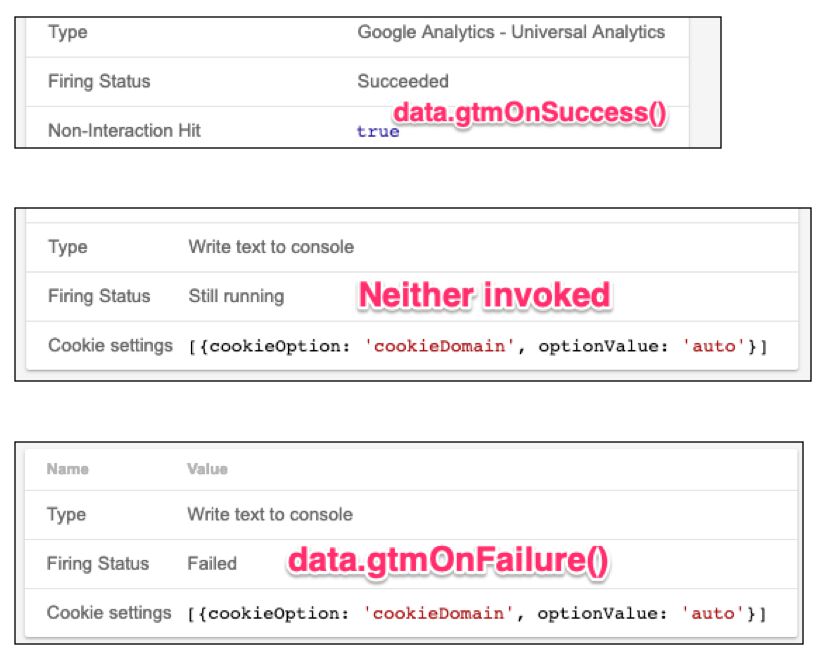 ](https://www.simoahava.com/images/2019/02/firing-status.jpg "Firing status in debug mode")
#### Client templates in the code editor
With **Client** templates, you need to invoke the [`claimRequest`
API](https://developers.google.com/tag-manager/serverside/api#claimrequest)
when you want the Client to parse the HTTP request and not let other
Clients use it any longer. For example, if you have a Client that is
designed to handle requests coming to `/my-pixel/`, you’d build a Client
like this:
```
const getRequestPath = require('getRequestPath');
const claimRequest = require('claimRequest');
if (getRequestPath() === '/my-pixel/') {
claimRequest();
}
```
When the Client has done its work, it must return a response back to the
source of the request. This is done with the [`returnResponse`
API](https://developers.google.com/tag-manager/serverside/api#returnresponse).
```
runContainer(event, () => {
// onComplete callback called, return the response.
returnResponse();
});
```
I do recommend to read [this
article](https://www.simoahava.com/gtm-tips/build-custom-universal-analytics-client-server-side-tagging/)
for an overview of how Client templates work.
### Permissions
When you add one of the **supported APIs** using the `require` method in
the code editor, the associated permissions for that API are
automatically displayed in the **Permissions** tab.
[
](https://www.simoahava.com/images/2019/02/firing-status.jpg "Firing status in debug mode")
#### Client templates in the code editor
With **Client** templates, you need to invoke the [`claimRequest`
API](https://developers.google.com/tag-manager/serverside/api#claimrequest)
when you want the Client to parse the HTTP request and not let other
Clients use it any longer. For example, if you have a Client that is
designed to handle requests coming to `/my-pixel/`, you’d build a Client
like this:
```
const getRequestPath = require('getRequestPath');
const claimRequest = require('claimRequest');
if (getRequestPath() === '/my-pixel/') {
claimRequest();
}
```
When the Client has done its work, it must return a response back to the
source of the request. This is done with the [`returnResponse`
API](https://developers.google.com/tag-manager/serverside/api#returnresponse).
```
runContainer(event, () => {
// onComplete callback called, return the response.
returnResponse();
});
```
I do recommend to read [this
article](https://www.simoahava.com/gtm-tips/build-custom-universal-analytics-client-server-side-tagging/)
for an overview of how Client templates work.
### Permissions
When you add one of the **supported APIs** using the `require` method in
the code editor, the associated permissions for that API are
automatically displayed in the **Permissions** tab.
[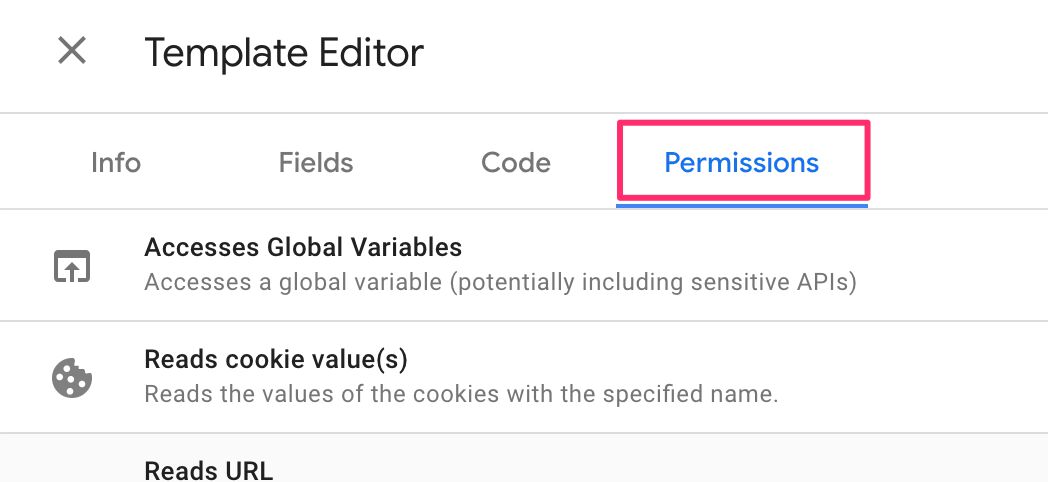 ](https://www.simoahava.com/images/2019/03/tag-template-permissions-tab.jpg "Permissions tab")
Read [this
document](https://developers.google.com/tag-manager/serverside/permissions)
for a comprehensive list of permissions used by **Server-side tagging**
templates.
Permissions are described at length [in the official
documentation](https://developers.google.com/tag-manager/templates/permissions).
Nevertheless, in this chapter I’ll show what the UI for each permission
looks like, and what the different settings are used for.
Note that you can **save** a template with code that conflicts with a
permission. It’s not until the tag is run that an error is thrown, and
this error is surfaced in the [Errors
tab](https://www.simoahava.com/analytics/new-errors-tab-preview-mode/)
in Preview mode, signalling that there was a permissions conflict within
the tag.
#### Accesses Global Variables
[
](https://www.simoahava.com/images/2019/03/tag-template-permissions-tab.jpg "Permissions tab")
Read [this
document](https://developers.google.com/tag-manager/serverside/permissions)
for a comprehensive list of permissions used by **Server-side tagging**
templates.
Permissions are described at length [in the official
documentation](https://developers.google.com/tag-manager/templates/permissions).
Nevertheless, in this chapter I’ll show what the UI for each permission
looks like, and what the different settings are used for.
Note that you can **save** a template with code that conflicts with a
permission. It’s not until the tag is run that an error is thrown, and
this error is surfaced in the [Errors
tab](https://www.simoahava.com/analytics/new-errors-tab-preview-mode/)
in Preview mode, signalling that there was a permissions conflict within
the tag.
#### Accesses Global Variables
[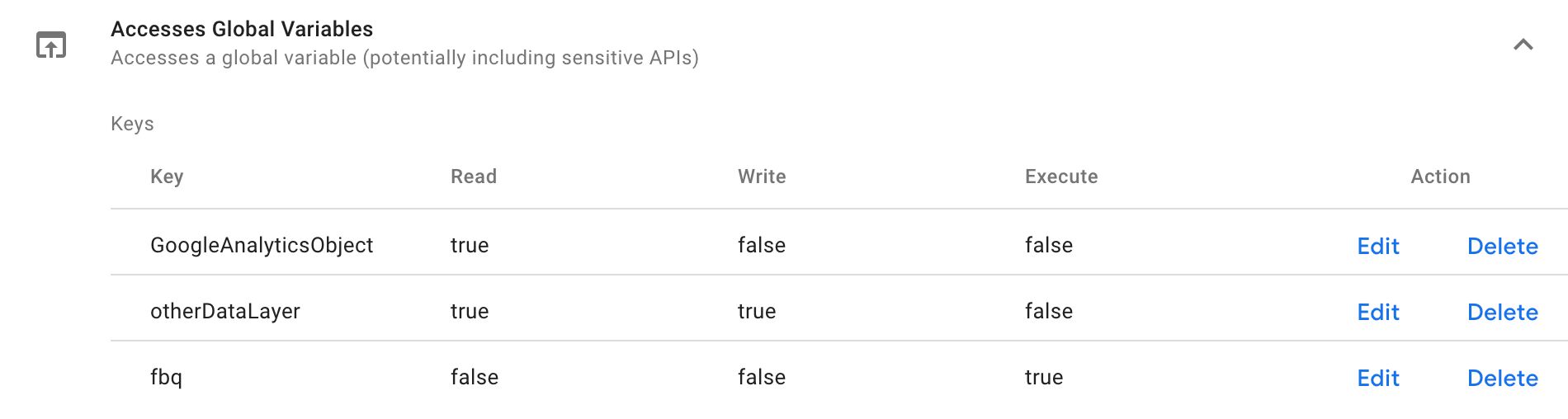 ](https://www.simoahava.com/images/2019/03/permissions-access-global-variables.jpg "Accesses global variables")
The Accesses Global Variables permission allows the code to **Read**
(see what value is assigned to the variable), **Write** (update the
value assigned to the variable), and **Execute** (if the variable is a
function, execute it) global variables. The **Key** is the name of the
global variable, accessed via `window[key]`.
Here are the APIs and the relevant permissions for them:
| API example | Permission |
|--------------------------------------------------|------------------------------------------------------------------|
| `aliasInWindow('copyTo', 'copyFrom')` | **Write** on `copyTo`, **Read** on `copyFrom`. |
| `callInWindow('someFunction')` | **Execute** on `someFunction`. |
| `copyFromWindow('copyFrom')` | **Read** on `copyFrom`. |
| `createArgumentsQueue('helper', 'queue')` | **ReadWrite** on `helper`, **ReadWrite** on `queue`. |
| `createQueue('someArray')` | **ReadWrite** on `someArray`. |
| `setInWindow('someVariable', 'someValue', true)` | **ReadWrite** on `someVariable` (regardless of third parameter). |
In other words, if your code needs to access any global variable using
e.g. `setInWindow` or `copyFromWindow`, you need to add those variables
into these permission settings, and you need to specify if the code can
read, write, and/or execute the variable in question.
> Name used with the [`queryPermission`](#the-querypermission-api) API
> and [policies](#policies-reference):
> [`access_globals`](#access_globals).
#### Accesses Local Storage
[
](https://www.simoahava.com/images/2019/03/permissions-access-global-variables.jpg "Accesses global variables")
The Accesses Global Variables permission allows the code to **Read**
(see what value is assigned to the variable), **Write** (update the
value assigned to the variable), and **Execute** (if the variable is a
function, execute it) global variables. The **Key** is the name of the
global variable, accessed via `window[key]`.
Here are the APIs and the relevant permissions for them:
| API example | Permission |
|--------------------------------------------------|------------------------------------------------------------------|
| `aliasInWindow('copyTo', 'copyFrom')` | **Write** on `copyTo`, **Read** on `copyFrom`. |
| `callInWindow('someFunction')` | **Execute** on `someFunction`. |
| `copyFromWindow('copyFrom')` | **Read** on `copyFrom`. |
| `createArgumentsQueue('helper', 'queue')` | **ReadWrite** on `helper`, **ReadWrite** on `queue`. |
| `createQueue('someArray')` | **ReadWrite** on `someArray`. |
| `setInWindow('someVariable', 'someValue', true)` | **ReadWrite** on `someVariable` (regardless of third parameter). |
In other words, if your code needs to access any global variable using
e.g. `setInWindow` or `copyFromWindow`, you need to add those variables
into these permission settings, and you need to specify if the code can
read, write, and/or execute the variable in question.
> Name used with the [`queryPermission`](#the-querypermission-api) API
> and [policies](#policies-reference):
> [`access_globals`](#access_globals).
#### Accesses Local Storage
[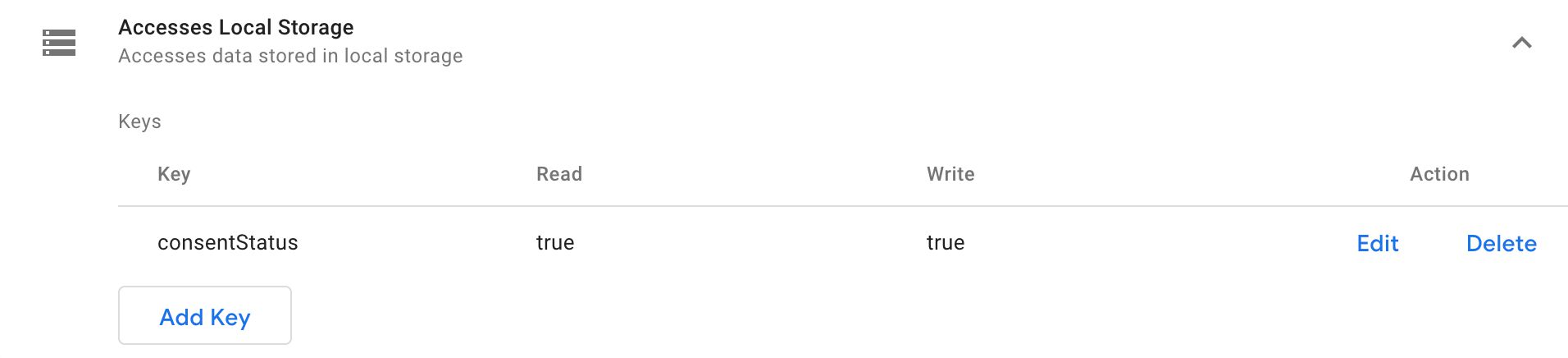 ](https://www.simoahava.com/images/2020/08/permissions-access-local-storage.jpg "Accesses Local Storage")
The Accesses Local Storage permission allows the code to **Read** (get
items from `localStorage`) and **Write** (set items in `localStorage`)
items in the browser’s `localStorage`, by utilizing the `localStorage`
template API.
If your code needs to access `localStorage`, you need to specify Read
and/or Write permissions for every key in `localStorage` the template
needs to access.
> Name used with the [`queryPermission`](#the-querypermission-api) API
> and [policies](#policies-reference):
> [`access_local_storage`](#access_local_storage).
#### Accesses Template Storage
[
](https://www.simoahava.com/images/2020/08/permissions-access-local-storage.jpg "Accesses Local Storage")
The Accesses Local Storage permission allows the code to **Read** (get
items from `localStorage`) and **Write** (set items in `localStorage`)
items in the browser’s `localStorage`, by utilizing the `localStorage`
template API.
If your code needs to access `localStorage`, you need to specify Read
and/or Write permissions for every key in `localStorage` the template
needs to access.
> Name used with the [`queryPermission`](#the-querypermission-api) API
> and [policies](#policies-reference):
> [`access_local_storage`](#access_local_storage).
#### Accesses Template Storage
[ ](https://www.simoahava.com/images/2020/08/permissions-accesses-template-storage.jpg "Accesses Template Storage")
The Accesses Template Storage permission allows the code to Read and
Write to a temporary storage which exists for the current page load.
It’s useful if you need to persist information that persists across
template executions.
For example, if you want to make sure your template doesn’t run some
code more than once per page load, you could use `templateStorage` like
this:
```
const templateStorage = require('templateStorage');
const ids = templateStorage.getItem('ids') || [];
if (!ids.includes(data.id)) {
// Run code
...
ids.push(data.id);
templateStorage.setItem('ids', ids);
}
```
The permission has no configuration - read, write, and delete operations
are always permitted.
> Name used with the [`queryPermission`](#the-querypermission-api) API
> and [policies](#policies-reference):
> [`access_template_storage`](#access_template_storage).
#### Reads Cookie Value(s)
[
](https://www.simoahava.com/images/2020/08/permissions-accesses-template-storage.jpg "Accesses Template Storage")
The Accesses Template Storage permission allows the code to Read and
Write to a temporary storage which exists for the current page load.
It’s useful if you need to persist information that persists across
template executions.
For example, if you want to make sure your template doesn’t run some
code more than once per page load, you could use `templateStorage` like
this:
```
const templateStorage = require('templateStorage');
const ids = templateStorage.getItem('ids') || [];
if (!ids.includes(data.id)) {
// Run code
...
ids.push(data.id);
templateStorage.setItem('ids', ids);
}
```
The permission has no configuration - read, write, and delete operations
are always permitted.
> Name used with the [`queryPermission`](#the-querypermission-api) API
> and [policies](#policies-reference):
> [`access_template_storage`](#access_template_storage).
#### Reads Cookie Value(s)
[ ](https://www.simoahava.com/images/2019/03/permissions-reads-cookie-values.jpg "Reads cookie values")
The Reads Cookie Value(s) permission lists all the first-party cookies
the tag or variable code can access with the `getCookieValues` API. To
allow the code to read from a first-party cookie, you need to list all
the cookie names that can be accessed on **their own line** in the text
box in the permission settings.
> Name used with the [`queryPermission`](#the-querypermission-api) API
> and [policies](#policies-reference): [`get_cookies`](#get_cookies).
#### Reads Referrer URL
[
](https://www.simoahava.com/images/2019/03/permissions-reads-cookie-values.jpg "Reads cookie values")
The Reads Cookie Value(s) permission lists all the first-party cookies
the tag or variable code can access with the `getCookieValues` API. To
allow the code to read from a first-party cookie, you need to list all
the cookie names that can be accessed on **their own line** in the text
box in the permission settings.
> Name used with the [`queryPermission`](#the-querypermission-api) API
> and [policies](#policies-reference): [`get_cookies`](#get_cookies).
#### Reads Referrer URL
[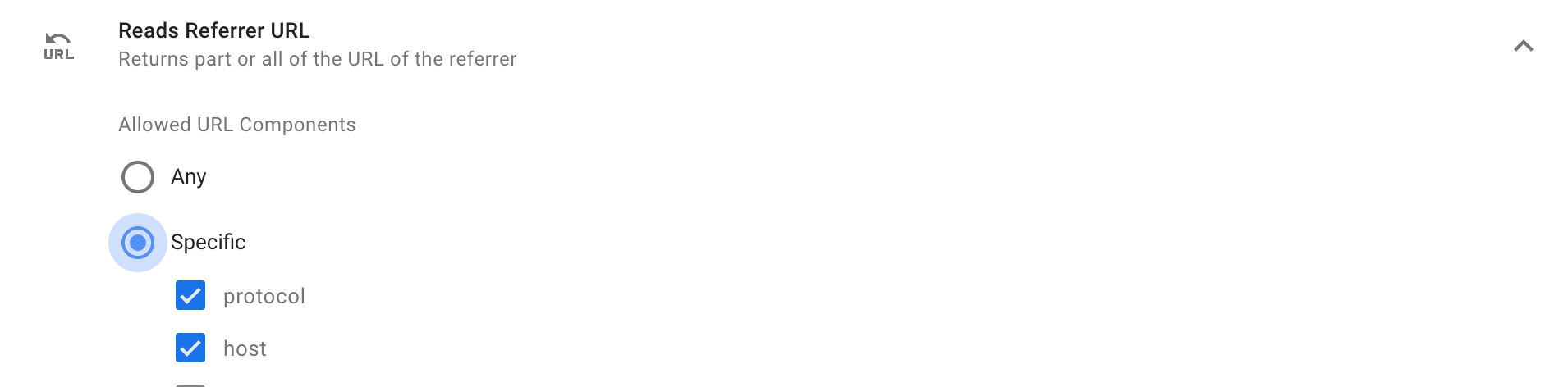 ](https://www.simoahava.com/images/2019/05/permissions-gets-referrer.jpg "Gets referrer")
The Reads Referrer URL permission allows template code to access any or
only parts of the referring page URL (from `document.referrer`. You can
restrict access to any combination of its URL components. Since the
permission model is the same as for the [Reads URL](#reads-url)
permission, please read the very next section for more details.
> Name used with the [`queryPermission`](#the-querypermission-api) API
> and [policies](#policies-reference): [`get_referrer`](#get_referrer).
#### Reads URL
[
](https://www.simoahava.com/images/2019/05/permissions-gets-referrer.jpg "Gets referrer")
The Reads Referrer URL permission allows template code to access any or
only parts of the referring page URL (from `document.referrer`. You can
restrict access to any combination of its URL components. Since the
permission model is the same as for the [Reads URL](#reads-url)
permission, please read the very next section for more details.
> Name used with the [`queryPermission`](#the-querypermission-api) API
> and [policies](#policies-reference): [`get_referrer`](#get_referrer).
#### Reads URL
[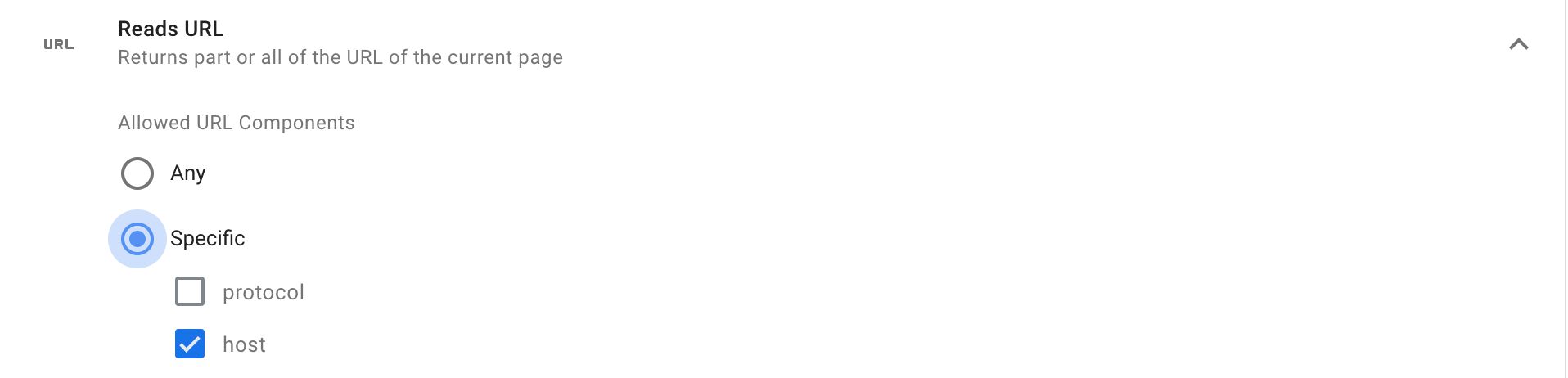 ](https://www.simoahava.com/images/2019/03/permissions-reads-url.jpg "Reads URL")
The Reads URL permission allows template code to access any or only
parts of the current page URL. You can restrict access to any
combination of the following URL components:
| Component | Example |
|-----------|----------------------------|
| protocol | `http`, `https`, or `file` |
| host | `blog.simoahava.com` |
| port | `443` |
| path | `/analytics/articles/` |
| extension | `html` |
| fragment | `about-us` |
| query | `gclid=1.2.3.4` |
After selecting **query**, You can specify which **query keys** the
`getUrl` API is allowed to access, or you can leave it to its default
setting which is any query keys.
> Name used with the [`queryPermission`](#the-querypermission-api) API
> and [policies](#policies-reference): [`get_url`](#get-url).
#### Injects Hidden Iframes
[
](https://www.simoahava.com/images/2019/03/permissions-reads-url.jpg "Reads URL")
The Reads URL permission allows template code to access any or only
parts of the current page URL. You can restrict access to any
combination of the following URL components:
| Component | Example |
|-----------|----------------------------|
| protocol | `http`, `https`, or `file` |
| host | `blog.simoahava.com` |
| port | `443` |
| path | `/analytics/articles/` |
| extension | `html` |
| fragment | `about-us` |
| query | `gclid=1.2.3.4` |
After selecting **query**, You can specify which **query keys** the
`getUrl` API is allowed to access, or you can leave it to its default
setting which is any query keys.
> Name used with the [`queryPermission`](#the-querypermission-api) API
> and [policies](#policies-reference): [`get_url`](#get-url).
#### Injects Hidden Iframes
[ ](https://www.simoahava.com/images/2019/03/permissions-injects-hidden-iframes.jpg "Injects Hidden Iframes")
You can list a number of URL patterns, each on its own row, that must
match those in the code editor used to inject hidden iframes on the
page. The `src` attribute of the iframe the editor wants to inject must
match one of these parameters.
The URL patterns must include `https://`, a valid hostname, and a valid
path. Hostnames can use asterisk to wildcard match any subdomains, and
paths can use asterisk to wildcard match any characters. Path ending
with a `/` is also a wildcard match for anything that follows.
For example, given these three patterns:
- `https://*.simoahava.com/tracker.html`
- `https://www.gtmtools.com/`
- `https://www.tracksimo.com/*tracker.html`
Any of these will be **valid** matches:
- `https://simoahava.com/tracker.html`
- `https://blog.tracker.simoahava.com/tracker.html`
- `https://www.gtmtools.com/track/`
- `https://www.gtmtools.com/tracking/this/`
- `https://www.tracksimo.com/tracker.html`
- `https://www.tracksimo.com/track/superdupertracker.html`
> Name used with the [`queryPermission`](#the-querypermission-api) API
> and [policies](#policies-reference):
> [`inject_hidden_iframe`](#inject_hidden_iframe).
#### Injects Scripts
[
](https://www.simoahava.com/images/2019/03/permissions-injects-hidden-iframes.jpg "Injects Hidden Iframes")
You can list a number of URL patterns, each on its own row, that must
match those in the code editor used to inject hidden iframes on the
page. The `src` attribute of the iframe the editor wants to inject must
match one of these parameters.
The URL patterns must include `https://`, a valid hostname, and a valid
path. Hostnames can use asterisk to wildcard match any subdomains, and
paths can use asterisk to wildcard match any characters. Path ending
with a `/` is also a wildcard match for anything that follows.
For example, given these three patterns:
- `https://*.simoahava.com/tracker.html`
- `https://www.gtmtools.com/`
- `https://www.tracksimo.com/*tracker.html`
Any of these will be **valid** matches:
- `https://simoahava.com/tracker.html`
- `https://blog.tracker.simoahava.com/tracker.html`
- `https://www.gtmtools.com/track/`
- `https://www.gtmtools.com/tracking/this/`
- `https://www.tracksimo.com/tracker.html`
- `https://www.tracksimo.com/track/superdupertracker.html`
> Name used with the [`queryPermission`](#the-querypermission-api) API
> and [policies](#policies-reference):
> [`inject_hidden_iframe`](#inject_hidden_iframe).
#### Injects Scripts
[ ](https://www.simoahava.com/images/2019/03/permissions-injects-scripts.jpg "Injects Scripts")
You can list a number of URL patterns, each on its own row, that must
match those in the code editor used to inject scripts on the page. The
`src` attribute of the script the editor wants to inject must match one
of these patterns.
The URL patterns must include `https://`, a valid hostname, and a valid
path. Hostnames can use asterisk to wildcard match any subdomains, and
paths can use asterisk to wildcard match any characters. Path that only
consists of a `/` is also a wildcard match for anything that follows.
For example, given these three patterns:
- `https://*.simoahava.com/tracker.js`
- `https://www.gtmtools.com/`
- `https://www.tracksimo.com/*tracker.js`
Any of these will be **valid** matches:
- `https://simoahava.com/tracker.js`
- `https://blog.tracker.simoahava.com/tracker.js`
- `https://www.gtmtools.com/tracking/gtmtracker.js`
- `https://www.tracksimo.com/tracker.js`
- `https://www.tracksimo.com/track/superdupertracker.js`
> Name used with the [`queryPermission`](#the-querypermission-api) API
> and [policies](#policies-reference):
> [`inject_script`](#inject_script).
#### Logs To Console
[
](https://www.simoahava.com/images/2019/03/permissions-injects-scripts.jpg "Injects Scripts")
You can list a number of URL patterns, each on its own row, that must
match those in the code editor used to inject scripts on the page. The
`src` attribute of the script the editor wants to inject must match one
of these patterns.
The URL patterns must include `https://`, a valid hostname, and a valid
path. Hostnames can use asterisk to wildcard match any subdomains, and
paths can use asterisk to wildcard match any characters. Path that only
consists of a `/` is also a wildcard match for anything that follows.
For example, given these three patterns:
- `https://*.simoahava.com/tracker.js`
- `https://www.gtmtools.com/`
- `https://www.tracksimo.com/*tracker.js`
Any of these will be **valid** matches:
- `https://simoahava.com/tracker.js`
- `https://blog.tracker.simoahava.com/tracker.js`
- `https://www.gtmtools.com/tracking/gtmtracker.js`
- `https://www.tracksimo.com/tracker.js`
- `https://www.tracksimo.com/track/superdupertracker.js`
> Name used with the [`queryPermission`](#the-querypermission-api) API
> and [policies](#policies-reference):
> [`inject_script`](#inject_script).
#### Logs To Console
[ ](https://www.simoahava.com/images/2019/03/permissions-logs-to-console.jpg "Logs to Console")
You can choose whether the `logToConsole` API can log into the browser
console only when in preview/debug mode, or whether it can log to
console whenever the tag fires, regardless of debug context.
> Name used with the [`queryPermission`](#the-querypermission-api) API
> and [policies](#policies-reference): [`logging`](#logging).
#### Reads Data Layer
[
](https://www.simoahava.com/images/2019/03/permissions-logs-to-console.jpg "Logs to Console")
You can choose whether the `logToConsole` API can log into the browser
console only when in preview/debug mode, or whether it can log to
console whenever the tag fires, regardless of debug context.
> Name used with the [`queryPermission`](#the-querypermission-api) API
> and [policies](#policies-reference): [`logging`](#logging).
#### Reads Data Layer
[ ](https://www.simoahava.com/images/2019/03/permissions-reads-data-layer.jpg "Reads Data Layer")
In the permission configuration, add the Data Layer keys the code has
access to, each on its own row.
You can use wildcards to allow the code access to any subproperties of
the key. For example, a permission like this:
- `ecommerce.*`
Will allow the code editor to read `ecommerce`,
`ecommerce.purchase.actionField.id`, `ecommerce.purchase.products`, and
any other key nested under `ecommerce`.
> Name used with the [`queryPermission`](#the-querypermission-api) API
> and [policies](#policies-reference):
> [`read_data_layer`](#read_data_layer).
#### Reads Document Character Set
[
](https://www.simoahava.com/images/2019/03/permissions-reads-data-layer.jpg "Reads Data Layer")
In the permission configuration, add the Data Layer keys the code has
access to, each on its own row.
You can use wildcards to allow the code access to any subproperties of
the key. For example, a permission like this:
- `ecommerce.*`
Will allow the code editor to read `ecommerce`,
`ecommerce.purchase.actionField.id`, `ecommerce.purchase.products`, and
any other key nested under `ecommerce`.
> Name used with the [`queryPermission`](#the-querypermission-api) API
> and [policies](#policies-reference):
> [`read_data_layer`](#read_data_layer).
#### Reads Document Character Set
[ ](https://www.simoahava.com/images/2019/03/permissions-reads-document-character-set.jpg "Reads Document Character Set")
An extremely simple permission for an extremely simple API. This
permission governs whether or not the code editor can use the
`readCharacterSet` API, which, in turn, returns the value of
`document.characterSet`.
There are no configuration options you can pass to the permission, so
it’s always permitted (unless a policy is used to block it).
> Name used with the [`queryPermission`](#the-querypermission-api) API
> and [policies](#policies-reference):
> [`read_character_set`](#read_character_set).
#### Reads Container Data
[
](https://www.simoahava.com/images/2019/03/permissions-reads-document-character-set.jpg "Reads Document Character Set")
An extremely simple permission for an extremely simple API. This
permission governs whether or not the code editor can use the
`readCharacterSet` API, which, in turn, returns the value of
`document.characterSet`.
There are no configuration options you can pass to the permission, so
it’s always permitted (unless a policy is used to block it).
> Name used with the [`queryPermission`](#the-querypermission-api) API
> and [policies](#policies-reference):
> [`read_character_set`](#read_character_set).
#### Reads Container Data
[ ](https://www.simoahava.com/images/2020/08/permissions-reads-container-data.jpg "Reads container data")
Very simple permission (nothing to configure), which is used when the
template code needs to use the `getContainerVersion` API.
> Name used with the [`queryPermission`](#the-querypermission-api) API
> and [policies](#policies-reference):
> [`read_container_data`](#read_container_data).
#### Reads Event Metadata
[
](https://www.simoahava.com/images/2020/08/permissions-reads-container-data.jpg "Reads container data")
Very simple permission (nothing to configure), which is used when the
template code needs to use the `getContainerVersion` API.
> Name used with the [`queryPermission`](#the-querypermission-api) API
> and [policies](#policies-reference):
> [`read_container_data`](#read_container_data).
#### Reads Event Metadata
[ ](https://www.simoahava.com/images/2019/07/reads-event-metadata.jpg "Reads Event Metadata")
This permission allows the code to use the `addEventCallback` API, which
updates the `eventCallback` of the `dataLayer.push()` that triggered the
tag created from this template. A data object of tags that fired for the
`dataLayer` event is passed as an argument to the callback.
Take a look at [this
article](https://www.simoahava.com/analytics/google-tag-manager-monitor/)
for more details on how this API works.
This permission doesn’t take any configuration options, so it’s always
permitted (unless a policy is used to block it).
> Name used with the [`queryPermission`](#the-querypermission-api) API
> and [policies](#policies-reference):
> [`read_event_metadata`](#read_event_metadata).
#### Reads Document Title
[
](https://www.simoahava.com/images/2019/07/reads-event-metadata.jpg "Reads Event Metadata")
This permission allows the code to use the `addEventCallback` API, which
updates the `eventCallback` of the `dataLayer.push()` that triggered the
tag created from this template. A data object of tags that fired for the
`dataLayer` event is passed as an argument to the callback.
Take a look at [this
article](https://www.simoahava.com/analytics/google-tag-manager-monitor/)
for more details on how this API works.
This permission doesn’t take any configuration options, so it’s always
permitted (unless a policy is used to block it).
> Name used with the [`queryPermission`](#the-querypermission-api) API
> and [policies](#policies-reference):
> [`read_event_metadata`](#read_event_metadata).
#### Reads Document Title
[ ](https://www.simoahava.com/images/2019/03/permissions-reads-document-title.jpg "Reads Document Title")
Another really simple permission for a really simple API. This
permission allows the code to use the `readTitle` API, which returns the
value of `document.title`.
This permission doesn’t take any configuration options, so it’s always
permitted (unless a policy is used to block it).
> Name used with the [`queryPermission`](#the-querypermission-api) API
> and [policies](#policies-reference): [`read_title`](#read_title).
#### Sends Pixels
[
](https://www.simoahava.com/images/2019/03/permissions-reads-document-title.jpg "Reads Document Title")
Another really simple permission for a really simple API. This
permission allows the code to use the `readTitle` API, which returns the
value of `document.title`.
This permission doesn’t take any configuration options, so it’s always
permitted (unless a policy is used to block it).
> Name used with the [`queryPermission`](#the-querypermission-api) API
> and [policies](#policies-reference): [`read_title`](#read_title).
#### Sends Pixels
[ ](https://www.simoahava.com/images/2019/03/permissions-sends-pixels.jpg "Sends Pixels")
You can provide a list of URL patterns (each on its own row), and when
using the the `sendPIxel` API, the URL the pixel is dispatched to must
match one of these patterns.
For example, given these three patterns:
- `https://*.simoahava.com/collect`
- `https://www.gtmtools.com/`
- `https://www.tracksimo.com/*/track`
Any of these will be **valid** matches:
- `https://simoahava.com/collect`
- `https://blog.tracker.simoahava.com/collect`
- `https://www.gtmtools.com/tracking/collect`
- `https://www.tracksimo.com/tracker/track`
- `https://www.tracksimo.com/collect/analytics/track`
> Name used with the [`queryPermission`](#the-querypermission-api) API
> and [policies](#policies-reference): [`send_pixel`](#send_pixel).
#### Sets A Cookie Value
[
](https://www.simoahava.com/images/2019/03/permissions-sends-pixels.jpg "Sends Pixels")
You can provide a list of URL patterns (each on its own row), and when
using the the `sendPIxel` API, the URL the pixel is dispatched to must
match one of these patterns.
For example, given these three patterns:
- `https://*.simoahava.com/collect`
- `https://www.gtmtools.com/`
- `https://www.tracksimo.com/*/track`
Any of these will be **valid** matches:
- `https://simoahava.com/collect`
- `https://blog.tracker.simoahava.com/collect`
- `https://www.gtmtools.com/tracking/collect`
- `https://www.tracksimo.com/tracker/track`
- `https://www.tracksimo.com/collect/analytics/track`
> Name used with the [`queryPermission`](#the-querypermission-api) API
> and [policies](#policies-reference): [`send_pixel`](#send_pixel).
#### Sets A Cookie Value
[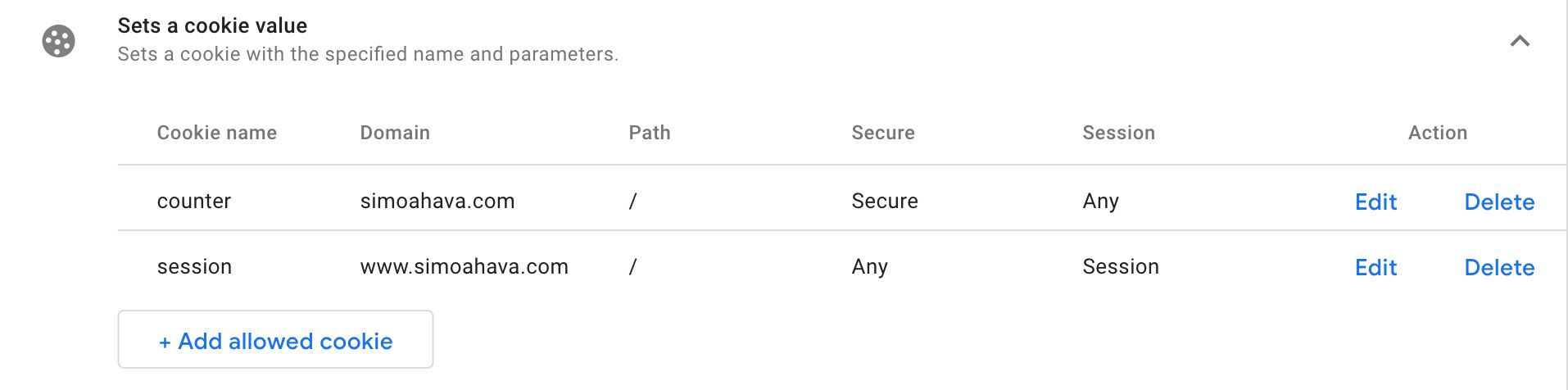 ](https://www.simoahava.com/images/2019/03/permissions-sets-a-cookie-value.jpg "Sets a Cookie Value")
This permission lets you configure which cookies the template code is
allowed to set. You can also configure the following parameters per
cookie:
- **Domain** - on which domain the cookie can be written on or `*` for
any.
- **Path** - on which path the cookie can be written on or `*` for any.
- **Secure** - whether the cookie must be set with the `secure` flag,
without the `secure` flag, or either.
- **Session** - whether the cookie must be a session cookie, a cookie
with an expiration, or either.
> Name used with the [`queryPermission`](#the-querypermission-api) API
> and [policies](#policies-reference): [`set_cookies`](#set_cookies).
### Tests
For more information on writing and running **tests** against your
template code, see [this chapter](#tests), and read [this
article](https://www.simoahava.com/analytics/writing-tests-for-custom-templates-google-tag-manager/).
### Template preview
The **Template Preview** window is where you can see what your template
user interface looks like in its current state, and you can also try
filling in the inputs before [testing](#testing-the-template) the
template.
[
](https://www.simoahava.com/images/2019/03/permissions-sets-a-cookie-value.jpg "Sets a Cookie Value")
This permission lets you configure which cookies the template code is
allowed to set. You can also configure the following parameters per
cookie:
- **Domain** - on which domain the cookie can be written on or `*` for
any.
- **Path** - on which path the cookie can be written on or `*` for any.
- **Secure** - whether the cookie must be set with the `secure` flag,
without the `secure` flag, or either.
- **Session** - whether the cookie must be a session cookie, a cookie
with an expiration, or either.
> Name used with the [`queryPermission`](#the-querypermission-api) API
> and [policies](#policies-reference): [`set_cookies`](#set_cookies).
### Tests
For more information on writing and running **tests** against your
template code, see [this chapter](#tests), and read [this
article](https://www.simoahava.com/analytics/writing-tests-for-custom-templates-google-tag-manager/).
### Template preview
The **Template Preview** window is where you can see what your template
user interface looks like in its current state, and you can also try
filling in the inputs before [testing](#testing-the-template) the
template.
[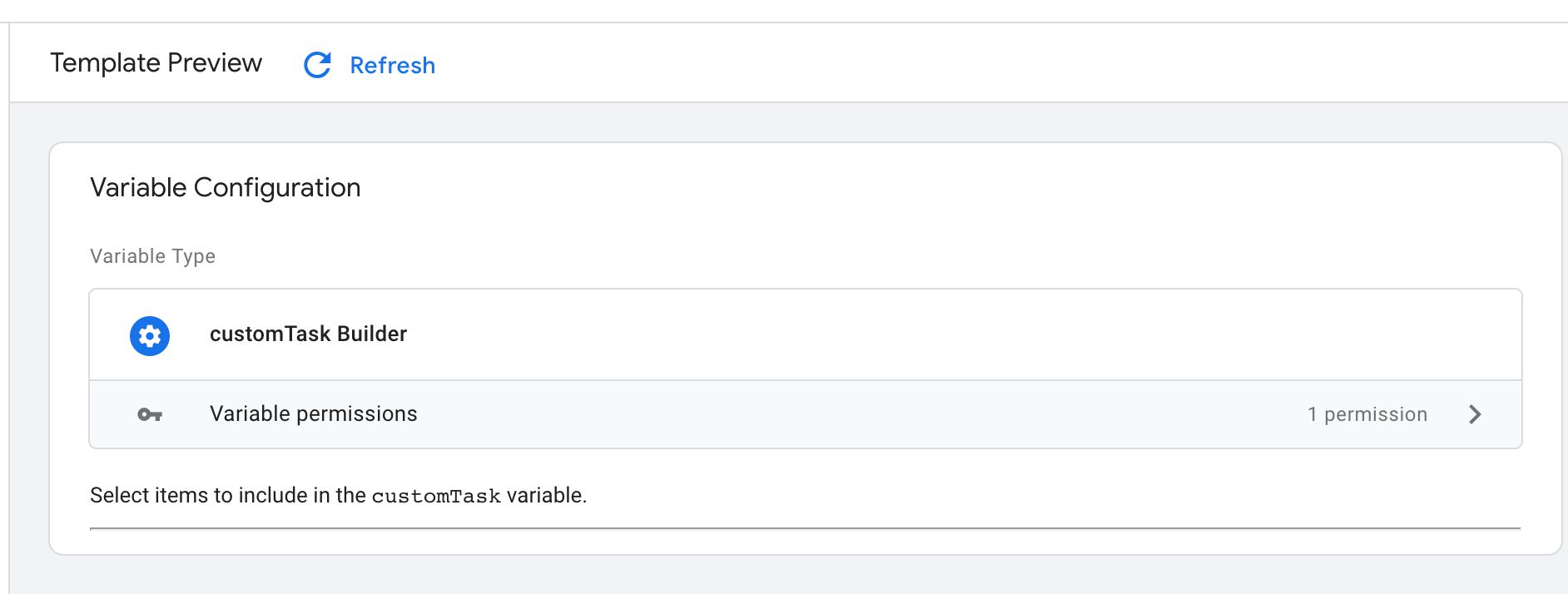 ](https://www.simoahava.com/images/2019/04/template-preview-editor.jpg "Template preview editor")
When you make changes to the template, whether in the **Info**,
**Fields**, **Code**, or **Permission** tabs, the **Refresh** icon
appears. By clicking this icon, the template preview is updated to
reflect the changes you have made to the template in the editor.
Other than that, the template preview should perform exactly as the real
thing. In the **summary view**, i.e. before you click it for editing,
the template will show you only those fields that are included in
summary. You can manually toggle this with the [Always in
summary](#always-in-summary) field configuration.
The template preview is the perfect place to try out your template user
interface before testing how the template actually runs, and finally
saving it into the template library of your container.
### Importing and exporting
**Importing and exporting** templates will almost certainly be one of
the most useful things you can do with templates. By exporting your
custom templates, you can create a store or library of Google Tag
Manager templates for others to use. By importing templates, you can add
custom templates created by others into your own template library.
**To export a template**, click open the editor menu and choose
**Export**.
[
](https://www.simoahava.com/images/2019/04/template-preview-editor.jpg "Template preview editor")
When you make changes to the template, whether in the **Info**,
**Fields**, **Code**, or **Permission** tabs, the **Refresh** icon
appears. By clicking this icon, the template preview is updated to
reflect the changes you have made to the template in the editor.
Other than that, the template preview should perform exactly as the real
thing. In the **summary view**, i.e. before you click it for editing,
the template will show you only those fields that are included in
summary. You can manually toggle this with the [Always in
summary](#always-in-summary) field configuration.
The template preview is the perfect place to try out your template user
interface before testing how the template actually runs, and finally
saving it into the template library of your container.
### Importing and exporting
**Importing and exporting** templates will almost certainly be one of
the most useful things you can do with templates. By exporting your
custom templates, you can create a store or library of Google Tag
Manager templates for others to use. By importing templates, you can add
custom templates created by others into your own template library.
**To export a template**, click open the editor menu and choose
**Export**.
[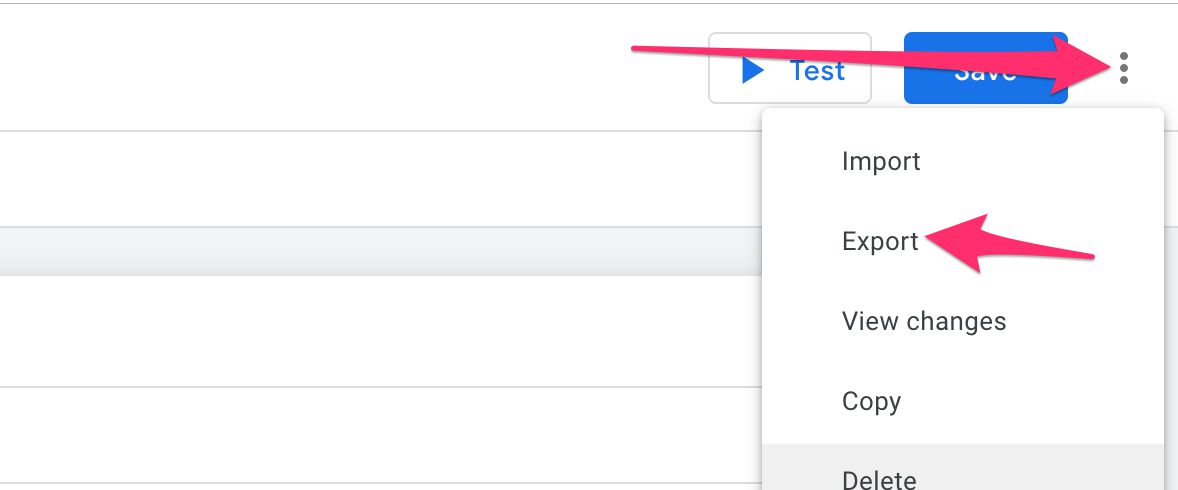 ](https://www.simoahava.com/images/2019/04/export-import-template.jpg "Export and import template")
Your browser should automatically download a file named
`.tpl`. The **TPL** suffix is a custom file format
for Google Tag Manager templates. If you open the file in a text editor,
you can see that it’s a combination of JSON objects and plain text.
[
](https://www.simoahava.com/images/2019/04/export-import-template.jpg "Export and import template")
Your browser should automatically download a file named
`.tpl`. The **TPL** suffix is a custom file format
for Google Tag Manager templates. If you open the file in a text editor,
you can see that it’s a combination of JSON objects and plain text.
[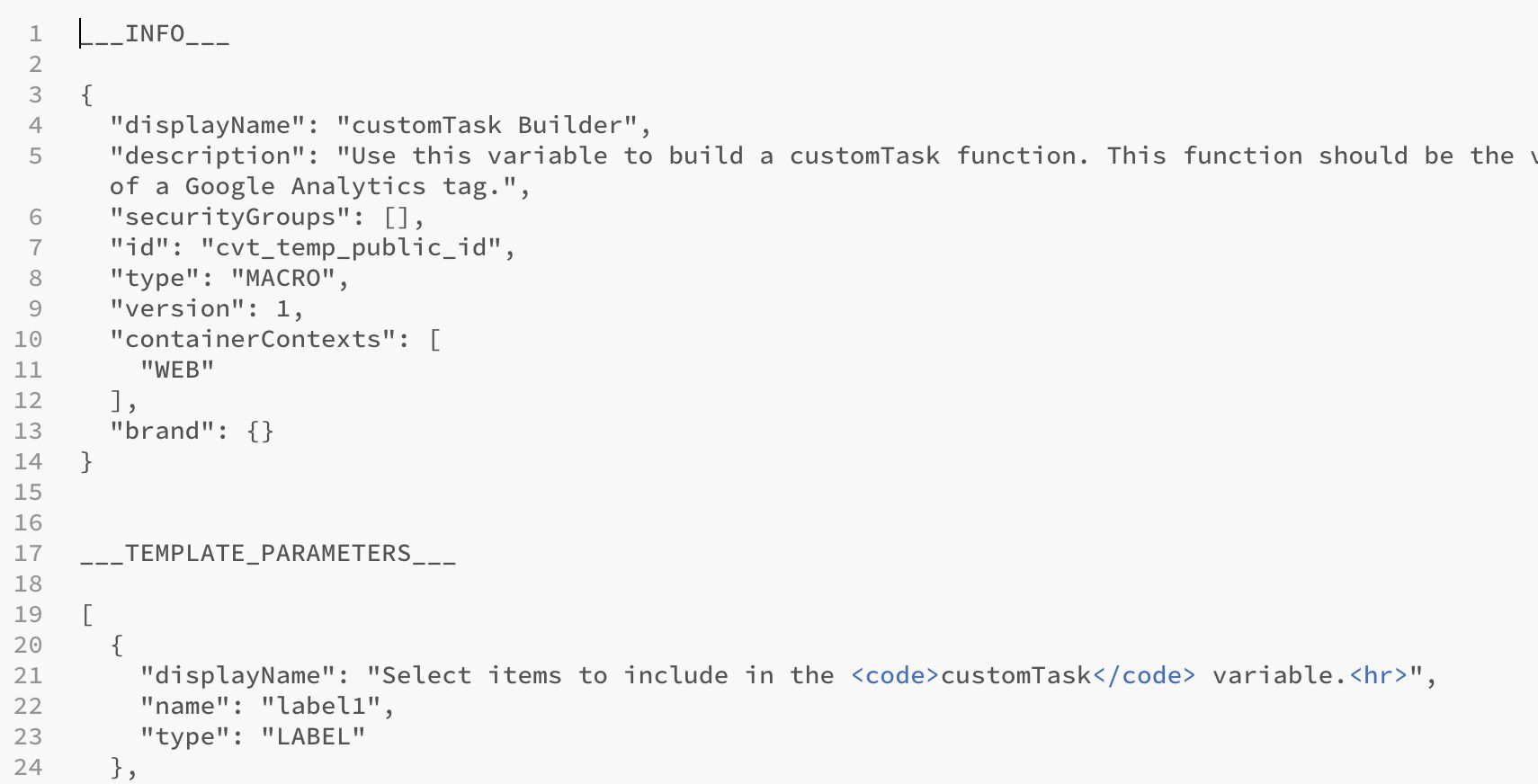 ](https://www.simoahava.com/images/2019/04/template-export-file.jpg "Template export file")
**To import a template**, click open the editor menu and choose
**Import**. When importing a template, it’s a good idea to first
**create a new template** which will host the imported item. Unless of
course you are deliberately updating an existing template with a newer
version of the import.
Once you’ve chosen the file, a pop-up will warn you that importing the
file will overwrite the template currently being edited.
Why is this significant? Well, an **import completely overwrites the
template to which it is imported**. So if you expect some sort of
“merging” being an option, well, at the time of writing there’s no such
feature.
### Advanced settings
When you select **Show Advanced Settings** from the editor menu, a
number of changes takes place in the UI.
[
](https://www.simoahava.com/images/2019/04/template-export-file.jpg "Template export file")
**To import a template**, click open the editor menu and choose
**Import**. When importing a template, it’s a good idea to first
**create a new template** which will host the imported item. Unless of
course you are deliberately updating an existing template with a newer
version of the import.
Once you’ve chosen the file, a pop-up will warn you that importing the
file will overwrite the template currently being edited.
Why is this significant? Well, an **import completely overwrites the
template to which it is imported**. So if you expect some sort of
“merging” being an option, well, at the time of writing there’s no such
feature.
### Advanced settings
When you select **Show Advanced Settings** from the editor menu, a
number of changes takes place in the UI.
[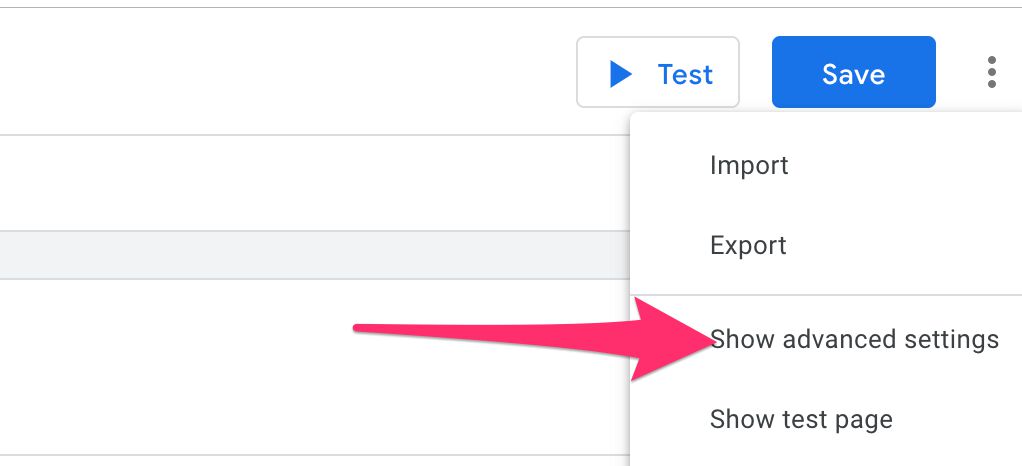 ](https://www.simoahava.com/images/2019/04/show-advanced-settings-editor.jpg "Show advanced settings")
1. A **Notes** option becomes visible in the editor navigation. You can
write anything you want into this text area, such as developer
documentation, instructions for use, etc. The **Notes** field
contents are included with the template export/import.
[
](https://www.simoahava.com/images/2019/04/show-advanced-settings-editor.jpg "Show advanced settings")
1. A **Notes** option becomes visible in the editor navigation. You can
write anything you want into this text area, such as developer
documentation, instructions for use, etc. The **Notes** field
contents are included with the template export/import.
[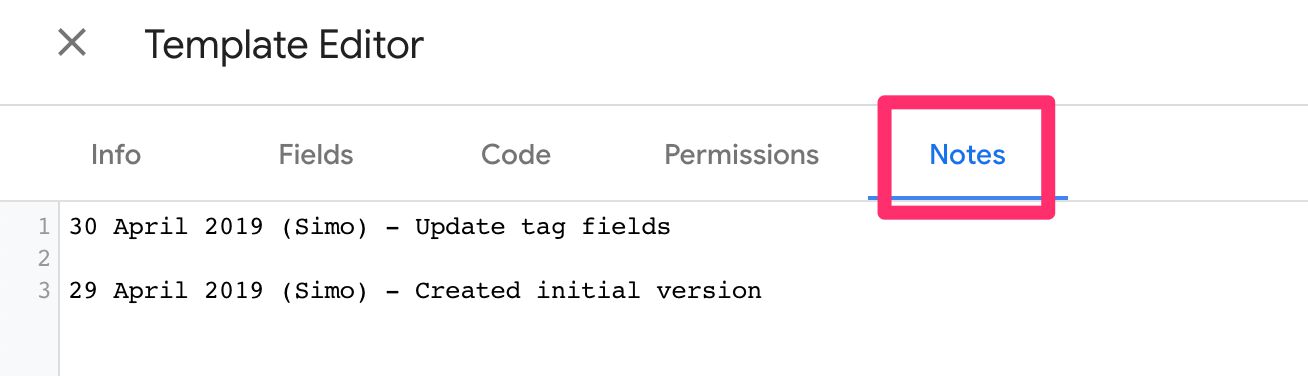 ](https://www.simoahava.com/images/2019/04/editor-notes.jpg "Editor Notes")
2. The **Info** tab will now show the **Version** (of the templating
system itself) and the **Container Context** (whether the template
is for web containers or for app containers). You can’t change
either of these values - they are set when you start creating the
template. The **Info** tab will also show the **Brand Name** field.
[
](https://www.simoahava.com/images/2019/04/editor-notes.jpg "Editor Notes")
2. The **Info** tab will now show the **Version** (of the templating
system itself) and the **Container Context** (whether the template
is for web containers or for app containers). You can’t change
either of these values - they are set when you start creating the
template. The **Info** tab will also show the **Brand Name** field.
[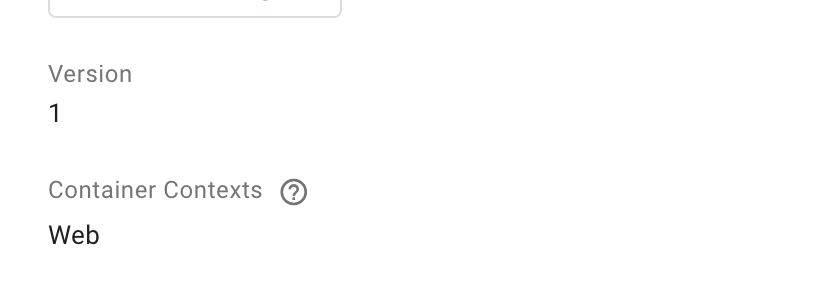 ](https://www.simoahava.com/images/2019/04/version-context-info.jpg "Version and context info")
3. In the **Info** and **Fields** tabs, you can directly edit the JSON
source. Note that even though this lets you edit anything you want
in the source, trying to change things that can’t be changed (such
as **Version** and **Container Context** from above) will result in
the template issuing a warning when you try to refresh it in the
preview or save it.
[
](https://www.simoahava.com/images/2019/04/version-context-info.jpg "Version and context info")
3. In the **Info** and **Fields** tabs, you can directly edit the JSON
source. Note that even though this lets you edit anything you want
in the source, trying to change things that can’t be changed (such
as **Version** and **Container Context** from above) will result in
the template issuing a warning when you try to refresh it in the
preview or save it.
[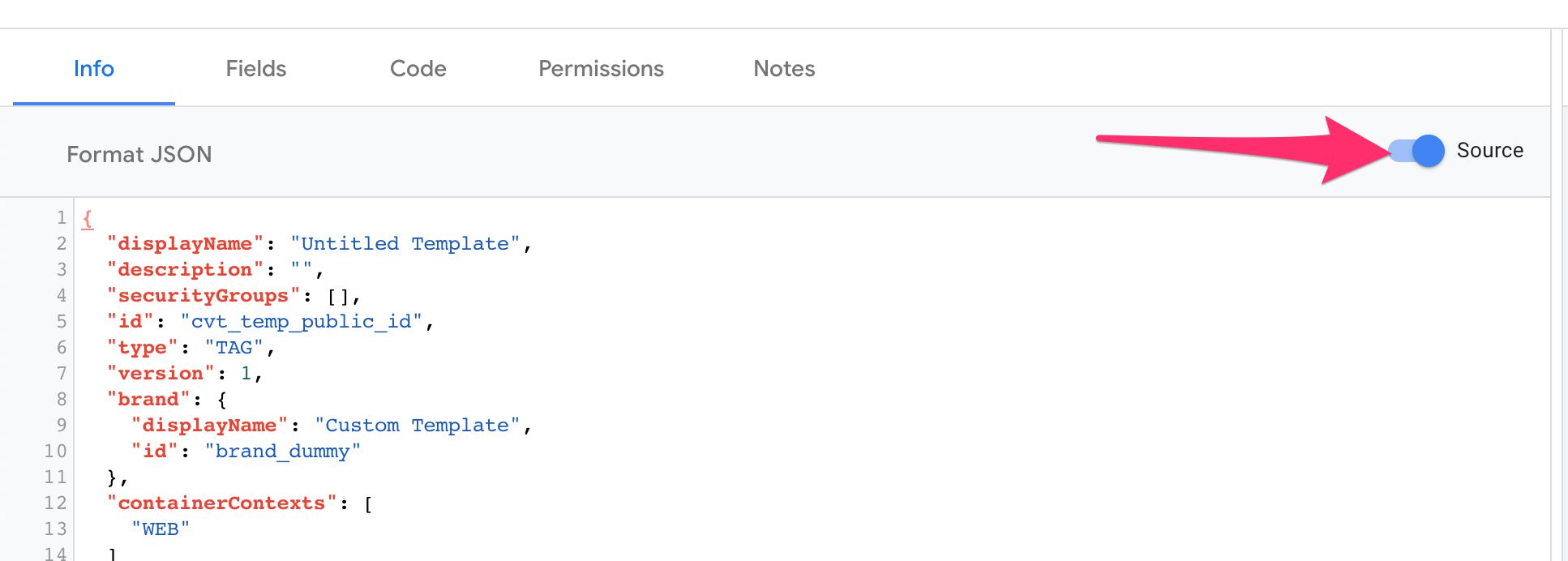 ](https://www.simoahava.com/images/2019/04/source-toggle.jpg "Source toggler")
### Running the template code
Whenever you want to test how the template actually **runs**, you can
click the **Run code** button in the Template Preview window. This
executes the tag/variable template code itself, outputting any debug
messages into the console.
[
](https://www.simoahava.com/images/2019/04/source-toggle.jpg "Source toggler")
### Running the template code
Whenever you want to test how the template actually **runs**, you can
click the **Run code** button in the Template Preview window. This
executes the tag/variable template code itself, outputting any debug
messages into the console.
[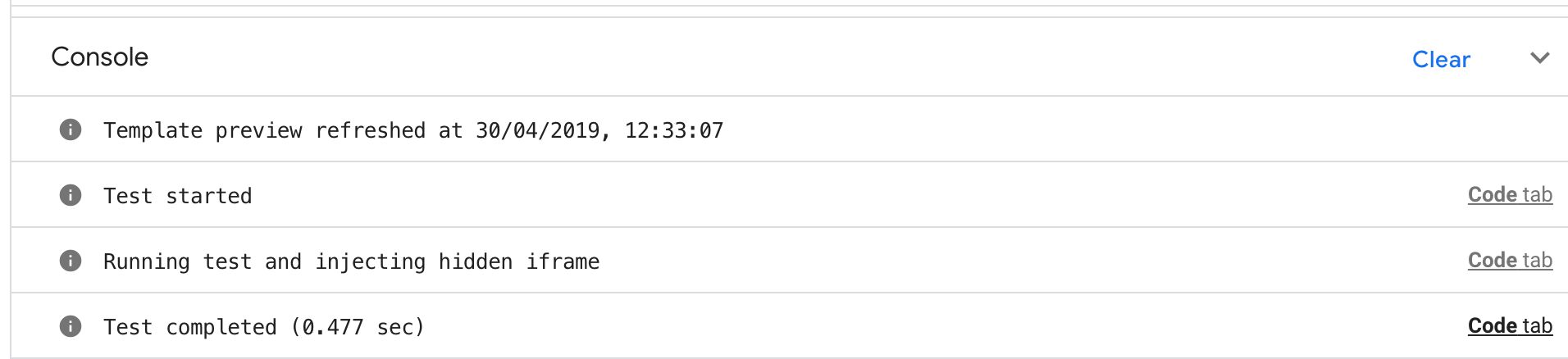 ](https://www.simoahava.com/images/2019/04/test-example.jpg "Test example")
For **tag templates**, the console will tell you when the preview was
last refreshed. It will also output any test logs, such as test start
and completion (with elapsed time), as well as any errors.
If you don’t change anything in the [code editor](#code-editor), the
default code snippet will output the contents of the `data` object into
the console.
Generally, the console will display any strings you write into the
console using the
[`logToConsole`](https://developers.google.com/tag-manager/templates/api#logtoconsole)
API.
[
](https://www.simoahava.com/images/2019/04/test-example.jpg "Test example")
For **tag templates**, the console will tell you when the preview was
last refreshed. It will also output any test logs, such as test start
and completion (with elapsed time), as well as any errors.
If you don’t change anything in the [code editor](#code-editor), the
default code snippet will output the contents of the `data` object into
the console.
Generally, the console will display any strings you write into the
console using the
[`logToConsole`](https://developers.google.com/tag-manager/templates/api#logtoconsole)
API.
[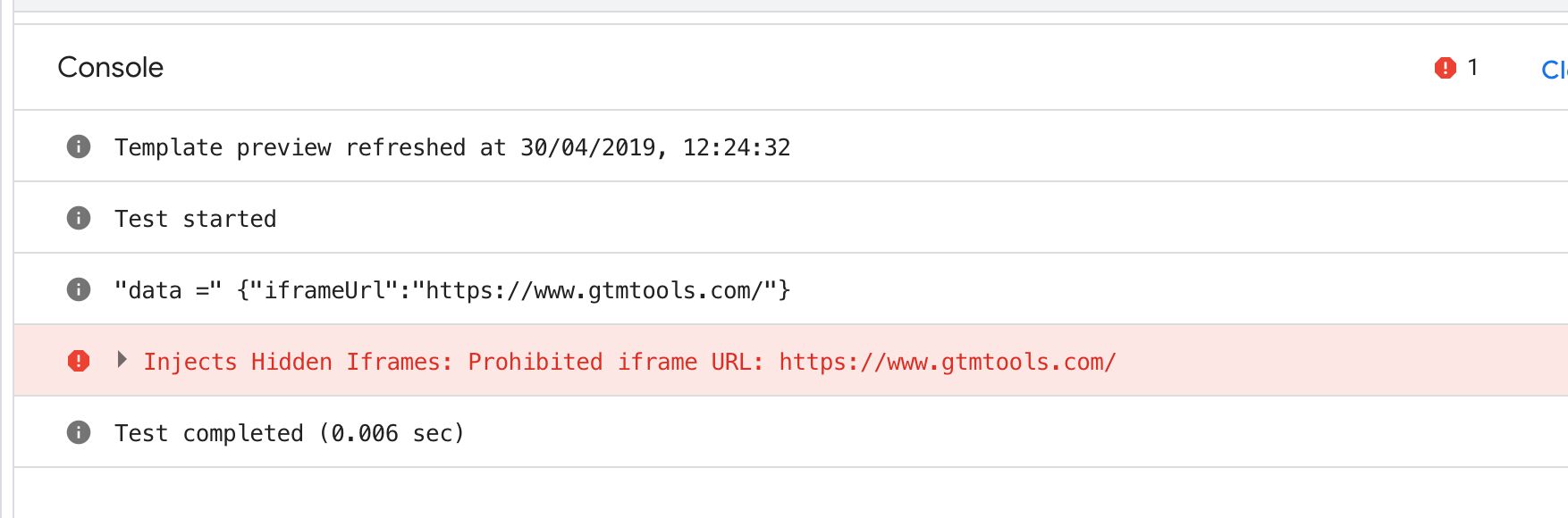 ](https://www.simoahava.com/images/2019/04/error-in-console.jpg "Error in console")
Furthermore, when you choose to **Show test page** in the editor menu, a
content area will pop up which you can **inspect** to find any changes
the tag code has made to the page on which the tag runs. This is useful
if you want to check if and how your hidden iframe was added to the
page, for example.
[
](https://www.simoahava.com/images/2019/04/error-in-console.jpg "Error in console")
Furthermore, when you choose to **Show test page** in the editor menu, a
content area will pop up which you can **inspect** to find any changes
the tag code has made to the page on which the tag runs. This is useful
if you want to check if and how your hidden iframe was added to the
page, for example.
[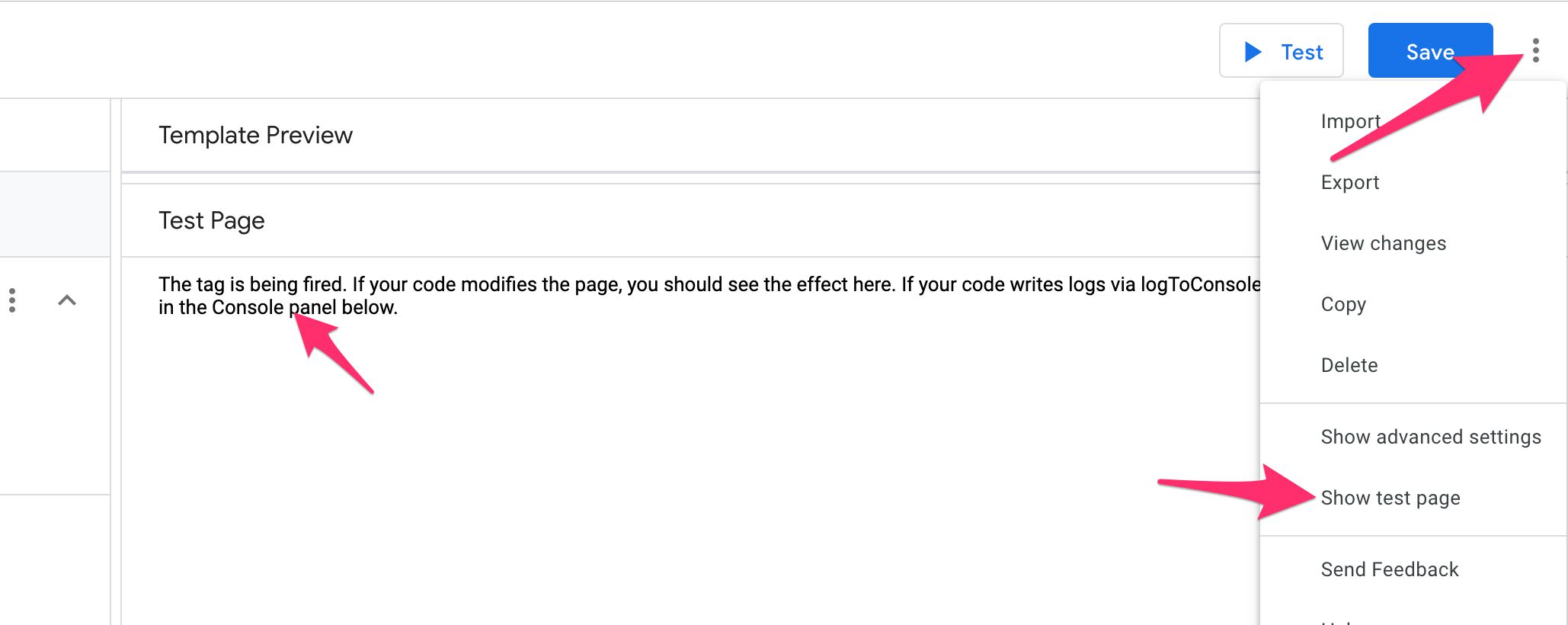 ](https://www.simoahava.com/images/2019/04/show-test-page.jpg "Show test page")
To find your modifications to the test page, right-click it in your
browser and choose **Inspect** (this may vary by browser). Start
drilling down the DOM until you find an iframe with GTM’s sandbox HTML
file. The `` of that iframe should contain any modifications your
tag did to the page.
[
](https://www.simoahava.com/images/2019/04/show-test-page.jpg "Show test page")
To find your modifications to the test page, right-click it in your
browser and choose **Inspect** (this may vary by browser). Start
drilling down the DOM until you find an iframe with GTM’s sandbox HTML
file. The `` of that iframe should contain any modifications your
tag did to the page.
[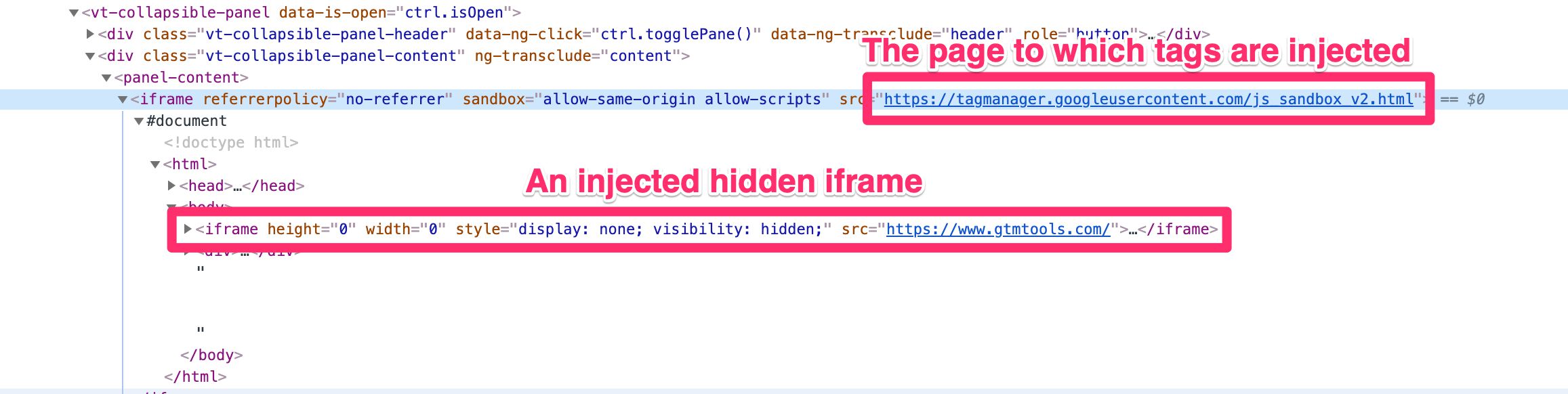 ](https://www.simoahava.com/images/2019/04/test-page-inspect.jpg "Inspect test page")
**Variable templates** differ in that they don’t modify the underlying
page (or, they SHOULDN’T modify the underlying page). Instead, when you
**test** the template, the console outputs what the variable will
return.
[
](https://www.simoahava.com/images/2019/04/test-page-inspect.jpg "Inspect test page")
**Variable templates** differ in that they don’t modify the underlying
page (or, they SHOULDN’T modify the underlying page). Instead, when you
**test** the template, the console outputs what the variable will
return.
[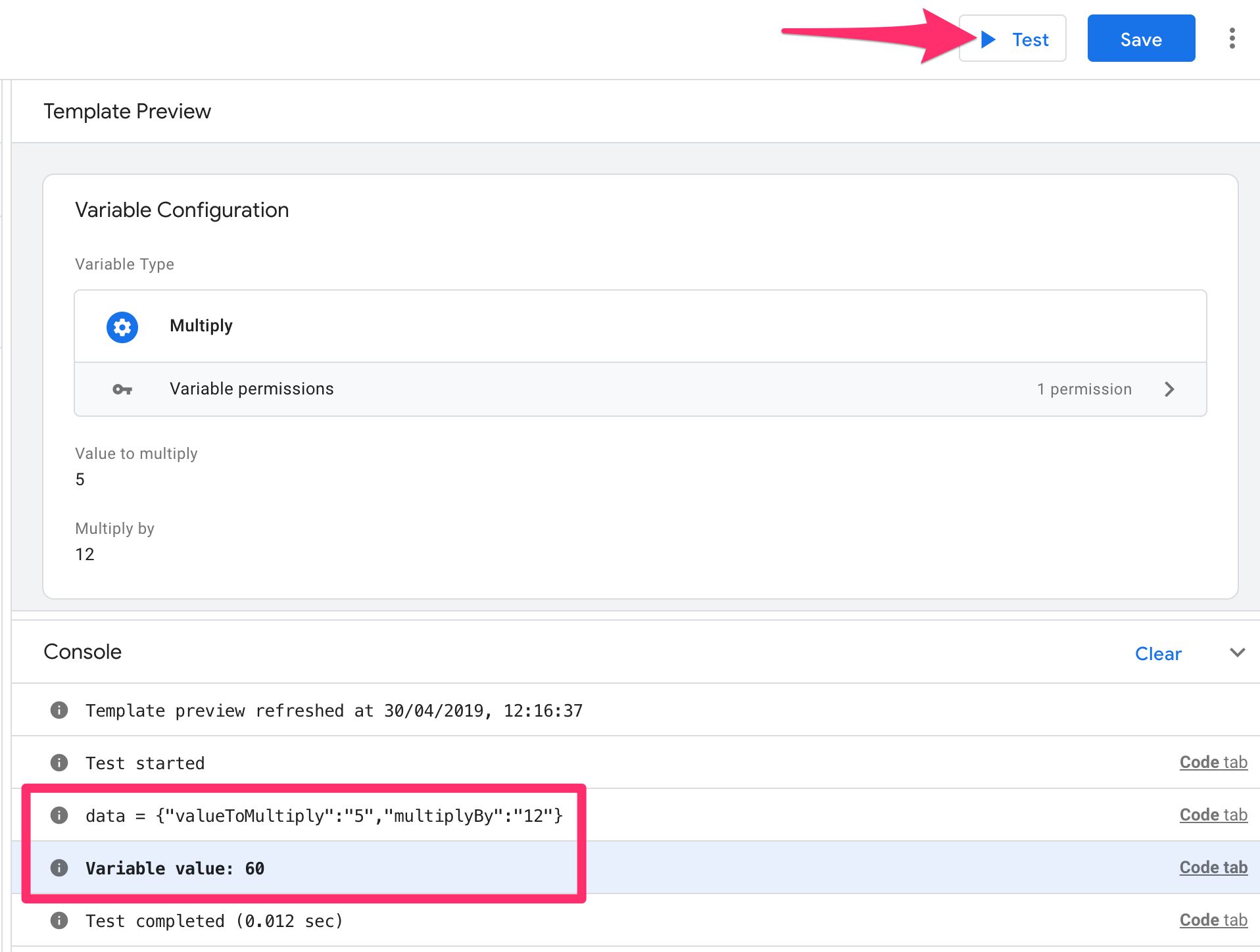 ](https://www.simoahava.com/images/2019/04/test-template-variable.jpg "Test variable template")
## Templates in GTM’s Preview mode
In **Preview** mode, tag and variable templates work just like their
built-in template counterparts.
For **tags**, you’ll see the tag **name** and **properties**.
Two default properties are always included:
1. **Type** - which is the template name, basically.
2. **Firing Status** - which will show “Succeeded” if
`data.gtmOnSuccess()` was reached in the tag code, “Failure” if
`data.gtmOnFailure()` was reached in the tag code, and
`Still running` if neither was reached or if the tag is, actually,
still running (due to e.g. the endpoint timing out).
The rest of the properties mirror the fields and [field
configurations](#field-configuration-reference) you have generated. In
the example below, a [text input](#text-input) field named **Iframe
URL** has been populated with the value `https://www.gtmtools.com/`, and
a [param table](#param-table) field named **Iframe parameters** has been
populated with the values you see.
[
](https://www.simoahava.com/images/2019/04/test-template-variable.jpg "Test variable template")
## Templates in GTM’s Preview mode
In **Preview** mode, tag and variable templates work just like their
built-in template counterparts.
For **tags**, you’ll see the tag **name** and **properties**.
Two default properties are always included:
1. **Type** - which is the template name, basically.
2. **Firing Status** - which will show “Succeeded” if
`data.gtmOnSuccess()` was reached in the tag code, “Failure” if
`data.gtmOnFailure()` was reached in the tag code, and
`Still running` if neither was reached or if the tag is, actually,
still running (due to e.g. the endpoint timing out).
The rest of the properties mirror the fields and [field
configurations](#field-configuration-reference) you have generated. In
the example below, a [text input](#text-input) field named **Iframe
URL** has been populated with the value `https://www.gtmtools.com/`, and
a [param table](#param-table) field named **Iframe parameters** has been
populated with the values you see.
[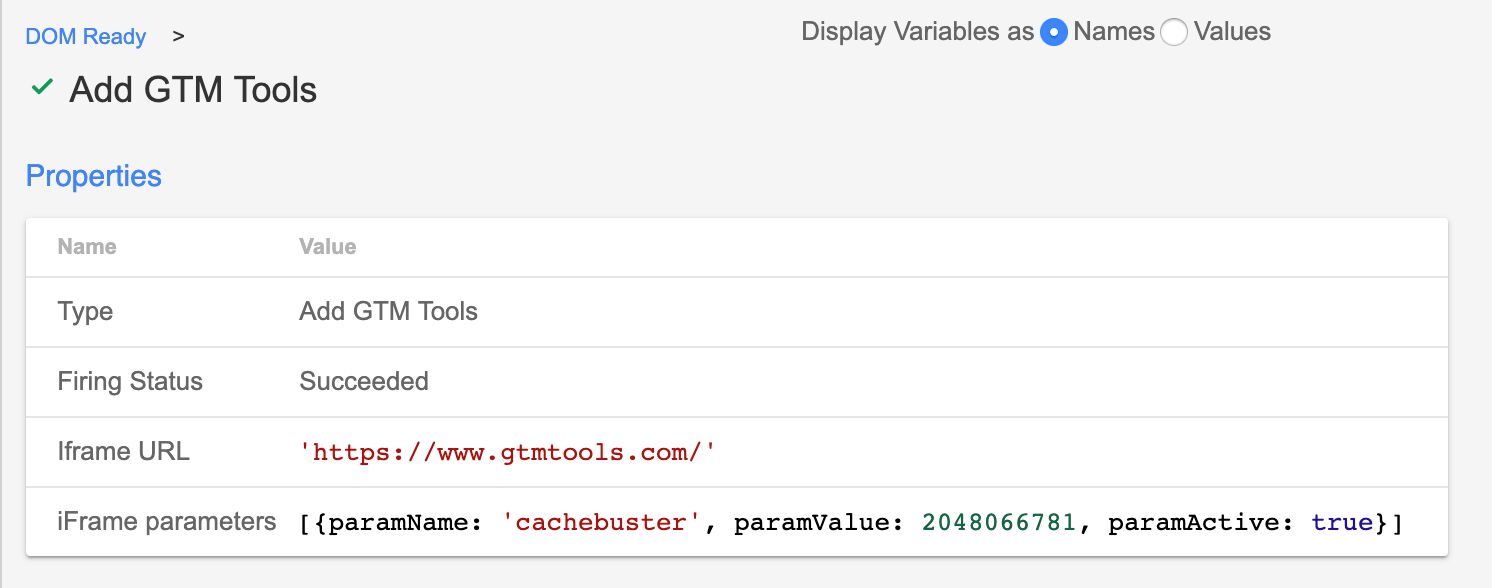 ](https://www.simoahava.com/images/2019/04/tag-template-parameters.jpg "Tag template parameters")
For **variables**, the output can be found in the **Variables** tab of
Preview mode, and you can see the return value of each custom variable
in exactly the same way you can see the return values for all predefined
variable templates.
The variable template **type** will be the name of the custom template
(“Multiply” in the example below).
[
](https://www.simoahava.com/images/2019/04/tag-template-parameters.jpg "Tag template parameters")
For **variables**, the output can be found in the **Variables** tab of
Preview mode, and you can see the return value of each custom variable
in exactly the same way you can see the return values for all predefined
variable templates.
The variable template **type** will be the name of the custom template
(“Multiply” in the example below).
[ ](https://www.simoahava.com/images/2019/04/variable-template-example.jpg "Variable template example")
The **Errors** tab will surface any errors thrown by
[policies](#policies-reference) or if the template failed a
[permission](#permissions) check.
[](https://www.simoahava.com/images/2019/01/tag-errors.jpg "Tag errors")
## Field configuration reference
This chapter lists all the **Field configuration** options you can
configure for individual fields. Remember to check out the [Fields
editor](#fields-editor) chapter for a detailed description of the fields
and the configurations available to them.
[
](https://www.simoahava.com/images/2019/04/variable-template-example.jpg "Variable template example")
The **Errors** tab will surface any errors thrown by
[policies](#policies-reference) or if the template failed a
[permission](#permissions) check.
[](https://www.simoahava.com/images/2019/01/tag-errors.jpg "Tag errors")
## Field configuration reference
This chapter lists all the **Field configuration** options you can
configure for individual fields. Remember to check out the [Fields
editor](#fields-editor) chapter for a detailed description of the fields
and the configurations available to them.
[ ](https://www.simoahava.com/images/2019/02/field-configuration.jpg "Field configuration")
### “Edit row” dialog title
[
](https://www.simoahava.com/images/2019/02/field-configuration.jpg "Field configuration")
### “Edit row” dialog title
[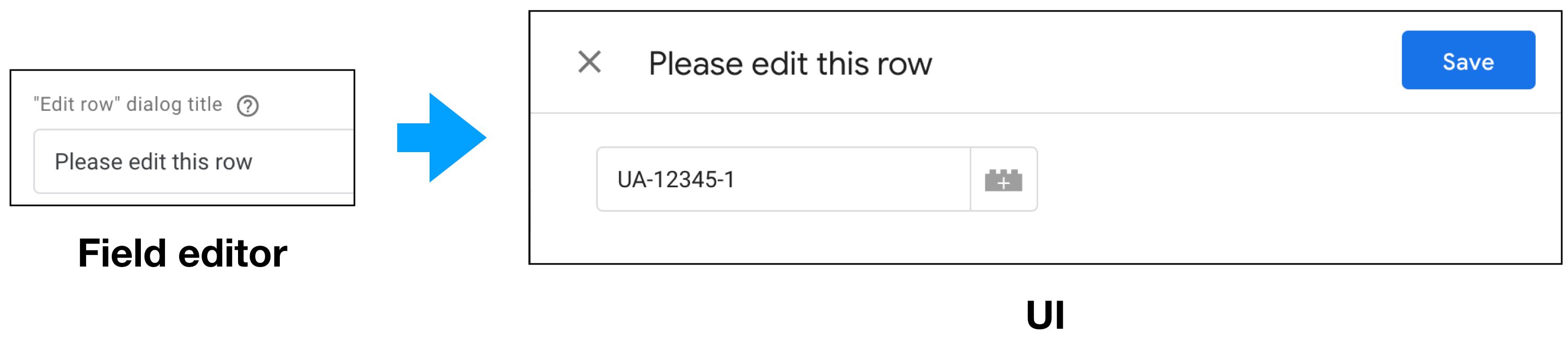 ](https://www.simoahava.com/images/2019/02/reference-edit-row.jpg "Edit row dialog title")
**Description**: The **“Edit row” dialog title** is available in fields
where the user adds rows to a table and can edit those rows in an
overlay. Defaults to “Edit row”.
**How it works**: The text you write into the configuration field will
appear as the title of the overlay which pops out when the user
**edits** a row they have already added to the table.
**Used in**: [Param table](#param-table).
### “New row” button text
[
](https://www.simoahava.com/images/2019/02/reference-edit-row.jpg "Edit row dialog title")
**Description**: The **“Edit row” dialog title** is available in fields
where the user adds rows to a table and can edit those rows in an
overlay. Defaults to “Edit row”.
**How it works**: The text you write into the configuration field will
appear as the title of the overlay which pops out when the user
**edits** a row they have already added to the table.
**Used in**: [Param table](#param-table).
### “New row” button text
[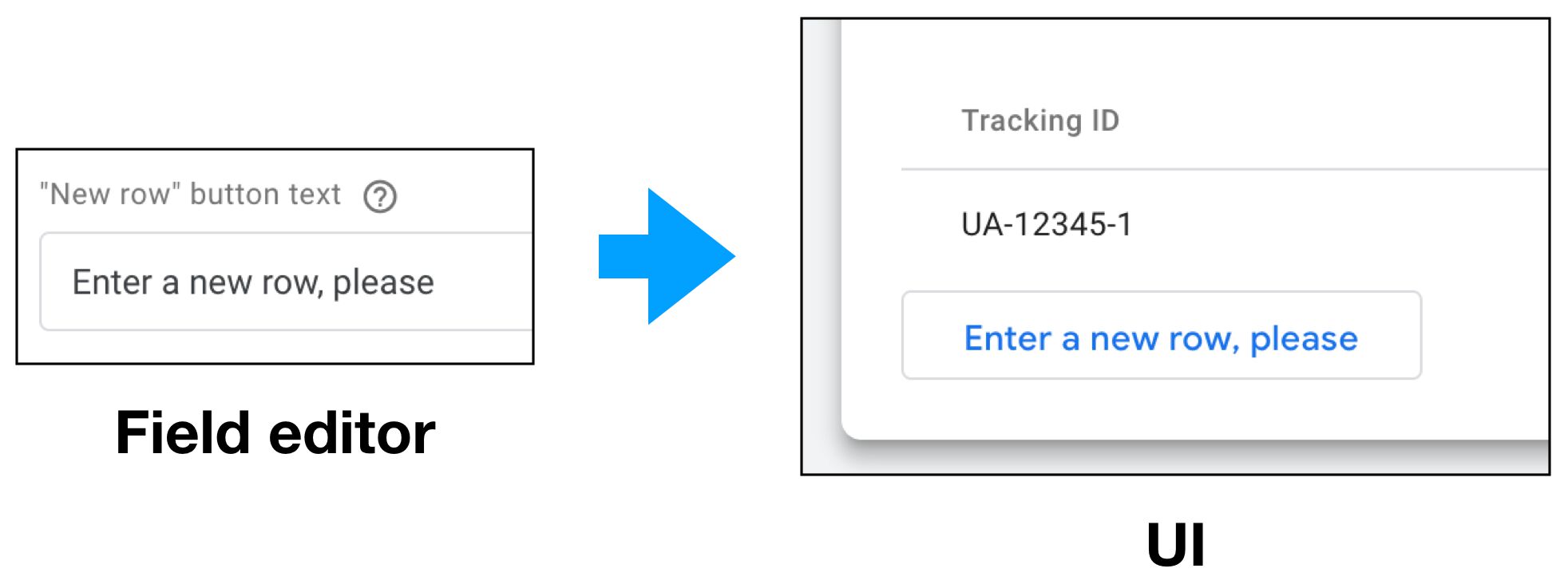 ](https://www.simoahava.com/images/2019/02/reference-new-row.jpg "New row button text")
**Description**: The **“New row” button text** determines the button
text with which the user can add a new row to a table field.
**How it works**: The text you type into the configuration field will be
the text of the button below the table, which the user can use to add
new rows to the table. Defaults to “Add row”.
**Used in**: [Param table](#param-table), [Simple table](#simple-table).
### “New row” dialog title
[
](https://www.simoahava.com/images/2019/02/reference-new-row.jpg "New row button text")
**Description**: The **“New row” button text** determines the button
text with which the user can add a new row to a table field.
**How it works**: The text you type into the configuration field will be
the text of the button below the table, which the user can use to add
new rows to the table. Defaults to “Add row”.
**Used in**: [Param table](#param-table), [Simple table](#simple-table).
### “New row” dialog title
[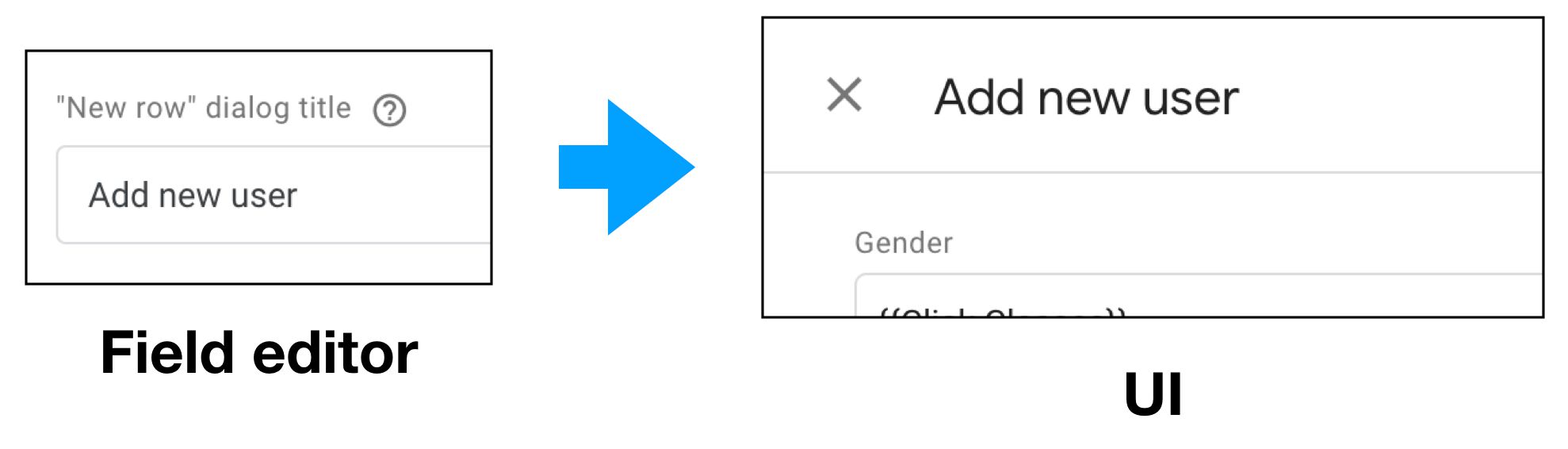 ](https://www.simoahava.com/images/2019/02/reference-new-row-dialog.jpg "New row dialog title")
**Description**: The **“New row” dialog title** determines the text you
see as the heading of the overlay that pops out when you choose to add a
new row into a table. Defaults to “New row”.
**How it works**: Type the new title into the configuration field, and
it will show as the heading of the overlay the user sees when adding a
new row to a table that uses overlays for data input.
**Used in**: [Param table](#param-table).
### “Not set” option
[
](https://www.simoahava.com/images/2019/02/reference-new-row-dialog.jpg "New row dialog title")
**Description**: The **“New row” dialog title** determines the text you
see as the heading of the overlay that pops out when you choose to add a
new row into a table. Defaults to “New row”.
**How it works**: Type the new title into the configuration field, and
it will show as the heading of the overlay the user sees when adding a
new row to a table that uses overlays for data input.
**Used in**: [Param table](#param-table).
### “Not set” option
[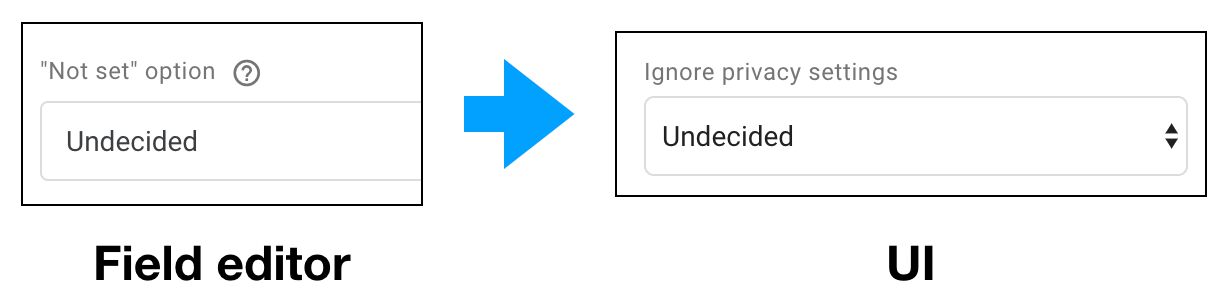 ](https://www.simoahava.com/images/2019/02/reference-not-set-option.jpg "not set option")
**Description**: Before the user chooses an item in the drop-down list,
you can use the **“Not set” option** to show a placeholder value.
**How it works**: The **“Not set” option** is a selectable option in the
drop-down list, which also shows up if the user hasn’t made any
selection yet. If the user leaves the “Not set” option as the selected
item, the value of the field in the code editor will be a **blank
string**.
**Used in**: [Drop-down menu](#drop-down-menu).
### Allow empty strings
**Description**: The **Allow empty strings** checkbox lets you determine
whether or not an empty text input field shows up as an empty string
when accessing the field value in the `data` object.
**How it works**: If the checkbox is checked, the text input field value
in the code editor will be an empty string. If unchecked or if the
configuration hasn’t been added to the field, the value will be
`undefined` for empty text fields.
**Used in**: [Text input](#text-input)
### Always in summary
[
](https://www.simoahava.com/images/2019/02/reference-not-set-option.jpg "not set option")
**Description**: Before the user chooses an item in the drop-down list,
you can use the **“Not set” option** to show a placeholder value.
**How it works**: The **“Not set” option** is a selectable option in the
drop-down list, which also shows up if the user hasn’t made any
selection yet. If the user leaves the “Not set” option as the selected
item, the value of the field in the code editor will be a **blank
string**.
**Used in**: [Drop-down menu](#drop-down-menu).
### Allow empty strings
**Description**: The **Allow empty strings** checkbox lets you determine
whether or not an empty text input field shows up as an empty string
when accessing the field value in the `data` object.
**How it works**: If the checkbox is checked, the text input field value
in the code editor will be an empty string. If unchecked or if the
configuration hasn’t been added to the field, the value will be
`undefined` for empty text fields.
**Used in**: [Text input](#text-input)
### Always in summary
[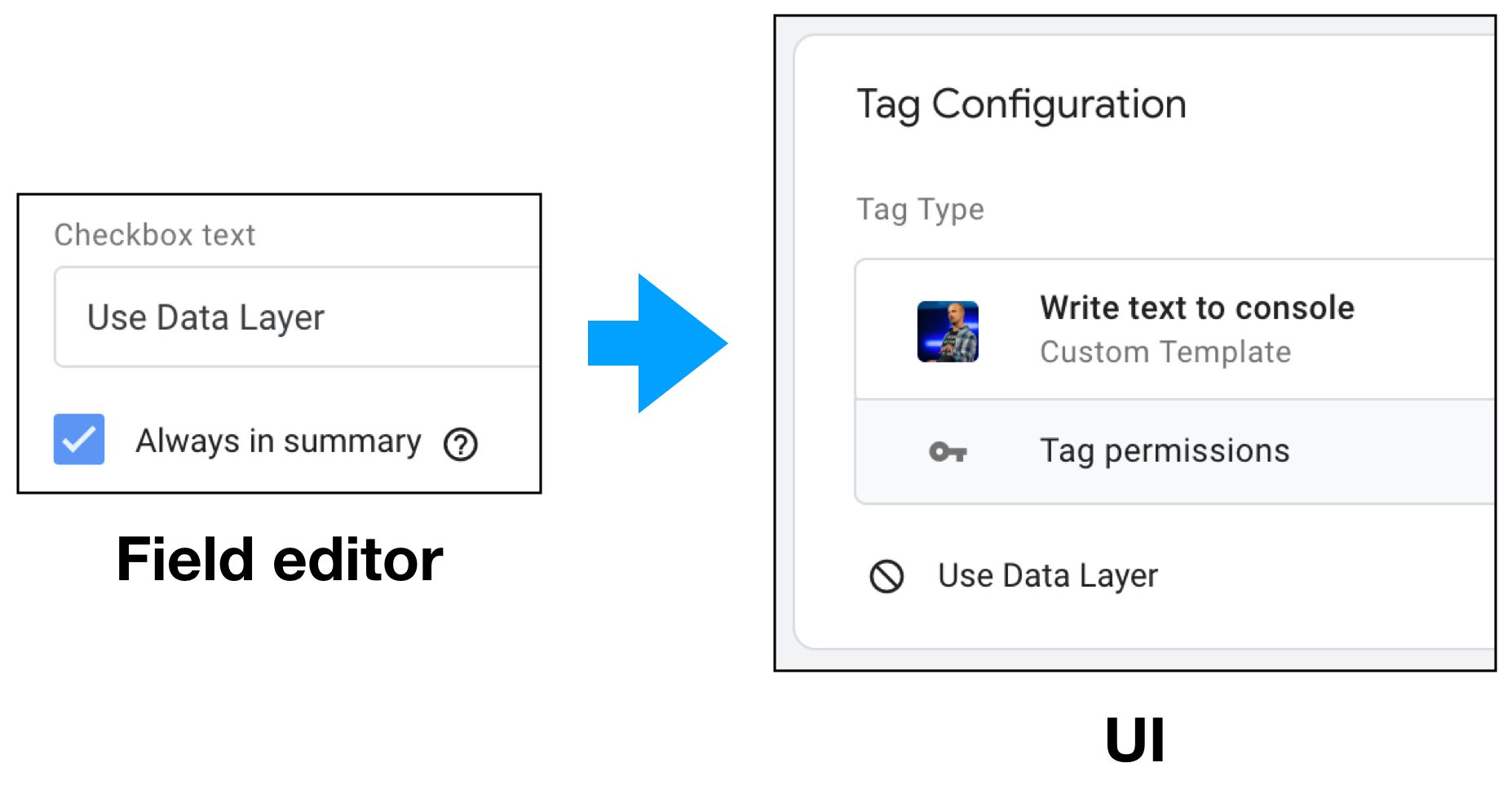 ](https://www.simoahava.com/images/2019/02/reference-always-in-summary.jpg "Always in summary")
**Description**: The **Always in summary** configuration determines
whether the field name and current value will show up in the summary
view of the item.
**How it works**: When the checkbox is toggled, the user will see the
name (if [Display name](#display-name) is configured) and current value
of the field in the summary view if the item. The summary is view what
you see when the tag or variable is not in edit mode.
**Used in**: [Text input](#text-input), [Drop-down
menu](#drop-down-menu), [Checkbox](#checkbox), [Simple
table](#simple-table), [Param table](#param-table).
### Clear on copy
**Description**: With **Clear on copy**, you can toggle whether or not
the field will retain or clear its value if a copy is made of the tag or
variable.
**How it works**: If **Clear on copy** is checked, then when the user
makes a copy of an item created with this template, the field will have
its value cleared (returned to its initial state) in the copy. If
**Clear on copy** is unchecked or missing, the value of the field from
the original item will be preserved in the copy.
**Used in**: [Text input](#text-input), [Drop-down
menu](#drop-down-menu), [Checkbox](#checkbox), [Radio
buttons](#radio-buttons), [Simple table](#simple-table), [Param
table](#param-table).
### Default value
[
](https://www.simoahava.com/images/2019/02/reference-always-in-summary.jpg "Always in summary")
**Description**: The **Always in summary** configuration determines
whether the field name and current value will show up in the summary
view of the item.
**How it works**: When the checkbox is toggled, the user will see the
name (if [Display name](#display-name) is configured) and current value
of the field in the summary view if the item. The summary is view what
you see when the tag or variable is not in edit mode.
**Used in**: [Text input](#text-input), [Drop-down
menu](#drop-down-menu), [Checkbox](#checkbox), [Simple
table](#simple-table), [Param table](#param-table).
### Clear on copy
**Description**: With **Clear on copy**, you can toggle whether or not
the field will retain or clear its value if a copy is made of the tag or
variable.
**How it works**: If **Clear on copy** is checked, then when the user
makes a copy of an item created with this template, the field will have
its value cleared (returned to its initial state) in the copy. If
**Clear on copy** is unchecked or missing, the value of the field from
the original item will be preserved in the copy.
**Used in**: [Text input](#text-input), [Drop-down
menu](#drop-down-menu), [Checkbox](#checkbox), [Radio
buttons](#radio-buttons), [Simple table](#simple-table), [Param
table](#param-table).
### Default value
[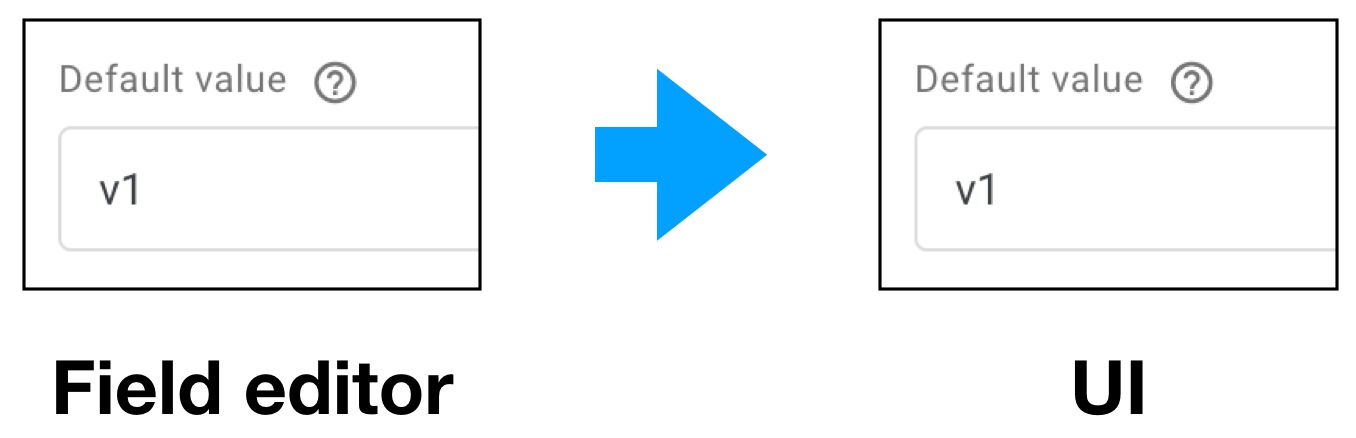 ](https://www.simoahava.com/images/2019/02/reference-default-value.jpg "Default value")
**Description**: The **Default value** option determines what the value
of the field is before the user inputs anything into the field.
**How it works**: **Default value** represents the *initial* value of
the field. It is considered a true value, meaning if the user doesn’t
delete or change it, the default value will be what the field returns in
the code editor.
**Used in**: [Text input](#text-input), [Drop-down
menu](#drop-down-menu), [Checkbox](#checkbox), [Radio
buttons](#radio-buttons), [Simple table](#simple-table), [Param
table](#param-table).
### Display line count
[
](https://www.simoahava.com/images/2019/02/reference-default-value.jpg "Default value")
**Description**: The **Default value** option determines what the value
of the field is before the user inputs anything into the field.
**How it works**: **Default value** represents the *initial* value of
the field. It is considered a true value, meaning if the user doesn’t
delete or change it, the default value will be what the field returns in
the code editor.
**Used in**: [Text input](#text-input), [Drop-down
menu](#drop-down-menu), [Checkbox](#checkbox), [Radio
buttons](#radio-buttons), [Simple table](#simple-table), [Param
table](#param-table).
### Display line count
[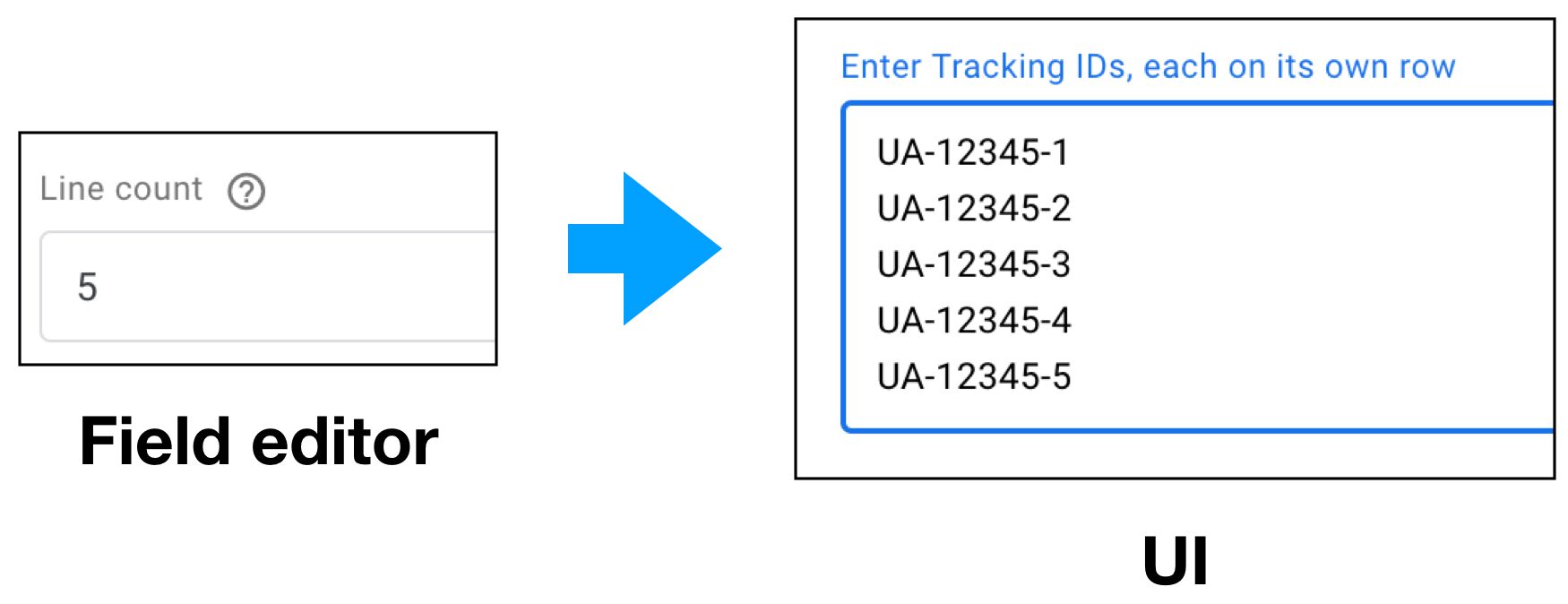 ](https://www.simoahava.com/images/2019/02/reference-line-count.jpg "Line count")
**Description**: Set the height of the text input area, and whether or
not a multi-line value can be given.
**How it works**: If **Display line count** is set to `1`, then only one
row of data can be input into the field. Anything larger than `1`, and
the height of the text area grows as a result, and the user can type on
multiple rows in the text input field.
**Used in**: [Text input](#text-input).
### Display message when not set
[
](https://www.simoahava.com/images/2019/02/reference-line-count.jpg "Line count")
**Description**: Set the height of the text input area, and whether or
not a multi-line value can be given.
**How it works**: If **Display line count** is set to `1`, then only one
row of data can be input into the field. Anything larger than `1`, and
the height of the text area grows as a result, and the user can type on
multiple rows in the text input field.
**Used in**: [Text input](#text-input).
### Display message when not set
[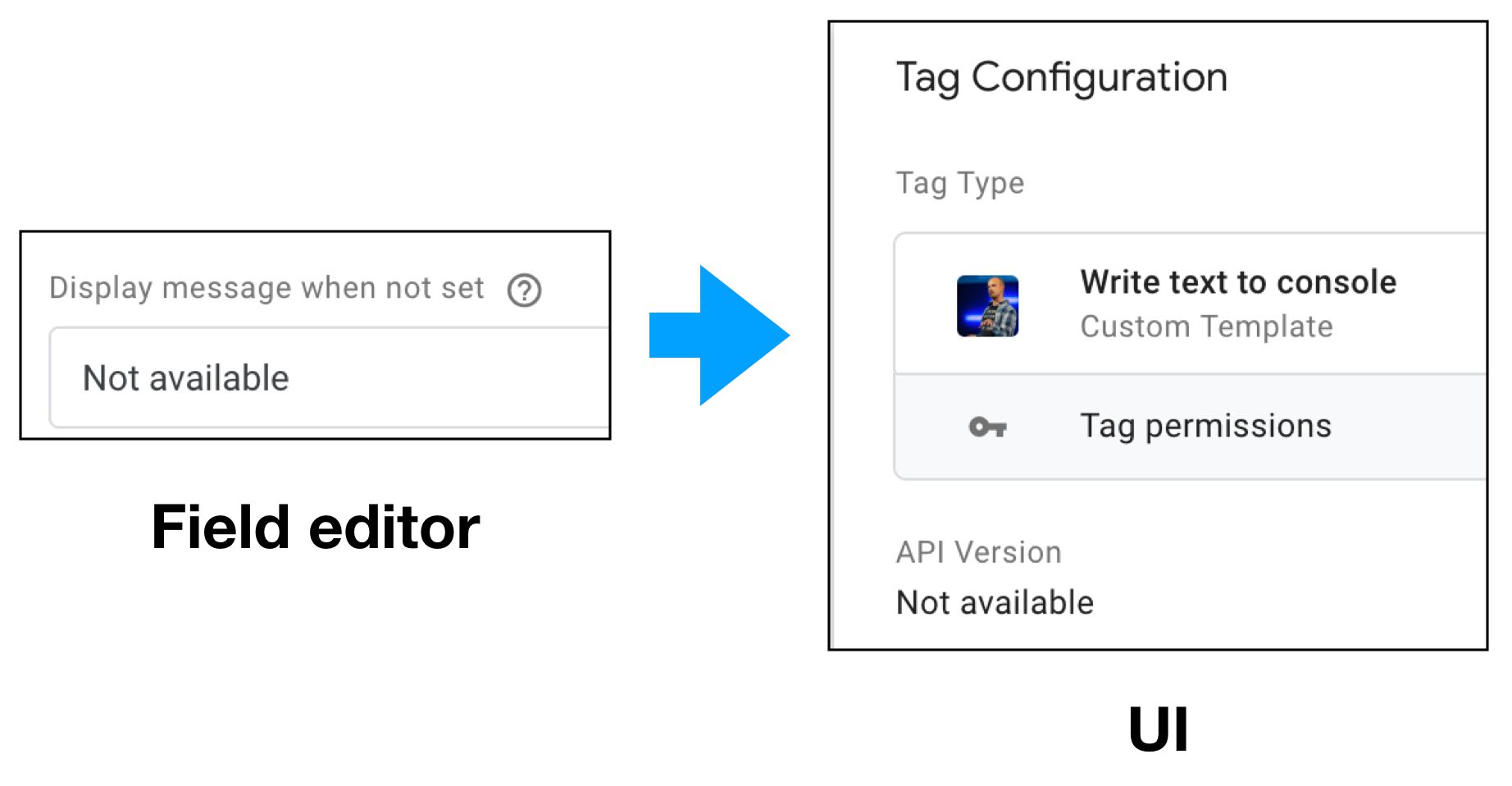 ](https://www.simoahava.com/images/2019/02/reference-display-message-not-set.jpg "Display message when not set")
**Description**: The **Display message when not set** allows you to show
a “default value” for the field when in the summary view and the field
doesn’t have a value.
**How it works**: The text will show up only in the summary view when
the field is not set, i.e. has no determinable value. It will not impact
what the code editor returns as the field value.
**Used in**: [Text input](#text-input), [Simple table](#simple-table),
[Param table](#param-table).
### Display name
[
](https://www.simoahava.com/images/2019/02/reference-display-message-not-set.jpg "Display message when not set")
**Description**: The **Display message when not set** allows you to show
a “default value” for the field when in the summary view and the field
doesn’t have a value.
**How it works**: The text will show up only in the summary view when
the field is not set, i.e. has no determinable value. It will not impact
what the code editor returns as the field value.
**Used in**: [Text input](#text-input), [Simple table](#simple-table),
[Param table](#param-table).
### Display name
[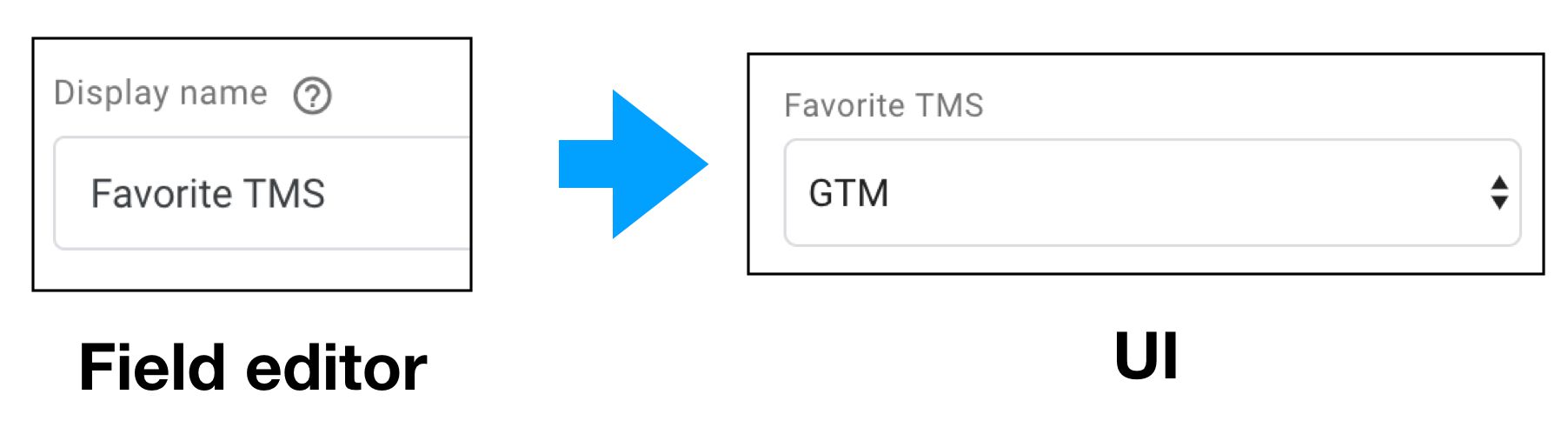 ](https://www.simoahava.com/images/2019/02/reference-display-name.jpg "Display name")
**Description**: The **Display name** configuration lets you set a label
for the field.
**How it works**: The text you input in the **Display name** is shown as
a label for the field when both in edit mode and the summary view.
**Used in**: [Text input](#text-input), [Drop-down
menu](#drop-down-menu), [Checkbox](#checkbox), [Radio
buttons](#radio-buttons), [Simple table](#simple-table), [Param
table](#param-table), [Group](#group), [Label](#label).
### Enabling conditions
[
](https://www.simoahava.com/images/2019/02/reference-display-name.jpg "Display name")
**Description**: The **Display name** configuration lets you set a label
for the field.
**How it works**: The text you input in the **Display name** is shown as
a label for the field when both in edit mode and the summary view.
**Used in**: [Text input](#text-input), [Drop-down
menu](#drop-down-menu), [Checkbox](#checkbox), [Radio
buttons](#radio-buttons), [Simple table](#simple-table), [Param
table](#param-table), [Group](#group), [Label](#label).
### Enabling conditions
[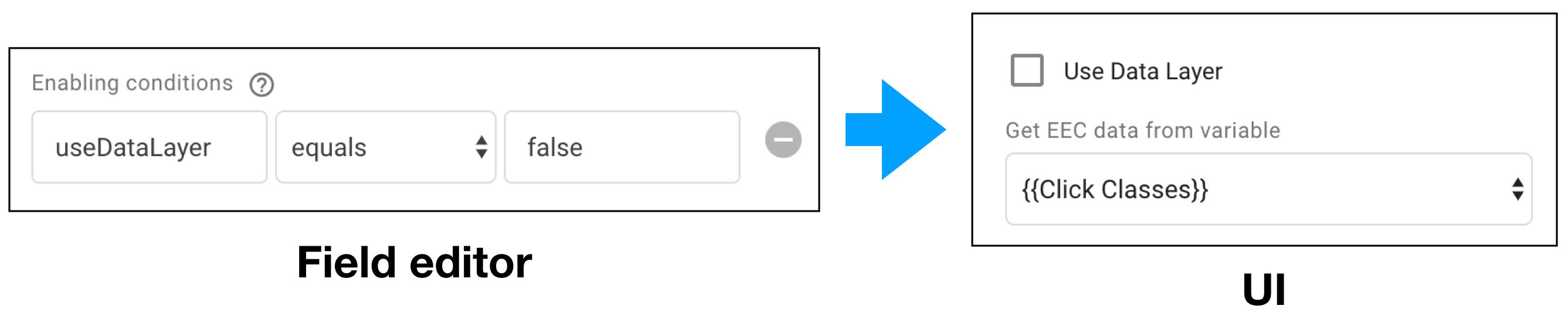 ](https://www.simoahava.com/images/2019/02/reference-enabling-conditions.jpg "Enabling conditions")
**Description**: You can establish a dependency with **Enabling
conditions**. The field will only be visible in the UI if the enabling
condition validates.
**How it works**: An *Enabling condition* is essentially a check against
**some other field’s value**. You can use it to check whether some
checkbox is unchecked, for example (as in the screenshot above).
**Used in**: [Text input](#text-input), [Drop-down
menu](#drop-down-menu), [Checkbox](#checkbox), [Radio
buttons](#radio-buttons), [Simple table](#simple-table), [Param
table](#param-table), [Group](#group), [Label](#label).
### Group style
[
](https://www.simoahava.com/images/2019/02/reference-enabling-conditions.jpg "Enabling conditions")
**Description**: You can establish a dependency with **Enabling
conditions**. The field will only be visible in the UI if the enabling
condition validates.
**How it works**: An *Enabling condition* is essentially a check against
**some other field’s value**. You can use it to check whether some
checkbox is unchecked, for example (as in the screenshot above).
**Used in**: [Text input](#text-input), [Drop-down
menu](#drop-down-menu), [Checkbox](#checkbox), [Radio
buttons](#radio-buttons), [Simple table](#simple-table), [Param
table](#param-table), [Group](#group), [Label](#label).
### Group style
[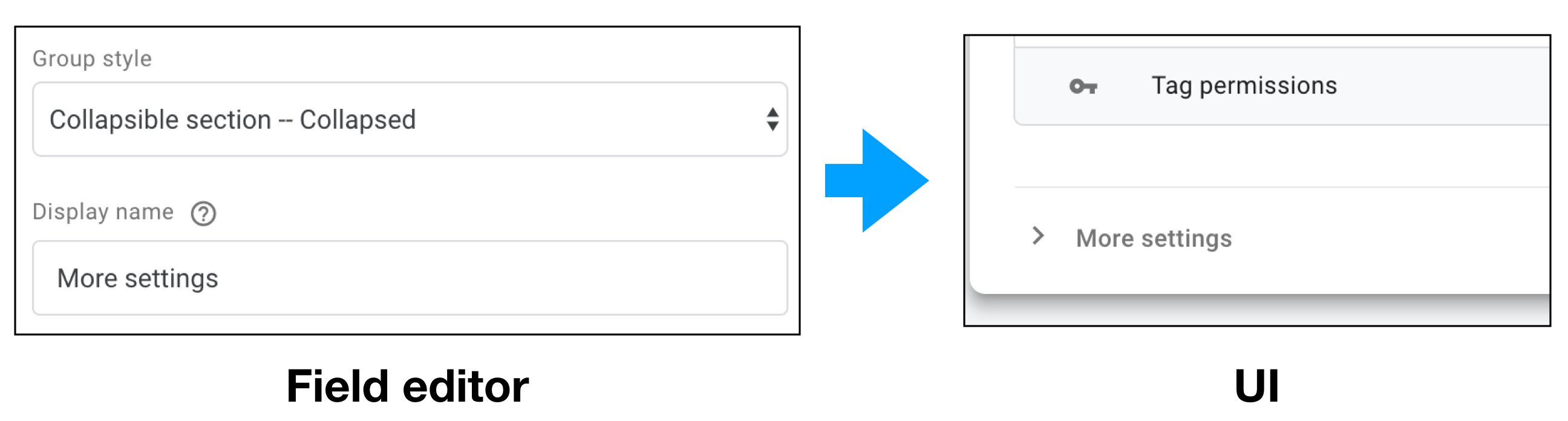 ](https://www.simoahava.com/images/2019/02/reference-group-style.jpg "Group style")
**Description**: Use the **Group style** configuration to determine how
the [Group](#group) field works.
**How it works**: The options you can choose are:
1. Simple section: the fields are simply grouped without UI impact.
This is useful if you simply want to have the field configurations
for the group impact the nested fields within.
2. Collapsible section – Open: The fields are in a section that can be
collapsed, and the section defaults to being open.
3. Collapsible section – Closed: The fields are in a section that can
be collapsed, and the section defaults to being closed.
4. Collapsible section – Open if not default: The fields are in a
section that can be collapsed, and if the fields have not been
edited, the section is closed.
**Used in**: [Group](#group).
### Help text
[
](https://www.simoahava.com/images/2019/02/reference-group-style.jpg "Group style")
**Description**: Use the **Group style** configuration to determine how
the [Group](#group) field works.
**How it works**: The options you can choose are:
1. Simple section: the fields are simply grouped without UI impact.
This is useful if you simply want to have the field configurations
for the group impact the nested fields within.
2. Collapsible section – Open: The fields are in a section that can be
collapsed, and the section defaults to being open.
3. Collapsible section – Closed: The fields are in a section that can
be collapsed, and the section defaults to being closed.
4. Collapsible section – Open if not default: The fields are in a
section that can be collapsed, and if the fields have not been
edited, the section is closed.
**Used in**: [Group](#group).
### Help text
[ ](https://www.simoahava.com/images/2019/02/reference-help-text.jpg "Help text")
**Description**: Use **Help text** to show a little tooltip when
hovering over the question mark icon next to the field in the UI.
**How it works**: The text you type into the **Help text** configuration
field will appear in the UI when the user hovers the mouse cursor over
the little question mark icon.
**Used in**: [Text input](#text-input), [Drop-down
menu](#drop-down-menu), [Checkbox](#checkbox), [Radio
buttons](#radio-buttons), [Simple table](#simple-table), [Param
table](#param-table), [Group](#group).
### Include variables
[
](https://www.simoahava.com/images/2019/02/reference-help-text.jpg "Help text")
**Description**: Use **Help text** to show a little tooltip when
hovering over the question mark icon next to the field in the UI.
**How it works**: The text you type into the **Help text** configuration
field will appear in the UI when the user hovers the mouse cursor over
the little question mark icon.
**Used in**: [Text input](#text-input), [Drop-down
menu](#drop-down-menu), [Checkbox](#checkbox), [Radio
buttons](#radio-buttons), [Simple table](#simple-table), [Param
table](#param-table), [Group](#group).
### Include variables
[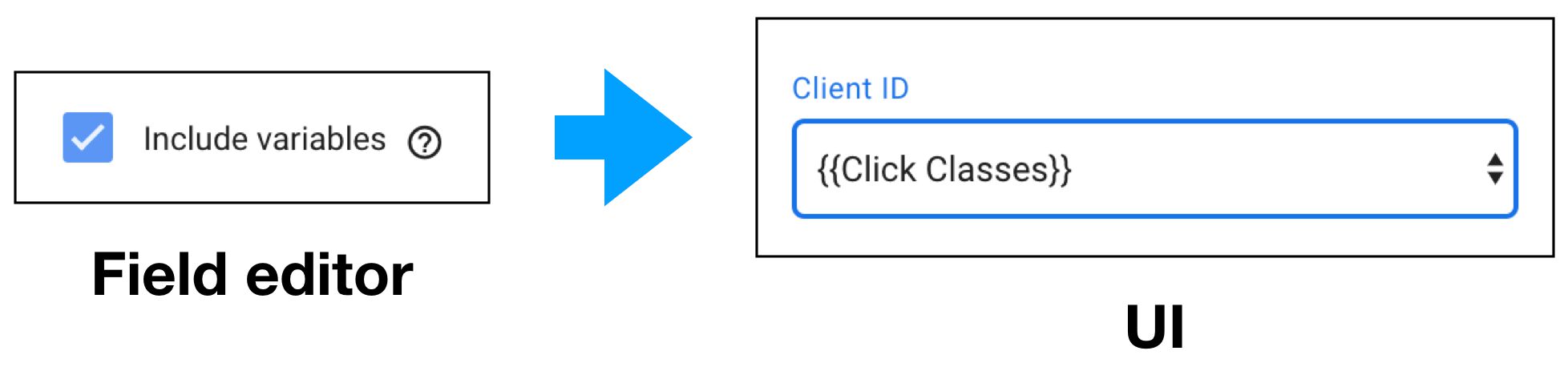 ](https://www.simoahava.com/images/2019/02/reference-include-variables.jpg "Include variables")
**Description**: When checked, **Include variables** will make the full
list of GTM variables available for selection as the field value.
**How it works**: The drop-down menu will include all the GTM variables
as selectable options if this field configuration is checked.
**Used in**: [Drop-down menu](#drop-down-menu).
### Nested fields
[
](https://www.simoahava.com/images/2019/02/reference-include-variables.jpg "Include variables")
**Description**: When checked, **Include variables** will make the full
list of GTM variables available for selection as the field value.
**How it works**: The drop-down menu will include all the GTM variables
as selectable options if this field configuration is checked.
**Used in**: [Drop-down menu](#drop-down-menu).
### Nested fields
[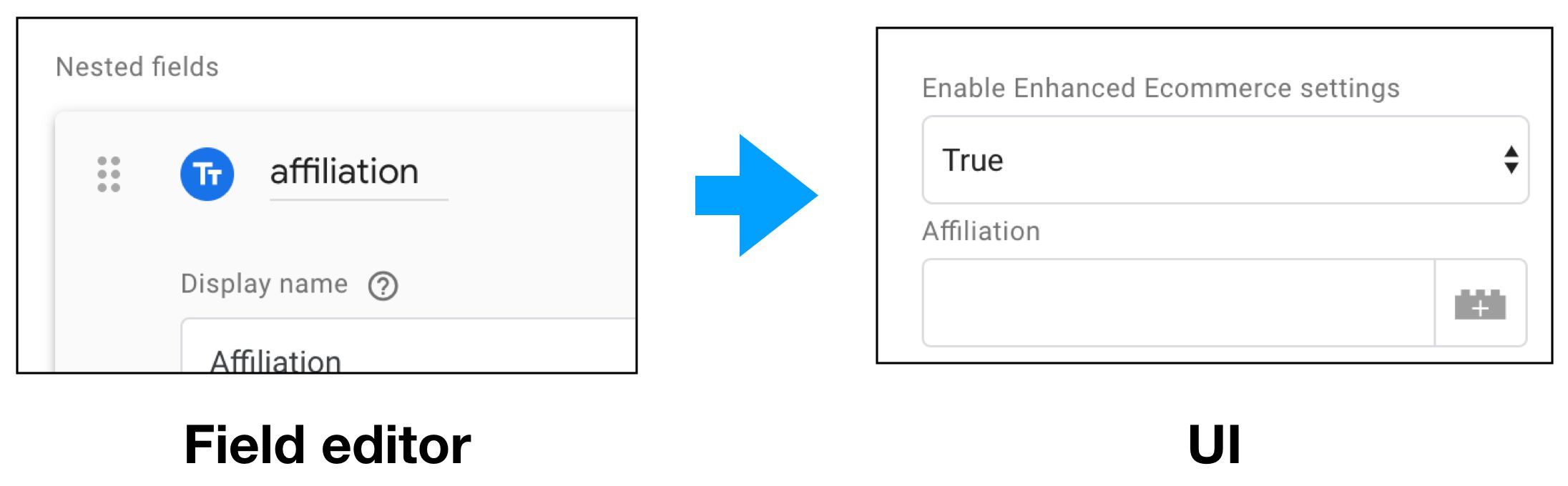 ](https://www.simoahava.com/images/2019/02/reference-nested-fields.jpg "Nested fields")
**Description**: When you add **Nested fields** to a field, those fields
become dependent on the enabling condition set for the parent field.
Also, visually they will be placed closer to the parent field compared
to if they were regular, non-nested fields.
**How it works**: Toggle **Nested fields** on, and you can add any
available field type as a nested field of the current field. After that,
if the parent field is disabled due to an invalid [Enabling
condition](#enabling-conditions), for example, the nested fields will be
disabled, too.
**Used in**: [Drop-down menu](#drop-down-menu), [Checkbox](#checkbox),
[Radio buttons](#radio-buttons).
### Text as list
[
](https://www.simoahava.com/images/2019/02/reference-nested-fields.jpg "Nested fields")
**Description**: When you add **Nested fields** to a field, those fields
become dependent on the enabling condition set for the parent field.
Also, visually they will be placed closer to the parent field compared
to if they were regular, non-nested fields.
**How it works**: Toggle **Nested fields** on, and you can add any
available field type as a nested field of the current field. After that,
if the parent field is disabled due to an invalid [Enabling
condition](#enabling-conditions), for example, the nested fields will be
disabled, too.
**Used in**: [Drop-down menu](#drop-down-menu), [Checkbox](#checkbox),
[Radio buttons](#radio-buttons).
### Text as list
[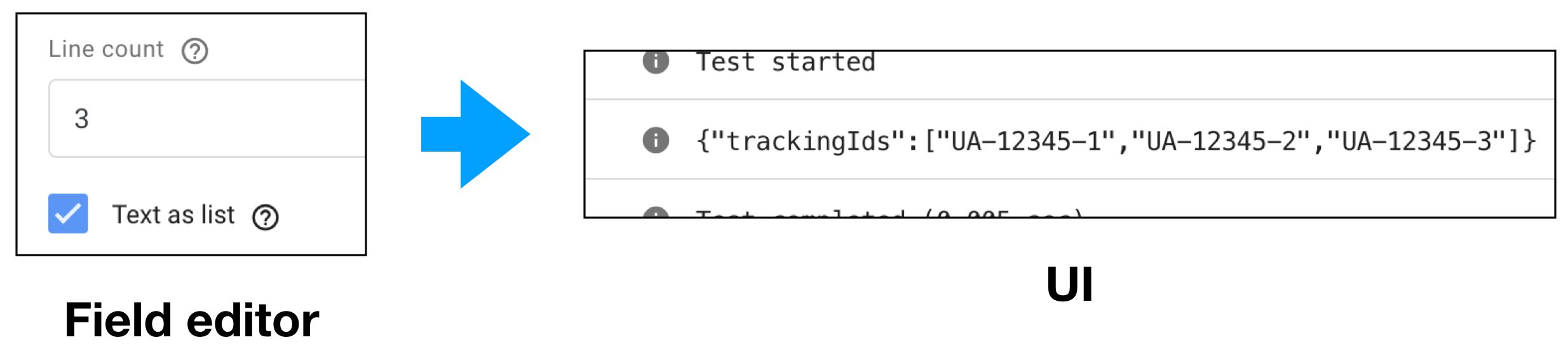 ](https://www.simoahava.com/images/2019/02/reference-text-as-list.jpg "Text as list")
**Description**: Use this with [Line count](#line-count) to access the
field value as an array of strings (where each row corresponds to an
item in the array).
**How it works**: When **Text as list** is checked, then each row in a
[Text input](#text-input) field (when Line count is also configured)
will be an item in the array of the resulting `data` object. Without
**Text as list**, a multi-line input will result in a single string,
where each row is separated with the newline character (`\n`).
**Used in**: [Text input](#text-input).
### Validation rules
[
](https://www.simoahava.com/images/2019/02/reference-text-as-list.jpg "Text as list")
**Description**: Use this with [Line count](#line-count) to access the
field value as an array of strings (where each row corresponds to an
item in the array).
**How it works**: When **Text as list** is checked, then each row in a
[Text input](#text-input) field (when Line count is also configured)
will be an item in the array of the resulting `data` object. Without
**Text as list**, a multi-line input will result in a single string,
where each row is separated with the newline character (`\n`).
**Used in**: [Text input](#text-input).
### Validation rules
[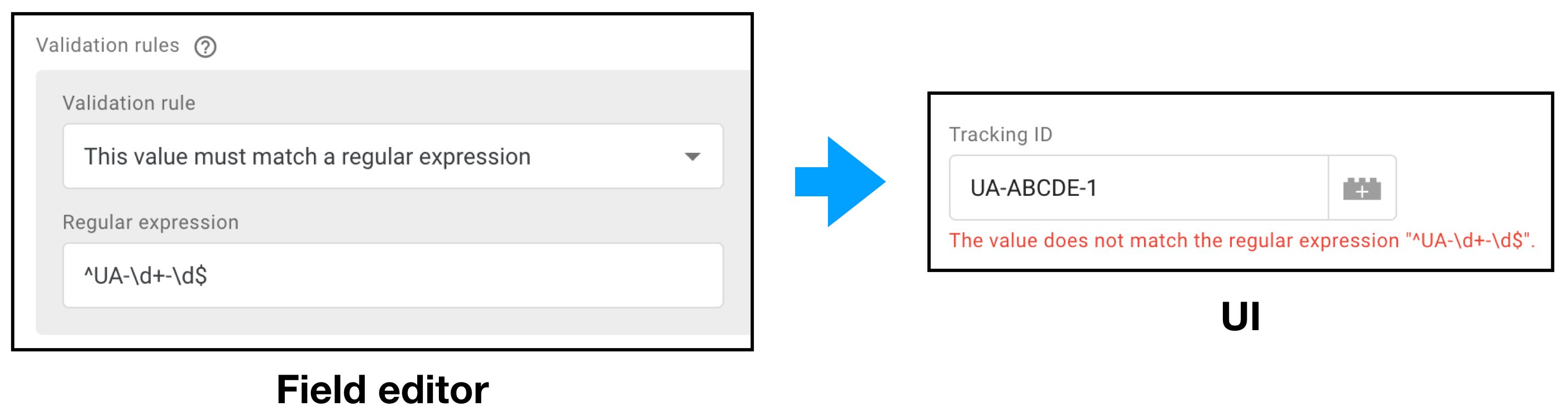 ](https://www.simoahava.com/images/2019/02/reference-validation-rules.jpg "Validation rules")
**Description**: Use the **Validation rules** configuration to establish
validation criteria for the field.
**How it works**: When you add a **Validation rule** to the field, the
field must pass the validation, or the user won’t be able to save the
tag or variable. The available rules are:
| Rule | How to fail validation |
|---------------------------------------------------|------------------------------------------------------------------------------------------------------------------------------------------------------------------------------------------------------------------|
| …cannot be empty | User does not input anything into the field. |
| …must be a string of the required length | User inputs a string that is less than the minimum or more than the maximum length. |
| …must be a number | User inputs a value that is not an **integer** number. |
| …must be a positive number | User inputs an **integer** number that is equal to or less than 0. |
| …must be a positive number or 0 | User inputs an **integer** number that is less than 0. |
| …must be an integer between 0 and 100 (inclusive) | User inputs an **integer** number that is less than 0 or more than 100. |
| …must be a number between 0 and 1 (inclusive) | User inputs a number (integer or floating point) which is less than 0.0 or more than 1.0. |
| …must match a regular expression | User inputs a value that does not match the given **regular expression**. The RegEx accepts **full matches only**, so don’t forget to add leading and/or trailing `.*` if you want it to be an open-ended match. |
| …must be a valid GA tracking ID | User inputs a value that does not match the GA tracking ID format (UA-11111-1). |
| …must be a list of the required length | User inputs rows into a table fewer than the minimum length or more than the maximum length. Applies also to a Text input field where [Text as list](#text-as-list) is being used. |
> **NOTE!** For fields that are governed by [enabling
> conditions](#enabling-conditions), the validation rule will only apply
> if the field has been enabled.
You can click the **action menu** for the Validation rule configuration
to **Show advanced settings**.
[
](https://www.simoahava.com/images/2019/02/reference-validation-rules.jpg "Validation rules")
**Description**: Use the **Validation rules** configuration to establish
validation criteria for the field.
**How it works**: When you add a **Validation rule** to the field, the
field must pass the validation, or the user won’t be able to save the
tag or variable. The available rules are:
| Rule | How to fail validation |
|---------------------------------------------------|------------------------------------------------------------------------------------------------------------------------------------------------------------------------------------------------------------------|
| …cannot be empty | User does not input anything into the field. |
| …must be a string of the required length | User inputs a string that is less than the minimum or more than the maximum length. |
| …must be a number | User inputs a value that is not an **integer** number. |
| …must be a positive number | User inputs an **integer** number that is equal to or less than 0. |
| …must be a positive number or 0 | User inputs an **integer** number that is less than 0. |
| …must be an integer between 0 and 100 (inclusive) | User inputs an **integer** number that is less than 0 or more than 100. |
| …must be a number between 0 and 1 (inclusive) | User inputs a number (integer or floating point) which is less than 0.0 or more than 1.0. |
| …must match a regular expression | User inputs a value that does not match the given **regular expression**. The RegEx accepts **full matches only**, so don’t forget to add leading and/or trailing `.*` if you want it to be an open-ended match. |
| …must be a valid GA tracking ID | User inputs a value that does not match the GA tracking ID format (UA-11111-1). |
| …must be a list of the required length | User inputs rows into a table fewer than the minimum length or more than the maximum length. Applies also to a Text input field where [Text as list](#text-as-list) is being used. |
> **NOTE!** For fields that are governed by [enabling
> conditions](#enabling-conditions), the validation rule will only apply
> if the field has been enabled.
You can click the **action menu** for the Validation rule configuration
to **Show advanced settings**.
[ ](https://www.simoahava.com/images/2019/02/validation-show-advanced-settings.jpg "Show advanced settings")
The advanced settings include:
- **Error messages**: You can customize the error message that is shown
if the field does not pass validation.
- **Enabling conditions**: You can add [enabling
conditions](#enabling-conditions) to the **validation rule itself**,
meaning **if the enabling conditions do not pass**, the **validation
rule is ignored**.
**Used in**: [Text input](#text-input), [Drop-down
menu](#drop-down-menu), [Checkbox](#checkbox), [Radio
buttons](#radio-buttons), [Simple table](#simple-table), [Param
table](#param-table).
### Value hint
[
](https://www.simoahava.com/images/2019/02/validation-show-advanced-settings.jpg "Show advanced settings")
The advanced settings include:
- **Error messages**: You can customize the error message that is shown
if the field does not pass validation.
- **Enabling conditions**: You can add [enabling
conditions](#enabling-conditions) to the **validation rule itself**,
meaning **if the enabling conditions do not pass**, the **validation
rule is ignored**.
**Used in**: [Text input](#text-input), [Drop-down
menu](#drop-down-menu), [Checkbox](#checkbox), [Radio
buttons](#radio-buttons), [Simple table](#simple-table), [Param
table](#param-table).
### Value hint
[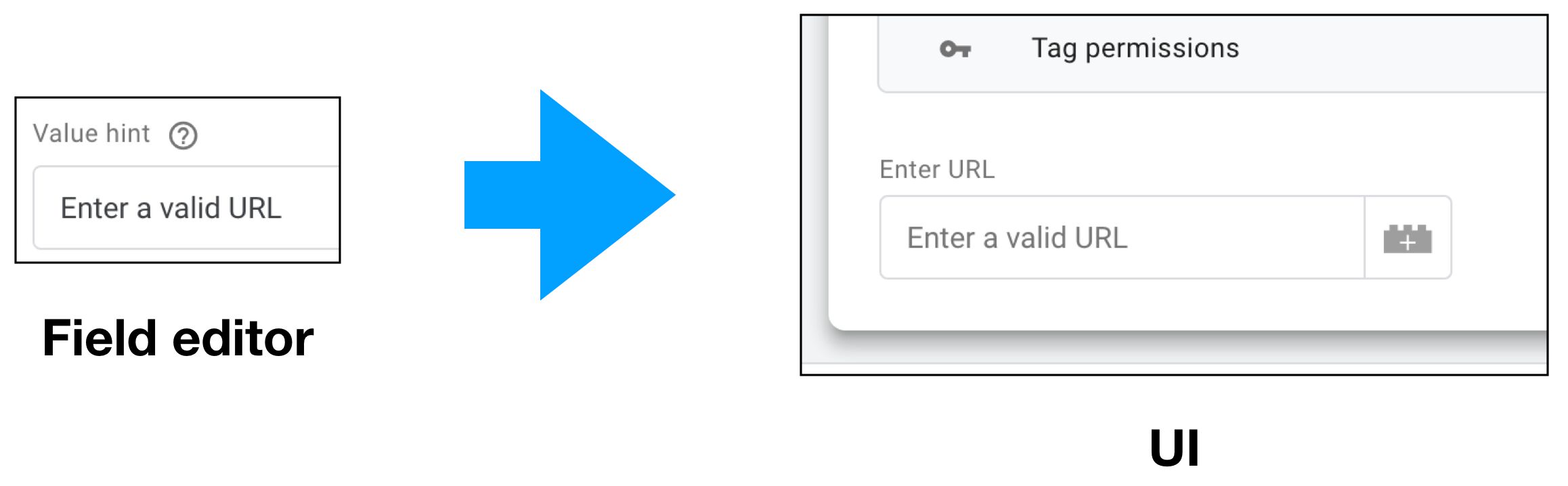 ](https://www.simoahava.com/images/2019/03/reference-value-hint.jpg "Value hint")
**Description**: The text you enter here will be shown as a
*placeholder* value in the field before the user has added any input.
**How it works**: The text will simply be a placeholder - it will not be
the value of the field if saved without any input.
**Used in**: [Text input](#text-input).
### Value unit
[
](https://www.simoahava.com/images/2019/03/reference-value-hint.jpg "Value hint")
**Description**: The text you enter here will be shown as a
*placeholder* value in the field before the user has added any input.
**How it works**: The text will simply be a placeholder - it will not be
the value of the field if saved without any input.
**Used in**: [Text input](#text-input).
### Value unit
[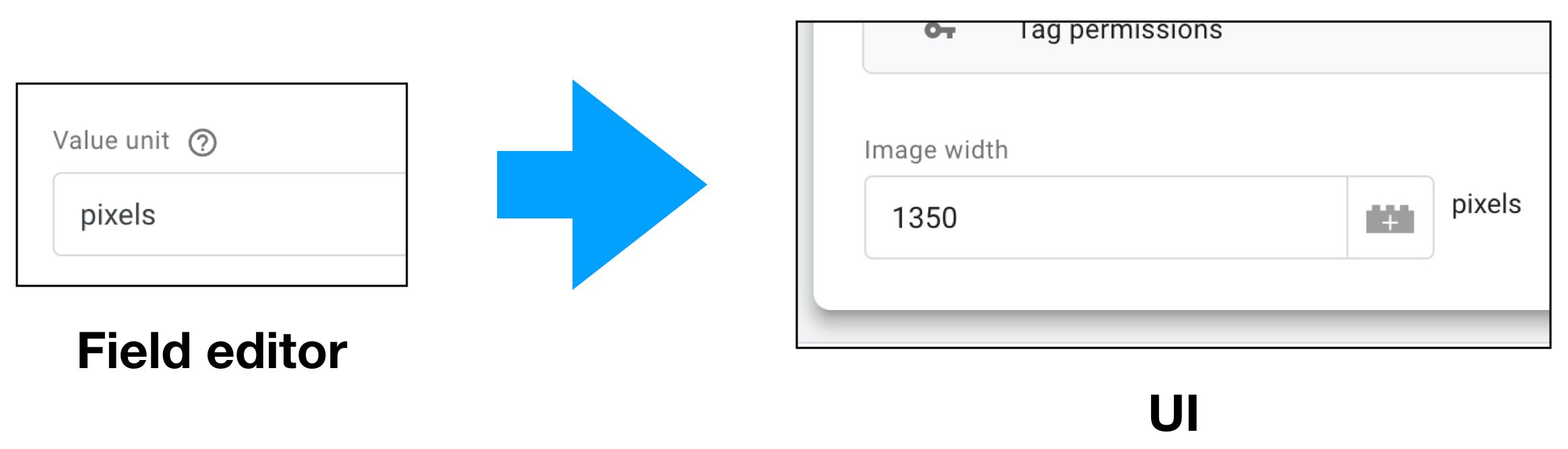 ](https://www.simoahava.com/images/2019/03/reference-value-unit.jpg "Value unit")
**Description**: Use this to guide the users on what type of value is
expected in the field.
**How it works**: The text will be displayed to the right of the field,
giving users indication what type of value is expected in the field. The
text can be anything (i.e. isn’t restricted to e.g. JavaScript types).
**Used in**: [Text input](#text-input), [Drop-down
menu](#drop-down-menu).
## Policies reference
**Policies** are directives the site admin adds to the page template
(or, if necessarily, dynamically with JavaScript), which dictate the
type of API permissions each custom template can use.
They differ from [Permissions](#permissions) in one critical detail:
where permissions are built into the template, and specify a broader set
of API configurations the template can run with, policies are
implemented by the site where these templates are run.
In other words, template permissions come from the vendor, template
policies come from the site owner. Both have the capability to delimit
or restrict the types of templates that can run on any given page.
To provide a policy, you need to use some [`gtag.js`
code](https://developers.google.com/analytics/devguides/collection/gtagjs/)
(note, you do **not** have to install the `gtag.js` snippet!) where you
specify the permission requests your site will listen to.
For example, if you have a template that is trying to send a pixel to an
endpoint whitelisted in the template’s permissions, you can use a policy
to make sure that the template can actually only send the request to one
specific endpoint. See the example below.
```
window.dataLayer = window.dataLayer || [];
function gtag(){dataLayer.push(arguments);}
gtag('policy', 'send_pixel', function(container, policy, data) {
// Only restrict the policy to one specific container by returning true
// for all other containers
if (container !== 'GTM-ABCDE') {
return true;
}
// Check if the URL of the pixel request is a specific endpoint,
// and if it isn't throw an error and prevent the tag from working.
if (data.url !== 'https://snowplow.simoahava.com/i') {
throw('Invalid pixel endpoint!');
} else {
return true;
}
});
```
Note: The policy **must** return `true` explicitly if you want the check
to pass. The policy will always default to returning `false` and
preventing the template from working.
You can add more than one policy to the page, each in its own `gtag()`
command, or you can check against ALL permissions requests by setting
the policy name to `all` as below:
```
window.dataLayer = window.dataLayer || [];
function gtag(){dataLayer.push(arguments);}
gtag('policy', 'all', function(container, policy, data) {
// Prevent sending pixels and injecting iframes
if (policy === 'send_pixel' || policy === 'inject_hidden_iframe') {
throw 'Sending pixels and injecting hidden iframes blocked!';
} else {
return true;
}
});
```
Please read the [official policy
documentation](https://developers.google.com/tag-manager/templates/policies)
for more details on how policies work.
Below are listed all the policy names and what the `data` object
comprises for each.
### access_globals
**Triggered by APIs**:
- [`aliasInWindow`](https://developers.google.com/tag-manager/templates/api#aliasinwindow)
(once for the `toPath` key and once for the `fromPath` key).
- [`callInWindow`](https://developers.google.com/tag-manager/templates/api#callinwindow)
- [`copyFromWindow`](https://developers.google.com/tag-manager/templates/api#copyfromwindow)
- [`createArgumentsQueue`](https://developers.google.com/tag-manager/templates/api#createargumentsqueue)
- [`createQueue`](https://developers.google.com/tag-manager/templates/api#createqueue)
- [`setInWindow`](https://developers.google.com/tag-manager/templates/api#setinwindow)
**`data` object composition**:
```
{
"key": "some_global_var", // name of the key the permission tries to access
"read": true || false, // does the key have read access
"write": true || false, // does the key have write access
"execute": true || false // does the key have execute access
}
```
### get_cookies
**Triggered by APIs**:
- [`getCookieValues`](https://developers.google.com/tag-manager/templates/api#getcookievalues)
**`data` object composition**:
```
{
"name": "some_cookie_name" // name of the cookie being accessed
}
```
### get_referrer
**Triggered by APIs**:
- [`getReferrer`](https://developers.google.com/tag-manager/templates/api#getreferrerurl)
- [`getReferrerQueryParameters`](https://developers.google.com/tag-manager/templates/api#getreferrerqueryparameters)
**`data` object composition**:
```
{
"component": "query" // the component of the referrer URL being accessed
}
```
### get_url
**Triggered by APIs**:
- [`getUrl`](https://developers.google.com/tag-manager/templates/api#geturl)
**`data` object composition**:
```
{
"component": "protocol" // the URL component name being accessed
}
```
### inject_hidden_iframe
**Triggered by APIs**:
- [`injectHiddenIframe`](https://developers.google.com/tag-manager/templates/api#injecthiddeniframe)
**`data` object composition**:
```
{
"url": "https://some-iframe.com/" // the URL of the iframe being injected
}
```
### inject_script
**Triggered by APIs**:
- [`injectScript`](https://developers.google.com/tag-manager/templates/api#injectscript)
**`data` object composition**:
```
{
"url": "https://some-script.com/script.js" // the URL of the script being loaded
}
```
### logging
**Triggered by APIs**:
- [`logToConsole`](https://developers.google.com/tag-manager/templates/api#logtoconsole)
**There is no `data` object associated with this permission.**
### read_character_set
**Triggered by APIs**:
- [`readCharacterSet`](https://developers.google.com/tag-manager/templates/api#readcharacterset)
**There is no `data` object associated with this permission.**
### read_data_layer
**Triggered by APIs**:
- [`copyFromDataLayer`](https://developers.google.com/tag-manager/templates/api#copyfromdatalayer)
**`data` object composition**:
```
{
"key": "some.variable.name" // name of the Data Layer Variable being accessed
}
```
### read_event_metadata
**Triggered by APIs**:
- [`addEventCallback`](https://developers.google.com/tag-manager/templates/api#addeventcallback)
**There is no `data` object associated with this permission.**
### read_title
**Triggered by APIs**:
- [`readTitle`](https://developers.google.com/tag-manager/templates/api#readtitle)
**There is no `data` object associated with this permission.**
### send_pixel
**Triggered by APIs**:
- [`sendPixel`](https://developers.google.com/tag-manager/templates/api#sendpixel)
**`data` object composition**:
```
{
"url": "https://some-endpoint.com/endpoint" // the URL of the pixel request endpoint
}
```
### set_cookies
**Triggered by APIs**:
- [`setCookie`](https://developers.google.com/tag-manager/templates/api#sendpixel)
**`data` object composition**:
```
{
"name": "some_cookie_name", // the name of the cookie
"options": {
"domain": "somedomain.com", // the domain of the cookie
"path": "/some-path/", // the path of the cookie
"max-age": "15000", // the maximum age of the cookie (in seconds)
"expires": "Sun, 11 Aug 2019 10:00:00 GMT", // UTC date string of the cookie's expiration
"secure": true || false, // Secure cookie
"sameSite": true || false // sameSite cookie
}
}
```
## Final thoughts
It’s difficult to compose any sort of summary to what I consider to be
the most extensive and fundamental Google Tag Manager update since the
programmatic API was released almost five years ago.
Custom templates are, for now, a completely **optional** feature. No one
is forcing you to use them, and you can continue as a happy GTM user
without having to bother about the new **Templates** menu.
However, I have a hunch that there is a huge incentive for the GTM team
to get rid of the Custom HTML tag and the Custom JavaScript variable.
When talking about governance and the existing prejudices towards GTM,
especially from developers, it often boils down to being able to inject
**any** arbitrary JavaScript code on the site, using the outdated and
questionable `eval()` method, no less.
With custom templates, many of the problems around governance are
presented with a solution:
1. The template code is compiled into JavaScript when the container is
created, so `eval()` is no longer used to run the code.
2. Template-specific permissions (created by the template author) can
delimit what the template does **and** what types of user input are
valid and accepted.
3. Page-specific policies (created by the site admin) can be used to
further restrict what **any** template can do on the site.
But these are mostly how templates address **negative** qualities of
GTM - it would be foolish to ignore their net **positive** effect.
Google Tag Manager is a UI-driven tool. Brands can now use custom
templates to encapsulate their complicated JavaScript activation
mechanisms under a user interface, thus minimizing the possibility of
human error, and demystifying how the vendor JavaScript runs. Thus,
instead of sharing a JavaScript snippet the user has to copy-paste to a
Custom HTML tag, the brand can share a template export that can be added
to the container directly, with all the code in the correct place.
I can’t wait to see what the community comes up with, too! I’m waiting
for a library of custom templates to emerge, hopefully sanctioned by
Google but moderated by the community (with brands being able to add
**verified** templates, too).
So now, brave traveller. You have reached the end, though I can only
assume you skipped most of the above. What do you think about custom
templates? Is my hyperbolic exuberance (yet again) unwarranted?
TAGGED IN
google tag manager
custom templates
guide
tag templates
variable templates
- NEXT
- PREVIOUS
-
-
-
-
-
-
](https://www.simoahava.com/images/2019/03/reference-value-unit.jpg "Value unit")
**Description**: Use this to guide the users on what type of value is
expected in the field.
**How it works**: The text will be displayed to the right of the field,
giving users indication what type of value is expected in the field. The
text can be anything (i.e. isn’t restricted to e.g. JavaScript types).
**Used in**: [Text input](#text-input), [Drop-down
menu](#drop-down-menu).
## Policies reference
**Policies** are directives the site admin adds to the page template
(or, if necessarily, dynamically with JavaScript), which dictate the
type of API permissions each custom template can use.
They differ from [Permissions](#permissions) in one critical detail:
where permissions are built into the template, and specify a broader set
of API configurations the template can run with, policies are
implemented by the site where these templates are run.
In other words, template permissions come from the vendor, template
policies come from the site owner. Both have the capability to delimit
or restrict the types of templates that can run on any given page.
To provide a policy, you need to use some [`gtag.js`
code](https://developers.google.com/analytics/devguides/collection/gtagjs/)
(note, you do **not** have to install the `gtag.js` snippet!) where you
specify the permission requests your site will listen to.
For example, if you have a template that is trying to send a pixel to an
endpoint whitelisted in the template’s permissions, you can use a policy
to make sure that the template can actually only send the request to one
specific endpoint. See the example below.
```
window.dataLayer = window.dataLayer || [];
function gtag(){dataLayer.push(arguments);}
gtag('policy', 'send_pixel', function(container, policy, data) {
// Only restrict the policy to one specific container by returning true
// for all other containers
if (container !== 'GTM-ABCDE') {
return true;
}
// Check if the URL of the pixel request is a specific endpoint,
// and if it isn't throw an error and prevent the tag from working.
if (data.url !== 'https://snowplow.simoahava.com/i') {
throw('Invalid pixel endpoint!');
} else {
return true;
}
});
```
Note: The policy **must** return `true` explicitly if you want the check
to pass. The policy will always default to returning `false` and
preventing the template from working.
You can add more than one policy to the page, each in its own `gtag()`
command, or you can check against ALL permissions requests by setting
the policy name to `all` as below:
```
window.dataLayer = window.dataLayer || [];
function gtag(){dataLayer.push(arguments);}
gtag('policy', 'all', function(container, policy, data) {
// Prevent sending pixels and injecting iframes
if (policy === 'send_pixel' || policy === 'inject_hidden_iframe') {
throw 'Sending pixels and injecting hidden iframes blocked!';
} else {
return true;
}
});
```
Please read the [official policy
documentation](https://developers.google.com/tag-manager/templates/policies)
for more details on how policies work.
Below are listed all the policy names and what the `data` object
comprises for each.
### access_globals
**Triggered by APIs**:
- [`aliasInWindow`](https://developers.google.com/tag-manager/templates/api#aliasinwindow)
(once for the `toPath` key and once for the `fromPath` key).
- [`callInWindow`](https://developers.google.com/tag-manager/templates/api#callinwindow)
- [`copyFromWindow`](https://developers.google.com/tag-manager/templates/api#copyfromwindow)
- [`createArgumentsQueue`](https://developers.google.com/tag-manager/templates/api#createargumentsqueue)
- [`createQueue`](https://developers.google.com/tag-manager/templates/api#createqueue)
- [`setInWindow`](https://developers.google.com/tag-manager/templates/api#setinwindow)
**`data` object composition**:
```
{
"key": "some_global_var", // name of the key the permission tries to access
"read": true || false, // does the key have read access
"write": true || false, // does the key have write access
"execute": true || false // does the key have execute access
}
```
### get_cookies
**Triggered by APIs**:
- [`getCookieValues`](https://developers.google.com/tag-manager/templates/api#getcookievalues)
**`data` object composition**:
```
{
"name": "some_cookie_name" // name of the cookie being accessed
}
```
### get_referrer
**Triggered by APIs**:
- [`getReferrer`](https://developers.google.com/tag-manager/templates/api#getreferrerurl)
- [`getReferrerQueryParameters`](https://developers.google.com/tag-manager/templates/api#getreferrerqueryparameters)
**`data` object composition**:
```
{
"component": "query" // the component of the referrer URL being accessed
}
```
### get_url
**Triggered by APIs**:
- [`getUrl`](https://developers.google.com/tag-manager/templates/api#geturl)
**`data` object composition**:
```
{
"component": "protocol" // the URL component name being accessed
}
```
### inject_hidden_iframe
**Triggered by APIs**:
- [`injectHiddenIframe`](https://developers.google.com/tag-manager/templates/api#injecthiddeniframe)
**`data` object composition**:
```
{
"url": "https://some-iframe.com/" // the URL of the iframe being injected
}
```
### inject_script
**Triggered by APIs**:
- [`injectScript`](https://developers.google.com/tag-manager/templates/api#injectscript)
**`data` object composition**:
```
{
"url": "https://some-script.com/script.js" // the URL of the script being loaded
}
```
### logging
**Triggered by APIs**:
- [`logToConsole`](https://developers.google.com/tag-manager/templates/api#logtoconsole)
**There is no `data` object associated with this permission.**
### read_character_set
**Triggered by APIs**:
- [`readCharacterSet`](https://developers.google.com/tag-manager/templates/api#readcharacterset)
**There is no `data` object associated with this permission.**
### read_data_layer
**Triggered by APIs**:
- [`copyFromDataLayer`](https://developers.google.com/tag-manager/templates/api#copyfromdatalayer)
**`data` object composition**:
```
{
"key": "some.variable.name" // name of the Data Layer Variable being accessed
}
```
### read_event_metadata
**Triggered by APIs**:
- [`addEventCallback`](https://developers.google.com/tag-manager/templates/api#addeventcallback)
**There is no `data` object associated with this permission.**
### read_title
**Triggered by APIs**:
- [`readTitle`](https://developers.google.com/tag-manager/templates/api#readtitle)
**There is no `data` object associated with this permission.**
### send_pixel
**Triggered by APIs**:
- [`sendPixel`](https://developers.google.com/tag-manager/templates/api#sendpixel)
**`data` object composition**:
```
{
"url": "https://some-endpoint.com/endpoint" // the URL of the pixel request endpoint
}
```
### set_cookies
**Triggered by APIs**:
- [`setCookie`](https://developers.google.com/tag-manager/templates/api#sendpixel)
**`data` object composition**:
```
{
"name": "some_cookie_name", // the name of the cookie
"options": {
"domain": "somedomain.com", // the domain of the cookie
"path": "/some-path/", // the path of the cookie
"max-age": "15000", // the maximum age of the cookie (in seconds)
"expires": "Sun, 11 Aug 2019 10:00:00 GMT", // UTC date string of the cookie's expiration
"secure": true || false, // Secure cookie
"sameSite": true || false // sameSite cookie
}
}
```
## Final thoughts
It’s difficult to compose any sort of summary to what I consider to be
the most extensive and fundamental Google Tag Manager update since the
programmatic API was released almost five years ago.
Custom templates are, for now, a completely **optional** feature. No one
is forcing you to use them, and you can continue as a happy GTM user
without having to bother about the new **Templates** menu.
However, I have a hunch that there is a huge incentive for the GTM team
to get rid of the Custom HTML tag and the Custom JavaScript variable.
When talking about governance and the existing prejudices towards GTM,
especially from developers, it often boils down to being able to inject
**any** arbitrary JavaScript code on the site, using the outdated and
questionable `eval()` method, no less.
With custom templates, many of the problems around governance are
presented with a solution:
1. The template code is compiled into JavaScript when the container is
created, so `eval()` is no longer used to run the code.
2. Template-specific permissions (created by the template author) can
delimit what the template does **and** what types of user input are
valid and accepted.
3. Page-specific policies (created by the site admin) can be used to
further restrict what **any** template can do on the site.
But these are mostly how templates address **negative** qualities of
GTM - it would be foolish to ignore their net **positive** effect.
Google Tag Manager is a UI-driven tool. Brands can now use custom
templates to encapsulate their complicated JavaScript activation
mechanisms under a user interface, thus minimizing the possibility of
human error, and demystifying how the vendor JavaScript runs. Thus,
instead of sharing a JavaScript snippet the user has to copy-paste to a
Custom HTML tag, the brand can share a template export that can be added
to the container directly, with all the code in the correct place.
I can’t wait to see what the community comes up with, too! I’m waiting
for a library of custom templates to emerge, hopefully sanctioned by
Google but moderated by the community (with brands being able to add
**verified** templates, too).
So now, brave traveller. You have reached the end, though I can only
assume you skipped most of the above. What do you think about custom
templates? Is my hyperbolic exuberance (yet again) unwarranted?
TAGGED IN
google tag manager
custom templates
guide
tag templates
variable templates
- NEXT
- PREVIOUS
-
-
-
-
-
-